
How to Track Jotform Submissions as Meta Ads Conversions
Send Jotform submissions to Meta as Lead events through the Conversions API, with the ad click and hashed email attached, even though the form runs in an iframe.
Table of contents
- Before you begin
- Step 1: Install SourceLoop on the pages with your form
- Step 2: Stop Jotform from clearing hidden values
- Step 3: Add one hidden field
- Step 4: Embed the form and add the webhook
- Step 5: Run a test submission
- Step 6: Send Jotform leads to Meta
- Step 7: Check what Meta matched on
- Using several Jotforms?
- Further reading
Jotform is easy to build with and easy to embed. That second part is where Meta tracking gets messy.
When you embed a Jotform, the form doesn't really live on your page. It runs inside an iframe served from Jotform's domain. Your page knows the visitor came from a Facebook ad. The form, sitting in its own little window, doesn't.
So the usual approaches struggle:
- A pixel on your page never sees the submit button, because it happens inside the iframe.
- A pixel inside the form runs on Jotform's domain, away from the click ID and cookies your page collected.
- A redirect to a thank-you page works until someone closes the tab first, blocks the pixel or declines cookies.
The fix is to stop relying on the browser for the final step. This guide sets that up with SourceLoop in four parts: tracking, one hidden field, a webhook and a conversion sync.
Before you begin
Have these ready:
- A Jotform account. The Free (Starter) plan works, because it includes webhooks.
- The form embedded on your own website, or ready to be
- Admin access to your Meta Business account
- A SourceLoop workspace. Start a free trial if you don't have one.
Step 1: Install SourceLoop on the pages with your form
In SourceLoop, open Setup, then Tracking code. Copy the snippet into the <head> of your website, on every page.
This is what records the Meta click ID, the campaign and the pages a visitor reads before they reach your form.
Step 2: Stop Jotform from clearing hidden values
Do this before anything else. It's the one setting that silently breaks the whole setup.
In Jotform, open your form and go to Settings, then Form Settings, then Show More Options. Find Clear Hidden Field Values and set it to Don't Clear.
By default, Jotform wipes hidden fields just before the form is submitted. Everything looks fine in the builder, yet no attribution arrives. If a setup that used to work stops producing leads, check this setting first.
Step 3: Add one hidden field
You only need a single hidden field. It carries SourceLoop's visitor ID, and SourceLoop fills in the rest on its side.
- Open the form in the Form Builder.
- Click Add Form Element and add a Short Text field.
- Label it anything you like, for example "SourceLoop ID".
- Open the field's Advanced tab and turn on Hide Field.
- Under Field Details, set the Unique Name to
sl_aid.
The label doesn't matter. The Unique Name does. Jotform fills fields by unique name, so sl_aid has to be exact.
You don't need separate fields for UTMs, fbclid or the landing page. SourceLoop already has them from the visit.
Step 4: Embed the form and add the webhook
Embed the form. In Jotform, click Publish, then Embed, and use either the iFrame or JavaScript code. Paste it on a page that has the SourceLoop script. The embed code itself needs no changes.
Copy your webhook URL. In SourceLoop, open Setup, then Forms, and click the Jotform card. Its setup guide shows a webhook URL that's unique to your workspace.
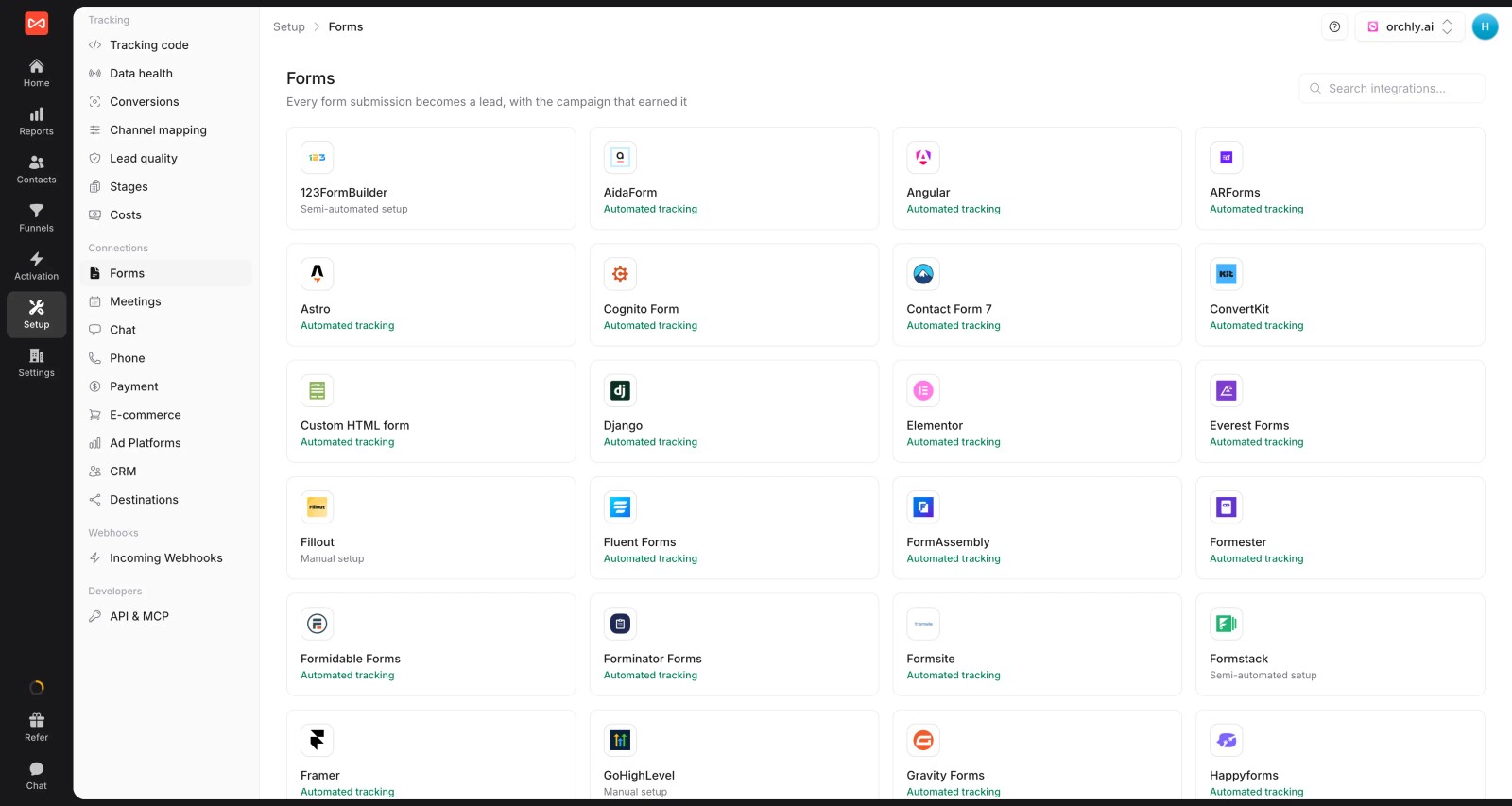
Paste it into Jotform. Open your form's Settings, then Integrations. Search for Webhooks, paste the URL into Add Webhook URL and click Complete Integration.
The webhook is what delivers the submission to SourceLoop. The hidden field is what links it to the visitor's journey.
Step 5: Run a test submission
Open the page in an incognito window and add ?utm_source=test&utm_medium=check&utm_campaign=jotform to the URL. Submit the form with an email you can check.
Within a few seconds, the lead should appear in Contacts with the test campaign as its source. Open it to see the full journey.
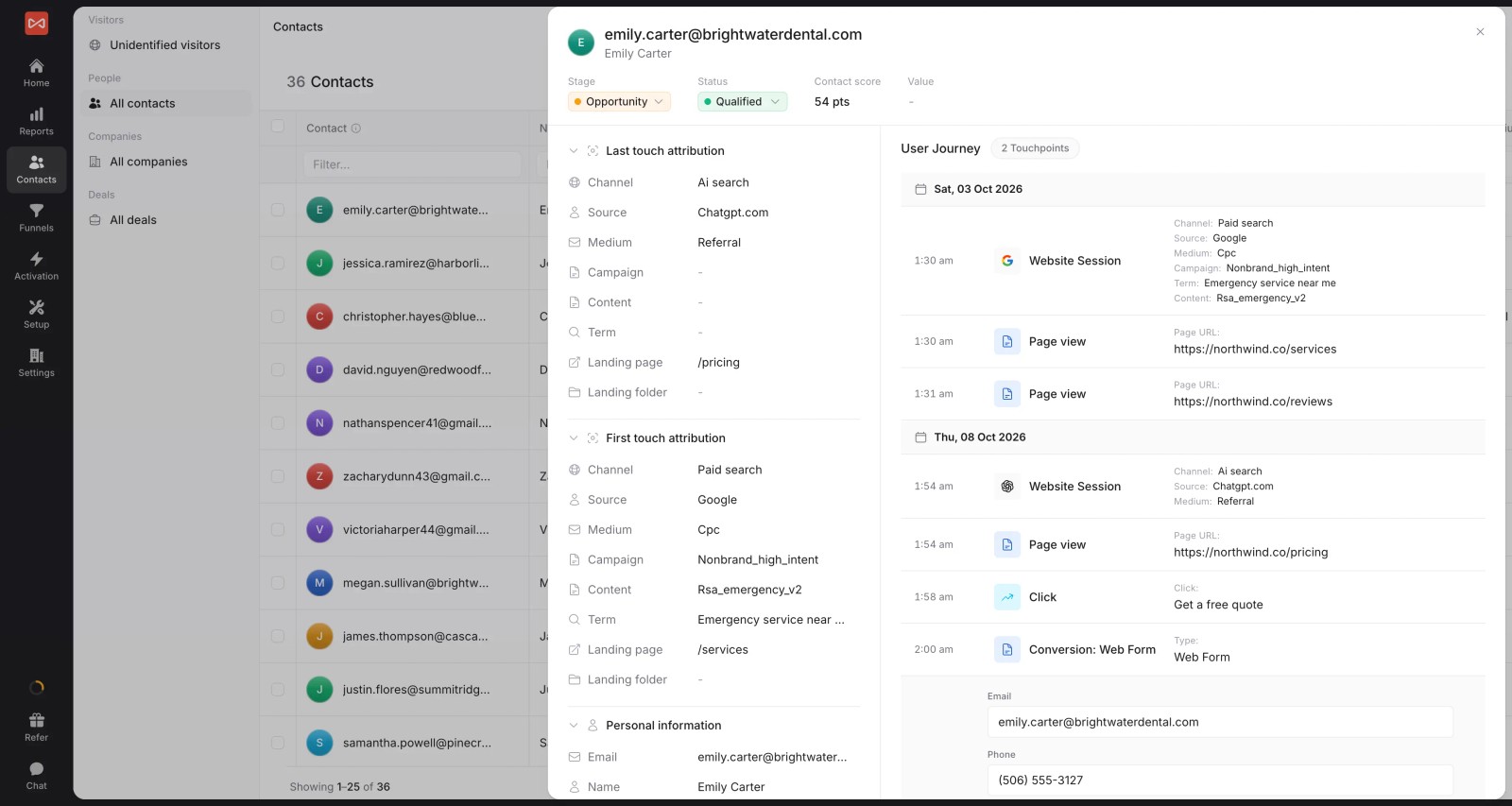
If the lead appears but the source is empty or Direct, check two things: Clear Hidden Field Values is set to Don't Clear, and the hidden field's unique name is exactly sl_aid.
Step 6: Send Jotform leads to Meta
First, connect your ad account under Setup, then Ad Platforms. Then grab two things from Meta:
- Pixel ID: in Events Manager, pick your pixel and copy its ID.
- Access token: in Business Settings, open System Users, assign your pixel to a system user and click Generate new token.
Now go to Activation, then Conversion sync, and pick the Every lead template.
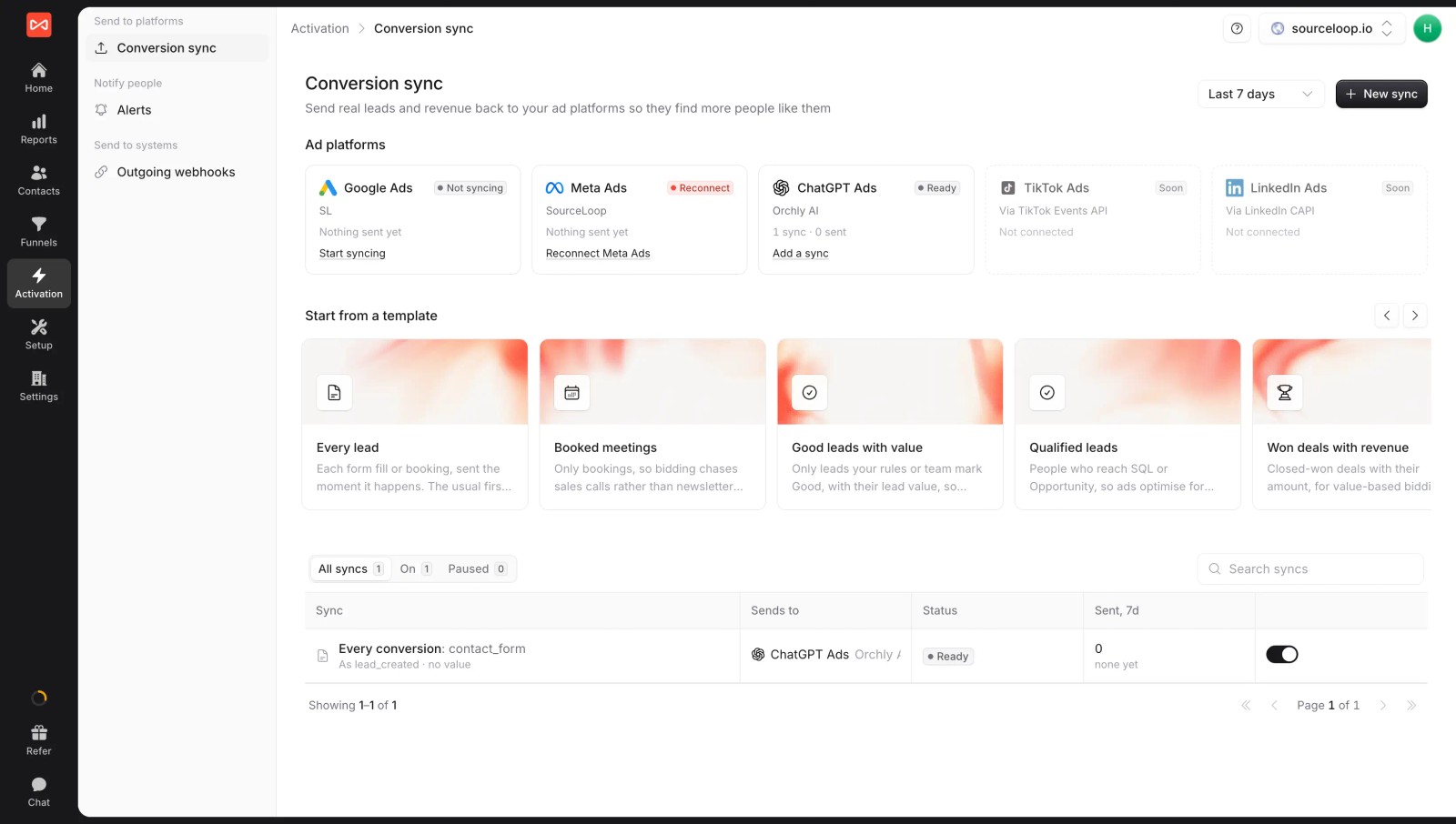
Set it up like this:
- Send to: your Meta ad account, with the Pixel ID and token.
- When: Every conversion.
- Only if: leave it empty for all forms, or tick the event your Jotform webhook creates to send Jotform leads only.
- Send as: Lead, Meta's standard event for sign-ups and enquiries.
- Value: none, a fixed amount or the lead's own value.
- Who counts: People Meta brought, with the last or first Meta click getting credit.
Turn on Send past conversions to include the last 7 days, then click Start syncing.
Step 7: Check what Meta matched on
Open the sync and look at Recent sends. Each lead lists what Meta could match it on:
- The Meta click ID from the visit
- The email from the form, hashed with SHA-256
- The phone number, hashed, if your form asks for one
A form that asks for both email and phone gives Meta the best chance of a match. That matters most for people who tap your ad inside the Instagram app, then come back later in a different browser to fill in the form.
Using several Jotforms?
Many teams run a contact form, a quote form and a demo request, all in Jotform. They aren't worth the same, so don't send them all as one event.
You can split them two ways:
- One webhook per form. Under Setup, then Incoming Webhooks, create a webhook for each form with its own name and event name, such as
quote_request. Paste each URL into its form. - One sync per event. Create a sync for each event under Only if, with its own Meta event name and value.
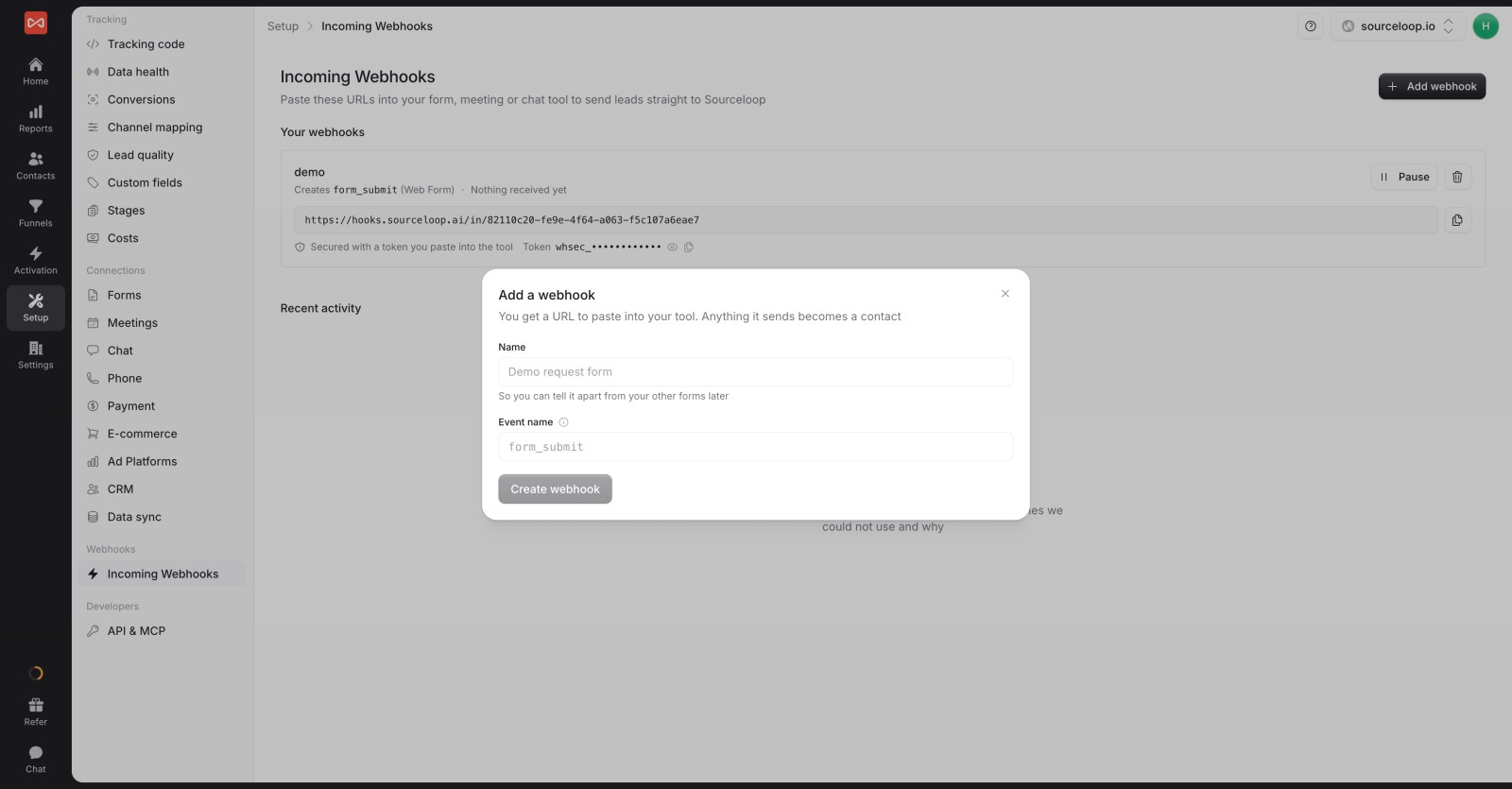
Then optimize your highest-intent campaigns on the event that matters most, like the demo request.
Further reading
Frequently asked questions
-
Why doesn't the Meta Pixel track embedded Jotforms reliably?
An embedded Jotform runs in an iframe on Jotform's domain. A pixel on your page can't see the submit, and a pixel inside the form is cut off from the click ID and cookies on your page. Sending the lead from a server avoids both problems.
-
Does this work on the free Jotform plan?
Yes. The setup uses a hidden field and a webhook, and both are available on every Jotform plan, including the free Starter plan.
-
Why are my Jotform leads showing as Direct?
Usually because Jotform is clearing the hidden field. Set Clear Hidden Field Values to Don't Clear, and check that the field's unique name is exactly
sl_aid. -
What about people who fill in the form through a jotform.com link?
Those submissions still reach SourceLoop through the webhook, but without a visit on your site behind them. They can't be linked to a Meta ad, so they aren't sent to Meta. Embed the form on your site for your ad traffic.
-
Do I need hidden fields for UTMs and fbclid?
No. SourceLoop already records the campaign, click ID and landing page from the visit. The single
sl_aidfield is enough to link the submission to them. -
Which Meta event should Jotform submissions use?
Lead for most enquiry and sign-up forms. If you run several forms, give the high-intent ones their own custom event, such as
DemoRequest, and optimize campaigns on it. -
How quickly does Meta receive a Jotform lead?
Usually within minutes of the submission. Use a test event code during setup to see events under Test events in Events Manager.




 Paid Social


