
How to Track Jotform Submissions as Google Ads Conversions
Get the GCLID onto every embedded Jotform submission and send it to Google Ads as an offline conversion, so Smart Bidding learns from real leads.
Table of contents
- You'll need
- Part 1: Get Jotform leads into SourceLoop
- 1. Install the tracking script
- 2. Change one Jotform setting
- 3. Add the sl_aid hidden field
- 4. Embed the form and connect the webhook
- 5. Test it
- Part 2: Send Jotform leads to Google Ads
- 1. Create a conversion action
- 2. Connect Google Ads
- 3. Create the conversion sync
- 4. Make sure Google gets them
- Why the hashed email matters
- Fixing common problems
- Find the keywords that fill your forms
- Further reading
Google Ads credits a conversion to a click using the GCLID, a long ID added to your landing page URL when someone clicks your ad.
With an embedded Jotform, that ID is stranded. It sits in your page's URL, while the form runs in an iframe on Jotform's domain. Unless something passes it across, the submission never learns which click it came from.
The usual workarounds are fiddly:
- Prefill a hidden `gclid` field from the URL. This only works if the visitor submits on the landing page. Click to a second page and the GCLID is gone.
- Fire a Google tag on a thank-you redirect. It's browser-side, so ad blockers, consent banners and closed tabs all cost you conversions.
- Upload a CSV of GCLIDs every week. It works, but someone has to do it every week.
This guide replaces all three with a setup that captures the click once and sends the conversion from a server.
You'll need
- A Jotform account on any plan, free included
- Edit access to the website where the form is embedded
- A Google Ads account where you can create conversion actions
- A SourceLoop workspace. The free trial covers everything below.
Part 1: Get Jotform leads into SourceLoop
This part takes about ten minutes. If you've already done it for Meta, skip to Part 2.
1. Install the tracking script
Open Setup, then Tracking code in SourceLoop. Pick how your site is built and follow the steps, or paste the snippet into your site's <head>.
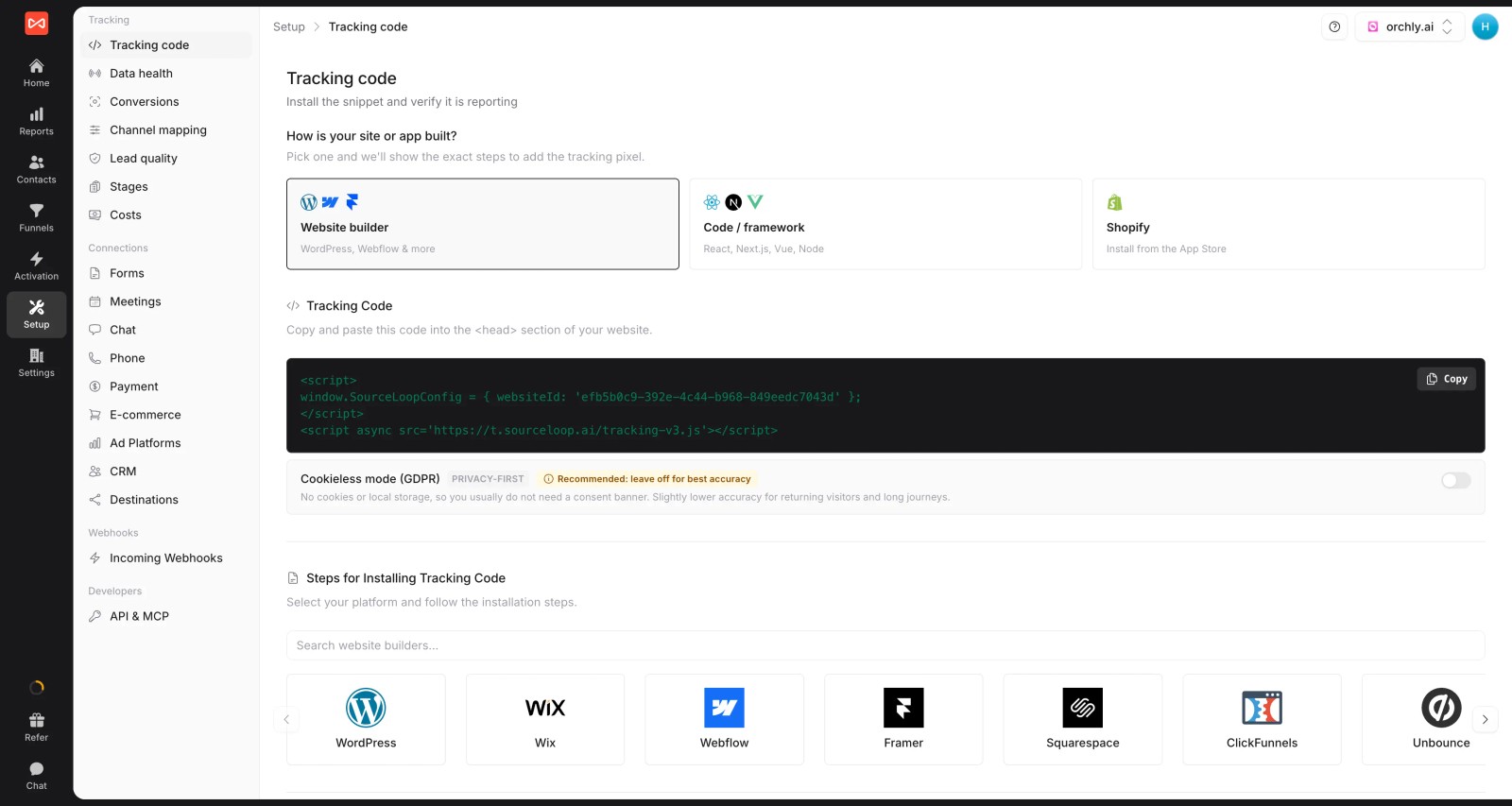
The script stores the GCLID as soon as the visitor lands. It doesn't matter how many pages they read before reaching the form.
2. Change one Jotform setting
In your form, go to Settings, then Form Settings, then Show More Options. Set Clear Hidden Field Values to Don't Clear.
Skip this and Jotform empties your hidden field right before submitting, which breaks the link to the visitor.
3. Add the sl_aid hidden field
In the Form Builder, add a Short Text field. On its Advanced tab, turn on Hide Field and set Unique Name to sl_aid.
That's the only field you add. No gclid, utm_source or landing page fields are needed.
4. Embed the form and connect the webhook
Embed the form on your site with Jotform's iFrame or JavaScript code. Then open the Jotform card under Setup, then Forms in SourceLoop and copy your webhook URL.
In Jotform, go to Settings, then Integrations, then Webhooks. Paste the URL and click Complete Integration.
5. Test it
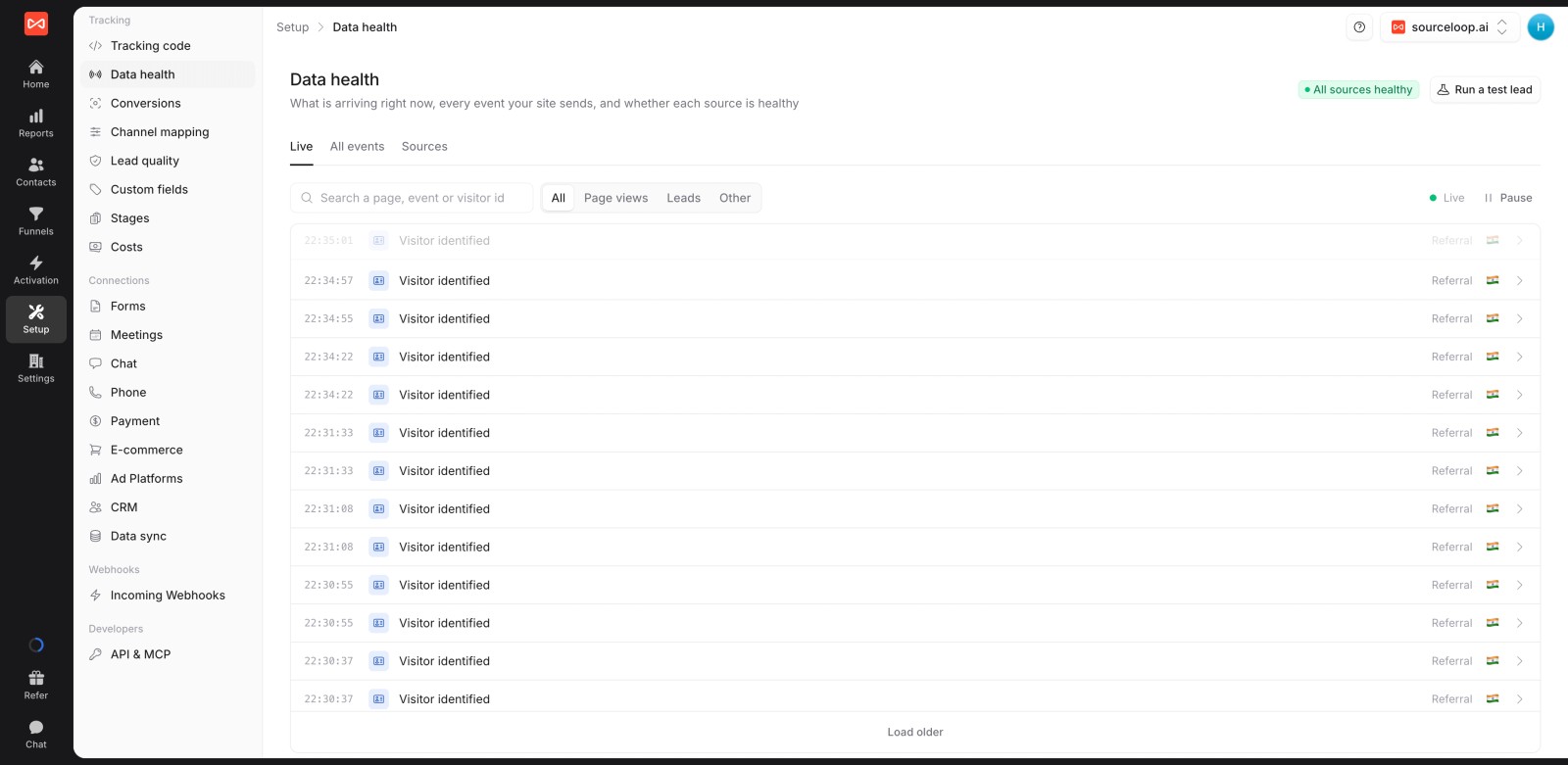
Submit the form once from an incognito window. In SourceLoop, open Setup, then Data health, to see the visit and the lead arrive live. You can also click Run a test lead there.
Part 2: Send Jotform leads to Google Ads
1. Create a conversion action
In Google Ads, open Goals, then Conversions, then New conversion action. Choose:
- Import, then CRMs, files or other data sources, then Track conversions from clicks
- A clear name, like Jotform lead or Quote request
- Count: One, so a person who submits twice after one click is counted once
- Secondary to begin with
Create a separate action for each form you want Google to treat differently.
2. Connect Google Ads
In SourceLoop, go to Setup, then Ad Platforms, and click Connect on Google Ads. Sign in and pick your account.
SourceLoop then imports your campaigns, keywords and spend, and can send conversions to the account.
3. Create the conversion sync
Open Activation, then Conversion sync, then New sync:
- Send to: your Google Ads account
- When: Every conversion
- Only if: tick the event your Jotform webhook creates, so other forms and chats don't use this action
- Send as: the Jotform lead action. Click refresh the list if you just created it.
- Value: a fixed amount per lead, or No value if you only bid on volume
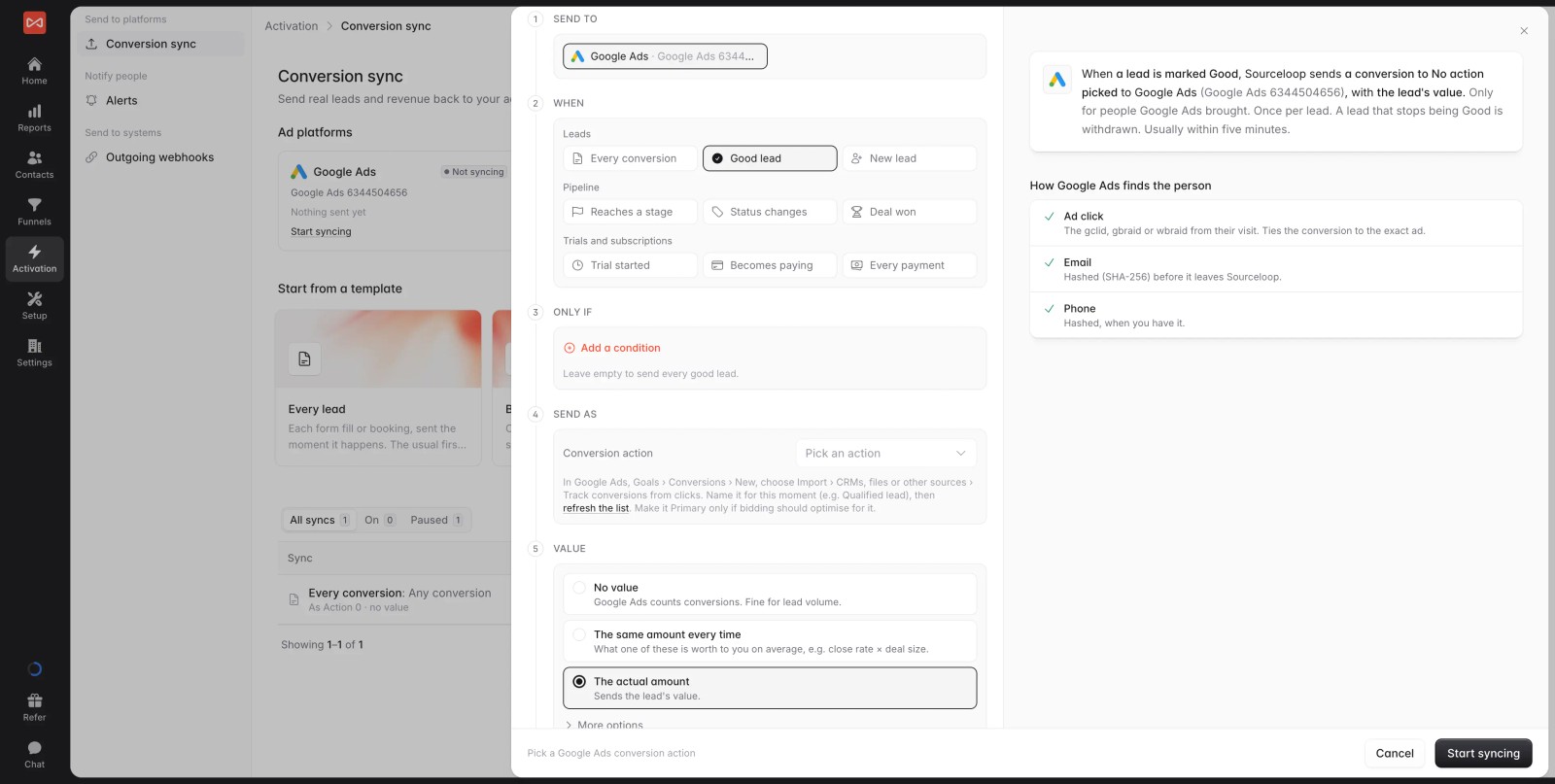
Under Who counts, choose between:
- People Google Ads brought: any lead whose journey includes a Google ad. This is the right default.
- Only with a click ID: stricter. Use it if you want every conversion to map to an exact click.
Turn on Send past conversions. Google accepts up to 60 days of history, which helps a new action start with data. Then click Start syncing.
4. Make sure Google gets them
In SourceLoop, open the sync and check Recent sends. Each lead shows whether Google matched it on the click ID, the email or the phone.
In Google Ads, open the conversion action. Conversions appear a few hours after they're sent.
Why the hashed email matters
Not every lead arrives with a GCLID. iPhone users from some Google apps come through with gbraid or wbraid instead, and some visitors switch devices before they convert.
SourceLoop handles both:
- It sends
gbraidandwbraidwhen there's no GCLID. - It sends the lead's email and phone, hashed with SHA-256, with every conversion. Google uses them to match the lead to the signed-in user who clicked.
That's the same idea as Google's enhanced conversions for leads, without adding a tag to your site.
Fixing common problems
Leads show in SourceLoop as Direct. Jotform is clearing the hidden field, or the unique name isn't exactly sl_aid. Check both.
Leads arrive, but nothing reaches Google. Check Who counts. If the lead's journey has no Google ad, it's correctly left out. Recent sends lists anything waiting or skipped, with the reason.
Some conversions are marked skipped. The click is older than the conversion window set on your Google action, which is up to 90 days. Google rejects those, so SourceLoop skips them instead of retrying.
Submissions from the jotform.com link have no source. The direct link skips your website, so there's no visit and no GCLID. Point your ads at a page that embeds the form.
Find the keywords that fill your forms
Google reports conversions by its own rules. In SourceLoop, open Reports, then Ads performance, and switch to the Keyword tab. You'll see your spend and Google's conversions next to the Jotform leads SourceLoop credits to each keyword.
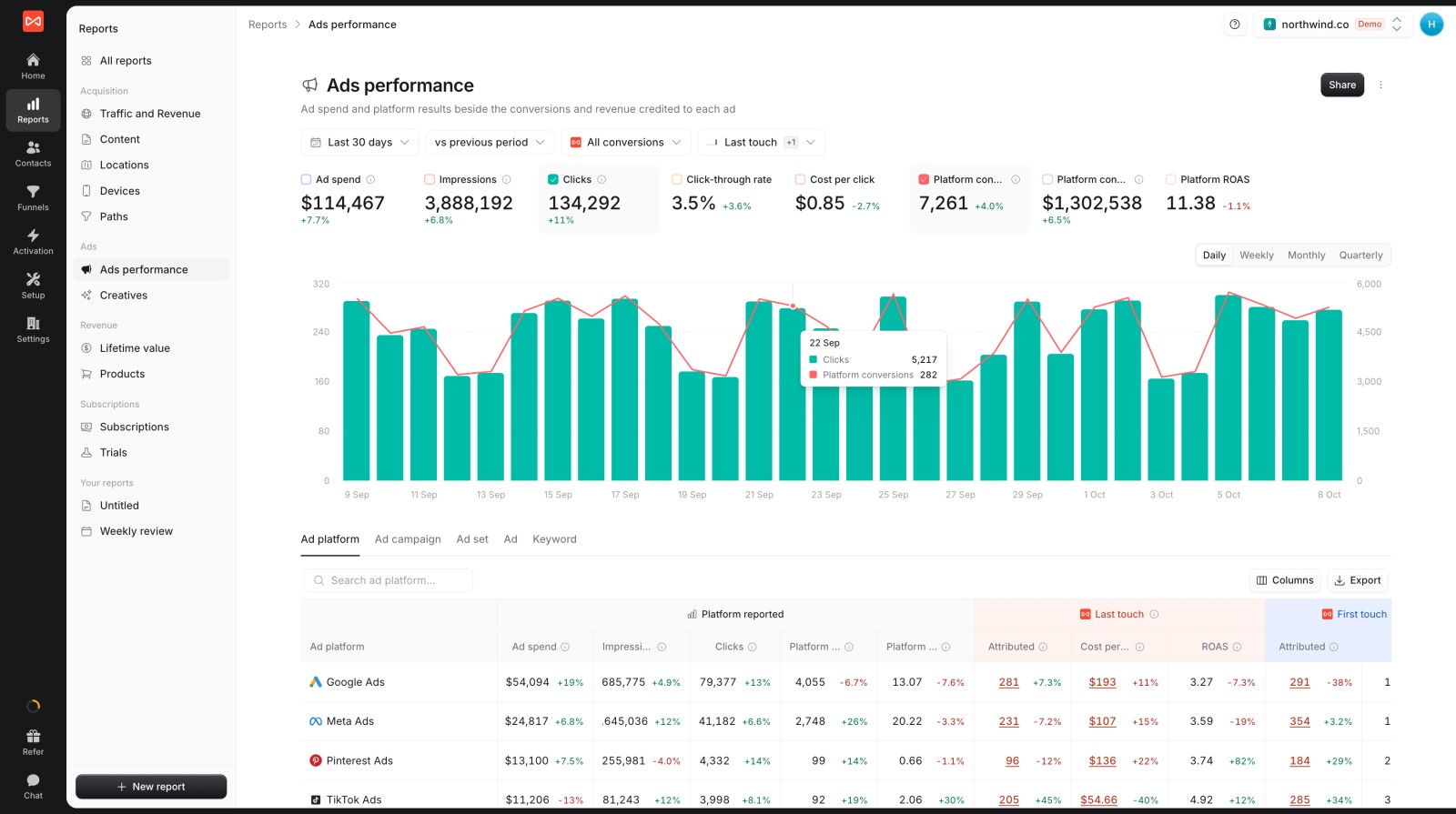
Keywords with plenty of clicks but no credited leads are the first place to cut spend.
Further reading
Frequently asked questions
-
Can Jotform pass the GCLID to Google Ads on its own?
Only partly. You can prefill a hidden field from the URL, but the GCLID is lost once the visitor moves to another page before submitting. You'd still need to upload the conversions to Google yourself.
-
Do I need a hidden gclid field in Jotform?
No. SourceLoop records the GCLID when the visitor lands. The single
sl_aidhidden field links the submission to that visit. -
Does this work with the free Jotform plan?
Yes. Hidden fields and webhooks are available on every Jotform plan, including the free Starter plan.
-
How far back can I send Jotform leads to Google Ads?
When you create the sync, Send past conversions sends up to 60 days of earlier leads. Google only accepts conversions within the click-through window of your action, up to 90 days.
-
Should I use one conversion action for all my Jotforms?
Only if they're worth the same. A demo request and a newsletter sign-up shouldn't share an action. Create one action per form type, and one sync per action.
-
Is this the same as Google's enhanced conversions for leads?
It works the same way. Each conversion includes the lead's hashed email and phone, so Google can match leads without a click ID. You don't need to add a Google tag to the form.
-
How long until conversions show in Google Ads?
Usually a few hours after SourceLoop sends them. Check Recent sends in the sync to confirm they went out.



 Paid Social


