
Google Ads Tracking Template: Setup Guide With Examples
What a Google Ads tracking template does, when to use the final URL suffix instead, and copy-paste setups with ValueTrack parameters and UTMs.
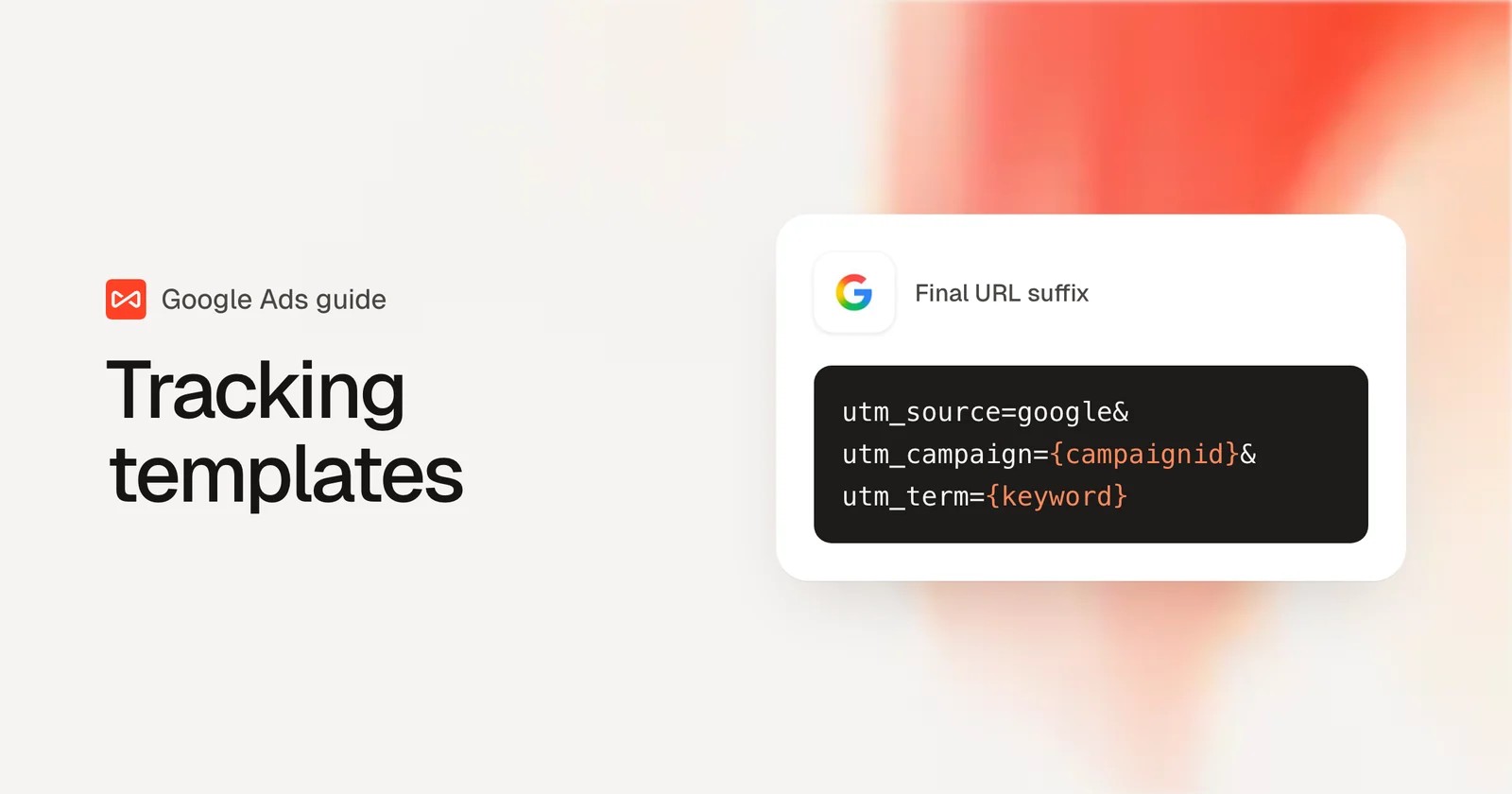
Table of contents
- Tracking template vs final URL suffix vs custom parameters
- What a tagged click looks like
- The ValueTrack parameters worth using
- How to set up a Google Ads tracking template
- 1. Write your final URL suffix
- 2. Add a tracking template only if a tracker needs it
- 3. Set it at the account level
- 4. Test it before you trust it
- How SourceLoop turns these parameters into keyword-level revenue
- Step 1: Install the tracking script
- Step 2: Connect your Google Ads account
- Step 3: See the source on every lead
- Step 4: Report leads and revenue by keyword
- Step 5: Send qualified leads back to Google Ads
- 6 mistakes that break Google Ads tracking
- 1. Putting UTMs in the final URL
- 2. Leaving out {lpurl}
- 3. Turning off auto-tagging
- 4. Relying on {keyword} in Performance Max
- 5. Templates left behind at old levels
- 6. Parameters stripped by your own site
You want to know which campaign and keyword brought in a lead. Google Ads gives you three fields to pass that information along, and most setups mix them up.
In this guide, I'll explain what each field does, give you a template you can paste in today, and show you how to turn those parameters into keyword-level leads and revenue.
Tracking template vs final URL suffix vs custom parameters
All three live under URL options in Google Ads. They do different jobs.
| Field | What it does | Use it for |
|---|---|---|
| Tracking template | A URL Google pings when the ad is clicked. Must include {lpurl}. | Third-party click trackers and redirect services |
| Final URL suffix | Parameters added to the end of your landing page URL | UTMs and ValueTrack values your site and CRM should see |
| Custom parameters | Your own {_name} placeholders, up to 8 per campaign, ad group or keyword | Readable labels Google doesn't provide, like a campaign nickname |
The split matters because of parallel tracking.
Since 2018, Google sends visitors straight to your landing page and pings the tracking template separately in the background. Parallel tracking is now mandatory for Search, Shopping, Display, Video and Performance Max campaigns.
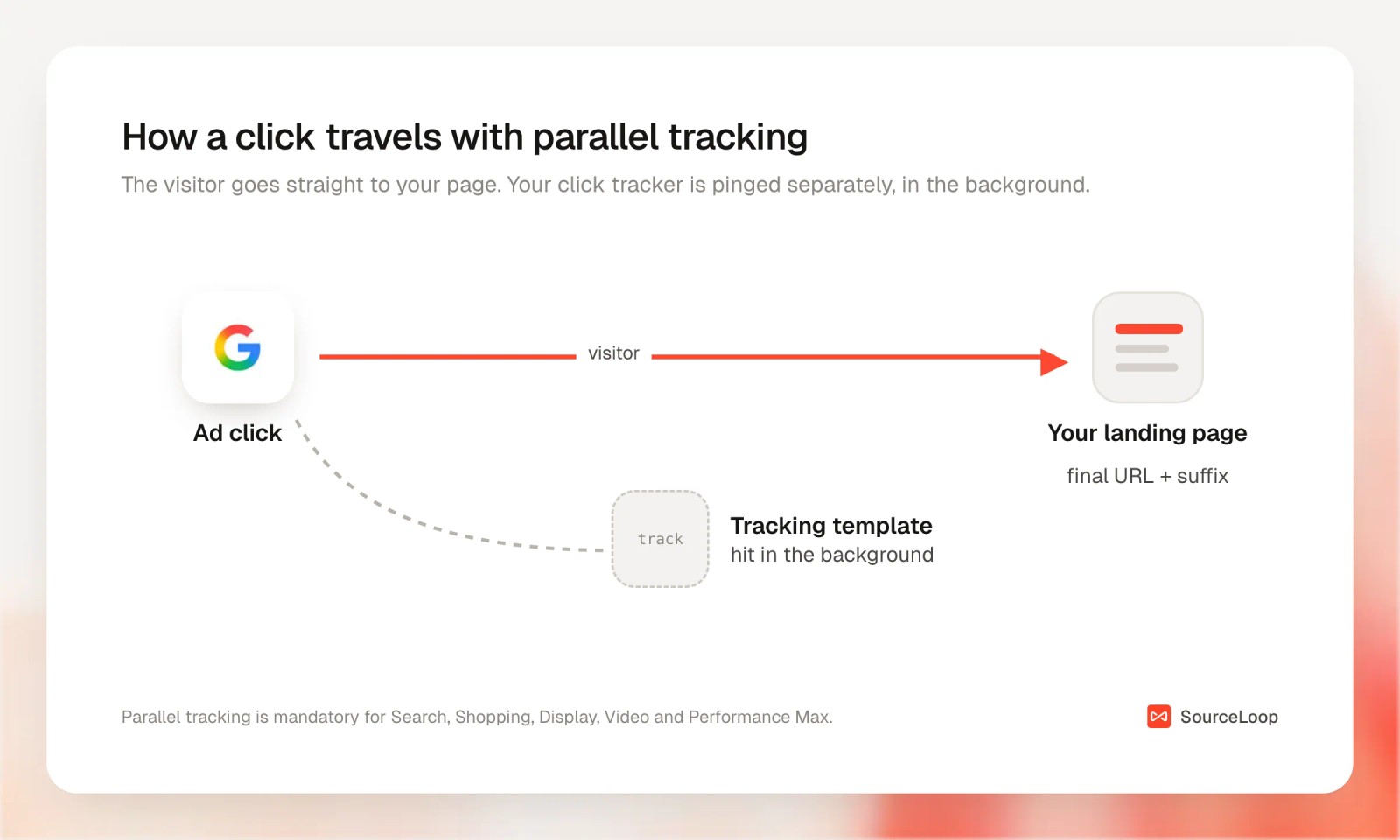
So the visitor never passes through the tracking template. If your UTMs only live there, your site may never see them.
Put parameters your site needs in the final URL suffix. Use the tracking template only when a third-party tracker needs its own ping.
What a tagged click looks like
Here's the landing page URL your site receives when all three pieces work together.
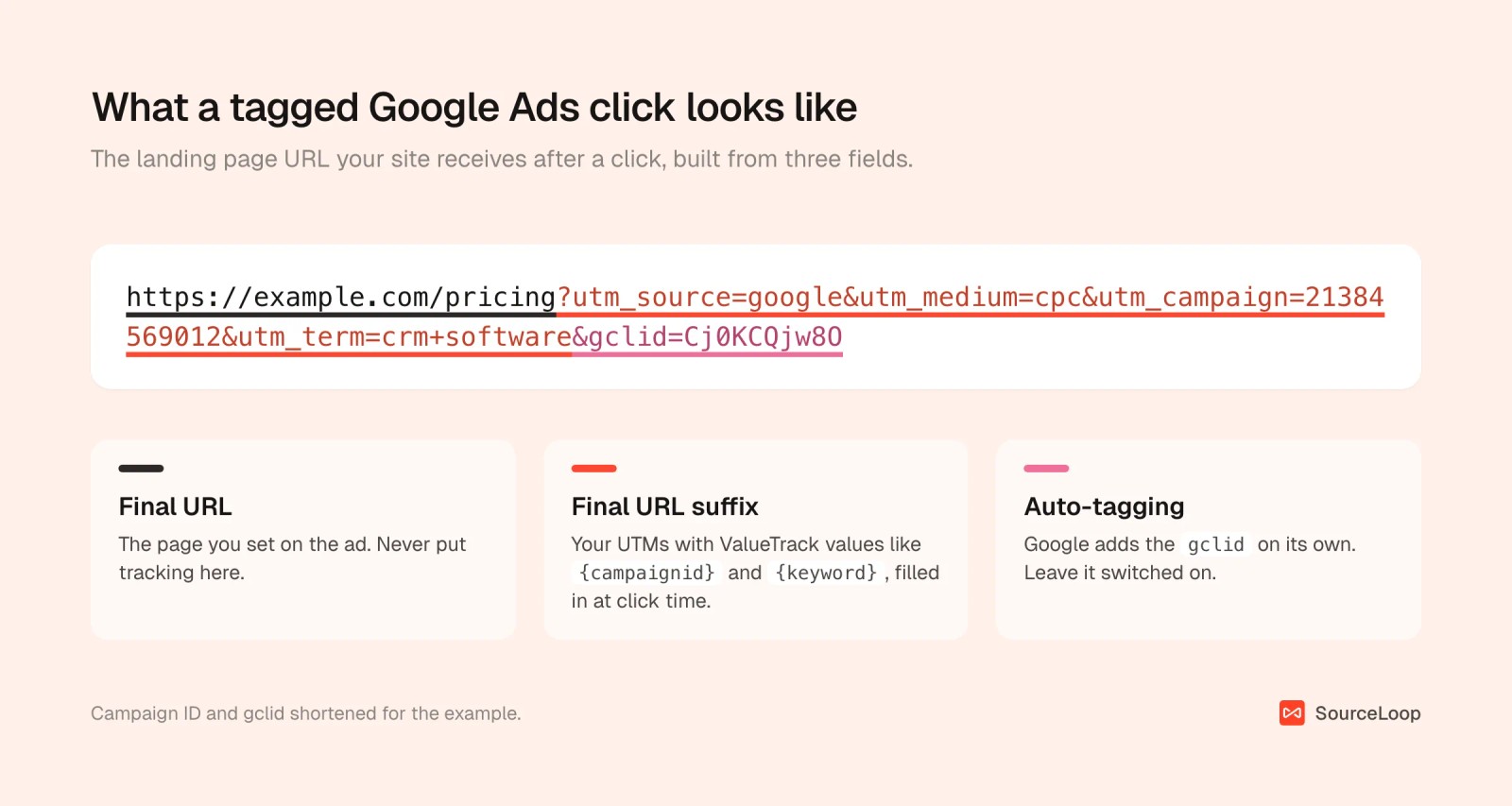
The gclid comes from auto-tagging, which is on by default for new accounts. Keep it on. Google needs it to record conversions in some browsers, and it's what most tools use to match a visit back to the exact click.
The ValueTrack parameters worth using
ValueTrack parameters are placeholders Google fills in at click time. Google's full ValueTrack list is long, but these do most of the work:
| Parameter | What it returns | Watch out for |
|---|---|---|
{campaignid} | The campaign ID | An ID, not a name |
{adgroupid} | The ad group ID | |
{creative} | The ad ID | |
{keyword} | The keyword that matched the search | Blank for Performance Max, DSA and AI Max keywordless traffic |
{matchtype} | e, p, b, or a for AI Max keywordless | |
{targetid} | The keyword, audience or product target ID | Useful when {keyword} is blank |
{network} | g (Search), s (search partners), d (Display), ytv (YouTube), x (Performance Max) | Not supported for Demand Gen |
{device} | m, t or c (mobile, tablet, computer) | |
{loc_physical_ms} | The location ID where the click happened | |
{lpurl} | Your final URL | Tracking template only |
How to set up a Google Ads tracking template
There are four steps, and the first one is the only one most accounts need.
1. Write your final URL suffix
Paste this into the Final URL suffix field. It's the setup we recommend for most accounts:
utm_source=google&utm_medium=cpc&utm_campaign={campaignid}&utm_content={creative}&utm_term={keyword}&matchtype={matchtype}&network={network}&device={device}Leave out the leading ?. Google adds the right separator for you.
Using {campaignid} for utm_campaign looks odd, but IDs never break when someone renames a campaign. Any tool connected to your Google Ads account can turn the ID back into a name.
If you need readable names in UTMs, add a custom parameter at each campaign, say _cname with the value brand-us, and use utm_campaign={_cname}. Custom parameter names can only use letters and numbers, and values can't contain spaces.
Not sure your UTMs are clean? Run a sample through the UTM validator, or build a set with the UTM campaign builder or the bulk UTM generator.
2. Add a tracking template only if a tracker needs it
If you use a third-party click tracker, it will give you a template. It usually looks like this:
https://track.example.com/click?cid={campaignid}&kw={keyword}&url={lpurl}Three rules apply:
- It must contain
{lpurl}. Without a URL insertion parameter, the landing page URL breaks. - It must be HTTPS, and every redirect in the chain must be server-side. Google's tracking overview covers the details.
{lpurl}is escaped unless it sits at the very start of the template. That's what a redirect tracker expects in the middle of a URL.
No third-party tracker? Leave the tracking template empty. The suffix does the job.
3. Set it at the account level
URL options can be set on the account, campaign, ad group, ad, keyword and sitelink. The most specific one wins.
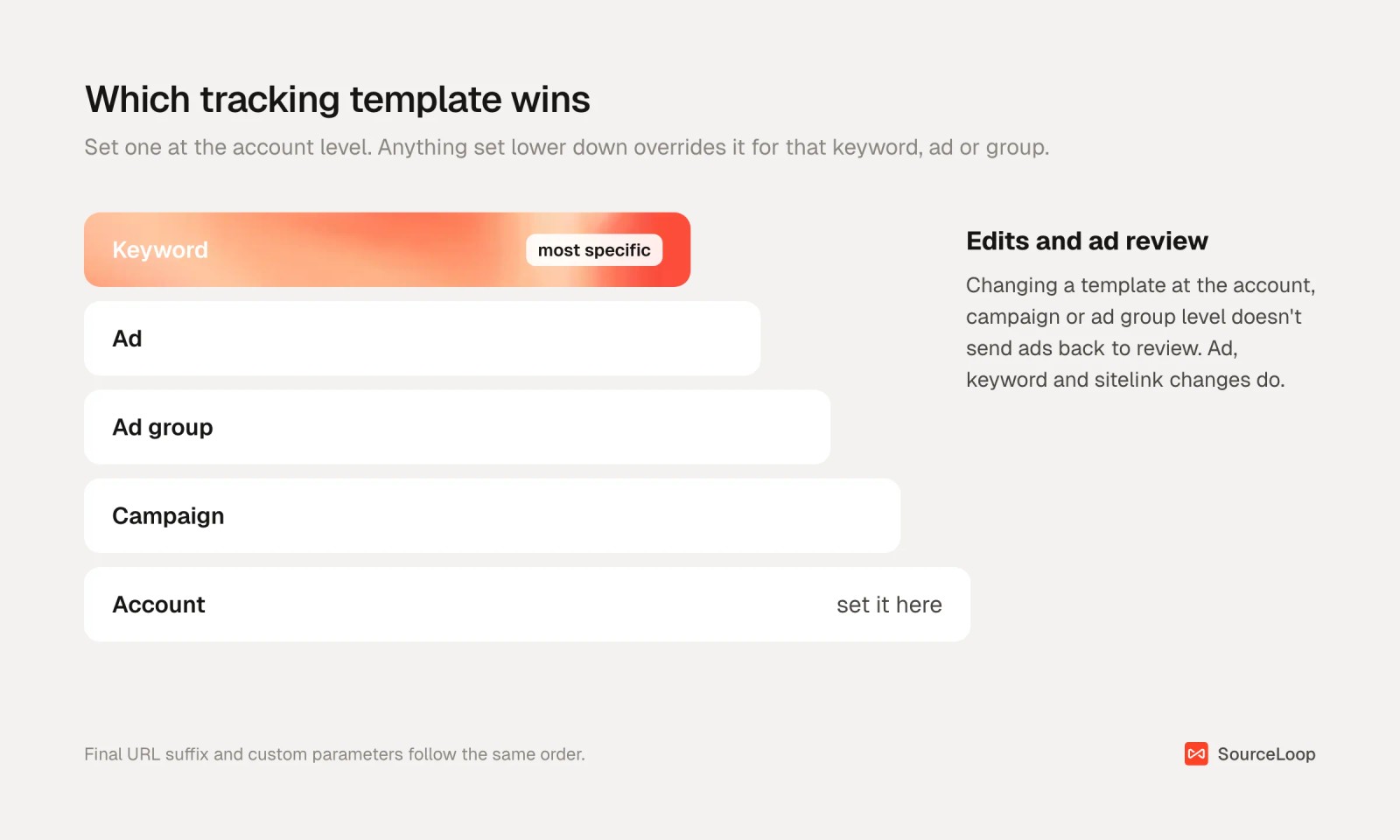
Set the suffix once under Admin > Account settings > Tracking. It then applies to every campaign that doesn't override it.
There's a practical reason to stay high up. Changes at the account, campaign or ad group level don't send ads back to review. Changes at the ad, keyword or sitelink level do.
4. Test it before you trust it
Click Test next to the tracking template in your account settings. A red X means the URL is broken, though Google warns that not every error is caught.
Then check a real click:
- Search for one of your keywords and click your own ad. It costs one click.
- Look at the address bar. You should see your UTMs and a
gclid. - Click through to a second page. If the parameters vanished on the first load, something on your site is stripping them.
The usual culprits are redirects: http to https, a trailing slash rule, or a country redirect that drops the query string. Fix those at the server, or capture the parameters on the first page view.
How SourceLoop turns these parameters into keyword-level revenue
Getting the parameters onto the URL is half the job. They vanish the moment the visitor clicks to a second page, unless something stores them.
SourceLoop is a marketing attribution and lead source tracking tool that does that storing. It reads the UTMs and click IDs on every visit, keeps them attached to the person through forms, chats, calls and bookings, and follows them into your CRM. Here's how it uses the setup above.
Step 1: Install the tracking script
Add the script from Setup > Tracking code to your site's head. There are install guides for WordPress, Webflow, Shopify and most site builders.
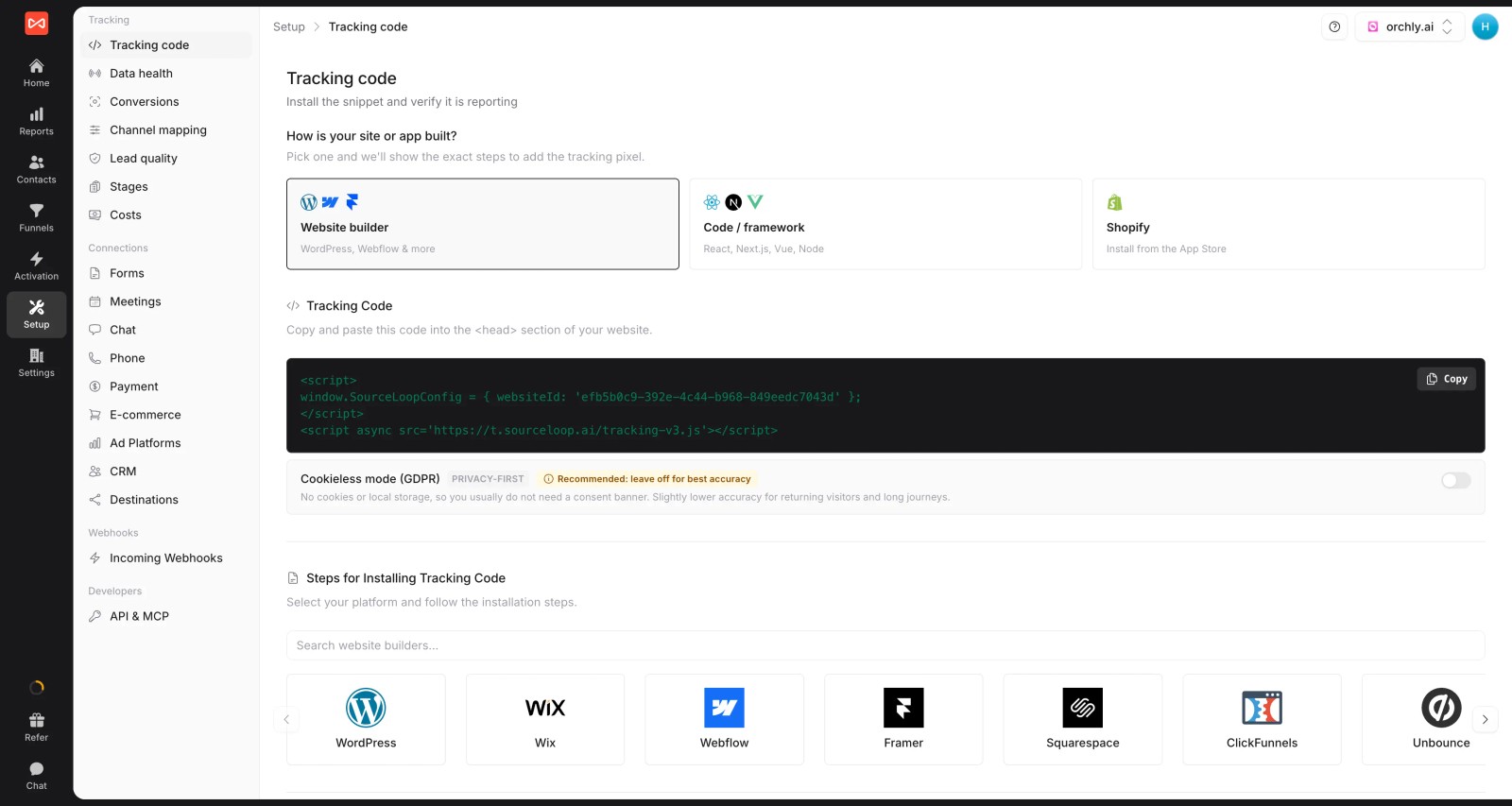
If your forms or checkout live on a subdomain, set up cross-domain tracking so the visit and the lead stay connected.
Step 2: Connect your Google Ads account
Connect Google Ads under Setup > Ad platforms. SourceLoop then imports spend and reads Google's click data every day.
Each gclid is matched to its exact campaign, ad group, ad and keyword, so names always show up correctly in reports. When a visit has no gclid, a utm_campaign holding the campaign or ad group ID is matched instead.
That's why {campaignid} in your suffix earns its place. Some iOS clicks arrive with gbraid or wbraid in place of a gclid, and the campaign ID is what still ties those visits to the right campaign. More on the differences in click IDs explained.
Step 3: See the source on every lead
Open any contact and you'll see first-touch and last-touch attribution, including campaign, keyword and landing page, plus every visit before they converted.
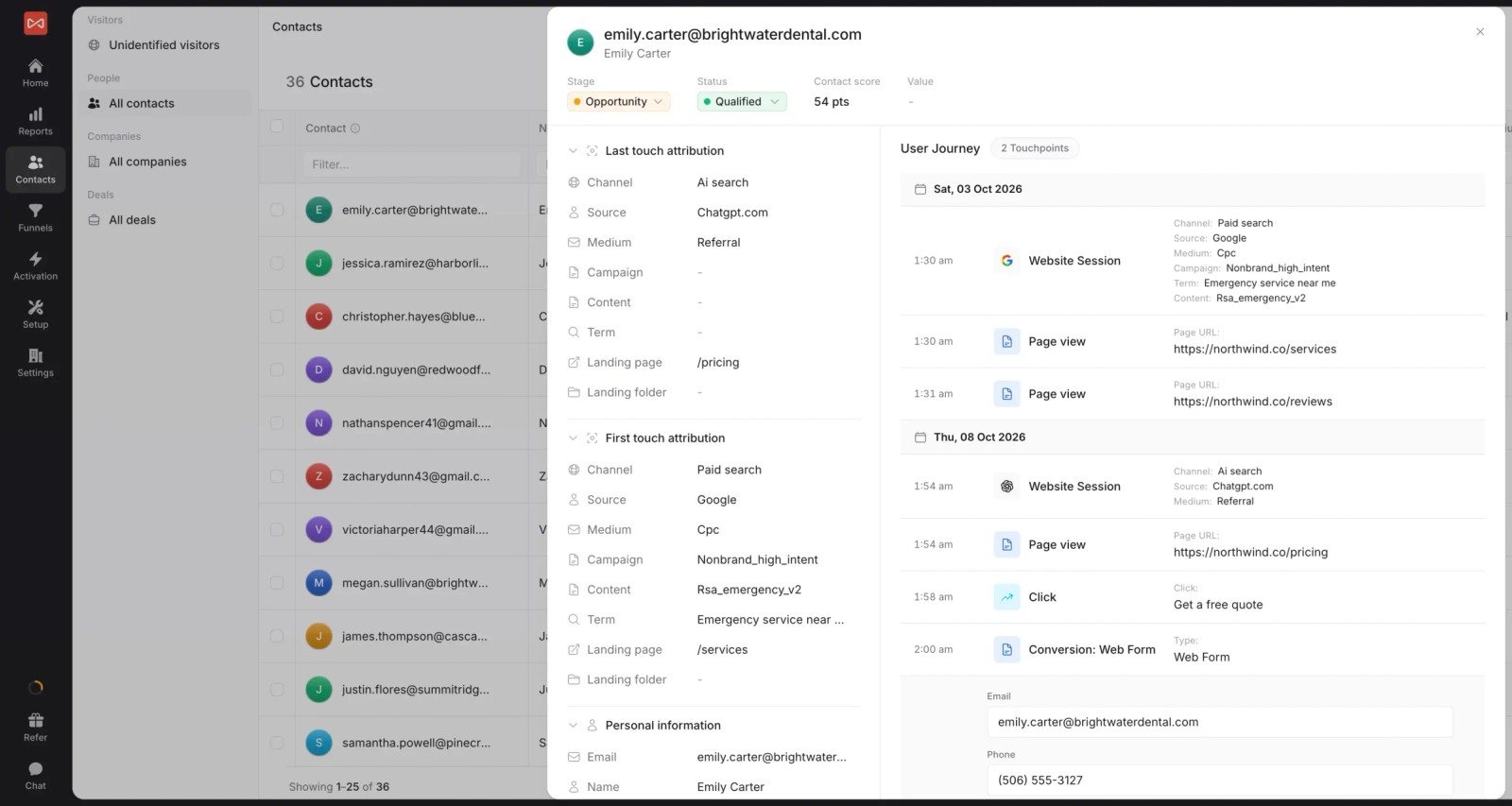
With HubSpot, Salesforce or Pipedrive connected, the same fields land on the CRM record. Here's how that works for Google Ads leads in HubSpot, and for UTMs in any CRM.
Step 4: Report leads and revenue by keyword
Open Reports > Ads performance and switch the table to Keyword. Spend and clicks from Google sit beside the leads, deals and revenue SourceLoop credits to each keyword.
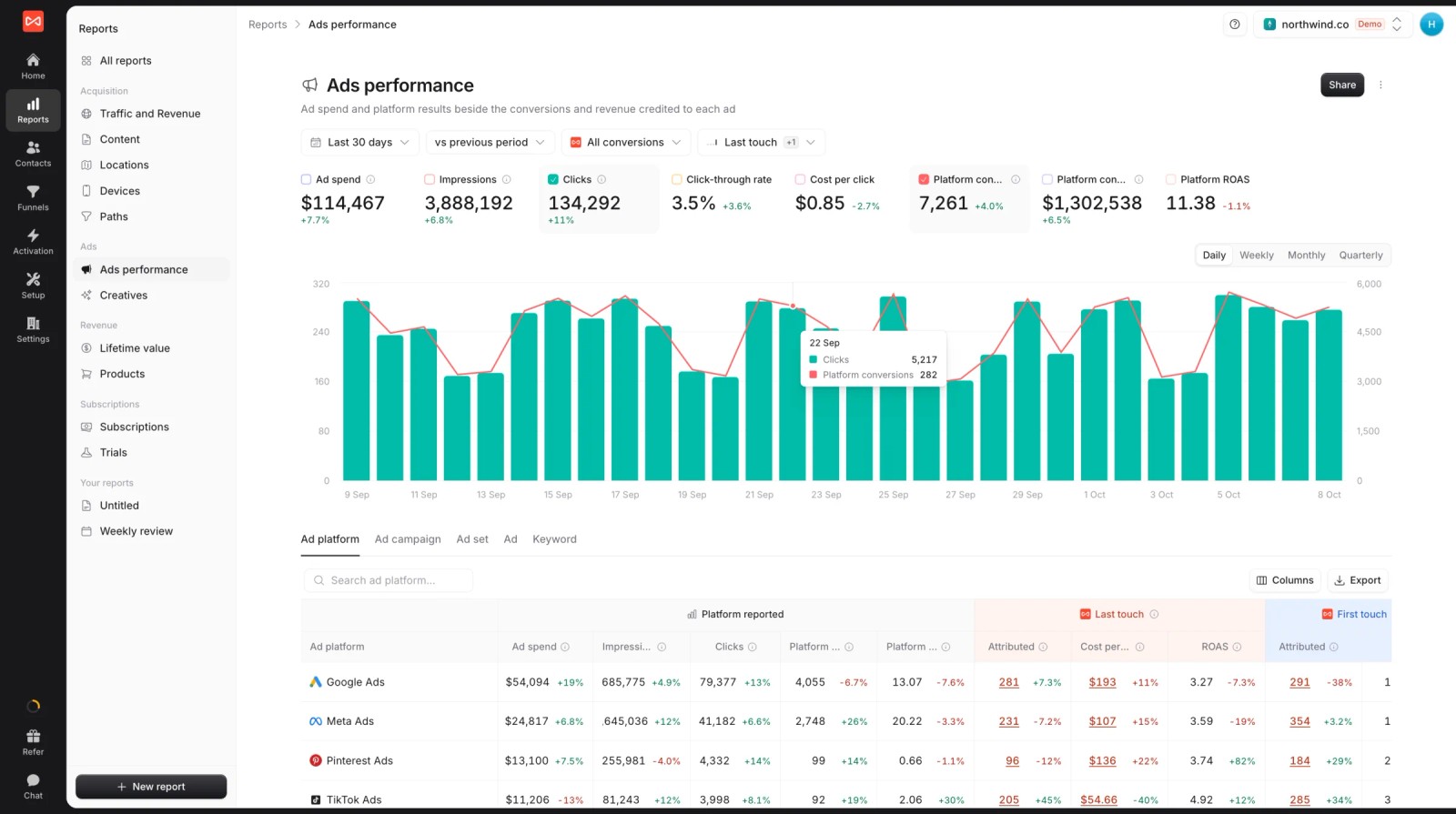
This is where cheap keywords and profitable keywords stop looking the same. The Ads performance guide walks through each column.
Step 5: Send qualified leads back to Google Ads
Smart Bidding learns from whatever you call a conversion. Conversion sync sends good leads, booked meetings, won deals or revenue back to Google Ads.
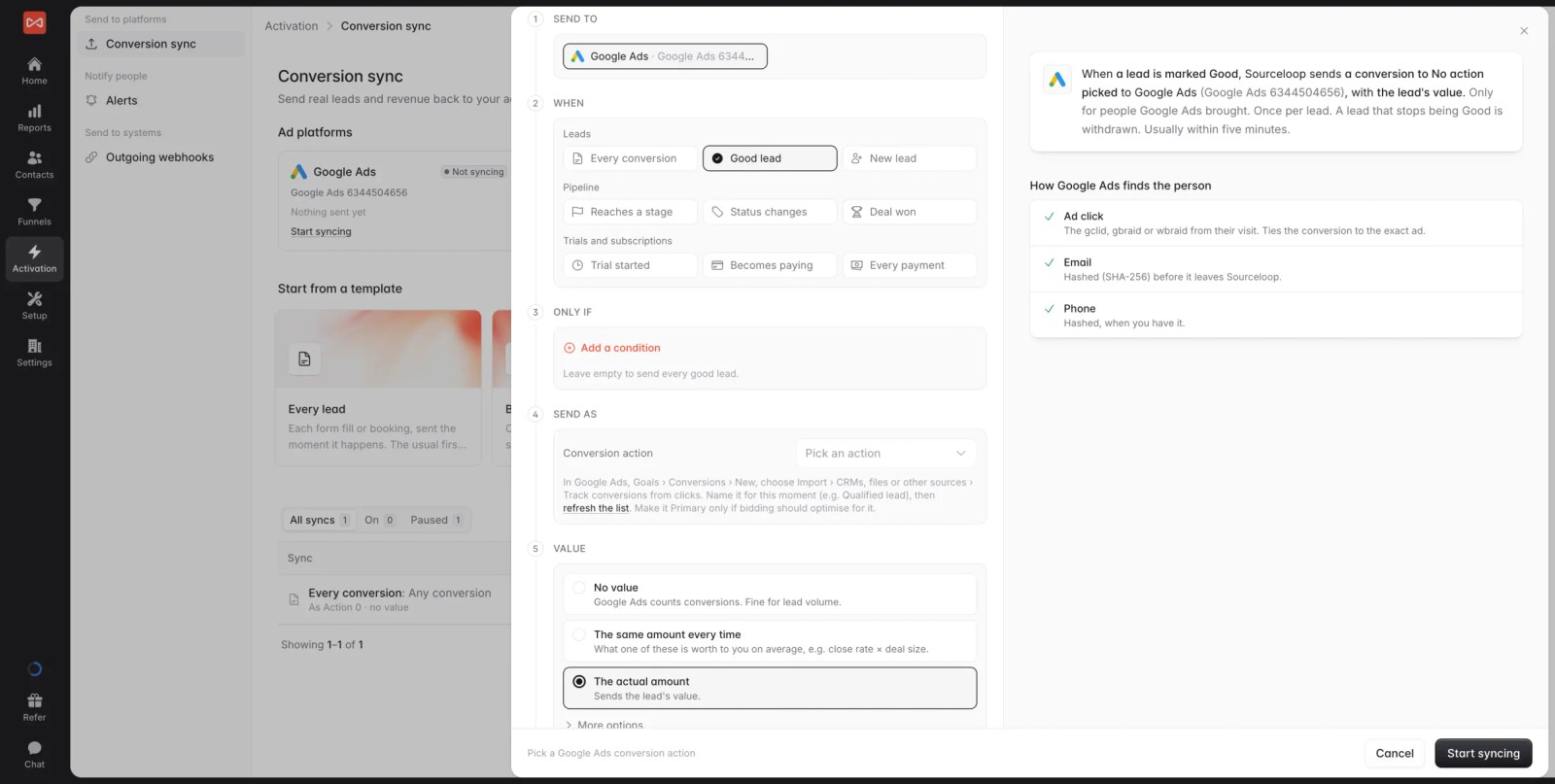
Each one is matched by gclid, gbraid or wbraid, with hashed email and phone as a fallback. The full walkthrough is in configuring Google Ads offline conversions.
6 mistakes that break Google Ads tracking
These are the problems I run into most often when campaign data goes missing.
1. Putting UTMs in the final URL
Every edit to an ad's final URL sends it back to review, and one typo breaks the link. The suffix keeps tracking separate from the page.
2. Leaving out {lpurl}
A tracking template without a URL insertion parameter sends people nowhere useful. Always include {lpurl}.
3. Turning off auto-tagging
In GA4, auto-tagging takes priority over manual UTMs, and there's no override. Keep both: the gclid for Google, the UTMs for everything else. If the numbers still don't line up, here's why Google Ads and Analytics disagree.
4. Relying on {keyword} in Performance Max
It comes back blank for Performance Max, DSA and keywordless traffic. Add {targetid} or {network} so those clicks are still labeled.
5. Templates left behind at old levels
A forgotten template on one ad group overrides your account setting. To remove one completely, clear it at every level where it was set.
6. Parameters stripped by your own site
Redirects that drop the query string wipe out everything above. Test with a real click after any site migration.
Frequently asked questions
-
What is a tracking template in Google Ads?
A tracking template is a URL that Google Ads pings when someone clicks your ad, used by third-party click trackers. It must include {lpurl}, which Google replaces with your final URL. With parallel tracking, the visitor goes straight to your landing page and the template is hit in the background.
-
What is the difference between a tracking template and a final URL suffix?
The final URL suffix adds parameters to your landing page URL, so your site, analytics and CRM can read them. A tracking template sends click data to a tracker in the background. Use the suffix for UTMs, and the template only if a third-party tool needs it.
-
Do I need a tracking template if auto-tagging is on?
Not for Google's own reporting. Auto-tagging adds the gclid, which Google Ads and GA4 use. You still want a final URL suffix with UTMs so tools outside Google, like your CRM, know which campaign and keyword each lead came from.
-
Where do I add a tracking template in Google Ads?
Under Admin, then Account settings, then Tracking for the whole account. You can also set URL options in campaign, ad group, ad, keyword and sitelink settings. The most specific level wins.
-
Why is {keyword} blank in my URLs?
{keyword} only fills in when a keyword triggered the ad. It's blank for Performance Max, Dynamic Search Ads and AI Max keywordless traffic. Add {targetid} or {network} to label those clicks.
-
Does changing a tracking template reset my ads?
Not at the account, campaign or ad group level. Those changes apply without sending ads back to review. Changes at the ad, keyword or sitelink level do go through review again.

 Paid Social


