
How to Track UTM Parameters in Zoho Forms
Here are 4 simple steps to capture UTM parameters in Zoho Forms
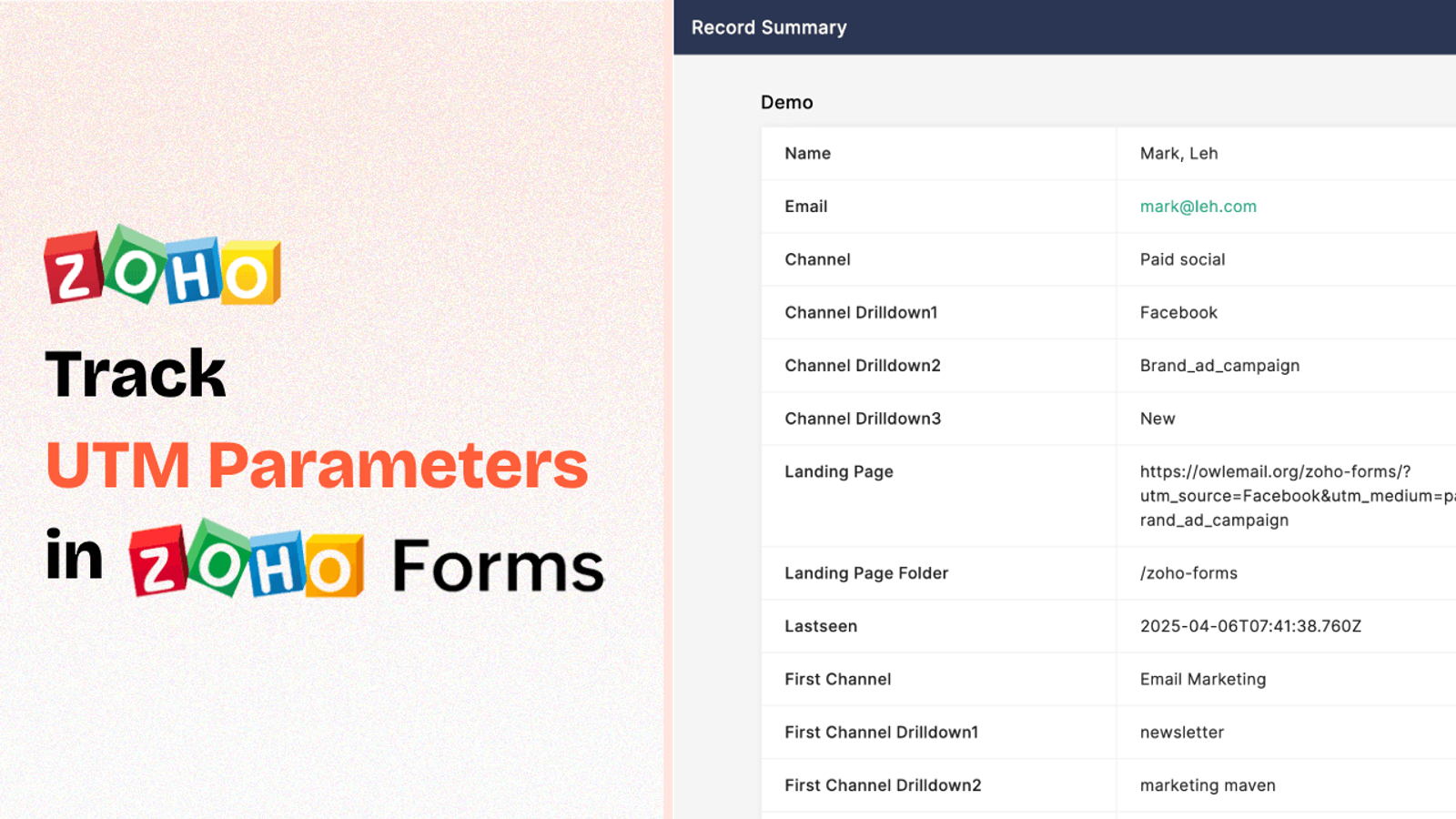
Table of contents
- 5 Easy Steps to Track UTM Parameters in Zoho Forms
- 1. Install SourceLoop on Your Website
- 2. Add UTM Parameters to Your Links
- 3. Track Every Lead’s Journey Automatically
- 4. Add Hidden Fields to Your Forms (Optional)
- 5. UTM Parameters Are Passed for Each Zoho Forms Submission
- Why Zoho’s Native UTM Tracking Falls Short?
Do you know where your latest leads from Zoho Forms came from?
Was it from Meta Ads, Google Organic Search, or a LinkedIn post?
If you don’t, you’re likely not tracking UTM parameters in your Zoho Forms.
In this guide, we’ll walk you through a step-by-step process to track UTM parameters in Zoho Forms using SourceLoop.ai.
Let’s dive in.
5 Easy Steps to Track UTM Parameters in Zoho Forms
Here are four simple steps to capture UTM parameters in Zoho Forms:
1. Install SourceLoop on Your Website

Create a free account on SourceLoop.ai and get your unique tracking code. Add it to the <head> section of your website so SourceLoop can start tracking visitors.
SourceLoop captures how a visitor arrived at your site (UTMs, referring site, etc.), stores this info in the user’s browser cookies, and then passes it to your forms.
It also intelligently categorizes UTM data into easy-to-understand marketing attributes.
Example:
Let’s say Airbnb is using SourceLoop.ai, and a user clicks on one of their Facebook ads.
SourceLoop.ai will capture and organize the user’s visit information like this:
- Channel = Paid Social
- Channel Drilldown 1 = Facebook
- Channel Drilldown 2 = Infleuncer Campaign
- Channel Drilldown 3 = Hotels in London
- Landing Page = www.airbnb.com/hotels/london
- Landing Page Folder = hotels
- Last Seen = March 19, 2025
The best part? It stores both the user’s first and latest visit to your site and passes their lead source information across pages as they browse, ensuring their lead information is never lost.
2. Add UTM Parameters to Your Links

Next, configure UTM parameters in all your marketing links—ads, newsletters, social posts, cold emails, etc.—so that when someone clicks them, SourceLoop can track where they came from.
Here’s what a link with UTM parameters looks like:
https://website.com?utm_source=paid_search&utm_medium=Bing&utm_campaign=prime_offer
Resources:
- How to Set Up UTM Parameters in Google Ads?
- How to Use UTM Codes to Track Your Facebook Ads
- Implementing UTM Parameter Templates on TikTok Ads
3. Track Every Lead’s Journey Automatically
SourceLoop.ai keeps track of every visitor to your website, storing their UTM information and page activity across multiple visits.
When someone submits a form or books a meeting, all of their visit history is automatically linked to their profile and made available in the Lead Manager dashboard.
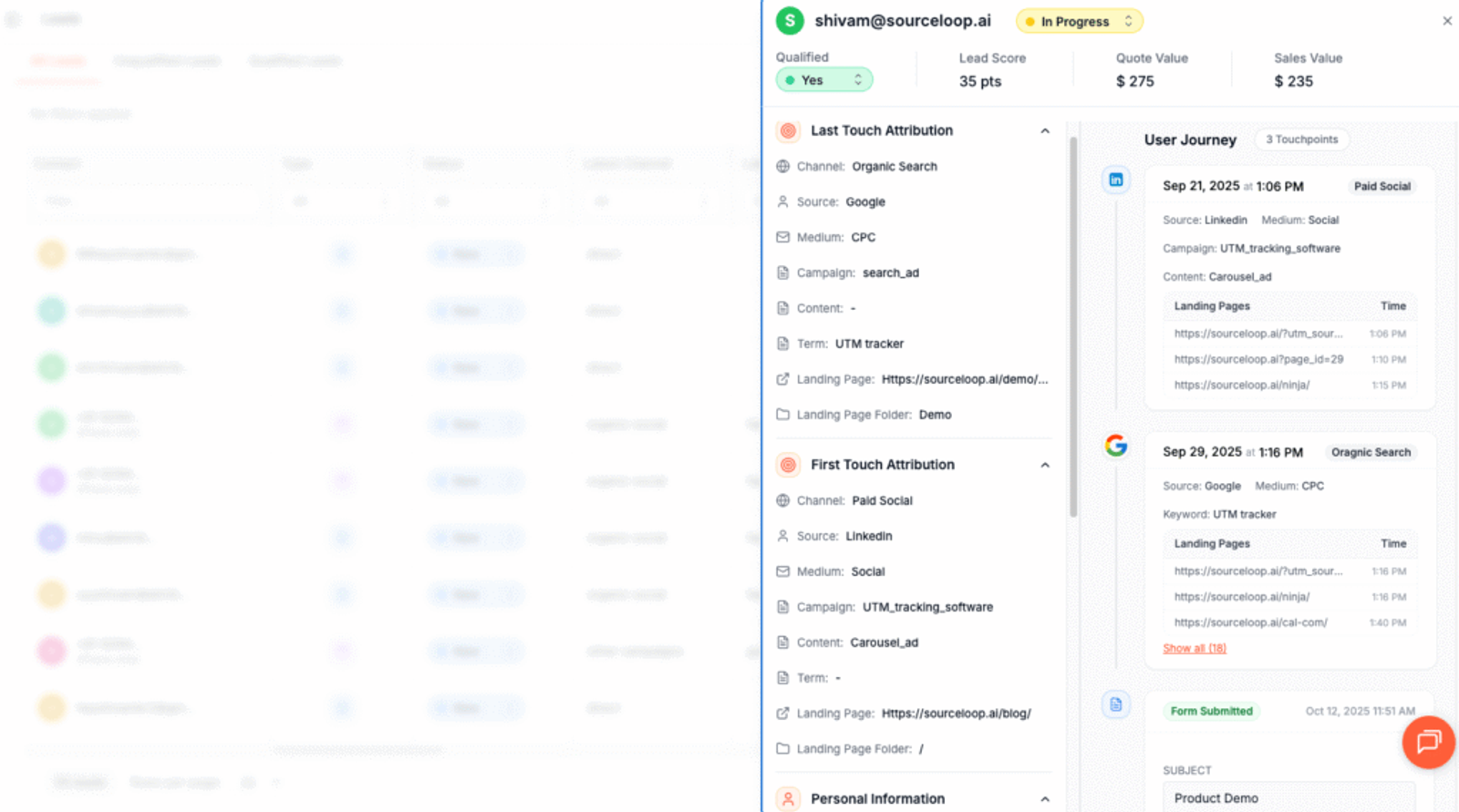
You can easily see which marketing campaign first brought them to your site, the pages they explored along the way, and any return visits.
This feature helps you understand how leads interact with your website and which campaigns are driving real results.
More Tutorials:
- How to Capture UTM Data with JetFormBuilder
- Step-by-Step Guide to Track UTM Parameters in FluentForm
- How to Track UTM Parameters in MetForm
4. Add Hidden Fields to Your Forms (Optional)
You can also capture UTM data in your Zoho form submissions by adding hidden fields to the form.
These fields aren’t visible to users but allow SourceLoop to pass UTM and attribution data into your form submissions.
How to add hidden fields:
1. Open the form you want to integrate with SourceLoop.
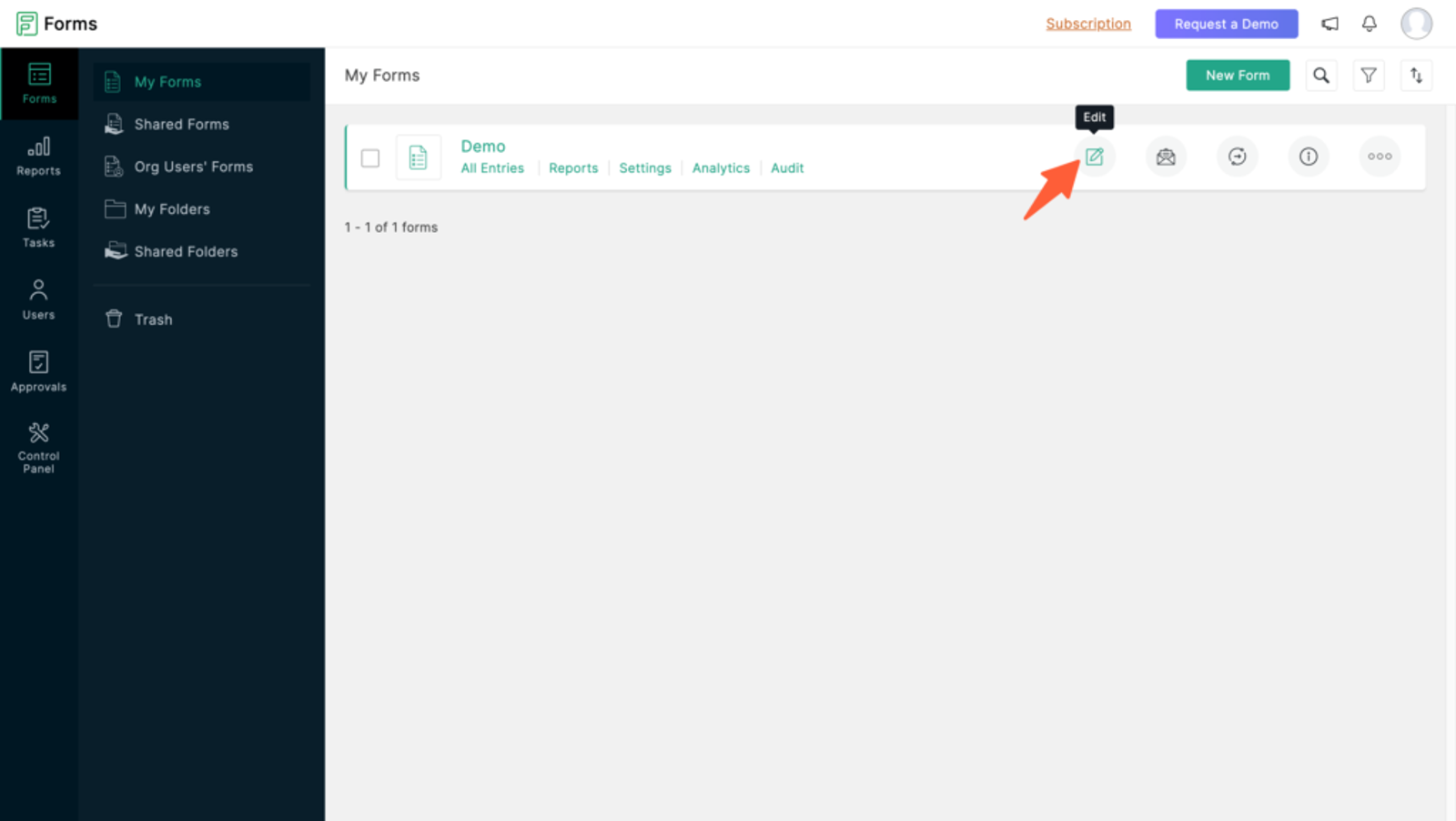
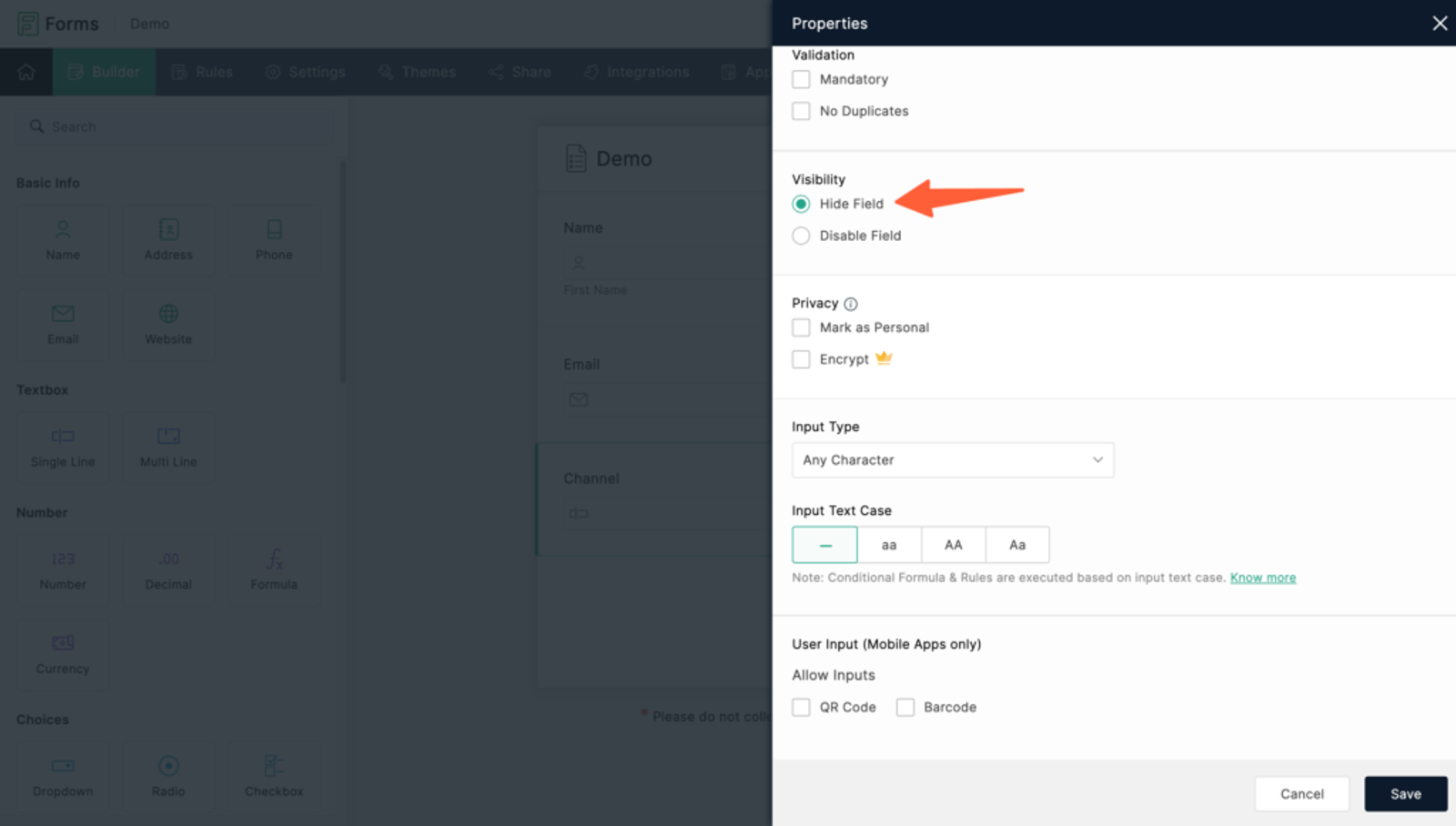
2. Drag and drop a “Single Line” field into the form.
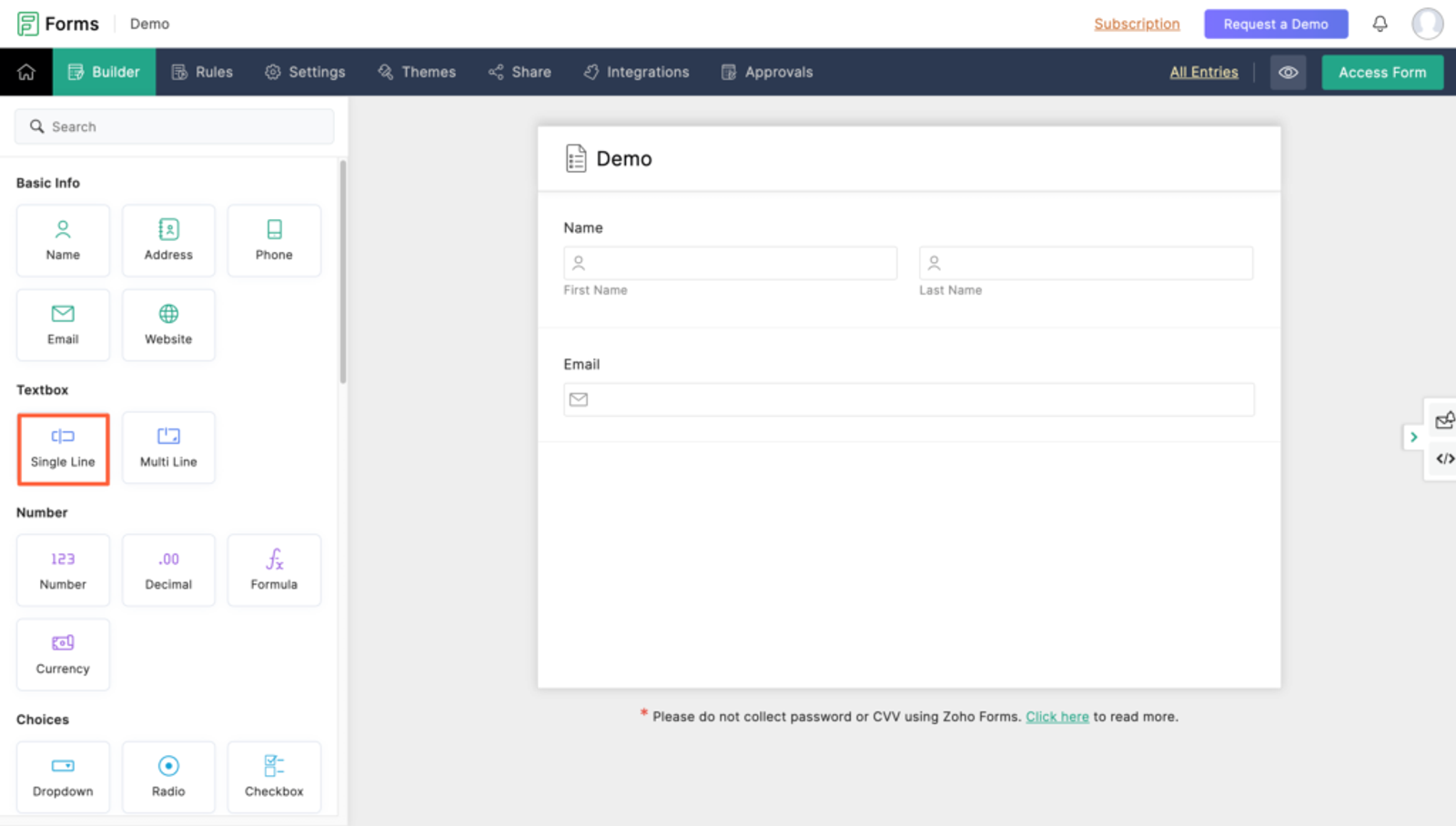
3. Click the field, go to the Visibility section, and check “Hide Field.”
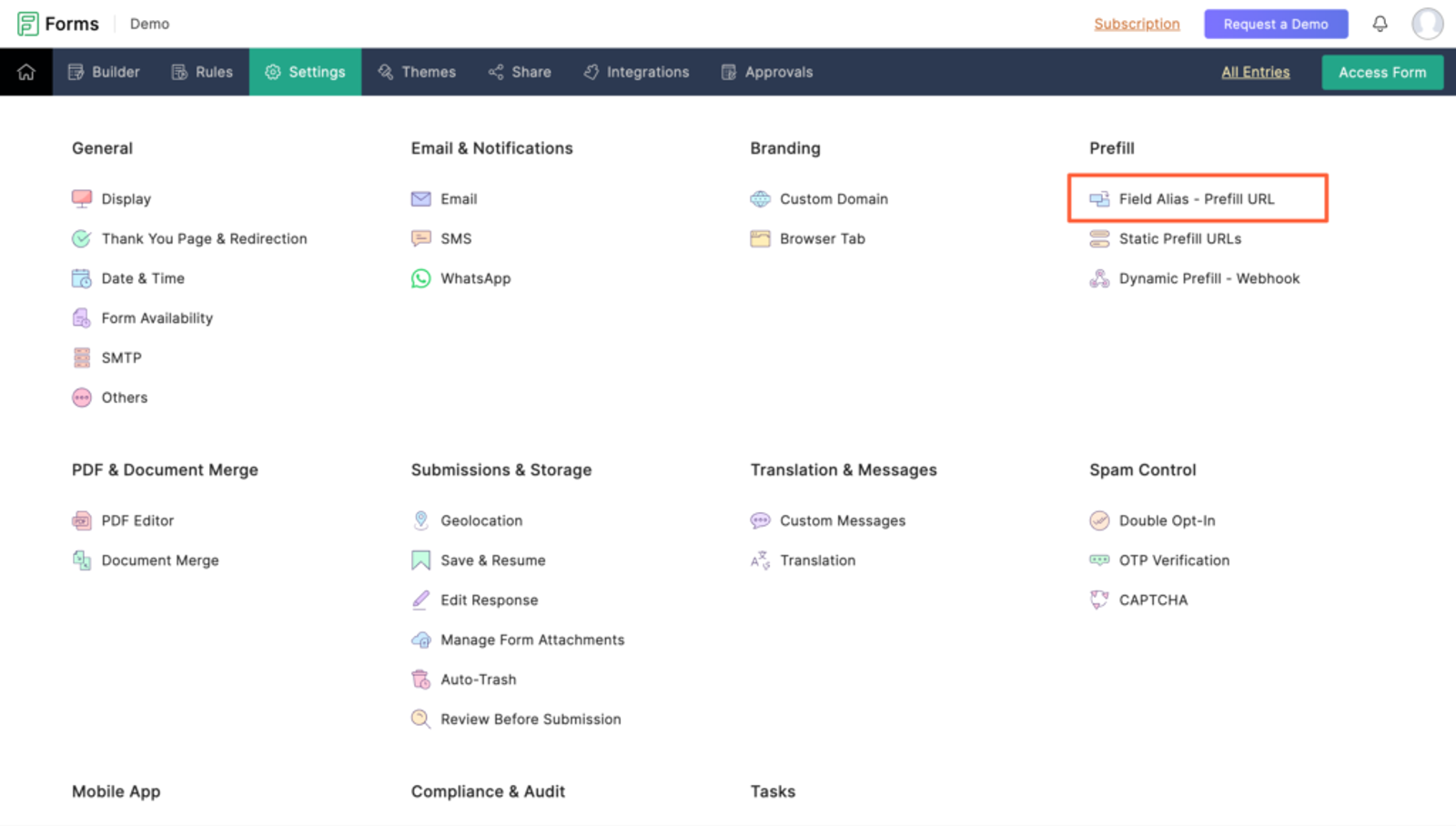
4. Go to the Settings tab and open “Field Alias” settings.
5. For each of the seven hidden fields, assign an alias that matches its label (e.g., “Channel”, “Landing Page”, etc.).
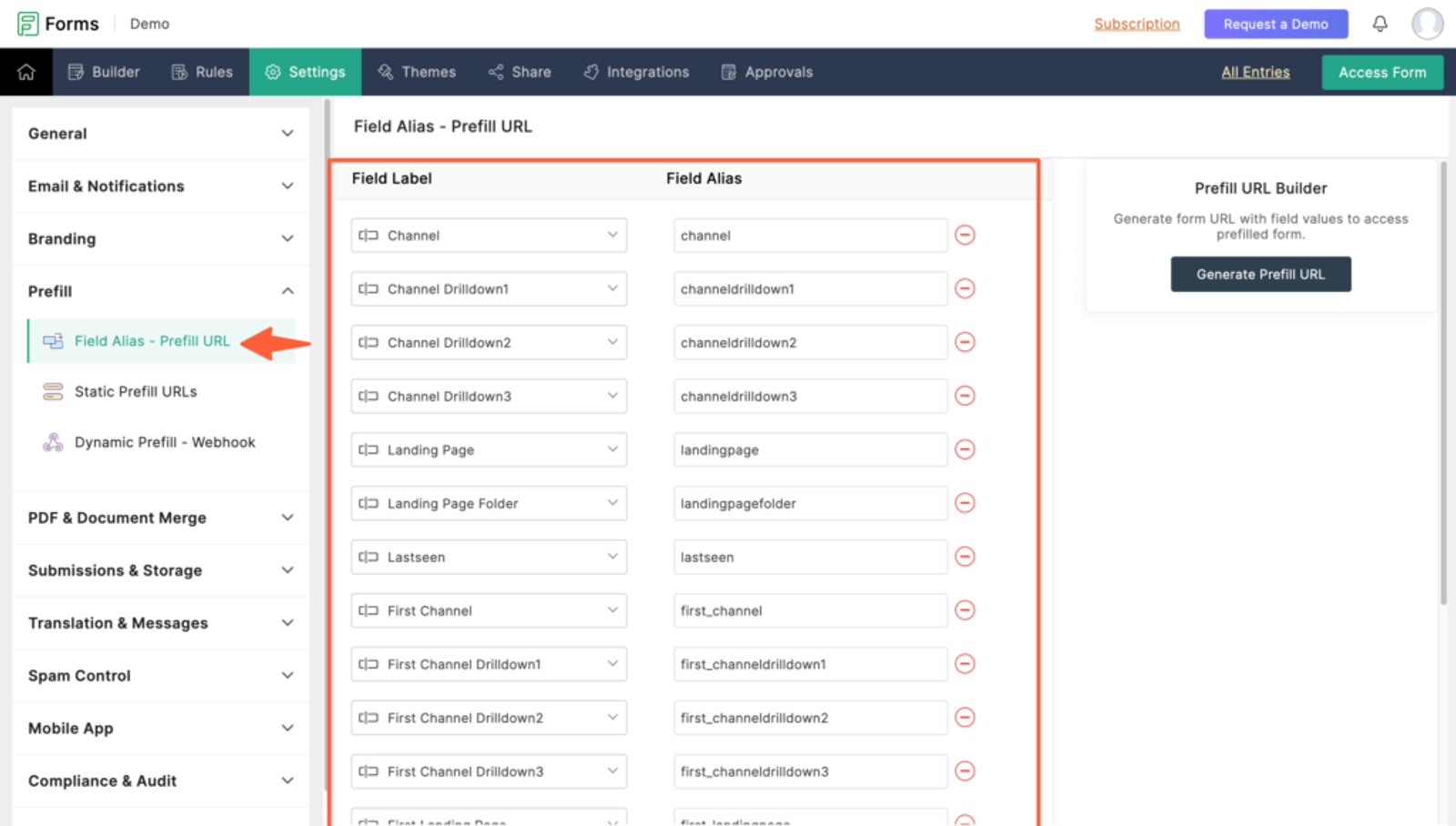
Here are the 7 hidden fields that you should configure for SourceLoop.ai to write different lead attribution data:
channelattribution_sourceattribution_attribution_attribution_termlandingpagelandingpagefolderlastseen
You can also add fields to capture first visit data for users who return multiple times:
first_channelfirst_sourcefirst_mediumfirst_campaignfirst_termfirst_landingpagefirst_landingpagefolder- firstseen
More Tutorials:
5. UTM Parameters Are Passed for Each Zoho Forms Submission
Once everything is set up, SourceLoop will automatically pass attribution data to your Zoho Forms whenever a user submits a form.
Here’s what you can do with the captured data:
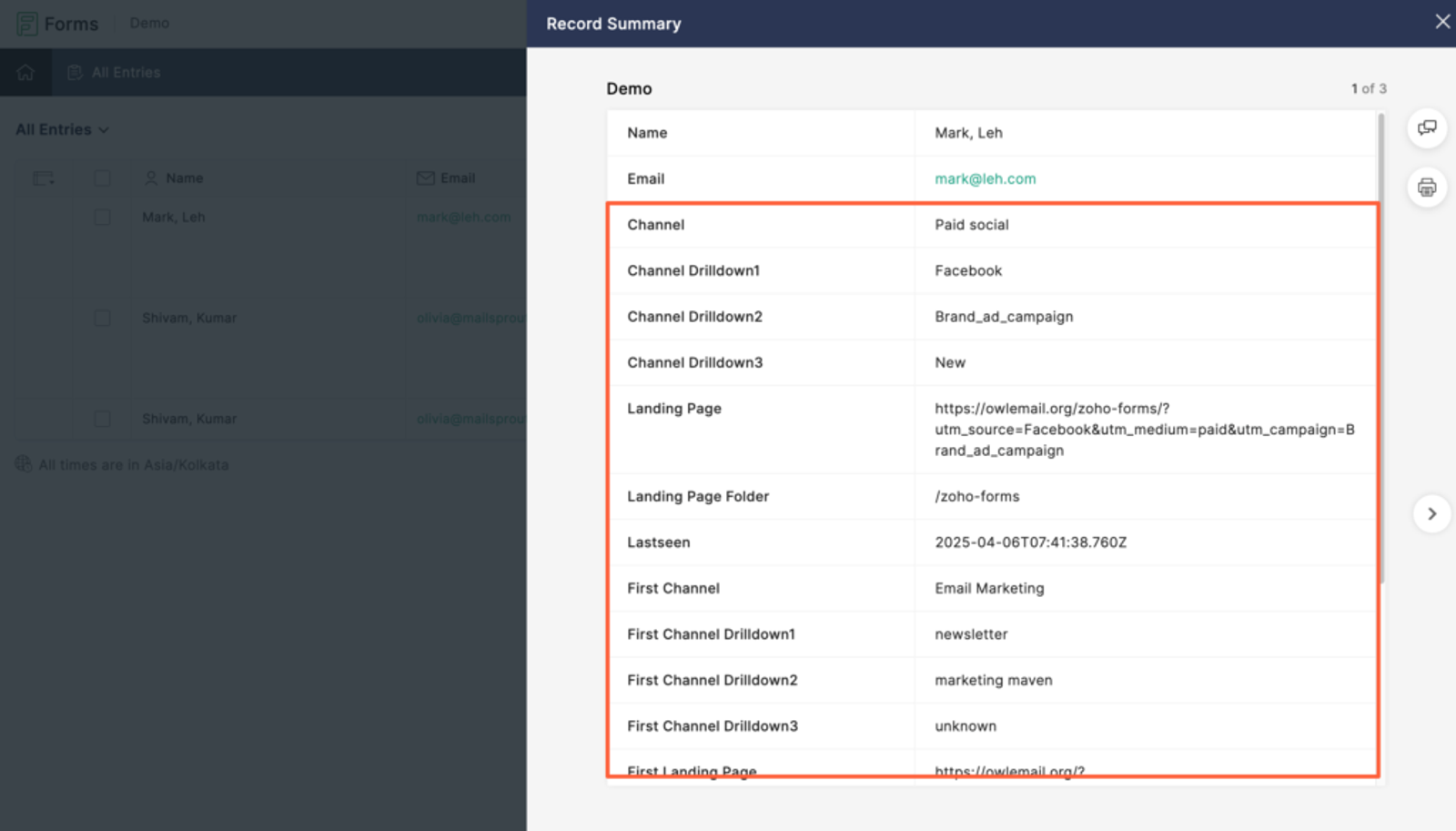
- View it inside Zoho Forms – Go to the Entries section to see new submissions, along with UTM and attribution data for each hidden field.
- Sync with Zoho Apps – If you use Zoho CRM, Campaigns, Sheet, or other Zoho tools, you can sync the attribution data and use it for lead scoring, segmentation, or reporting.
- Connect with Zapier – Use Zapier to send lead data to CRMs like HubSpot, Salesforce, or other third-party tools.
Why Zoho’s Native UTM Tracking Falls Short?
While Zoho Forms does offer a way to configure and track UTM parameters, it only works if the UTM parameters are present in the final URL at the time of form submission.
But here’s the issue:
When a visitor lands on your site with UTM tags, they might browse your blog, pricing page, or other sections before filling out the form. By the time they reach the form, the UTM tags are gone from the URL—and Zoho can’t capture them.
Even worse, Zoho can only capture lead sources if UTM parameters are in place.
But SourceLoop.ai can track lead sources even without UTM parameters—like from Google organic search, social media posts, direct visits, etc.
More Tutorials:



 Paid Social


