
How to Track UTM Parameters in InsightSquared CRM (5 Easy Steps)
Capture lead sources automatically and see which campaigns drive real results.
Table of contents
- 1. Install SourceLoop.ai on Your Website
- 2. Add UTM Parameters to Every Marketing Link
- 3. SourceLoop Automatically Captures Lead Attribution Data
- 4. Add Hidden Fields to Your Lead Forms (Optional)
- 5. Automatically Sync UTM Data with InsightSquared CRM
- What You Can Do with UTM Data in InsightSquared CRM
- 1. Identify Your Highest-Converting Marketing Channels
- 2. Create Targeted Follow-Up Sequences by Lead Source
- 3. Route Leads to the Right Sales Rep Automatically
- 4. Build Campaign ROI Reports in InsightSquared
- 5. Calculate Customer Lifetime Value by Acquisition Channel
- Conclusion
Are you unsure where your leads come from in InsightSquared CRM?
Without proper attribution tracking, you cannot know which marketing efforts drive results
The good news is that you can easily capture UTM parameters in InsightSquared CRM with a no-code solution that automatically captures every lead source.
This guide shows you exactly how to set up complete attribution tracking in just five simple steps.
Here’s how to capture UTM parameters and sync them directly with your InsightSquared CRM:
1. Install SourceLoop.ai on Your Website
To start tracking UTM parameters in InsightSquared CRM, you need a tool that captures attribution data before leads enter your system:
- Create a free account at SourceLoop.ai
- Copy the tracking script provided after signup
- Add the script to your website’s
<head>section or through your tag manager
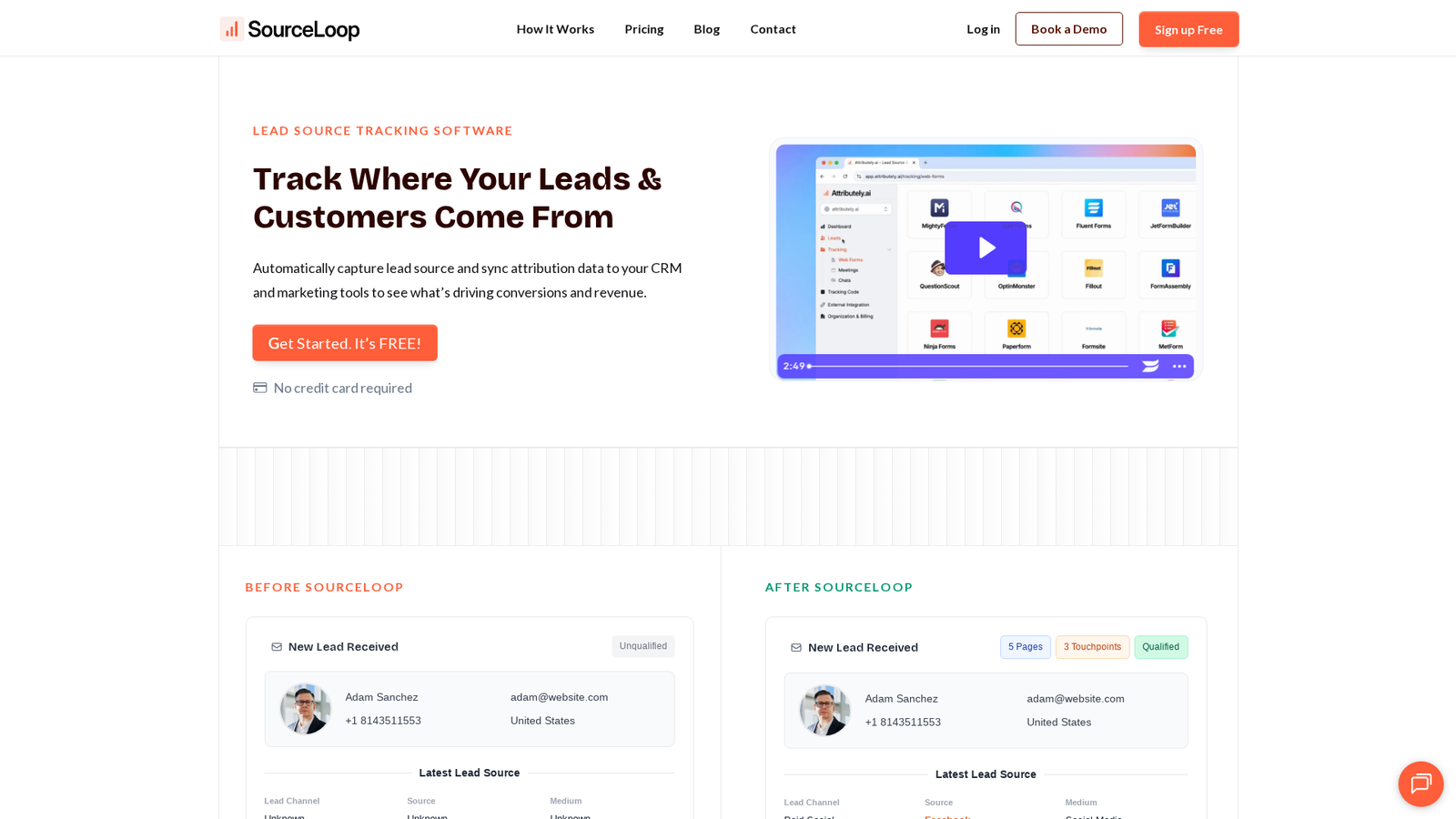
Once installed, SourceLoop automatically captures UTM parameters from every visitor, whether they come from Google Ads, social media, email campaigns, or partner websites.
Example scenario: Let’s say you’re marketing manager at a B2B software company. A prospect searches “CRM integration tools,” clicks your Google ad, and visits:
https://yourcompany.com/demo?utm_source=google&utm_medium=cpc&utm_campaign=crm_integration&utm_term=crm_tools
SourceLoop captures:
- Channel: Paid Search
- Source: Google (from utm_source=google)
- Campaign: crm_integration (identifies your specific campaign)
- Term: crm_tools (the keyword they searched)
- Landing Page: /demo (the page that converted them)
This attribution data remains with the visitor throughout their journey, even if they return days later via direct traffic.
2. Add UTM Parameters to Every Marketing Link
For tracking UTM parameters to work correctly, every marketing link must have proper UTM tags. These simple parameters indicate exactly how someone discovered your website.
Essential UTM parameters to use:
utm_source: Where traffic comes from (google, linkedin, newsletter)utm_medium: Marketing channel type (cpc, email, social)utm_campaign: Specific campaign name (q4_demo, webinar_promo)utm_term: Keywords for paid search (optional)utm_content: Ad variation for A/B testing (optional)
UTM examples for different channels:
Google Search Ad:
https://yoursite.com/trial?utm_source=google&utm_medium=cpc&utm_campaign=free_trial_q1&utm_term=crm_software
LinkedIn Sponsored Content:
https://yoursite.com/whitepaper?utm_source=linkedin&utm_medium=paid_social&utm_campaign=lead_gen_2025
Email Newsletter:
https://yoursite.com/blog?utm_source=newsletter&utm_medium=email&utm_campaign=january_digest
Partner Website:
https://yoursite.com/partnership?utm_source=techcrunch&utm_medium=referral&utm_campaign=startup_spotlight
Use Google’s Campaign URL Builder to create consistent UTM parameters across your team.
3. SourceLoop Automatically Captures Lead Attribution Data
Once your tracking is live, SourceLoop works behind the scenes to capture UTM parameters for every visitor. The tool supports over 100+ lead capture methods including:
- Website forms: Contact forms, demo requests, newsletter signups
- Chat widgets: Intercom, Drift, Zendesk Chat
- Meeting schedulers: Calendly, Acuity Scheduling, HubSpot Meetings
- Landing page builders: Unbounce, Leadpages, Instapage
No configuration required. As long as the SourceLoop script is installed, it will automatically:
- Detects form submissions across your website
- Captures complete attribution data for each lead
- Stores the information in your SourceLoop dashboard
- Prepares data for CRM sync with all UTM parameters intact
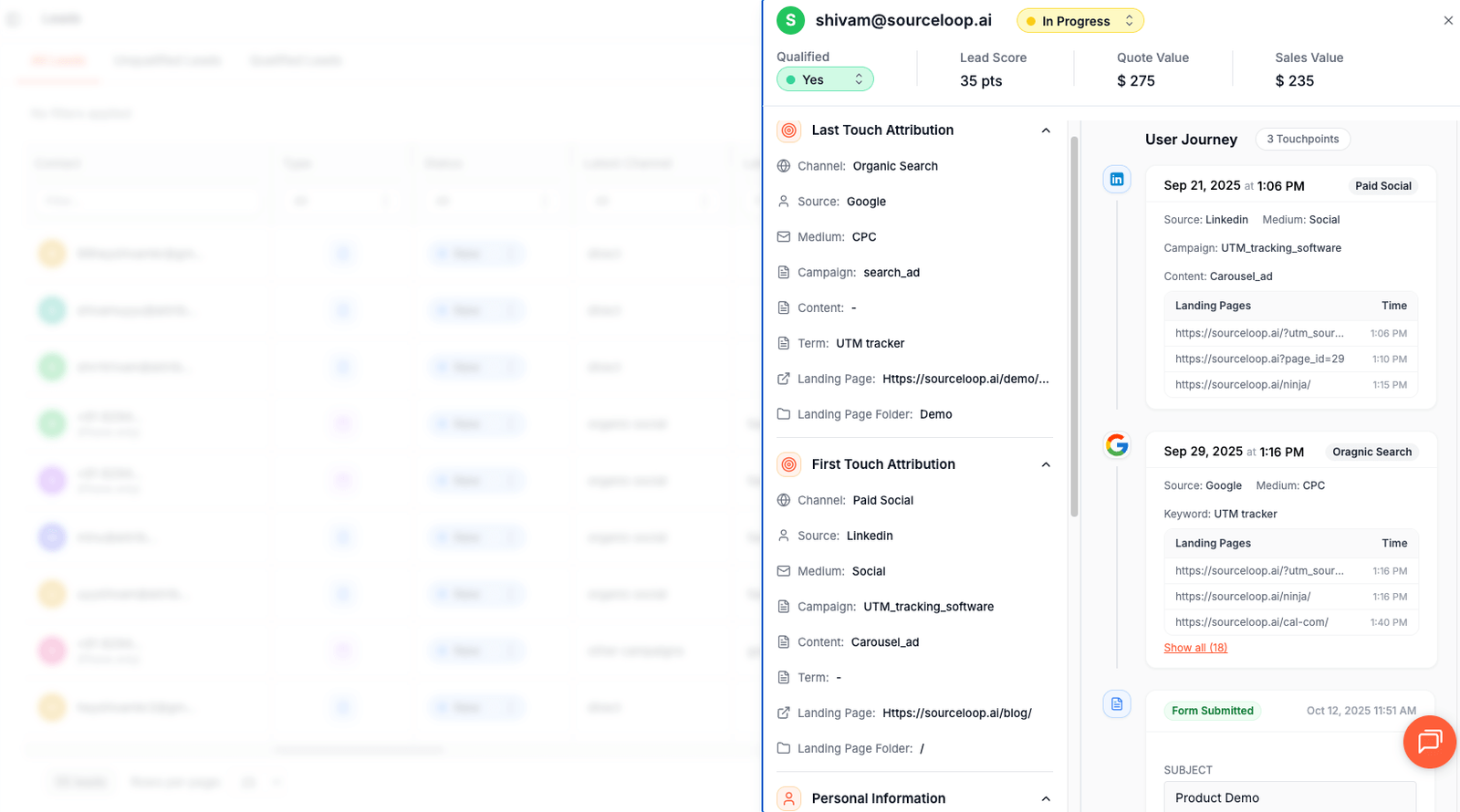
Real example: A marketing-qualified lead submits a demo request form. SourceLoop captures not just their contact information, but also:
- Original source: LinkedIn Ads
- Campaign: Enterprise Demo Campaign
- Landing page: /enterprise-demo
- Time on site: 4 minutes, 23 seconds
- Pages visited: 3 (pricing, features, demo page)
This complete picture helps your sales team understand lead context before making contact.
4. Add Hidden Fields to Your Lead Forms (Optional)
Want UTM data to appear directly in your form submissions? Add hidden fields that SourceLoop automatically populates with attribution data.
Recommended hidden field names:
channel– Marketing channel (Paid Search, Social Media, Email)attribution_source– Traffic source (google, linkedin, newsletter)attribution_medium– Medium type (cpc, email, social)attribution_campaign– Campaign nameattribution_term– Search keywordslandingpage– First page visitedlastseen– Most recent visit date
Advanced: First-touch attribution fields
To capture UTM parameters from a lead’s very first website visit (not just their last), add these additional hidden fields:
firstseen– Date of first visitfirst_source– Original traffic sourcefirst_campaign– Initial campaign that brought themfirst_landingpage– First page they ever visited
This prevents leads from appearing as “direct traffic” when they actually discovered you weeks ago through a specific marketing campaign.
Implementation example: In Webflow, Gravity Forms, or Contact Form 7, simply add hidden input fields with these exact names. SourceLoop automatically fills them when someone submits your form.
5. Automatically Sync UTM Data with InsightSquared CRM
The final step connects your attribution data with InsightSquared CRM. You have several sync options:
Option 1: SourceLoop Webhook Integration
- Set up a webhook in SourceLoop pointing to your InsightSquared API
- Configure field mapping between SourceLoop data and InsightSquared lead fields
- Test the connection with a sample lead submission
- Enable automatic sync for all future leads
Option 2: Zapier/Make Integration
- Create a Zap connecting SourceLoop to InsightSquared
- Map attribution fields to custom fields in InsightSquared
- Set trigger conditions (new lead, form submission, etc.)
- Test and activate the automation
Option 3: CSV Export/ImportFor smaller volumes, export lead data from SourceLoop and import into InsightSquared weekly or monthly.
Setup typically takes less than 15 minutes and requires no coding knowledge. Once connected, every new lead automatically includes complete attribution data in InsightSquared.
What You Can Do with UTM Data in InsightSquared CRM
Now that you’re successfully tracking UTM parameters in InsightSquared CRM, here’s how to turn that data into actionable insights:
1. Identify Your Highest-Converting Marketing Channels
Stop guessing which campaigns work. UTM data in InsightSquared reveals true channel performance beyond surface-level metrics.
Example analysis:
- Facebook Ads: 150 leads, 3% close rate, $2,100 average deal size
- Google Search: 75 leads, 12% close rate, $8,500 average deal size
- Email Newsletter: 45 leads, 18% close rate, $5,200 average deal size
While Facebook generates the most leads, Google Search and email deliver higher-value customers according to a study by MarketingSherpa. This insight helps you reallocate budget toward channels that drive revenue, not just volume.
Create custom reports in InsightSquared filtering by UTM source to track conversion rates by channel over time.
2. Create Targeted Follow-Up Sequences by Lead Source
Generic follow-up emails get ignored. UTM data lets your sales team personalize outreach based on how leads discovered your company.
Targeted follow-up examples:
For webinar attendees (utm_campaign=product_demo_webinar):“Thanks for joining our product demo yesterday. Since you showed interest in our automation features, here’s a custom workflow template designed for companies like yours…”
For pricing page visitors (landingpage=/pricing):“I noticed you were checking out our pricing options. I’d love to show you how [similar company] reduced costs by 40% with our Enterprise plan…”
For competitor comparison searches (utm_term=salesforce_alternative):“Looking for a Salesforce alternative? Here’s a side-by-side comparison showing why 200+ companies switched to us last year…”
Set up automated email sequences in InsightSquared based on UTM parameters to deliver relevant content at the right time.
3. Route Leads to the Right Sales Rep Automatically
UTM data enables intelligent lead routing beyond basic geographic or company size rules.
Smart routing examples:
- Enterprise campaign leads → Senior Account Executives
- SMB Google Ads traffic → Inside Sales Representatives
- Partner referral traffic → Channel Partner Managers
- Product-specific campaigns → Specialists for that product line
Configure InsightSquared workflow rules using UTM campaign or source data to ensure leads reach the most qualified sales person immediately.
4. Build Campaign ROI Reports in InsightSquared
Track marketing ROI with precision using UTM attribution data. Create custom reports showing:
Campaign Performance Dashboard:
- Leads generated per campaign
- Cost per lead (if you track ad spend)
- Lead-to-customer conversion rate
- Average deal size by source
- Total revenue attributed to each campaign
Monthly Marketing Attribution Report:
- Top-performing UTM sources
- Campaigns with highest ROI
- Channels driving largest deal sizes
- Month-over-month attribution trends
Use InsightSquared’s reporting features to build executive dashboards showing clear marketing attribution across all channels.
5. Calculate Customer Lifetime Value by Acquisition Channel
Understanding long-term customer value by marketing channel helps optimize budget allocation for sustainable growth as discussed in Harvard Business Review.
LTV analysis by UTM source:
- Organic search customers: $15,000 average LTV, 24-month retention
- Paid social customers: $8,500 average LTV, 18-month retention
- Referral program customers: $22,000 average LTV, 36-month retention
This data reveals that while paid social generates leads quickly, referral and organic customers provide much higher long-term value.
Build LTV reports in InsightSquared by combining UTM source data with customer revenue and retention metrics over 12-24 month periods.
Read more:
- Capture UTM Parameters in Mailchimp CRM
- Capture UTM Parameters in ClickUp CRM
- Capture UTM Parameters in Folk CRM
- Capture UTM Parameters in BigFolks CRM
Conclusion
Tracking UTM parameters in InsightSquared CRM transforms guesswork into data-driven marketing decisions. With SourceLoop’s automated capture and sync capabilities, you can see exactly which campaigns drive your best leads and highest revenue.
The five-step setup process takes less than an hour but provides months of valuable attribution insights. You’ll know which marketing channels deserve more budget, how to personalize sales outreach, and where your most valuable customers originate.
Ready to stop wondering where your leads come from? Try SourceLoop.ai for free and start tracking UTM parameters in InsightSquared CRM today. Your marketing ROI reports will thank you.




 Paid Social


