
How to Track Intercom Chats as Meta Ads Conversions
Send Intercom chat leads to Meta through the Conversions API, then add qualified-lead events from your CRM, so Facebook and Instagram ads chase buyers, not browsers.
Table of contents
- What you'll need
- Step 1: Put the SourceLoop script on your site
- Step 2: Connect Intercom to SourceLoop
- Step 3: Get your Pixel ID and an access token
- Step 4: Send every chat lead to Meta
- Step 5: Check the match quality
- Step 6: Add a qualified-lead event
- See which ads start conversations
- Don't send the same chat twice
- Further reading
Someone sees your Instagram ad, taps through, reads two pages and opens the Intercom Messenger. They ask about pricing and leave their work email.
That's a great lead. Meta's pixel never sees it.
The chat happens inside Intercom's widget, and nothing tells Meta it happened. So Meta optimizes for whatever it can see, usually page views or the odd form fill, and your chat-driven campaigns look weaker than they are.
Here's how to send Intercom chats to Meta as real conversions, then take it a step further with qualified-lead events.
What you'll need
- Intercom with the Messenger installed on your website, on any plan
- Admin rights in Intercom and in your Meta Business account
- A Meta pixel (dataset) linked to the ad account you advertise from
- A SourceLoop workspace. A free trial is enough to follow along.
Step 1: Put the SourceLoop script on your site
Copy the snippet from Setup, then Tracking code, and add it to the <head> of every page.
Make sure it runs wherever the Messenger runs. If the Messenger loads on your blog, docs or pricing page, the script should be there too. Otherwise a chat started on those pages can't be tied to the ad that brought the visitor in.
Step 2: Connect Intercom to SourceLoop
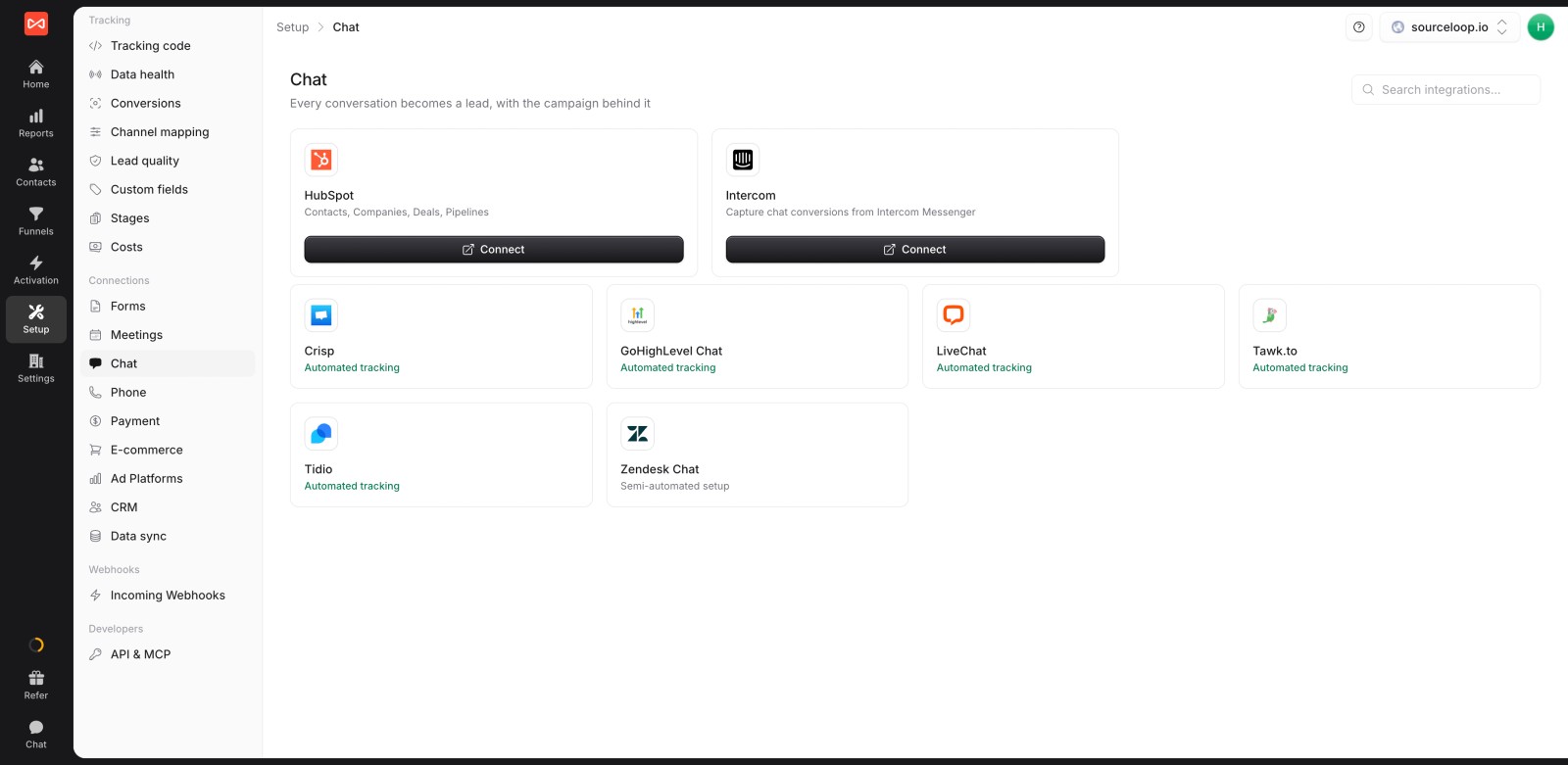
Open Setup, then Chat, and click Connect on the Intercom card. Approve the access request in Intercom, and the card turns Connected.
From now on, here's how chats are counted:
- A chat becomes a lead when the visitor shares an email or phone number.
- Each person counts once, however many conversations they start.
- Chats that begin outside your website, such as replies to an Intercom email, still arrive. They're marked Direct because no website visit led to them.
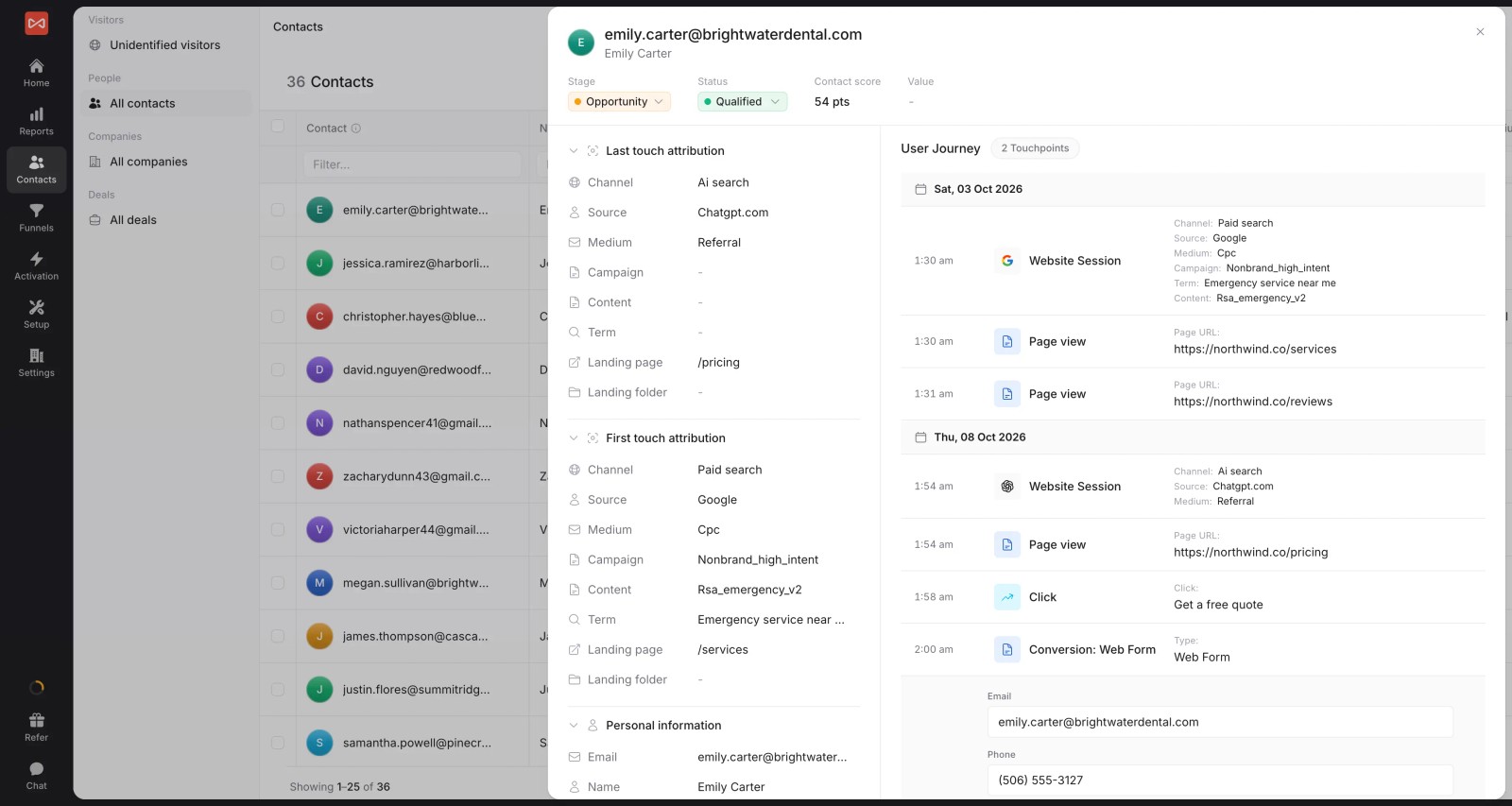
Open any chat lead under Contacts to see the ad, campaign and pages behind it.
Step 3: Get your Pixel ID and an access token
The Conversions API needs two things from Meta.
Pixel ID: in Events Manager, select your pixel and copy the ID from its settings.
Access token: in Business Settings, go to System Users. Create one (or reuse one), assign it your pixel with at least Standard access, then click Generate new token. Copy it right away, because Meta won't show it again.
Also connect your ad account in SourceLoop under Setup, then Ad Platforms. That brings in your Meta spend and campaign names.
Step 4: Send every chat lead to Meta
Go to Activation, then Conversion sync, and click New sync.
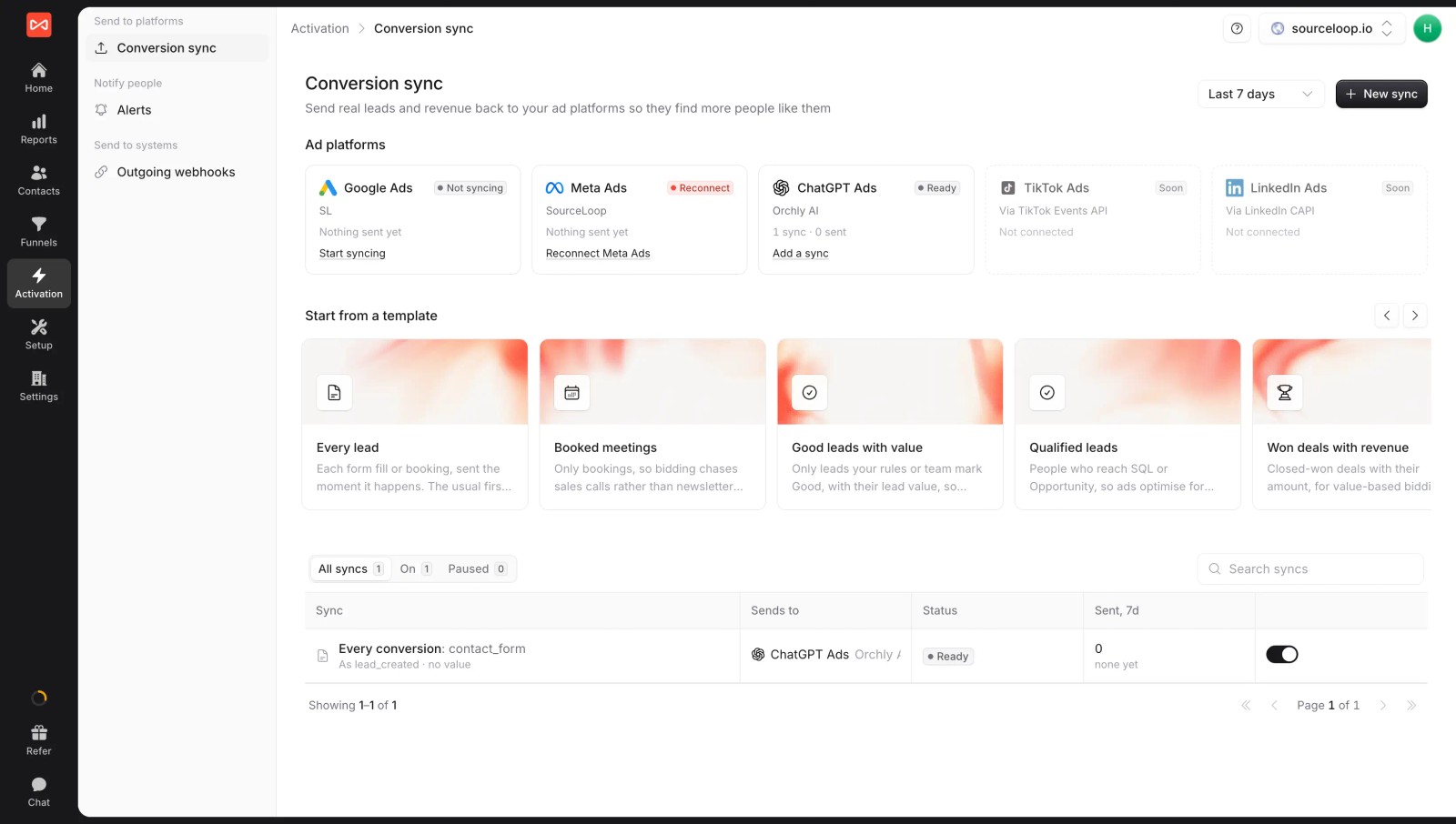
Work through the builder:
- Send to: your Meta ad account. Paste the Pixel ID and access token here the first time.
- When: Every conversion.
- Only if: set conversion type to Chat, so forms and bookings stay out of this event.
- Send as: choose the standard Contact event. Meta defines it as someone reaching out to your business, which is exactly what a chat is. Lead works too, if that's what your campaigns already optimize for.
- Value: leave it empty for now, or set a fixed amount per chat.
Under Who counts, keep People Meta brought. Turn on Send past conversions to include chats from the last 7 days, then click Start syncing.
Test first if you like. Add a test event code from Events Manager in the Send to step. Your chats will appear under Test events without affecting your ads. Remove the code once you've seen them arrive.
Step 5: Check the match quality
Open the sync and look at Recent sends. For each chat lead, SourceLoop shows what Meta could match on:
- The ad click ID (
fbclid), when the visitor came from a Meta ad on that device - Email, hashed with SHA-256 before it leaves SourceLoop
- Phone, hashed the same way, when the chat captured one
Chat leads usually match well, because most people share an email to get a reply. That gives Meta a strong match even when the click ID was lost to an ad blocker or a browser privacy setting.
Step 6: Add a qualified-lead event
Here's where chat tracking gets really useful.
Plenty of chats are tire-kickers, students or people looking for support. If Meta only sees "someone chatted", it will happily find more people who chat. What you want is more people who buy.
If you use HubSpot, Salesforce or Pipedrive, connect it under Setup, then CRM. Then create a second sync:
- When: Reaches a stage, and tick SQL (or whatever stage means "sales wants this one").
- Send as: a custom event name, such as
QualifiedChat. - Who counts: People Meta brought.
When a chat lead reaches SQL in your CRM, Meta gets a QualifiedChat event for that person, even if that happens weeks after the chat. In Events Manager, build a custom conversion on it. Once it has steady volume, optimize your campaigns for that instead of Contact.
No CRM? Use Setup, then Lead quality to mark chats Good by rule, such as business email domains. Then send the Good lead moment instead.
See which ads start conversations
Meta's Ads Manager tells you what Meta claims. SourceLoop's Creatives report puts that next to what your leads say.
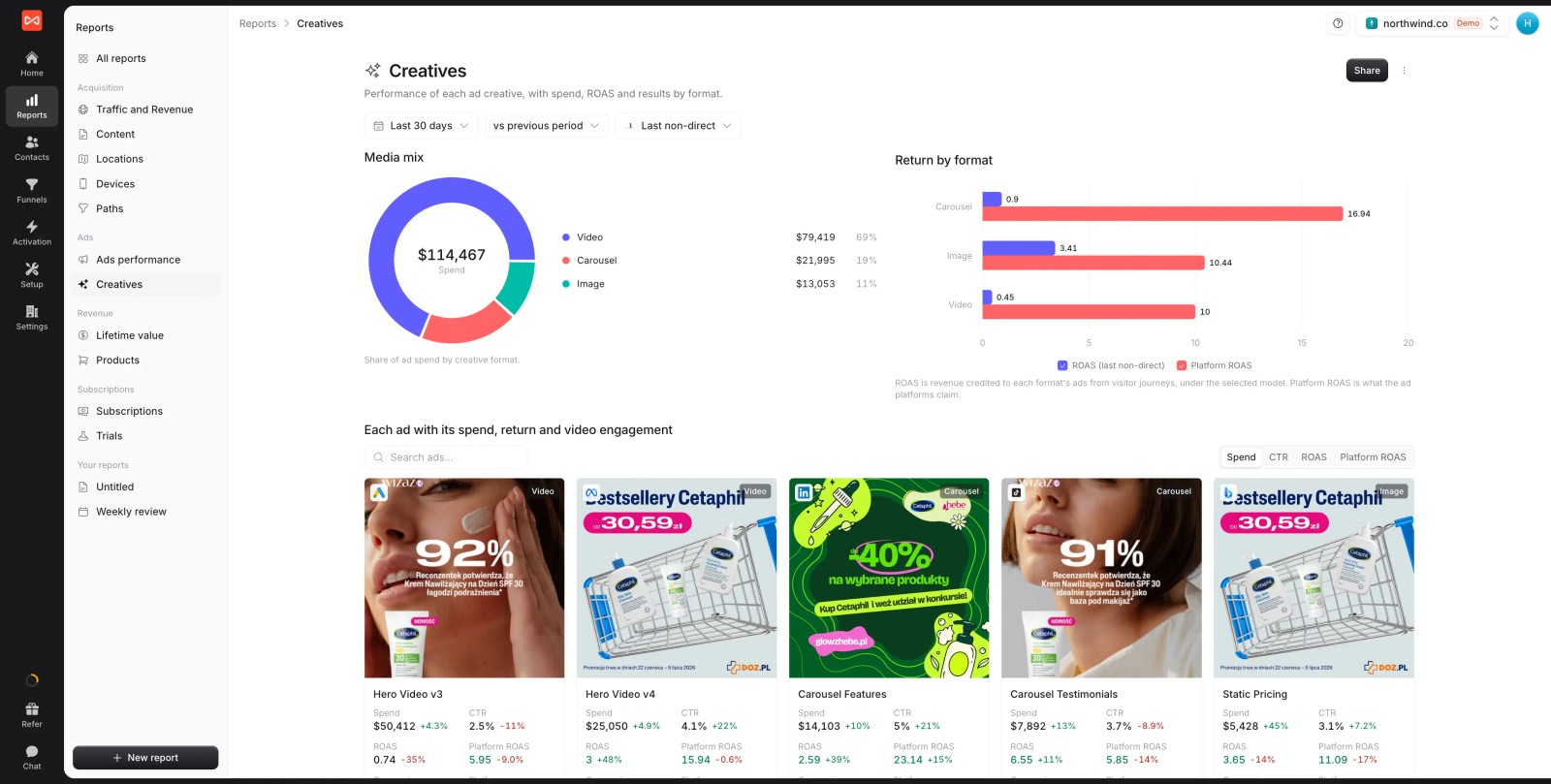
Each ad shows its spend and click-through rate, plus its results under your attribution model and as Meta reports them. If a video ad brings in chats but few form fills, this is where you'll see it.
Don't send the same chat twice
If you've ever set up a pixel event that fires when the Messenger opens, turn it off or rename it. Otherwise Meta receives a browser event and a server event for the same person. It counts both, because they don't share an event ID.
A Messenger-open event is a weak signal anyway. Most people who open the chat never share an email.
Further reading
Frequently asked questions
-
Which Meta event should I use for Intercom chats?
Use Contact if you want a separate event for conversations, or Lead if your campaigns already optimize for leads. For qualified chats, use a custom event such as
QualifiedChatand build a custom conversion on it. -
Does Intercom need any code changes?
No. You connect Intercom to SourceLoop with OAuth from Setup, then Chat. The only code on your site is the SourceLoop tracking script.
-
Is every Intercom conversation sent to Meta?
No. Only chats where the visitor shares an email or phone become leads, and each person counts once. With People Meta brought selected, only leads whose journey includes a Meta ad are sent.
-
How does Meta match a chat lead without a click ID?
By the email and phone the visitor shared, hashed with SHA-256. Meta matches them to Facebook and Instagram accounts, so chat leads often match even when the click ID is missing.
-
Can I send a chat to Meta when it later becomes a qualified lead?
Yes. Connect your CRM and create a sync on Reaches a stage, such as SQL. Meta receives the event when the stage changes, even weeks after the chat.
-
How far back can I send chat conversions to Meta?
Up to 7 days, using Send past conversions when you create the sync. Meta doesn't use older events for ad delivery.
-
Do chats from Intercom emails or shared links count?
They reach SourceLoop as leads, but they're marked Direct because no website visit came before them. They aren't sent to Meta, because no Meta ad led to them.

 Paid Social


