
How to Track Intercom Chats as Google Ads Conversions
Turn Intercom chats into Google Ads conversions, matched to the ad click that started them, so Smart Bidding finally counts the leads your Messenger brings in.
Table of contents
- Before you start
- Step 1: Install the SourceLoop script
- Step 2: Connect Intercom
- What counts as a chat lead
- Step 3: Test with a real chat
- Step 4: Create a conversion action in Google Ads
- Step 5: Build the sync
- Step 6: Confirm Google is receiving the conversions
- When to make it Primary
- Compare Google's numbers with credited chat leads
- Why not just track the Messenger opening?
- Further reading
For a lot of B2B and SaaS sites, the Intercom Messenger is the busiest lead source. A visitor lands from a search ad, has a question about pricing, opens the chat and leaves their email.
Google Ads sees none of that. As far as Smart Bidding knows, the click didn't convert.
That has a real cost. Campaigns that produce conversations get less budget, and your Google Ads reports undercount what search is worth.
This guide fixes that. You'll connect Intercom to SourceLoop, then send each chat lead to Google Ads as an offline conversion matched to the original click.
Before you start
You'll need:
- An Intercom workspace with the Messenger on your website. Any Intercom plan works.
- Admin access in Intercom, to approve the connection
- A Google Ads account where you can create conversion actions
- A SourceLoop workspace. You can do everything here on the free trial.
Set aside about 20 minutes.
Step 1: Install the SourceLoop script
In SourceLoop, go to Setup, then Tracking code, and copy the snippet into the <head> of your site.
The important part: the script has to be on every page where the Messenger appears. That's how a chat gets linked to the visit, and the ad click, that came before it.
If your site runs on WordPress, Webflow, Framer or a similar builder, the Tracking code page has install steps for each one.
Step 2: Connect Intercom
Go to Setup, then Chat. Intercom sits at the top under the OAuth integrations. Click Connect.
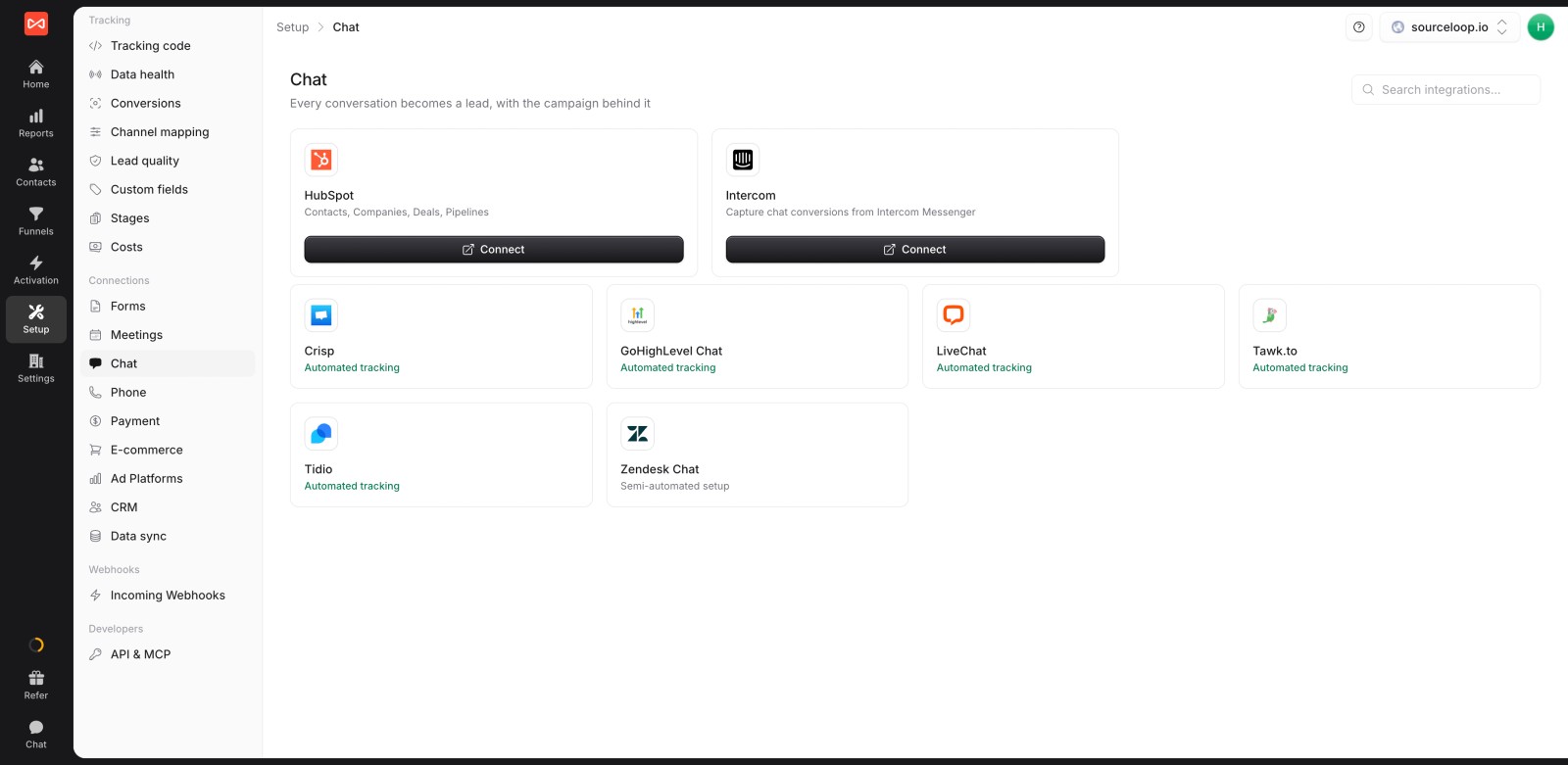
Intercom will ask you to sign in and approve access. Pick your workspace and click Authorize access. You'll land back in SourceLoop with the card showing Connected.
That's the whole Intercom side. You don't need to edit Messenger settings, add custom code or build a workflow.
What counts as a chat lead
It helps to know what SourceLoop records, because it shapes what Google will receive:
- A chat becomes a lead once the visitor shares an email or phone number. Anonymous chats aren't counted.
- It's one lead per person, not per conversation. A visitor who chats three times is still one lead.
- Each lead carries the first and last touch, the campaign, the landing page and every visit before the chat.
Tip: if your Messenger rarely asks for an email, fewer chats will turn into leads. An Intercom workflow or Fin can ask for one early in the conversation.
Step 3: Test with a real chat
Open your site in an incognito window with ?utm_source=test&utm_medium=check&utm_campaign=intercom on the end of the URL. Start a chat and share an email you can access.
Then open Setup, then Data health in SourceLoop. The Live tab shows events as they arrive, so you can watch the visit and the lead come in.
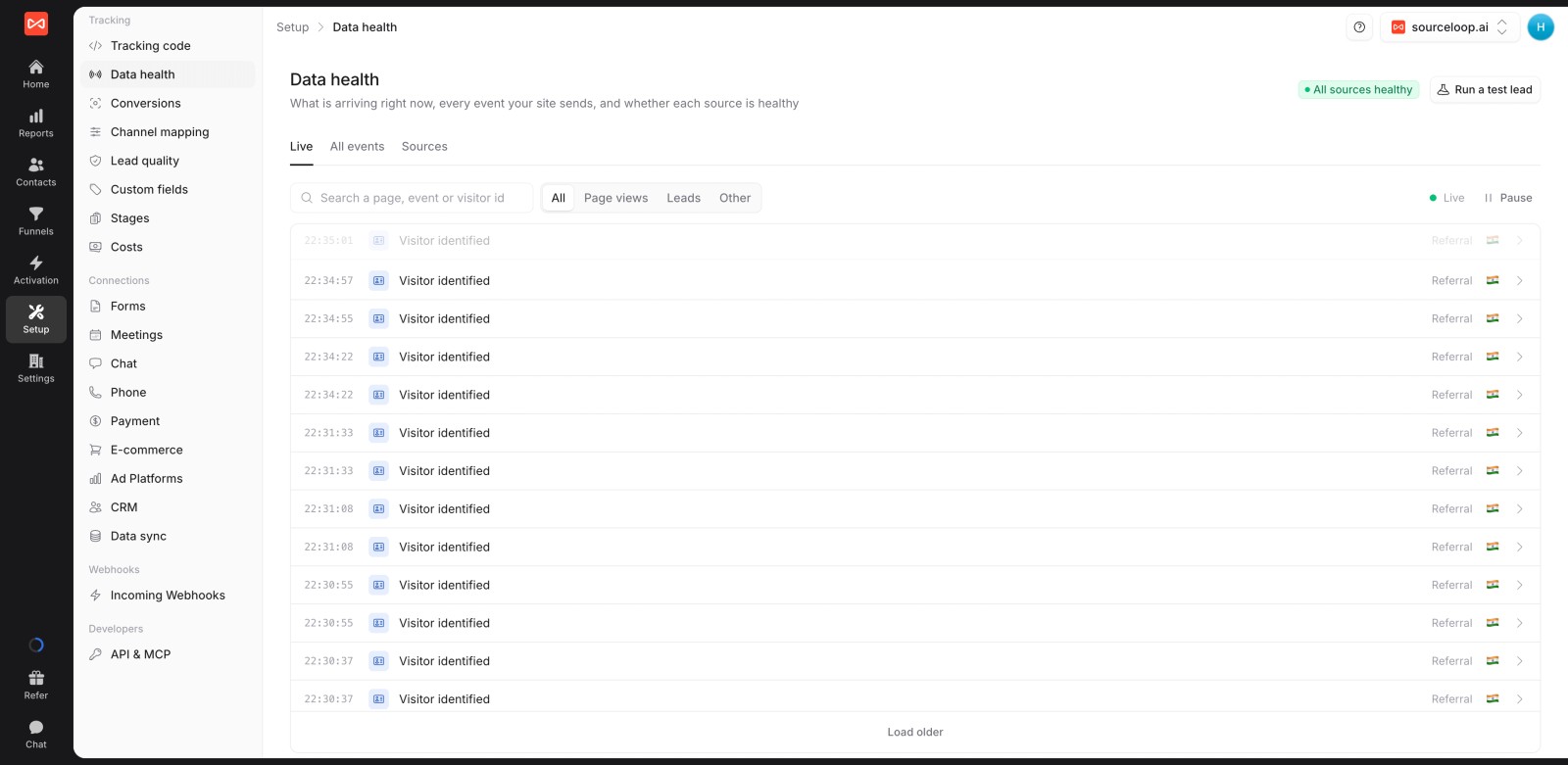
The lead will also appear under Contacts, with your test campaign as its source.
Step 4: Create a conversion action in Google Ads
SourceLoop sends conversions to an action that already exists in your account. Create one just for chats:
- In Google Ads, open Goals, then Conversions, and click New conversion action.
- Choose Import, then CRMs, files or other data sources, then Track conversions from clicks.
- Name it something obvious, like Intercom chat lead.
- Set Count to One. One chat lead per click is what you want to count.
- Choose Secondary for now. You'll switch it to Primary later.
Then connect your ad account in SourceLoop: Setup, then Ad Platforms, then Connect on Google Ads.
Step 5: Build the sync
Go to Activation, then Conversion sync, and click New sync. Fill in each step:
- Send to: your Google Ads account.
- When: Every conversion.
- Only if: add a condition so that conversion type is Chat. That keeps form fills and bookings out of this action.
- Send as: pick Intercom chat lead. If it's missing from the list, click refresh the list.
- Value: pick The same amount every time and enter what a chat lead is worth to you on average. A simple way to work it out is close rate times average deal size.
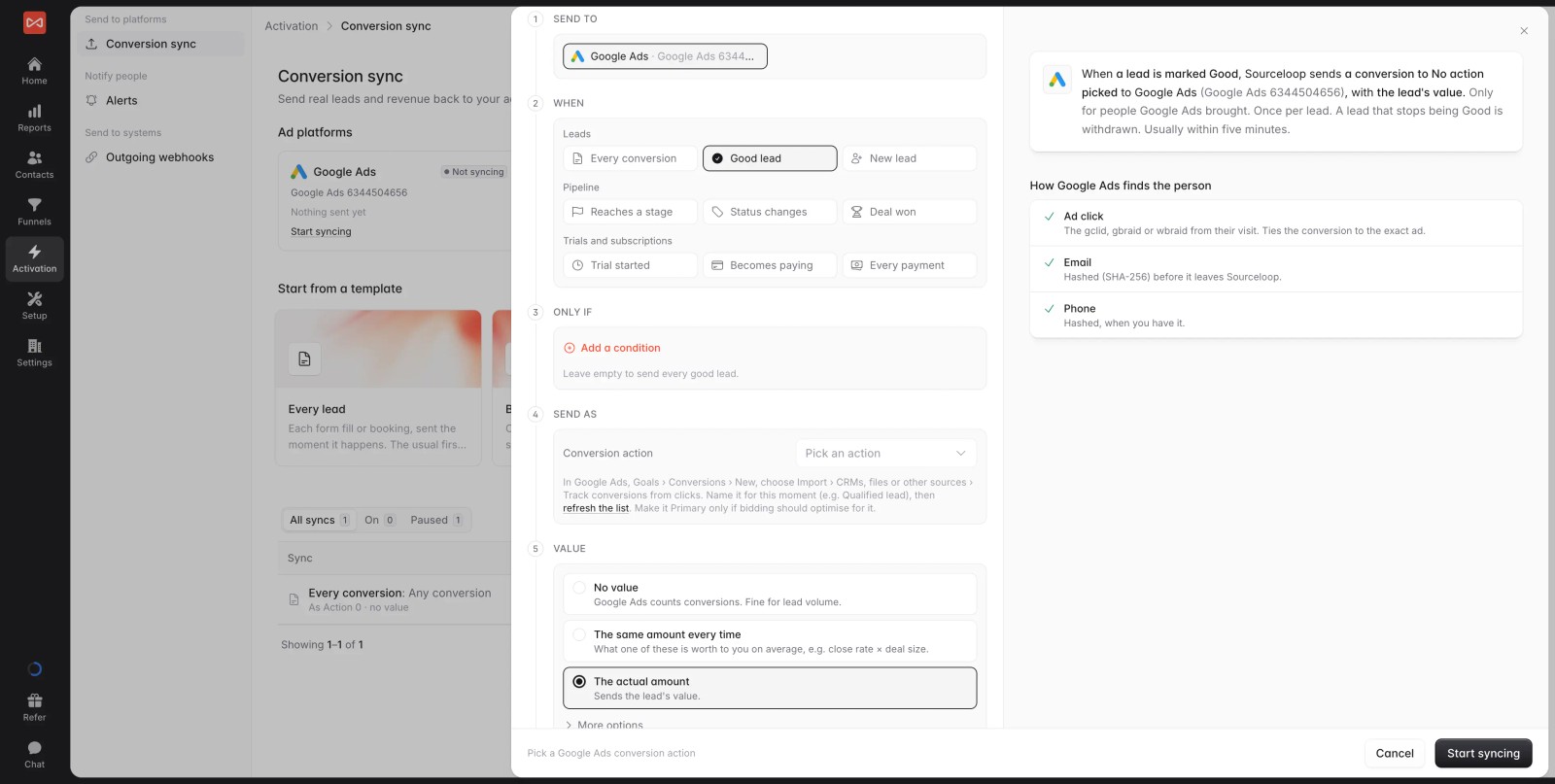
Under Who counts, keep People Google Ads brought. That way, chats that started from organic search or a newsletter don't inflate your ad numbers.
Finally, turn on Send past conversions to backfill up to 60 days of chat leads. This gives Smart Bidding history from day one. Click Start syncing.
Step 6: Confirm Google is receiving the conversions
Open your sync in SourceLoop and check Recent sends. Every lead sent is listed with what Google matched it on.
Google matches in this order:
- The ad click: the
gclid,gbraidorwbraidfrom the visit. This ties the chat to the exact campaign, ad group and keyword. - Hashed email and phone: used when the click ID is missing, for example after a visitor switched devices.
In Google Ads, conversions show up on the action a few hours after they're sent. A status like "No recent conversions" on a new action is normal for the first day.
When to make it Primary
Leave the action as Secondary for two or three weeks. Compare its numbers with what your sales team sees in Intercom.
Once they line up, switch it to Primary. From then on, Smart Bidding treats a chat lead as a real conversion and shifts budget toward the campaigns that produce them.
Watch out for support chats. If your Messenger also runs inside your product, existing customers can show up as chat leads. Under Setup, then Lead quality, add a rule that marks them Not a fit, for example by email domain. Then switch your sync's When to Good lead, so only real prospects reach Google.
Compare Google's numbers with credited chat leads
Open Reports, then Ads performance. Each campaign shows what Google reports next to the leads SourceLoop credits to it, including chats.
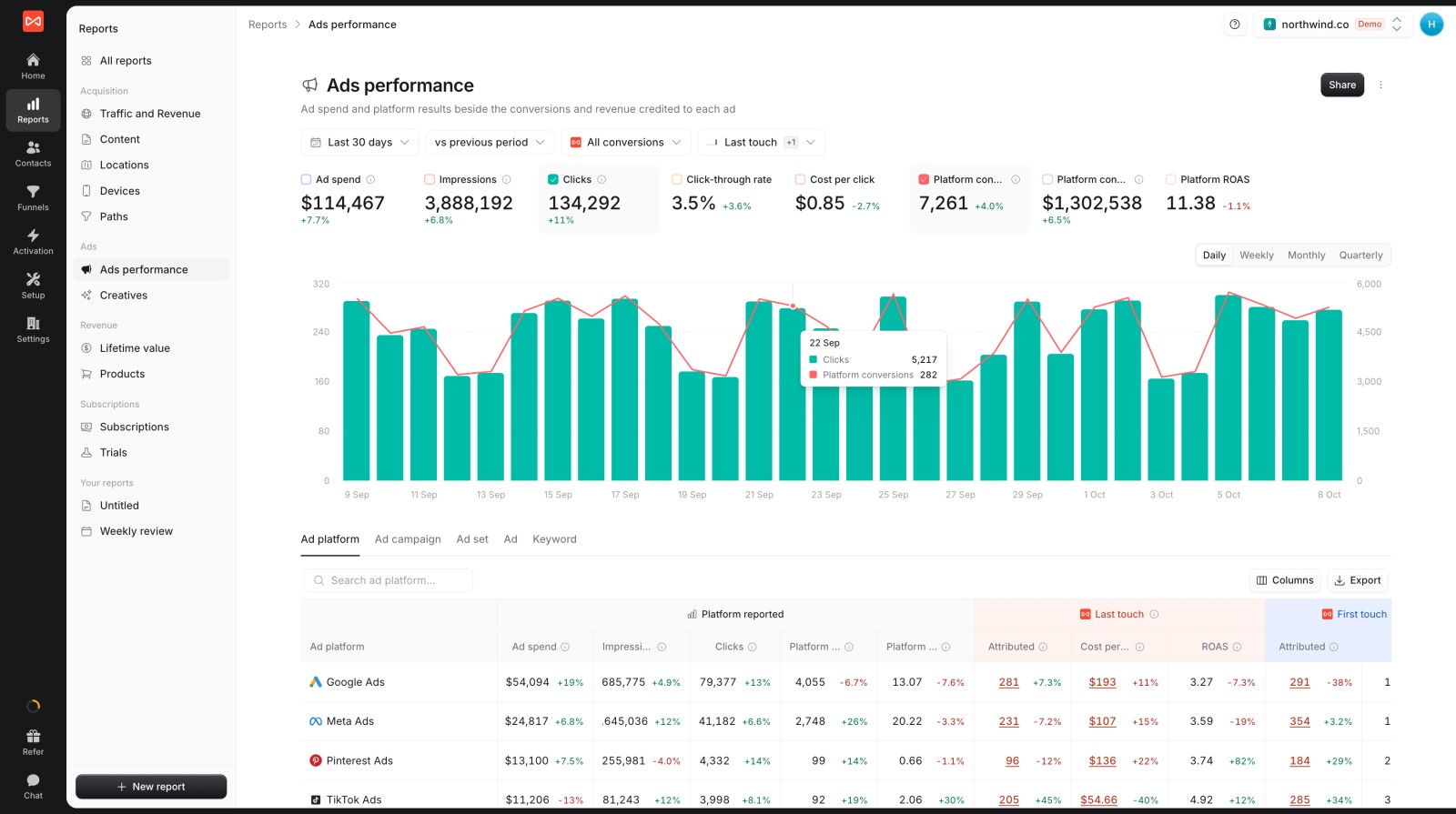
Switch the conversion picker to chats only, and you'll see which keywords start conversations. Those are often different from the keywords that drive form fills.
Why not just track the Messenger opening?
A common workaround is a Google Tag Manager trigger that fires when someone opens the Messenger. It's quick, but:
- Opening a chat isn't a lead. Most people who open it leave without sharing an email.
- It's browser-side, so ad blockers and declined cookies stop it.
- It can't tell prospects from customers asking for support.
Sending real chat leads from a server avoids all three. It also leaves room to send later moments, like a qualified lead or a won deal, to Google once your CRM is connected.
Further reading
Frequently asked questions
-
Do I need a paid Intercom plan to send chats to Google Ads?
No. The SourceLoop connection works on every Intercom plan. You only need admin access to approve it.
-
Does every Intercom conversation become a Google Ads conversion?
No. A chat becomes a lead only when the visitor shares an email or phone number, and it's counted once per person. With Who counts set to People Google Ads brought, only leads whose journey includes a Google ad are sent.
-
What if the visitor's GCLID is missing?
SourceLoop also sends the visitor's email and phone, hashed with SHA-256. Google can use them to match the lead to the signed-in user who clicked the ad.
-
How long does Google Ads accept a chat conversion after the click?
Up to 90 days, depending on the click-through window set on your conversion action. Anything older is skipped, and SourceLoop doesn't mark it as a failure.
-
What about chats that start from an email reply or a shared link?
They still reach SourceLoop through the Intercom connection, but with no website visit behind them, so they're recorded as Direct. They won't be sent to Google Ads, because no ad click led to them.
-
Should the chat conversion action be Primary or Secondary?
Start with Secondary, so it's tracked without affecting bidding. Once the numbers match what your team sees in Intercom, switch it to Primary.
-
Can I send a value with each chat lead?
Yes. Send a fixed average value per chat, or the lead's actual value if your lead quality rules set one. Value-based bidding needs one of the two.

 Paid Social


