
How to Track Gravity Forms Submissions as Meta Ads Conversions
Send every Gravity Forms lead to Meta through the Conversions API, with the ad click and hashed email attached, so Facebook and Instagram ads optimize for real leads.
Table of contents
- What you need
- Step 1: Add the SourceLoop script to your WordPress site
- Step 2: Confirm Gravity Forms is being captured
- Step 3: Connect your Meta ad account
- Step 4: Create the conversion sync
- Step 5: Check that Meta is receiving the leads
- Avoid double-counting with your existing pixel
- Next: send only the leads worth paying for
- See which Meta ads actually produce leads
- Other ways to do this, and where they fall short
- Further reading
Gravity Forms is great at collecting leads. Meta is great at finding more people like the ones you show it. The trouble is the handoff between them.
Most WordPress sites rely on the Meta Pixel firing a Lead event on a thank-you page. That breaks more often than people think:
- AJAX forms never load a thank-you page, so the pixel event never fires.
- Ad blockers and Safari's tracking limits strip the pixel or the click ID.
- Visitors who decline cookies are invisible to the pixel.
- Spam submissions count the same as real ones, so Meta optimizes for whoever fills forms, not whoever buys.
This guide shows how to send Gravity Forms submissions to Meta as server-side conversions with SourceLoop. It takes about 15 minutes, and you don't touch your form settings.
What you need
- A WordPress site running Gravity Forms (any license tier)
- A form that asks for an email or phone number. Meta needs one of these to match people who don't have a click ID.
- Admin access to your Meta Business account, to get your Pixel ID and create an access token
- A SourceLoop workspace. The free trial works for this whole guide.
Step 1: Add the SourceLoop script to your WordPress site
In SourceLoop, open Setup, then Tracking code. Pick Website builder, then WordPress, and copy the snippet.
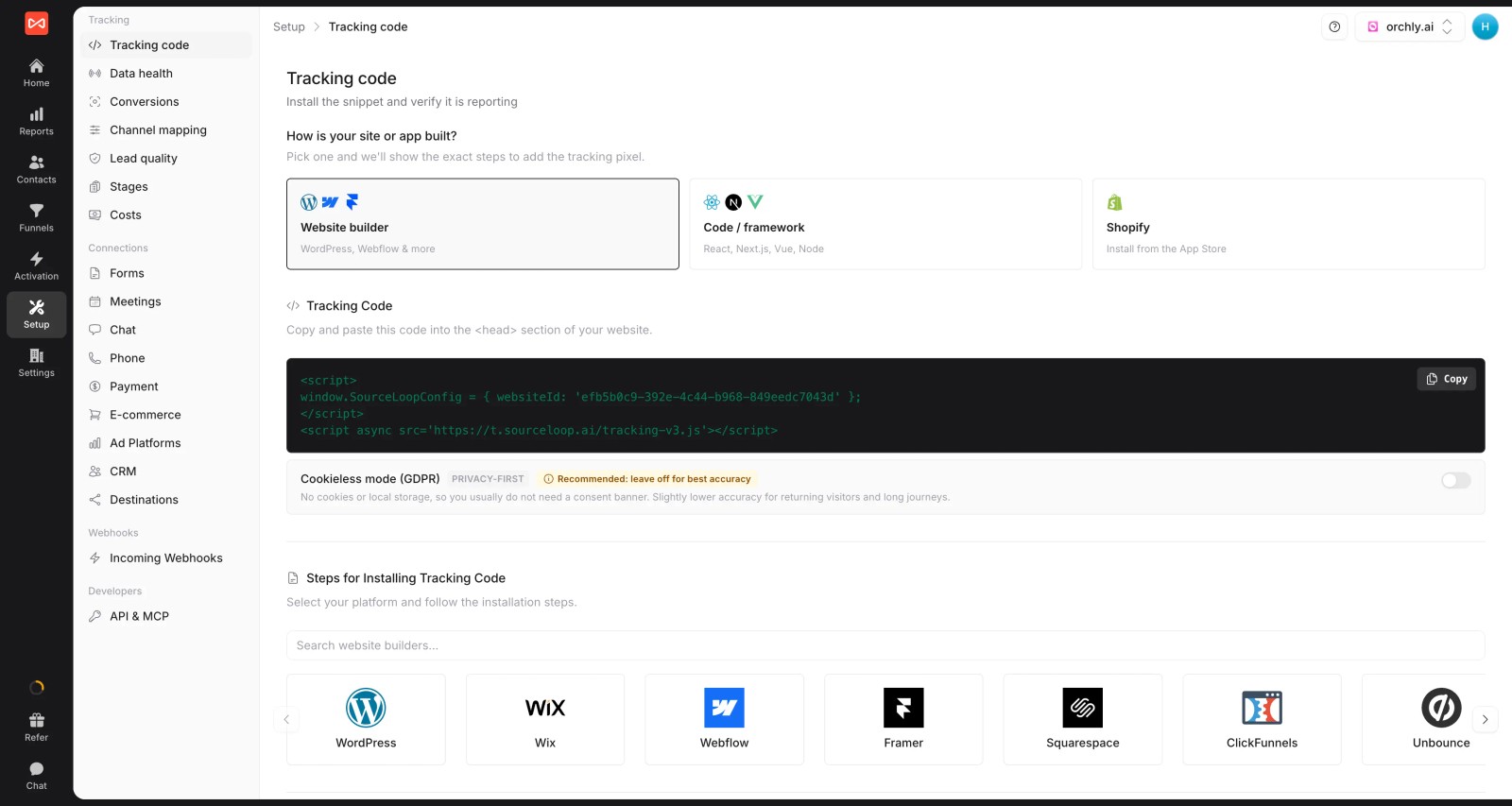
Paste it into the <head> of every page. The easiest ways on WordPress:
- A header plugin such as WPCode or Insert Headers and Footers
- Your theme's
header.php, if you use a child theme - Google Tag Manager, as a Custom HTML tag that fires on all pages
Put it on the whole site, not just the form page. The pages a visitor reads before they convert are part of the attribution story.
Step 2: Confirm Gravity Forms is being captured
Here's the good news: Gravity Forms is an automated integration. Once the script is live, every Gravity Form on every published page is captured. You don't add hidden fields, install an add-on or set up a webhook.
You can confirm this under Setup, then Forms, where Gravity Forms is marked Automated tracking.
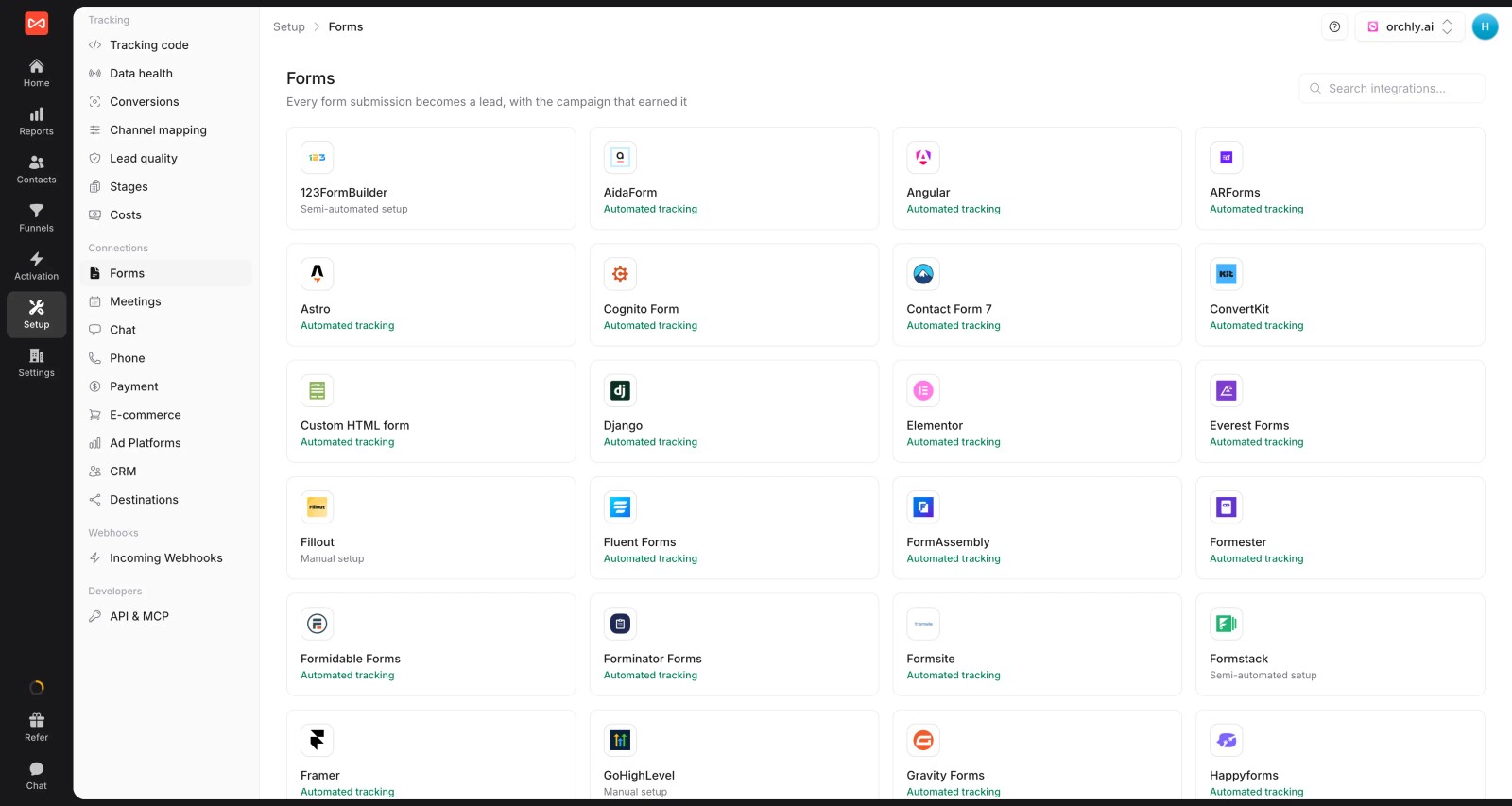
Run a quick test:
- Open your form page in an incognito window and add
?utm_source=test&utm_medium=check&utm_campaign=gravityto the URL. - Submit the form with an email you control.
- Open Contacts in SourceLoop. The lead should appear within seconds with your test campaign attached.
Click the contact to see the journey behind the lead: the first visit, every page viewed and the submission itself.
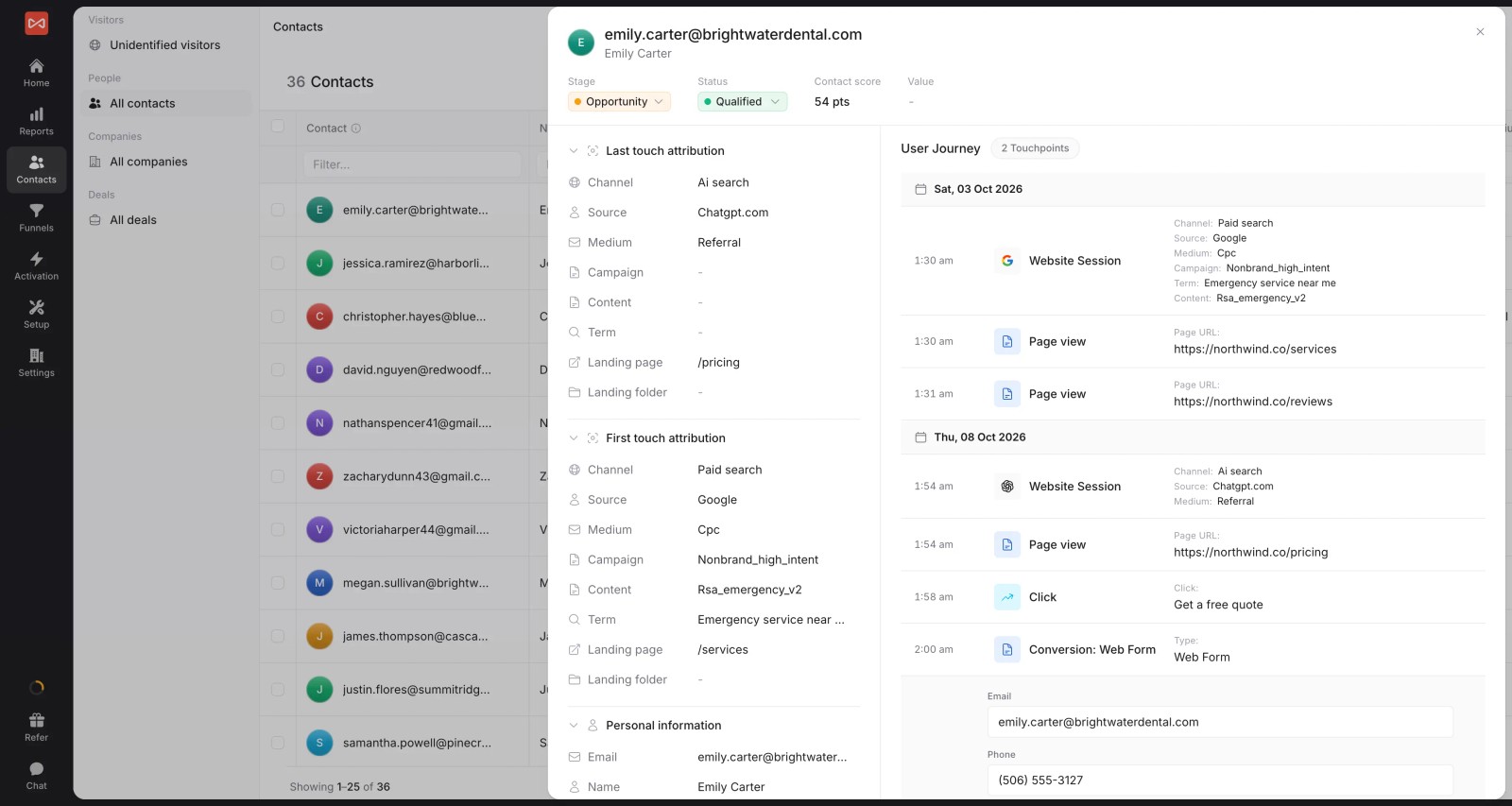
One catch: the form has to be embedded on your own site. If you share a standalone Gravity Forms page or preview link, the script never loads, so those submissions aren't captured.
Step 3: Connect your Meta ad account
Open Setup, then Ad Platforms, and click Connect on Meta Ads. Sign in with Facebook, approve access and pick the ad account you run campaigns from.
This connection does two jobs. It pulls in your spend and campaign data, and it gives SourceLoop an account to send conversions to.
Then collect two things from Meta that the sync will ask for:
Your Pixel ID
- Open Meta Events Manager.
- Pick the pixel (dataset) that your ad account uses.
- Copy the Pixel ID from the settings tab.
A System User access token
- In Business Settings, open Users, then System Users.
- Create a System User (for example "SourceLoop") or pick an existing one.
- Click Assign assets, choose your pixel and give it at least Standard access.
- Click Generate new token and copy it. Meta only shows it once.
Step 4: Create the conversion sync
Open Activation, then Conversion sync. You'll see your connected ad platforms at the top and a row of templates below them.
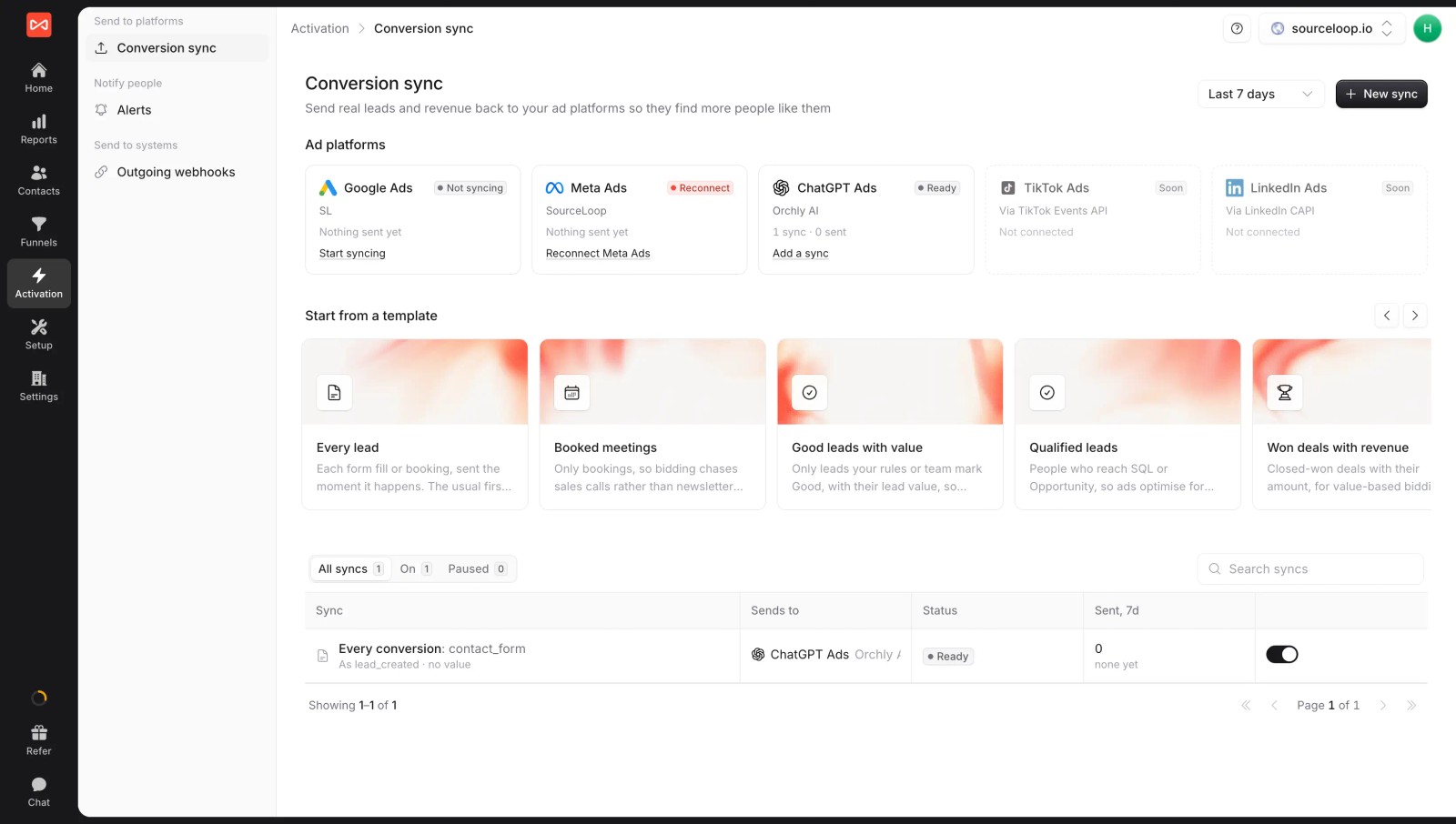
Click the Every lead template. The builder walks you through five short sections:
- Send to: pick your Meta ad account. The first time, paste your Pixel ID and access token. Add a test event code from Events Manager if you want to check the first events before they count.
- When: keep Every conversion. Each Gravity Forms submission is sent the moment it arrives.
- Only if: leave it empty to send every form on the site. To send one form only, tick that form's event here.
- Send as: keep Meta's standard Lead event, or type a custom event name.
- Value: choose No value, a fixed amount per lead, or the lead's actual value.
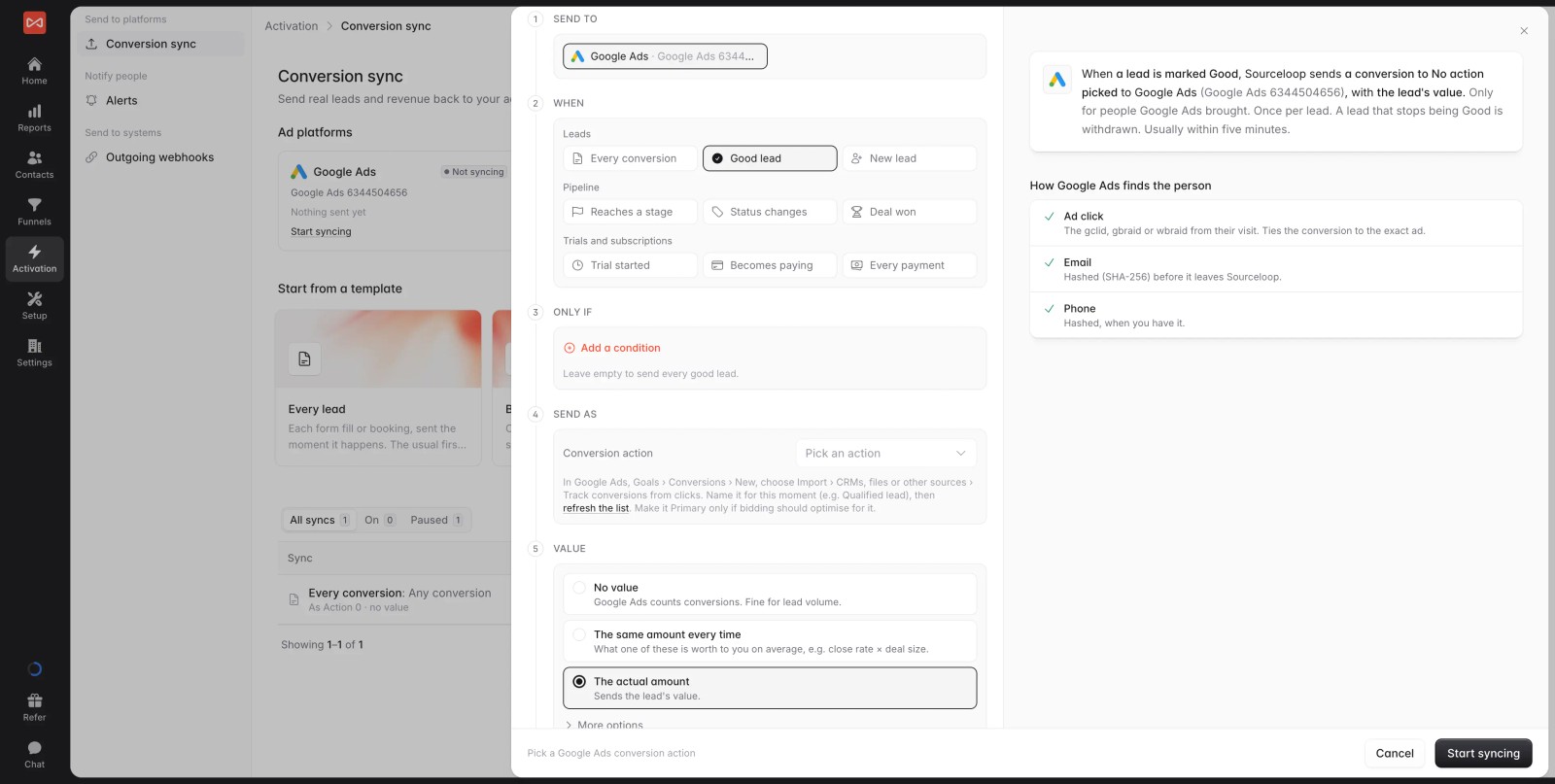
Under Who counts, keep People Meta brought, and choose whether the last or first click from Meta gets credit. If you have leads from the past week, turn on Send past conversions to backfill up to 7 days.
Check the preview on the right, then click Start syncing.
Step 5: Check that Meta is receiving the leads
Submit one more test lead through your form. Then check both ends:
- In SourceLoop: open the sync and look at Recent sends. Each person is listed with what Meta matched on, such as the click ID, email or phone.
- In Meta Events Manager: with a test code set, the event shows under Test events within a few minutes. Without one, it appears in your pixel's overview.
Once it looks right, remove the test event code. While it's set, Meta files your events as tests and doesn't use them to optimize ads.
Avoid double-counting with your existing pixel
If your site already fires a pixel Lead event when a Gravity Form is submitted, you now have two sources for the same lead.
Pick one of these:
- Stop the browser Lead event and let the server-side sync be the only source. This is the cleanest option.
- Keep the pixel, but give the sync a different event name, such as
QualifiedLead, and optimize campaigns on that event instead.
Don't send the same event name from both. Meta can't tell they are the same person, so every lead would be counted twice.
Next: send only the leads worth paying for
Sending every submission is the right place to start. Meta needs volume to exit the learning phase.
But if a good share of your Gravity Forms leads are spam, students or job seekers, you're training Meta to find more of them. Once you get a steady flow of leads, make your sync stricter:
- Open Setup, then Lead quality, and add rules that mark leads Good, Not a fit or Spam. For example, mark a lead Good when the email is a business domain, or when the person also books a meeting.
- Create a second sync with the Good leads with value template, sent to Meta as a custom event.
- Optimize your campaigns on that event once it has enough volume.
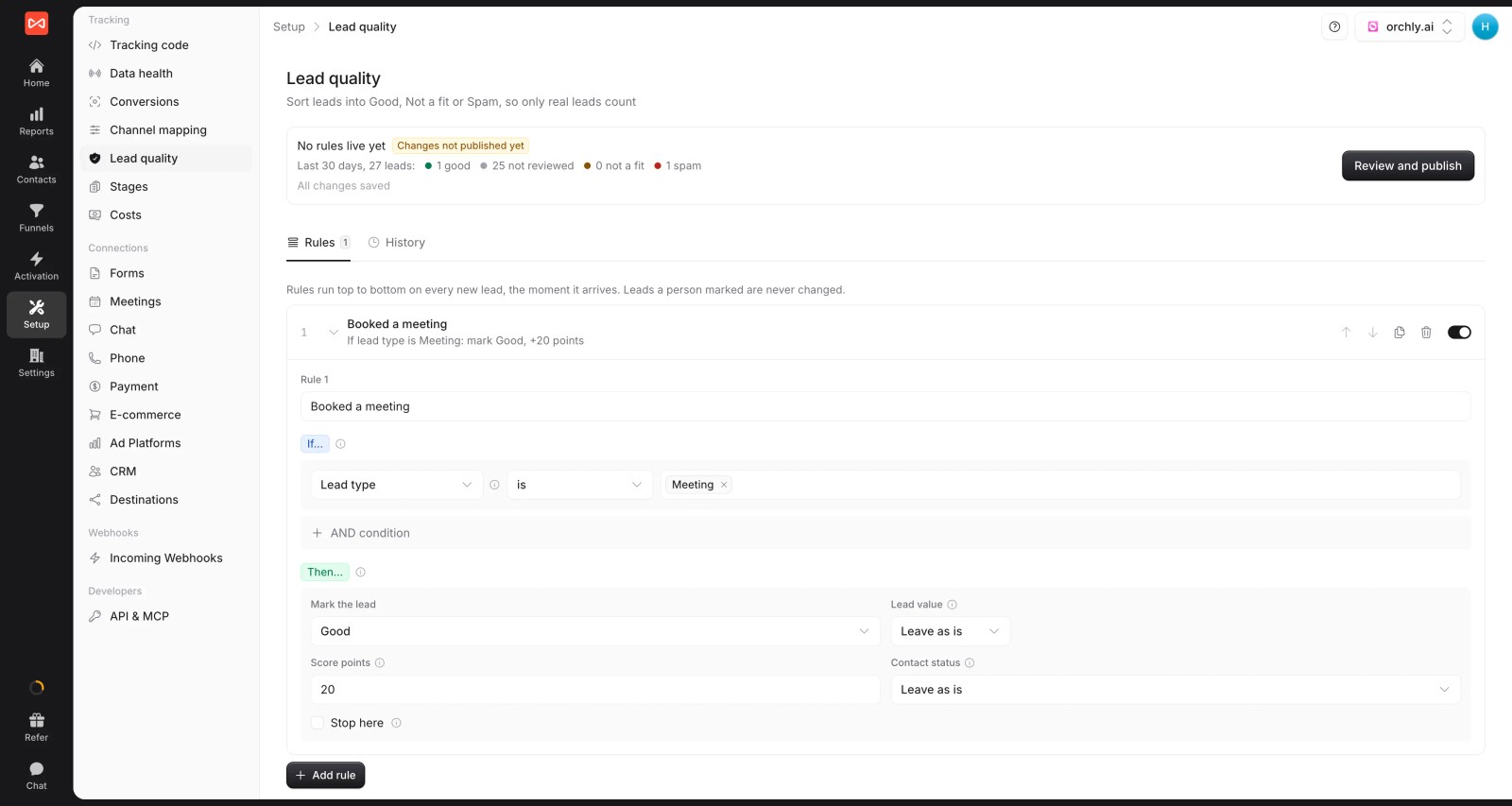
Spam never counts as a conversion in SourceLoop, so it never reaches Meta either.
If you use HubSpot, Salesforce or Pipedrive, you can go one step further: send leads to Meta when they reach a stage like SQL, or when a deal is won, with its revenue.
See which Meta ads actually produce leads
Meta's own numbers tell you what Meta thinks it caused. To see what the lead data says, open Reports, then Ads performance. Each campaign, ad set and ad shows Meta's reported conversions next to the leads SourceLoop credits to it, under last-touch and first-touch attribution.
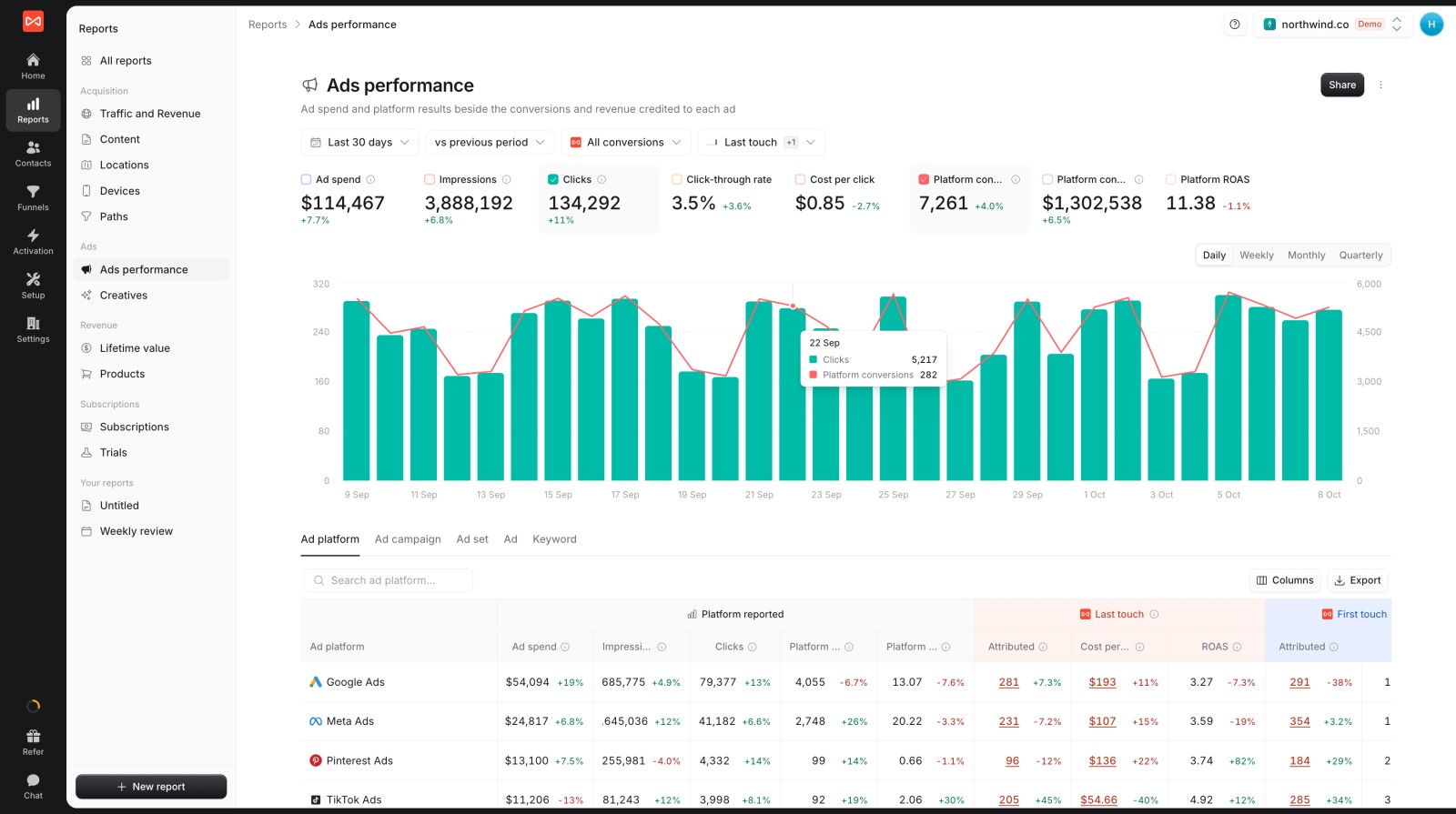
When the two disagree, the ad with more credited leads is usually the one to scale.
Other ways to do this, and where they fall short
- Pixel event on a thank-you page: free and quick, but it misses AJAX submissions, ad-blocked visitors and declined cookies. It can't tell good leads from spam.
- Google Tag Manager trigger on form submit: catches AJAX forms, but it's still browser-side, so the same blockers apply. It also breaks quietly when the form markup changes.
- A WordPress Conversions API plugin: sends events server-side, but usually without the original ad click. It also has no view of what happens after the submission, so you can't send qualified leads or deals.
- Zapier or Make: works, but you build the hashing, click ID handling and retries yourself. Each lead also costs a task.
SourceLoop covers the capture, the journey and the server-side send in one place. It also lets you send later moments, like qualified leads and won deals, to the same ad account.
Further reading
Frequently asked questions
-
Do I need a paid Gravity Forms add-on to send leads to Meta?
No. SourceLoop captures Gravity Forms submissions through its tracking script, so you don't need an add-on, a webhook or hidden fields. Any Gravity Forms license works.
-
Does this work with AJAX-enabled Gravity Forms?
Yes. The submission is captured whether the form submits with AJAX or a full page reload. You don't need a thank-you page.
-
Which Meta event should Gravity Forms submissions use?
Use the standard Lead event for general enquiries and demo requests. If you only want to send qualified leads, use a custom event name like
QualifiedLead, then optimize campaigns on it. -
How does Meta match a lead that has no click ID?
SourceLoop sends the email and phone from the form, hashed with SHA-256, alongside the event. Meta uses them to match the lead to a Facebook or Instagram user, which improves match quality.
-
Will leads from people who never clicked a Meta ad be sent too?
Not by default. With Who counts set to People Meta brought, a lead is only sent when Meta was part of that person's journey. That keeps organic and Google leads out of your Meta reporting.
-
Can I send leads that came in before I set this up?
Yes, up to 7 days back. Turn on Send past conversions when you create the sync. Meta doesn't accept older events for ad optimization.
-
What happens to spam submissions?
SourceLoop's lead quality rules can mark a submission as spam the moment it arrives. Spam isn't counted as a conversion, so it isn't sent to Meta.
-
Can I send different Gravity Forms to different Meta events?
Yes. Create one sync per form and tick that form's event under Only if. Each sync can use its own event name, such as
DemoRequestfor your demo form.

 Paid Social


