
Server-Side Tracking Setup: Options, Costs and Pitfalls
Three ways to set up server-side tracking, what each one costs, what it fixes and what it can't, and how to check it's actually working.
Table of contents
- How server-side tracking works in practice
- 3 problems server-side tracking fixes
- 1. Ad blockers
- 2. Safari's cookie limits
- 3. Outcomes that never happen in a browser
- 3 things it won't fix
- 1. Consent
- 2. A bad conversion definition
- 3. Double counting
- 3 ways to set it up
- 1. Your own server-side tag manager
- 2. Platform plugins and integrations
- 3. An attribution tool with conversion sync
- How to set up server-side tracking with SourceLoop
- Step 1: Install the tracking script
- Step 2: Decide how to handle consent
- Step 3: Connect your ad accounts and choose what to send
- Step 4: Stop the same conversion being counted twice
- Step 5: Check that it works
- Mistakes to avoid
Browser tags lose conversions. Ad blockers stop them, Safari shortens the cookies they rely on, and some of your best outcomes, like a deal marked won in the CRM, never happen in a browser at all.
Server-side tracking moves the send to a server. If you want the basic definitions first, read what server-side tracking is.
In this guide, I'll focus on doing it: how the data actually travels, the three ways to set it up, what each costs, and how to check it works.
How server-side tracking works in practice
With browser-only tracking, every ad platform's pixel runs on your page and reports straight back to its owner. If the pixel is blocked or its cookie has expired, that conversion is gone.
With server-side tracking, your site sends one stream of events to an endpoint you control. That server decides what to forward, adds data the browser never had, and sends it to each platform's API.
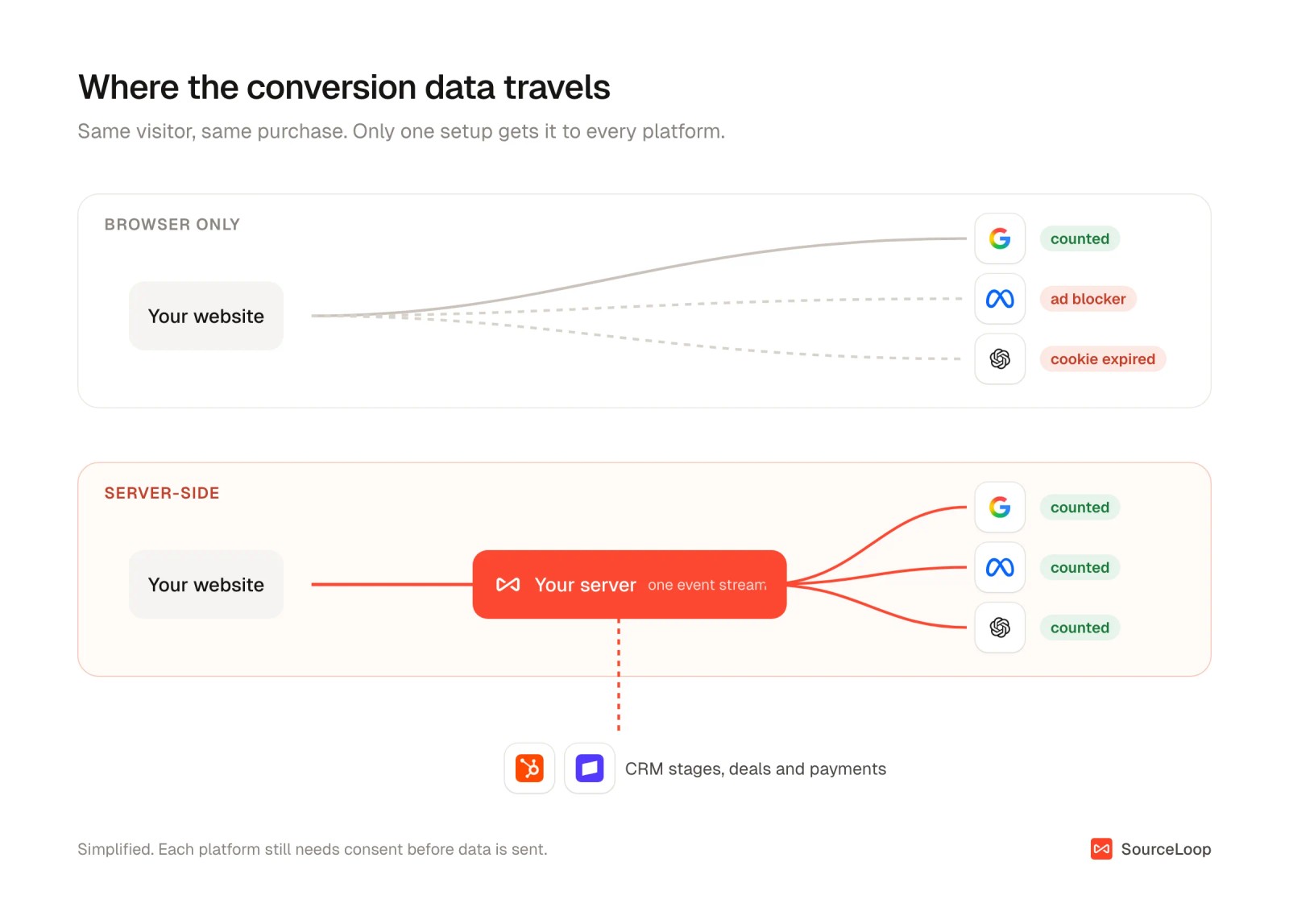
The platform APIs on the receiving end are the Meta Conversions API, Google Ads enhanced conversions and offline conversion imports, and similar endpoints from other platforms.
3 problems server-side tracking fixes
Moving the send from the browser to a server solves three real problems.
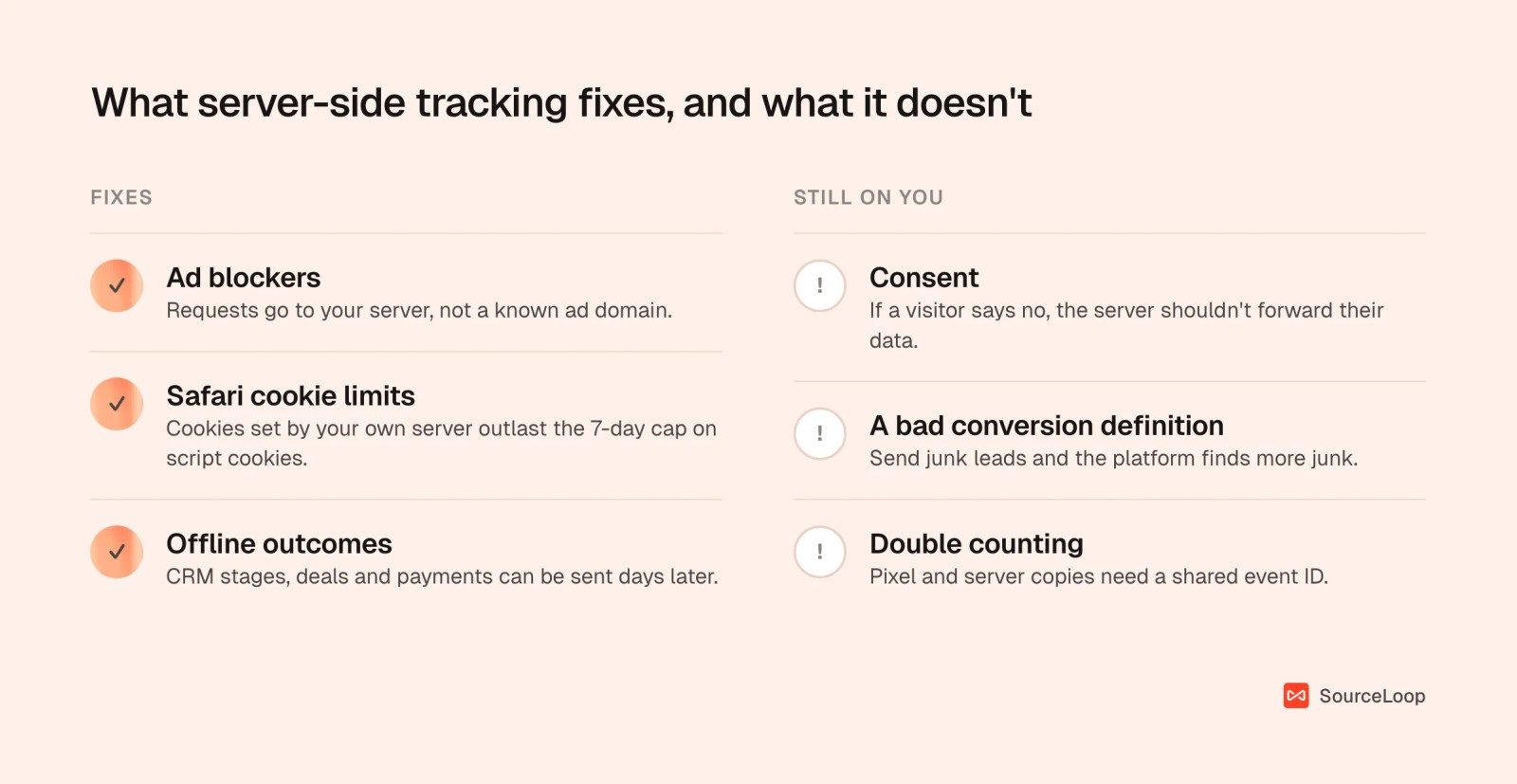
1. Ad blockers
About one in five internet users regularly run an ad blocker, and another one in ten use one sometimes. Most of them block the Meta pixel and Google's tags along with the ads.
A request to your own server usually gets through.
2. Safari's cookie limits
Safari deletes cookies and other storage set by scripts after 7 days without a visit. If someone clicks your ad, leaves, and comes back on day nine to buy, the browser tag no longer knows they came from the ad.
Cookies set by a server on your own domain aren't covered by that rule. Safari does cap them at 7 days when the server is really a third party hiding behind your domain, so the setup matters.
3. Outcomes that never happen in a browser
A sales call, a qualified opportunity, a renewal. None of these fire a pixel.
A server can send them hours or days later. Meta accepts server events up to 7 days old. Google's enhanced conversions for leads matches hashed lead details to later sales.
That's the biggest win for most B2B and lead-gen teams. The platforms can learn from real outcomes, not just form fills.
3 things it won't fix
1. Consent
Server-side tracking changes how data travels, not whether you're allowed to collect it. If a visitor declines tracking, the server shouldn't forward their data either.
Our guide to GDPR-compliant conversion tracking covers how to handle this properly.
2. A bad conversion definition
If you send every form fill as a conversion, you'll get more form fills, spam included. A server just delivers that mistake more reliably.
3. Double counting
If the pixel and the server both report the same purchase and the platform can't tell, it counts two. Meta deduplicates on a shared event ID and event name received within 48 hours. Google needs you to keep the two in separate conversion actions. More on this in step 4 below.
3 ways to set it up
| Option | Best for | Typical monthly cost | Effort | Sends CRM and offline outcomes |
|---|---|---|---|---|
| Your own server-side tag manager | Teams with a developer and many tags | About $90 on Google Cloud, or $17 to $83 hosted | High: setup plus ongoing upkeep | Only if you build it |
| Platform plugins and integrations | Single-platform stores, such as Shopify with Meta | Usually free | Low | Rarely |
| Attribution tool with conversion sync | Lead gen, B2B and anyone selling past the website | Included in the tool's plan | Low | Yes, from the CRM and payments |
1. Your own server-side tag manager
Google Tag Manager has a server container you host yourself. Google recommends at least two servers at about $45 a month each on Cloud Run, plus logging costs at higher traffic. Hosted services like Stape run it for you, from $17 to $83 a month for most sites.
You get full control, and you need someone who can configure clients, tags, a custom subdomain and consent, and fix it when a platform changes its API.
2. Platform plugins and integrations
Shopify, WordPress plugins and most store builders offer a built-in Meta Conversions API or Google enhanced conversions connection. They're quick and free.
They usually cover one platform each and only the events your store sees. A lead that turns into a deal in your CRM a month later won't be sent.
3. An attribution tool with conversion sync
Some tools capture the visit, follow the lead into your CRM and payments, and send conversions to each ad platform from their own servers. You skip the server work, and the outcomes come from your real pipeline.
The tradeoff is less freedom than running your own tag server. We compared the options in our list of conversion API tracking tools.
How to set up server-side tracking with SourceLoop
The steps below use SourceLoop, a first-party marketing attribution and measurement tool that takes the third route.
Its script records each visit with its UTMs and click IDs. It follows that person through forms, chats, calls and bookings into HubSpot, Salesforce or Pipedrive and on to Stripe. Then it sends the outcomes you choose to Google Ads, Meta and ChatGPT Ads from SourceLoop's servers.
Step 1: Install the tracking script
Copy the snippet from Setup > Tracking code into the head of your site. There are guides for WordPress, Webflow, Framer, Wix and Shopify, and the install guide covers the rest.
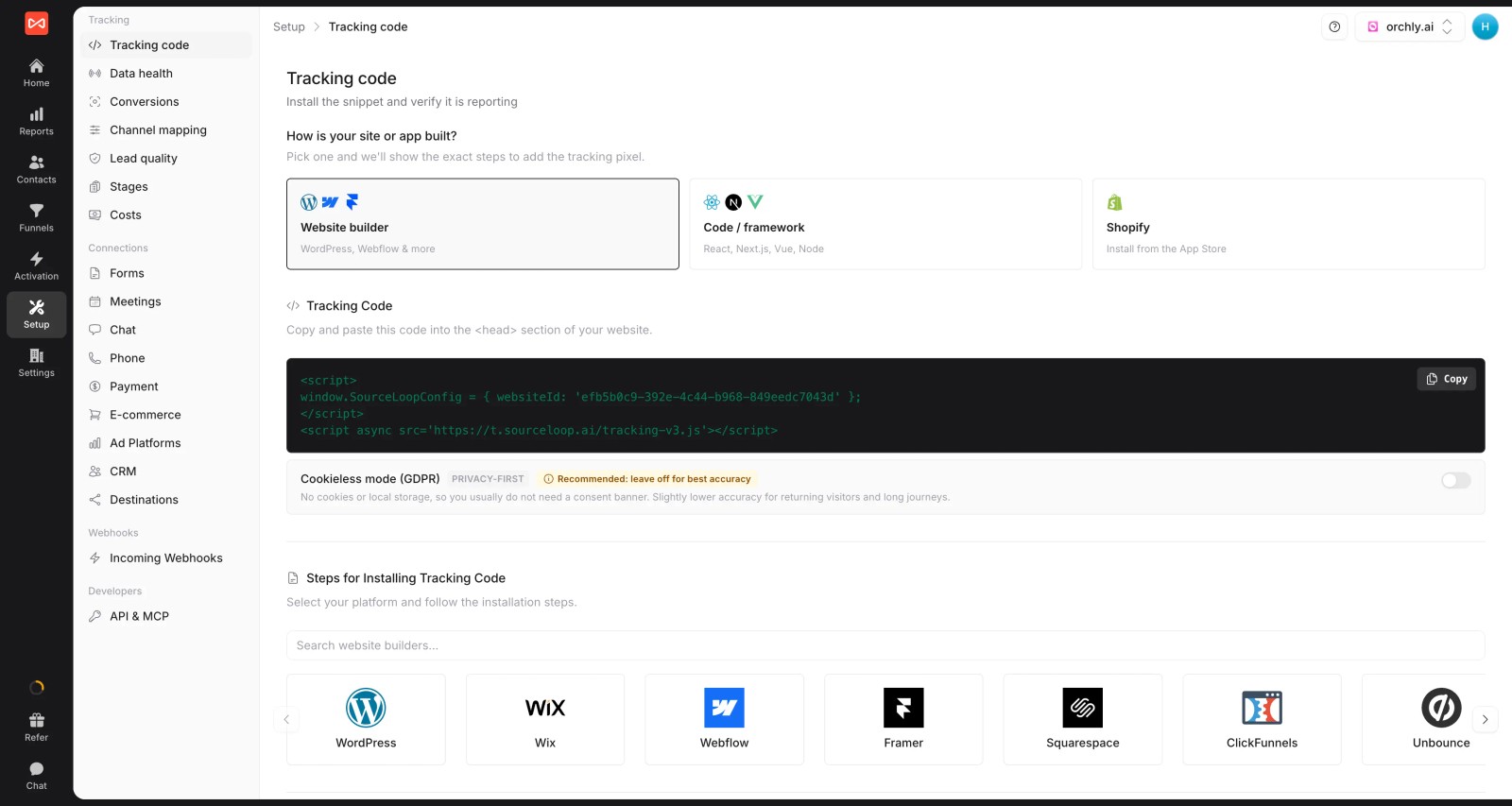
You can also serve the script from a subdomain of your own site, such as t.yoursite.com. Requests then go to your own domain, which fewer blockers stop.
If you run several domains, set up cross-domain tracking so one journey doesn't split in two.
Step 2: Decide how to handle consent
SourceLoop follows Google Consent Mode. If a visitor declines analytics, it doesn't track them. If they decline ad storage, click IDs aren't kept, and if they decline ad user data, email and phone aren't sent to the platforms.
For sites that don't want cookies at all, turn on Cookieless mode on the same page.
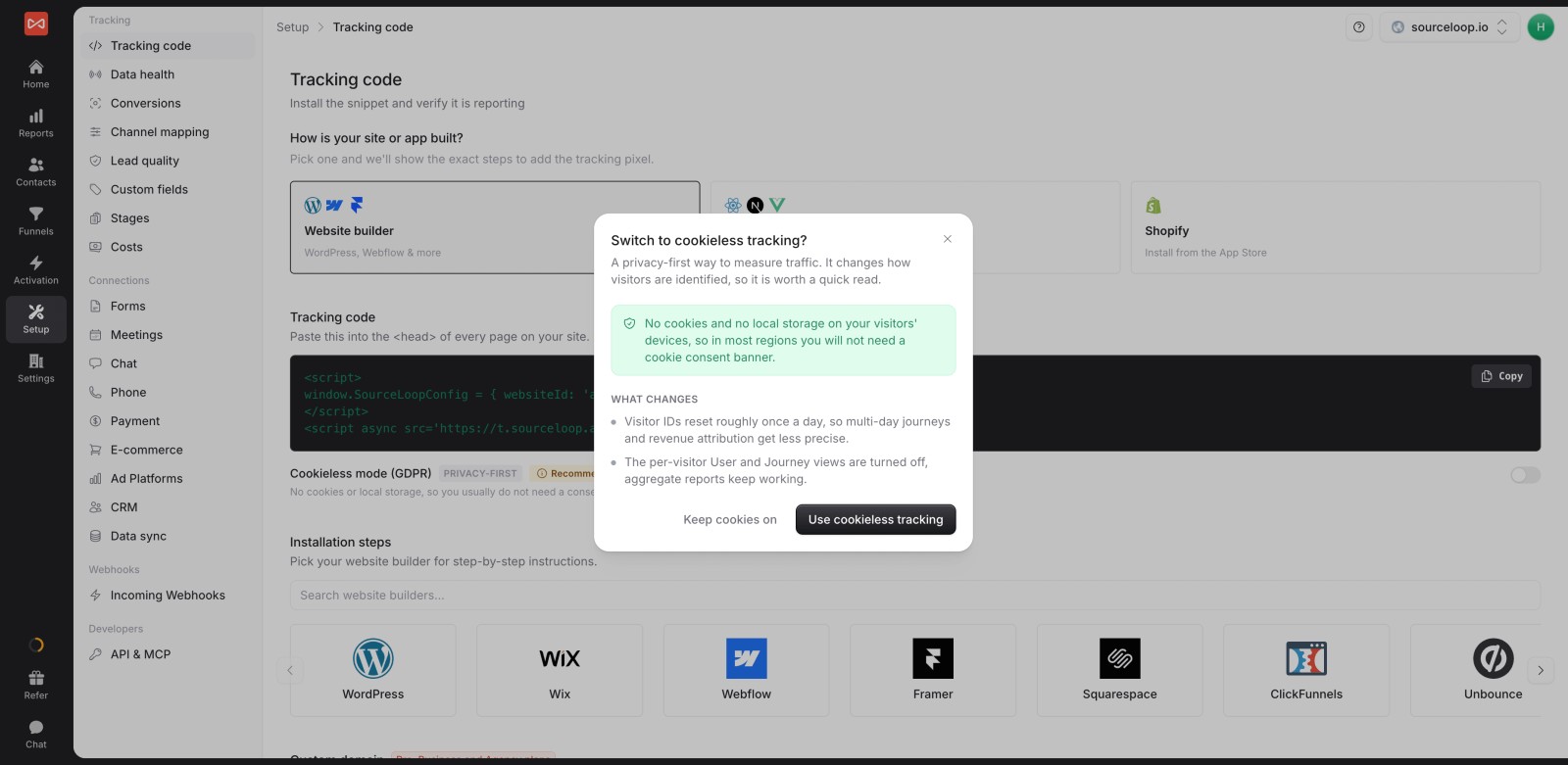
The tradeoff: in cookieless mode, a returning visitor counts as new each day. Cookieless attribution explains what you keep and lose.
Step 3: Connect your ad accounts and choose what to send
Connect Google Ads, Meta and ChatGPT Ads under Setup > Ad platforms. Then go to Activation > Conversion sync and create a sync.
Each sync answers four questions: which platform, when to send (a new lead, a good lead, a CRM stage, a won deal, a payment), any filters, and which value to attach.
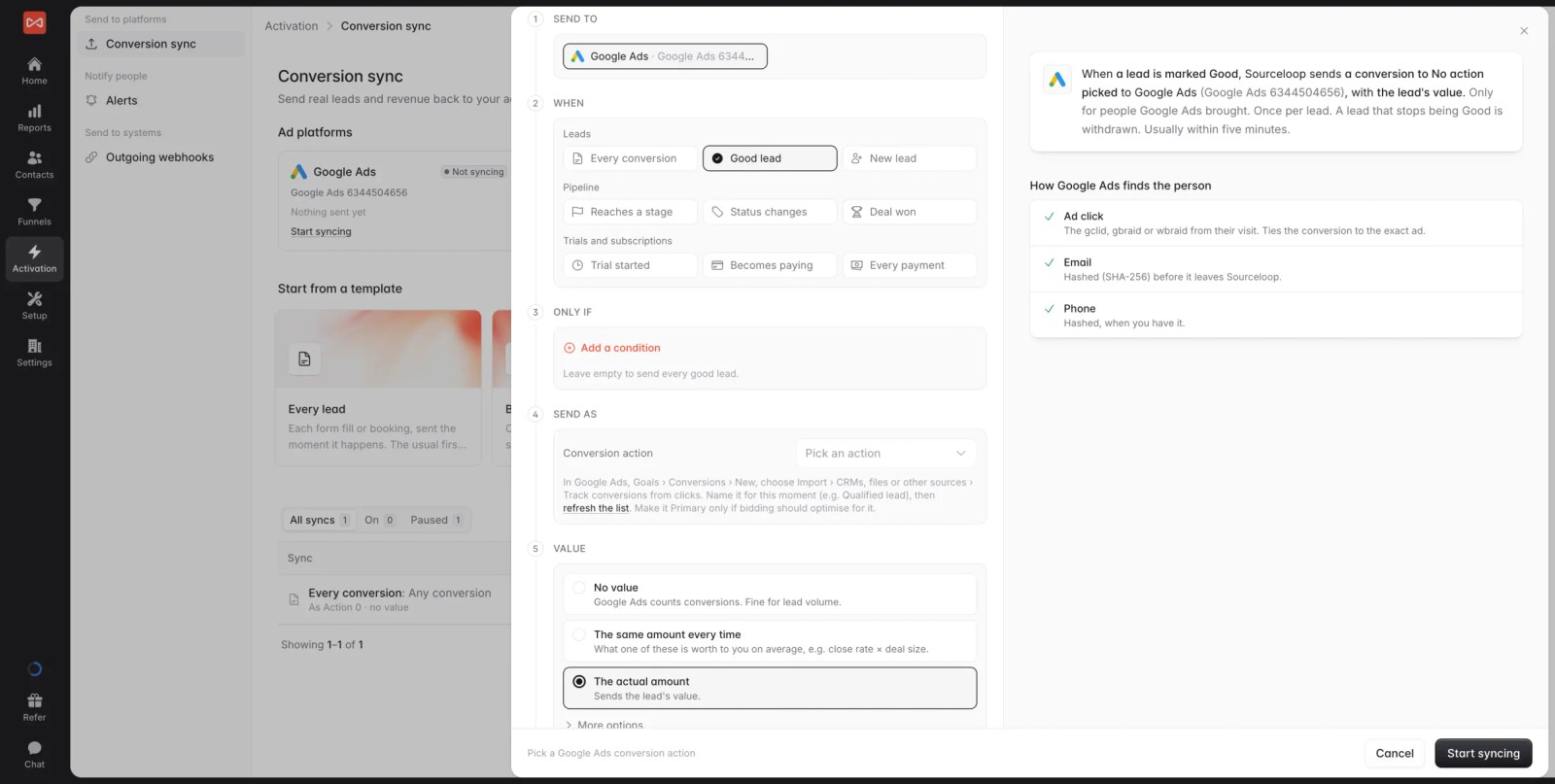
Matching uses the ad's click ID when there is one (gclid, gbraid or wbraid for Google, the click ID for Meta), plus hashed email and phone. That's what gets a lead who clicked on a phone and converted on a laptop counted.
Start with a template, such as Good leads with value or Won deals with revenue. The conversion sync guide walks through each option, and there are platform guides for Meta and Google Ads.
Step 4: Stop the same conversion being counted twice
If your pixel or Google tag already reports leads, decide which source each platform should optimize on.
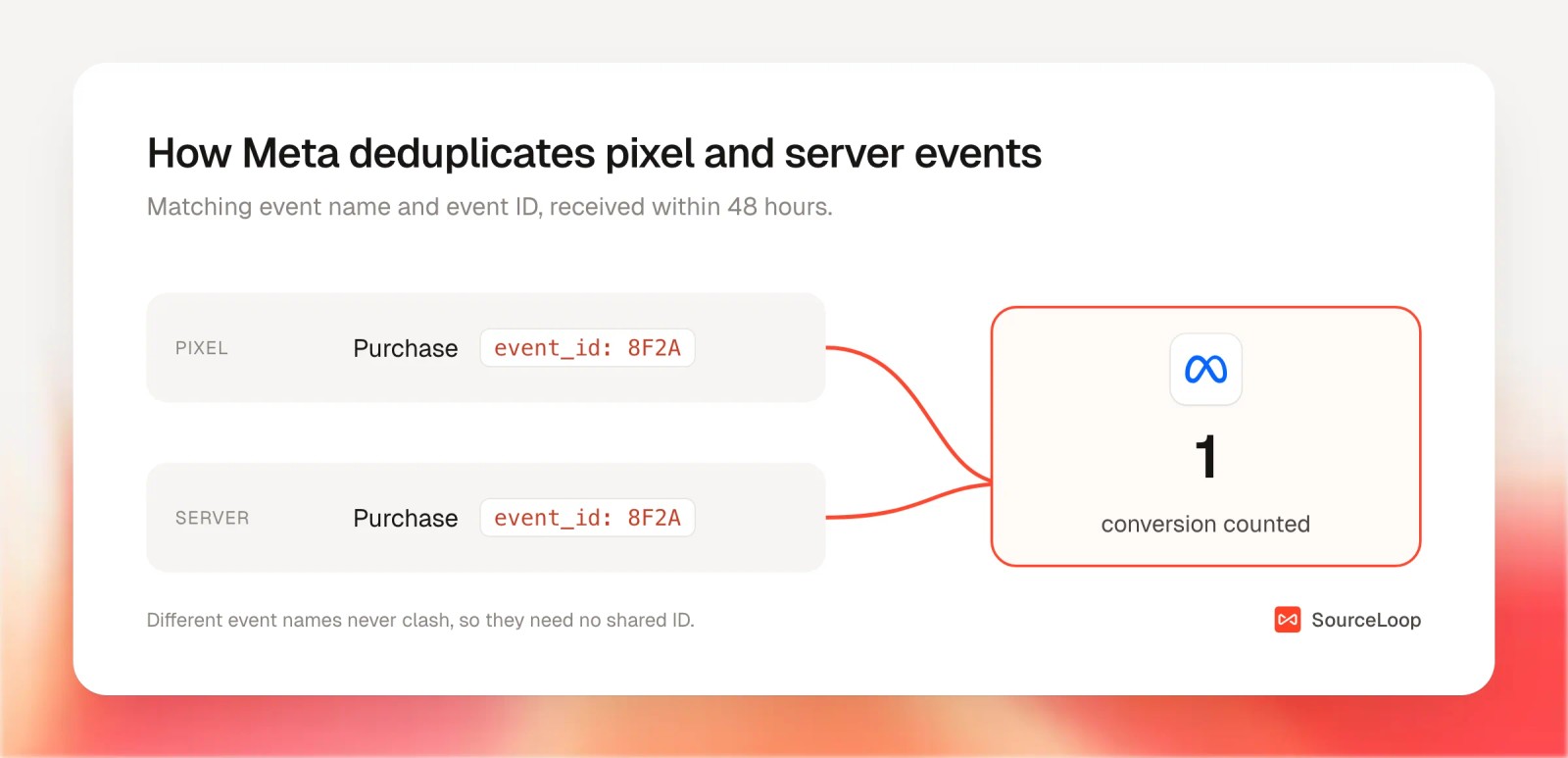
The simplest setup:
- Send different outcomes under different names. Let the pixel keep reporting on-page events. Send qualified leads, deals and revenue from SourceLoop under their own conversion names.
- In Google Ads, make the synced action Primary and set the old form-fill tag to Secondary, so bidding uses one and reports the other.
- In Meta, optimize the campaign on the synced event. If you send the same event from both the pixel and a server, they must share an event ID.
SourceLoop shows a note in the sync builder when an outcome might also be counted by the platform's own tag, so you can check before you save.
Step 5: Check that it works
Open Setup > Data health. The Live tab streams events as they arrive. Run a test lead submits a test conversion so you can watch it come in. It's marked as spam automatically, so it stays out of your reports.
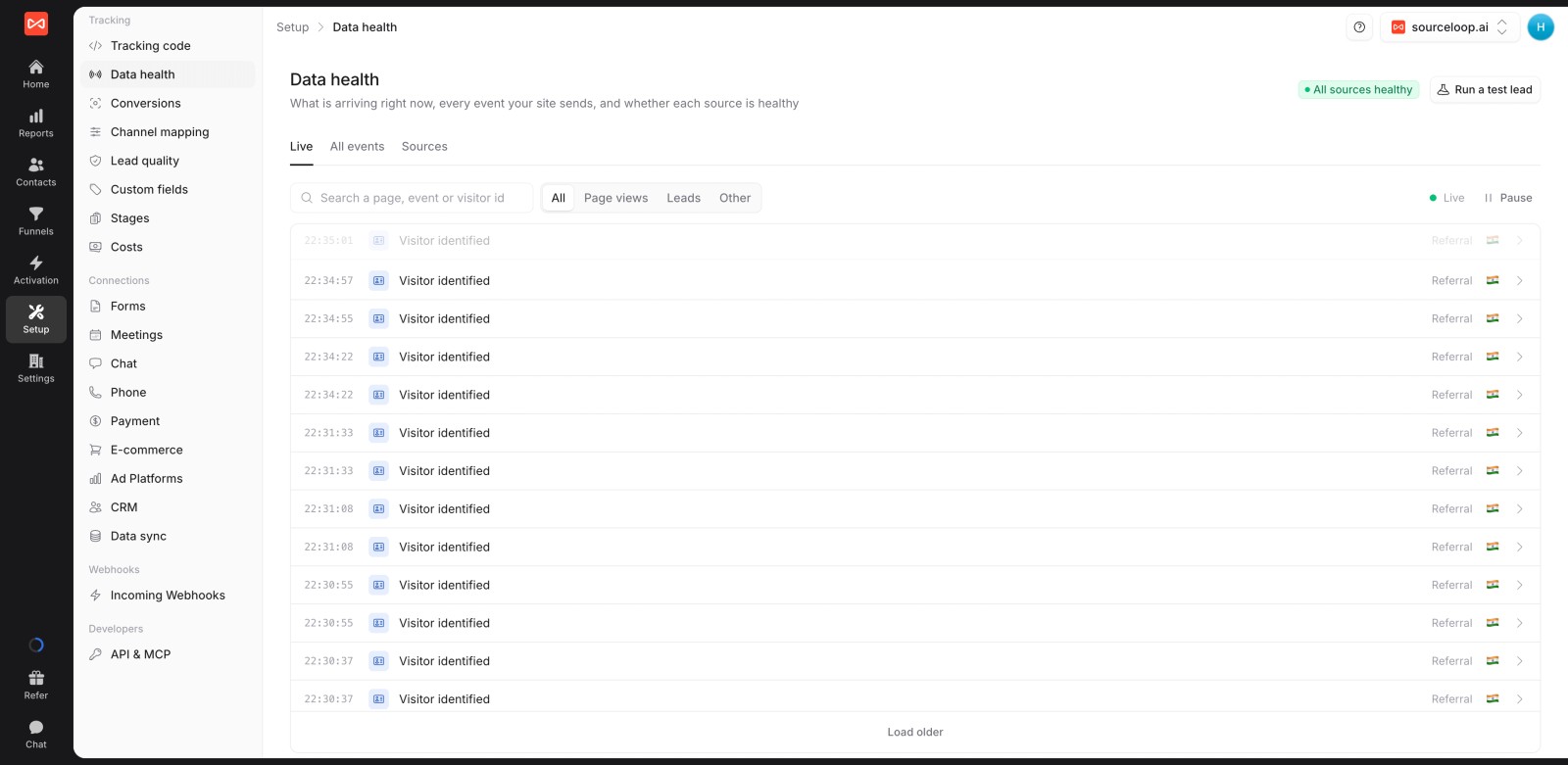
Once real leads are flowing, check the other end:
- Meta: in Events Manager, the event should show the server as a source. Look at its Event Match Quality score. More customer details per event usually means a higher score.
- Google Ads: the conversion action's diagnostics show whether uploads are arriving and matching. Expect a delay of a few hours.
- Your numbers: a week later, compare platform-reported conversions with what SourceLoop credits in Reports > Ads performance. They won't match exactly, but they should be in the same range.
Mistakes to avoid
- Treating it as a consent workaround. It isn't one. Consent rules apply to the data, wherever it's sent from.
- Sending everything. Pick outcomes that predict revenue, and filter out spam before it's sent.
- Forgetting the event ID. Without it, Meta counts pixel and server copies of the same purchase twice.
- Hosting on a domain that isn't yours. A tag server on a third-party domain loses most of the cookie benefit.
- Never checking again. Platforms change their APIs. Look at match quality and diagnostics every month.
For more on the browser side of this problem, see our cookie deprecation strategy and the roundup of cookieless tracking tools.
Frequently asked questions
-
What is the difference between server-side tracking and a Conversions API?
Server-side tracking is the general approach of sending events from a server. A Conversions API is a specific platform's endpoint for receiving them, such as Meta's. You need a server-side setup to use a Conversions API.
-
How much does server-side tracking cost?
A self-hosted Google Tag Manager server container costs around $90 a month on Google Cloud for two servers, or $17 to $83 a month through a hosting service like Stape, plus setup time. Platform plugins are usually free. Attribution tools include it in their plans.
-
Does server-side tracking get around ad blockers?
Mostly, because requests go to your own server and not to a known ad domain. It doesn't get around consent: if a visitor says no, you shouldn't forward their data.
-
Should I keep the Meta pixel if I use the Conversions API?
Yes. Meta recommends running both. Give matching events the same event ID and name so Meta keeps one copy, or send different events from each.
-
How do I know server-side tracking is working?
Send a test conversion and confirm it arrives in each platform: as a server event in Meta Events Manager, and in the conversion action's diagnostics in Google Ads. Then compare a week of platform-reported conversions with your own attribution data.
-
Can server-side tracking send offline conversions?
Yes. That's one of its main uses. A server can send CRM stages, closed deals and payments to the ad platforms after the fact, matched by click ID or hashed contact details.


 Paid Social


