
How to Track UTM Parameters in Paperform
Paperform UTM tracking made easy, follow these 4 easy steps to uncover the source of every lead.
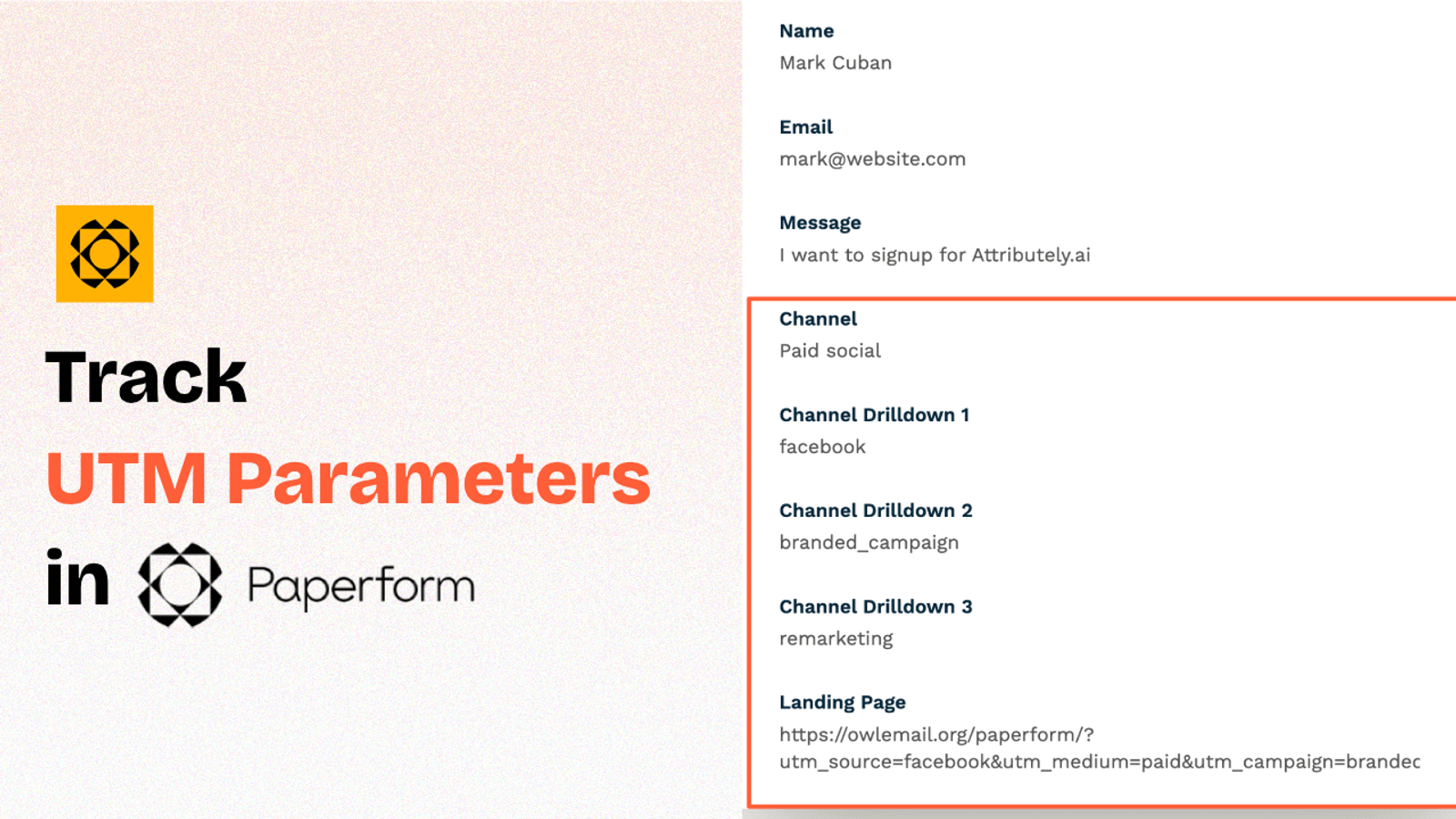
Table of contents
Are you driving traffic to your website from multiple channels and want to capture UTM parameters in Paperform when a lead submits the form?
Unfortunately, tracking UTM parameters in an embedded Paperform can be tricky.
But there’s good news—You can use a no-code, plug-and-play tool like SourceLoop.ai to make it simple.
In this guide, we’ll show you how to track UTM parameters in Paperform using SourceLoop.ai, so you can pinpoint exactly which channel, campaign, or ad drove in each lead.
4 Easy Steps to Track UTM Parameters in Paperform
Here are 4 simple steps to capture UTM parameters in Paperform:
1. Add SourceLoop on Your Website

First, go to SourceLoop.ai and create a free trial account.
Once you’re in, copy the tracking script from the onboarding screen and paste it into the <head> section of your website
SourceLoop will now start tracking each visitor’s UTM parameters and store them in their browser cookies.
The best part? It doesn’t just log raw strings like ?utm_source=facebook, it turns them into clean, structured data, like this:
Example:
Let’s say Airbnb is using SourceLoop.ai, and a user clicks on one of their Google Search ads while looking for vacation rentals in Italy.
SourceLoop.ai will capture and organize the user’s visit information like this:
- Channel = Paid Search
- Channel Drilldown 1 = Google
- Channel Drilldown 2 = Search Ad
- Channel Drilldown 3 = Italy Summer Rentals
- Landing Page = www.airbnb.com/s/italy
- Landing Page Folder = search
- Last Seen = Apr 14, 2025
2. Add UTM Parameters to Your Links

Now, SourceLoop.ai is ready to read the UTM data of users visiting your website.
So, you need to make sure every link you use to drive traffic to your website includes proper UTM tags.
Major ad platforms like Google Ads, Facebook Ads, and TikTok Ads provide easy options to dynamically insert UTM tags into links.
Example of a link with UTM parameters:
https://yoursite.com/quiz?utm_source=facebook&utm_medium=paid&utm_campaign=summer_sale
TIP: UTM tags aren’t just meant for ads. You can add them to other marketing channels like email CTAs, social media bios, influencer stories, podcast show notes, and more.
Resources:
- How to add UTM parameters in Google Ads
- How to add URL parameters to Meta ads
- How to setup UTM Codes for LinkedIn Ads
- How to add UTMs to your TikTok ads
3. Add Hidden Fields to Your Form
Next, add 7 hidden fields to your form which won’t be visible to your website visitors, but SourceLoop can see them and overwrite their placeholders data with real UTM data when user submits a form.
Here’s how:
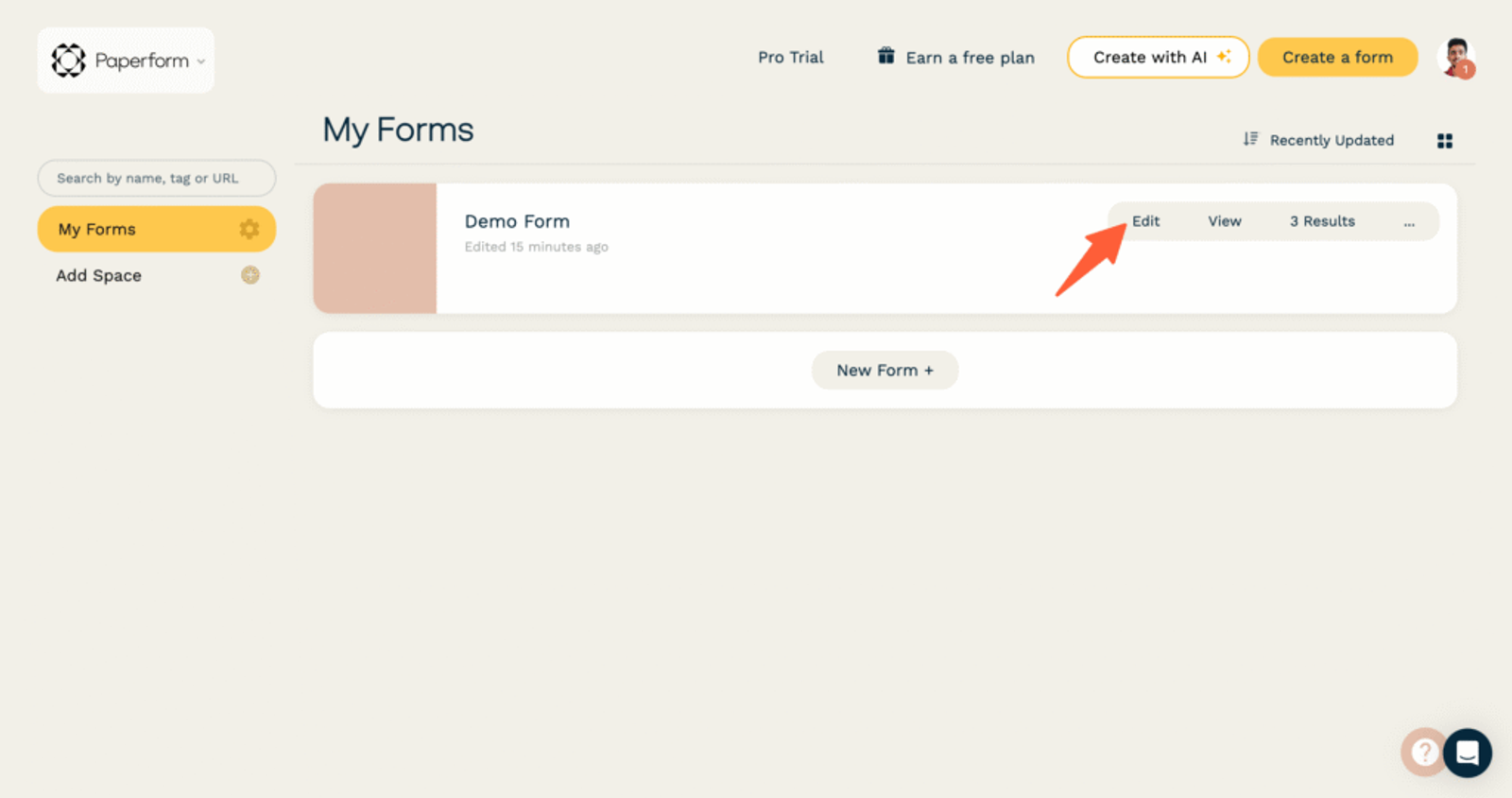
- Head to your Paperform dashboard and select the form you’d like to use with SourceLoop. Click Edit to access the form builder.
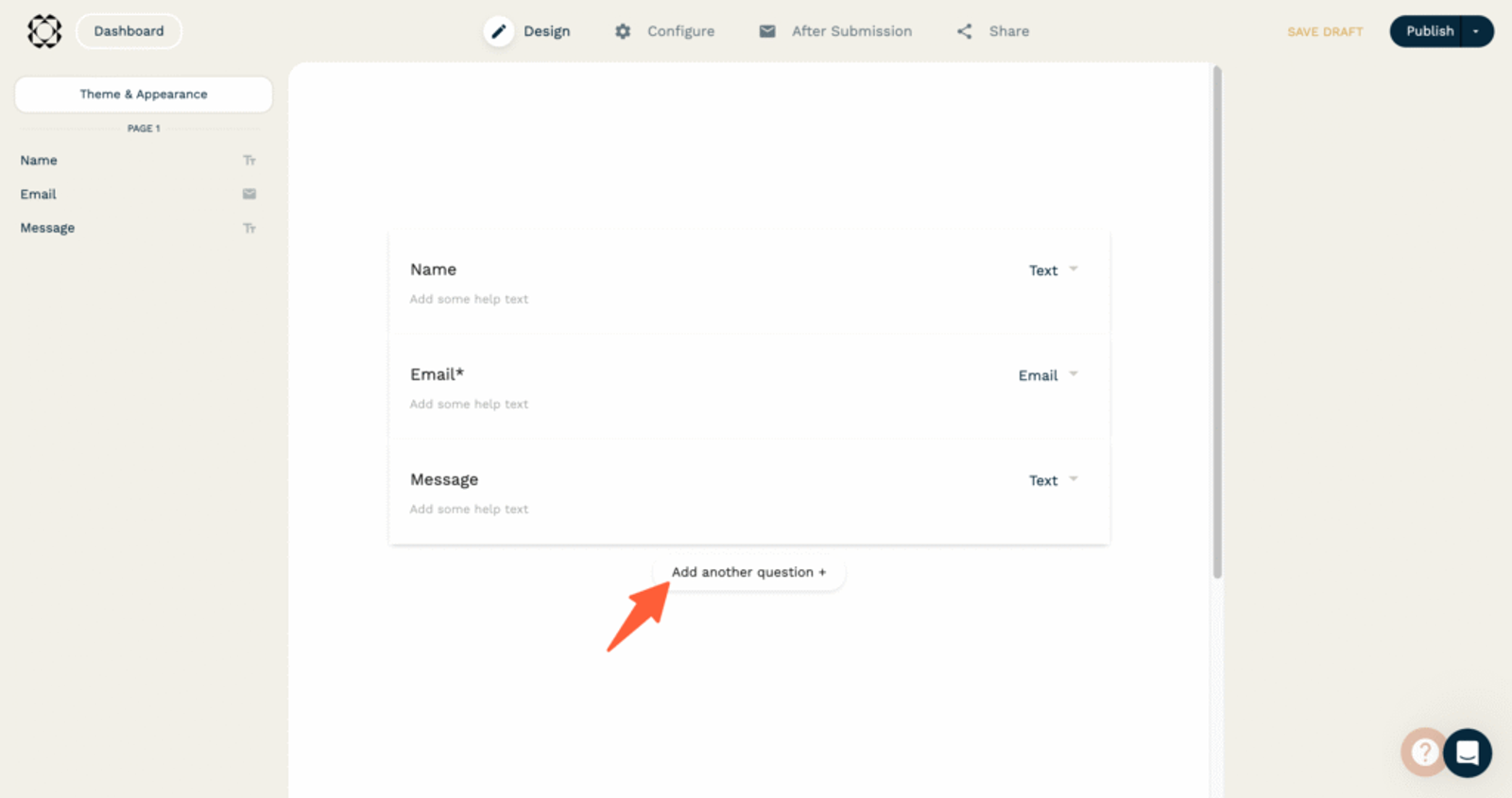
- Scroll to the bottom of your form and click Add Another Question.
- Click on the field to open its settings panel.
- Change the field type to Hidden.
- Assign each field a corresponding Question Id. These keys allow SourceLoop to write data directly into each field.
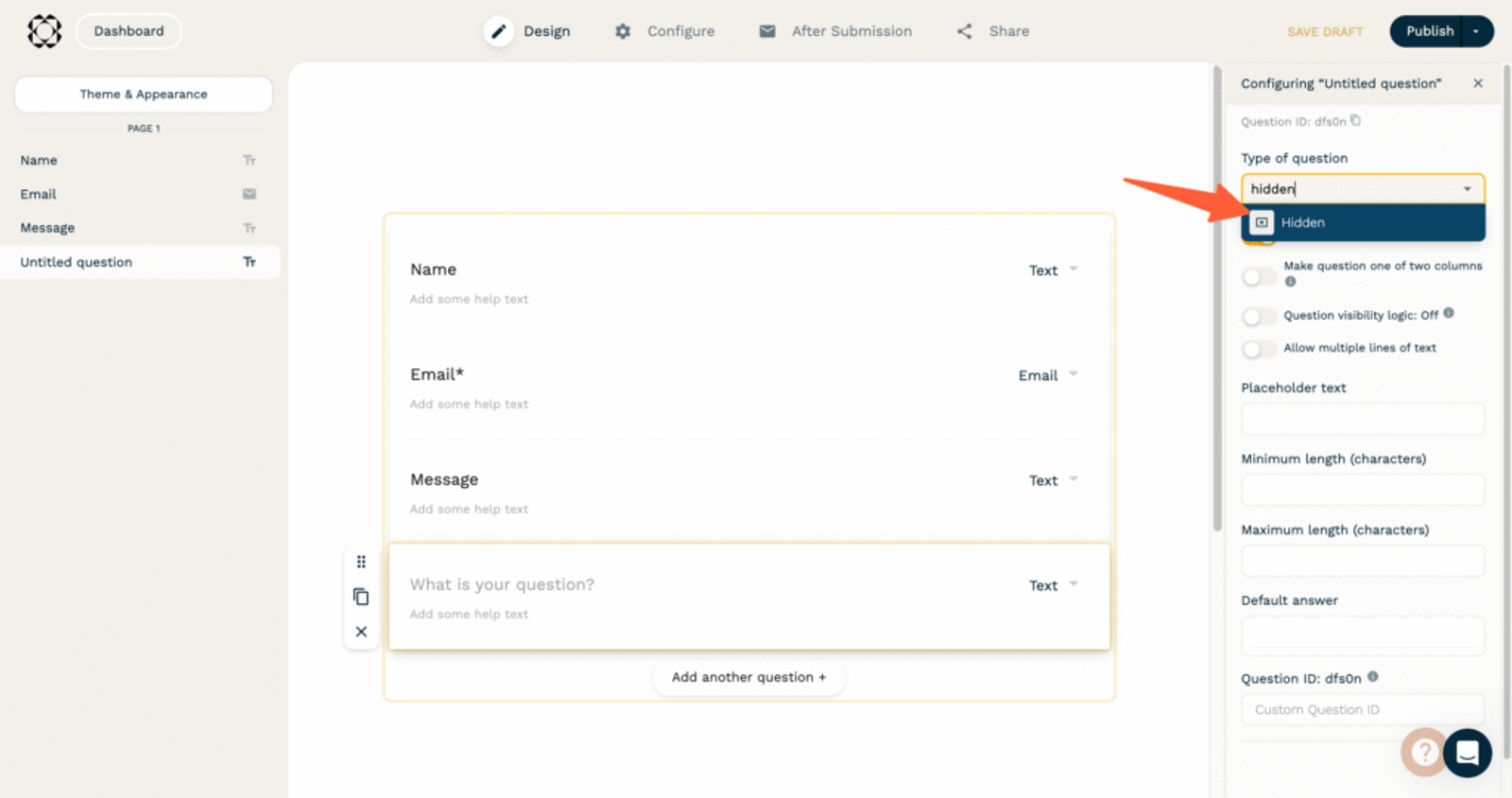
Here are the recommended question ID value for each field:
- [channel]
- [attribution_source]
- [attribution_medium]
- [attribution_campaign]
- [attribution_term]
- [landingpage]
- [landingpagefolder]
- [lastseen]
Optional: Track First-Touch Attribution (Highly Recommended for B2B)
If you sell B2B software, agency retainers, or any offer that requires multiple visits before a prospect fill a lead form or book meeting, then you may want to know how a lead first discovered your website.
Here are 7 additional hidden fields you can configure to get the attribution data of the user’s first visit to your website in the past 6 months.
- [first_channel]
- [first_source]
- [first_medium]
- [first_campaign]
- [first_term]
- [first_landingpage]
- [first_landingpagefolder]
- [first_seen]
This allows you to keep track of which marketing channel create awareness and which ones close the deal.
Additional Tutorials:
4. UTM Parameters Are Automatically Passed in Paperform Submission
Finally, embed the form on your website.
Now, when someone fills out your Paperform, SourceLoop will automatically populate those hidden fields with attribution data.
To view this data:
- Go to your Paperform dashboard
- Head to Results → Submissions
- Click any entry to view the full attribution data
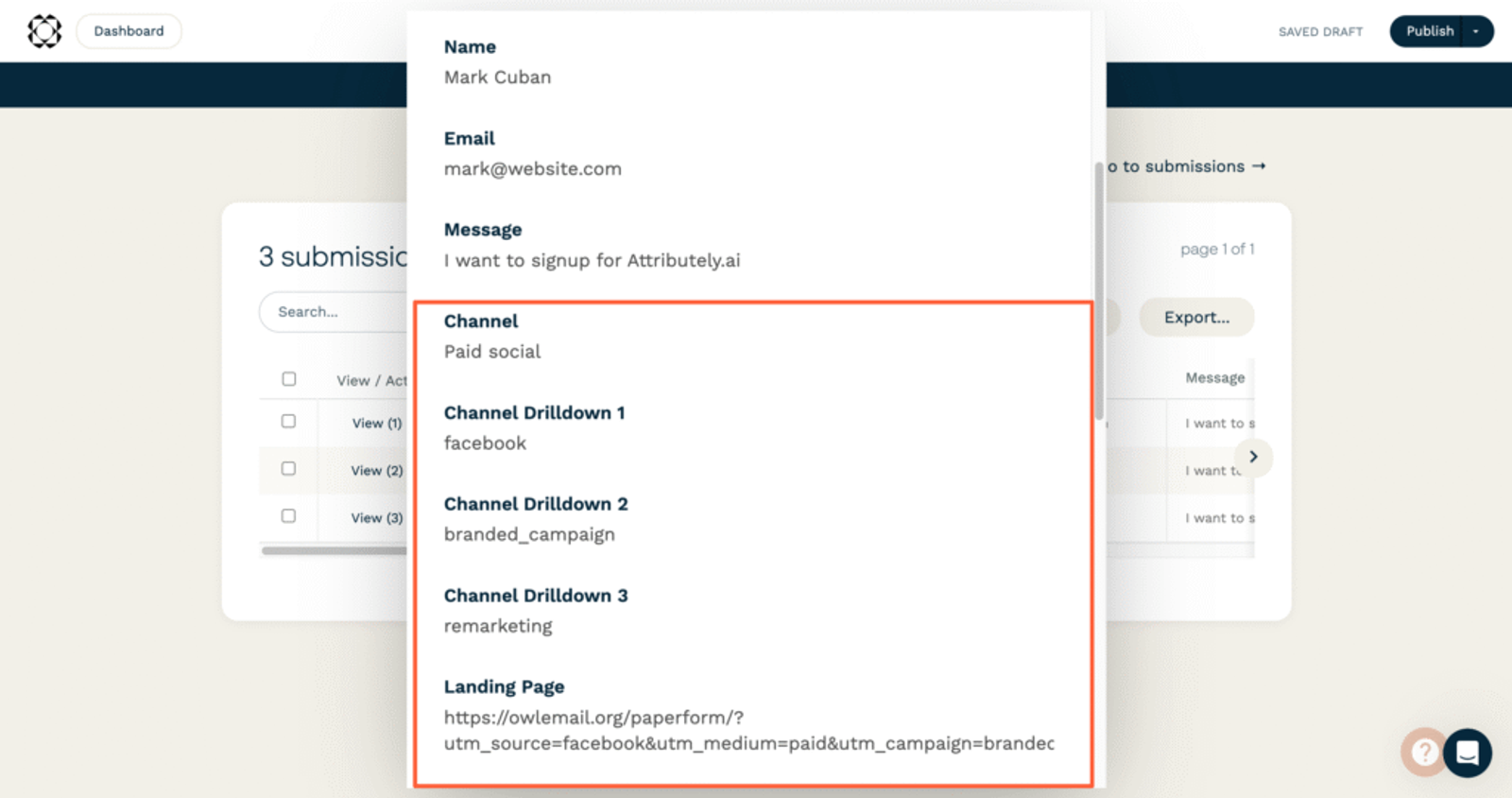
You can use Paperform integrations or tools like Zapier to sync contact attribution data with your CRM.
This will help you know exactly where each lead came from—whether it’s Google Ads, TikTok, LinkedIn, email, organic search, or somewhere else.
With this data, you can:
- Double down on top-performing channels and scale campaigns that convert
- Identify and fix weak spots in your acquisition strategy
- Share source-level insights with your team, agency, or stakeholders
- Allocate budget based on the performance of different marketing campaigns
It’s the kind of visibility that helps growth teams, agencies, and marketing leads make faster, smarter decisions.
More Guides:



 Paid Social


