
How to Track UTM Parameters in Mailchimp CRM
Mailchimp CRM UTM tracking made easy: 4 easy steps to capture UTM parameters in Mailchimp CRM
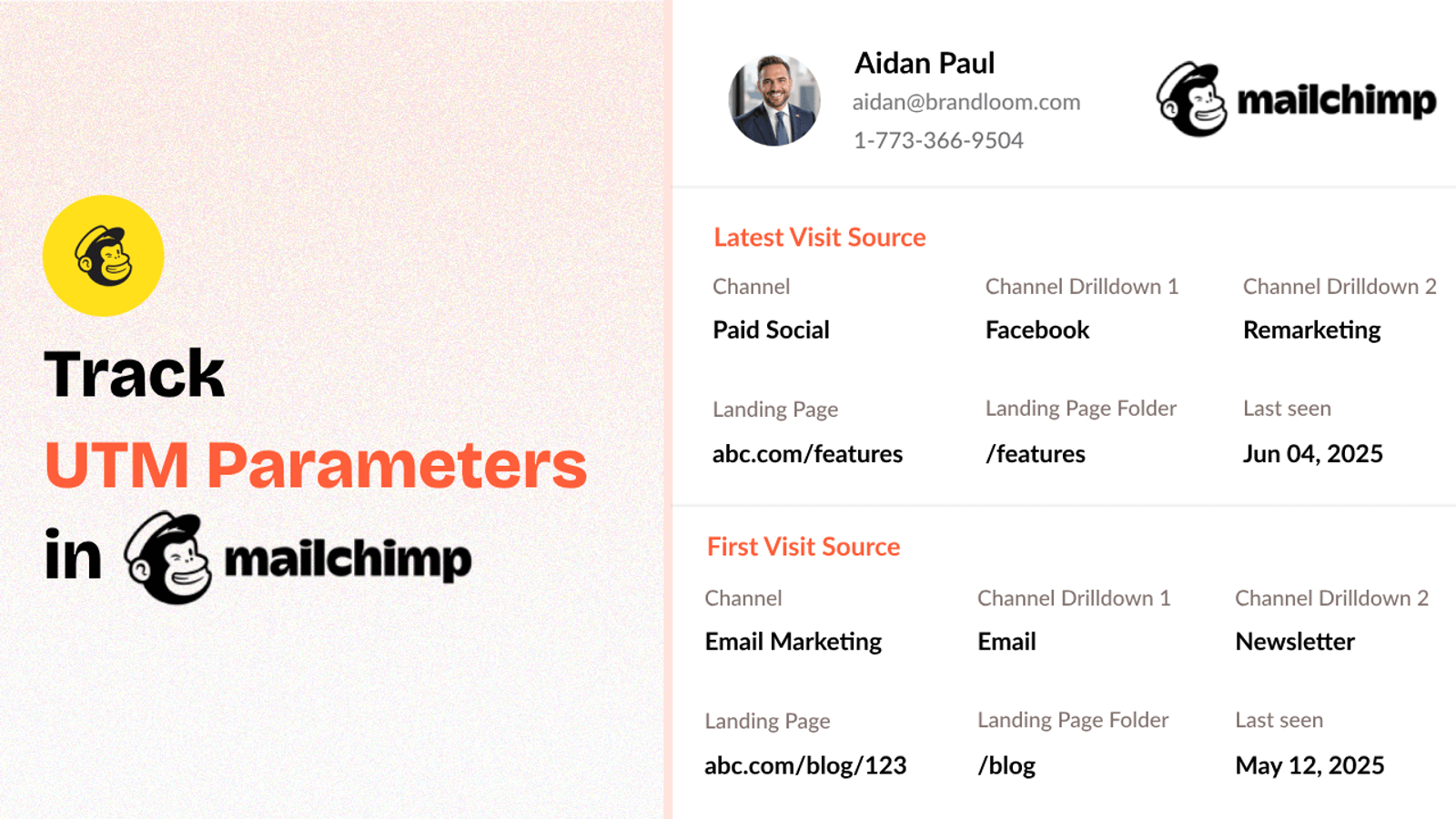
Table of contents
UTM parameters are super helpful for reporting when you’re reporting campaigns across multiple channels.
But capturing and connecting that UTM data inside your Mailchimp CRM can be tricky.
That’s where SourceLoop.ai comes in.
In this post, we’ll show you exactly how to track UTM parameters in Mailchimp CRM using SourceLoop.ai, so you can finally close the loop between your traffic sources and your customer data.
Let’s dive in.
4 Easy Steps to Track UTM Parameters in
Mailchimp CRM
Here are 4 simple steps to capture UTM parameters in Mailchimp CRM:
1. Set Up SourceLoop.ai on Your Website

First of all, you’ll need to install SourceLoop.ai on your website to capture the UTM parameters.
Here’s how:
- Sign up for a free account at SourceLoop.ai.
- Grab your unique tracking script and paste into the <head> section of your website.
Once it is live, SourceLoop.ai start capturing the UTM parameters for every website visitor visit your site.
Example:
Let’s say you run an online course platform that helps professionals upskill in digital marketing.
You launch a LinkedIn Ads campaign promoting your new SEO certification course.
One person clicks this ad:
https://learnhub.com/seo-certification?utm_source=linkedin&utm_medium=cpc&utm_campaign=seo_course_launch&utm_content=ad_variant_a
SourceLoop.ai logs all the key data from the UTM parameters and visit:
- Channel: Paid Social
- Channel Drilldown 1: LinkedIn
- Channel Drilldown 2: seo_course_launch
- Channel Drilldown 3: ad_variant_a
- Landing Page: https://learnhub.com/seo-certification
- Lastseen: May 06, 2025
2. Tag Your Links with UTM Parameters

The next step is to ensure that any link a user is using to visiting your website has correct information about their source of visit.
This is where UTM parameters come in.
A basic link:
https://yourwebsite.com/demo
Link with UTM parameters:
https://yourwebsite.com/demo?utm_source=linkedin&utm_medium=organic&utm_campaign=may_launch
3. Add Hidden Fields to Your Lead Form
Next, you need a way to capture the store UTM information of user when they become a lead.
Usually, any inbound lead will come through a form like contact us, meeting, demo, etc.
You can add a few hidden fileds in these fields that will not be visibile to users but SourceLoop.ai can sliently pass the store UTM value of lead when they submit the form.
Recommended hidden fields value that SourceLoop.ai supports:
Hidden FieldWhat It Tells YouchannelTraffic type (e.g., Paid Search, Organic Social)channeldrilldown1UTM source (e.g., Google, LinkedIn, Newsletter)channeldrilldown2UTM campaign name (e.g., “black_friday_offer”)channeldrilldown3UTM term or ad group (optional)landingpageExact page the visitor landed onlandingpagefolderThe section/folder of that landing pagelastseenDate and time of their most recent visit
Optional: Capture First-Touch Attribution Data
If you’re in a B2B business where the conversion cycle is typically long, a user may visit your website through multiple marketing campaigns before converting.
Capturing only the UTM values from their final visit tells you just part of the story.
SourceLoop.ai captures and stores the UTM parameters from a user’s very first visit to your website. To pass this data into your form, simply add a few additional hidden fields to capture these values.
Hidden FieldWhat It Capturesfirst_channelOriginal traffic type (Organic, Paid, etc.)first_channeldrilldown1Original source (e.g., LinkedIn, Email)first_channeldrilldown2First campaign they interacted withfirst_channeldrilldown3Initial keyword or ad group (if available)first_landingpageThe first page they ever visitedfirst_landingpagefolderThe folder or section they entered fromfirstseenThe original date of their first visit
4. Send UTM Data into Mailchimp CRM
That’s it.
Now, whenever a user submits a lead form or books a meeting, their UTM data is captured along with their contact details.
You can then sync this data with Mailchimp CRM, depending on the type of form you’re using.
- If you’re using Mailchimp’s built-in forms, the hidden fields can automatically be stored in the custom fields of each contact. Just make sure to include these hidden fields inside your form setup.
- If you’re using third-party tools like Gravity Forms, Contact Form 7, WPForms, Typeform, Tally, etc., you can use automation platforms like Zapier or Make.com to connect your form submissions with Mailchimp CRM and save the UTM data to each contact profile.
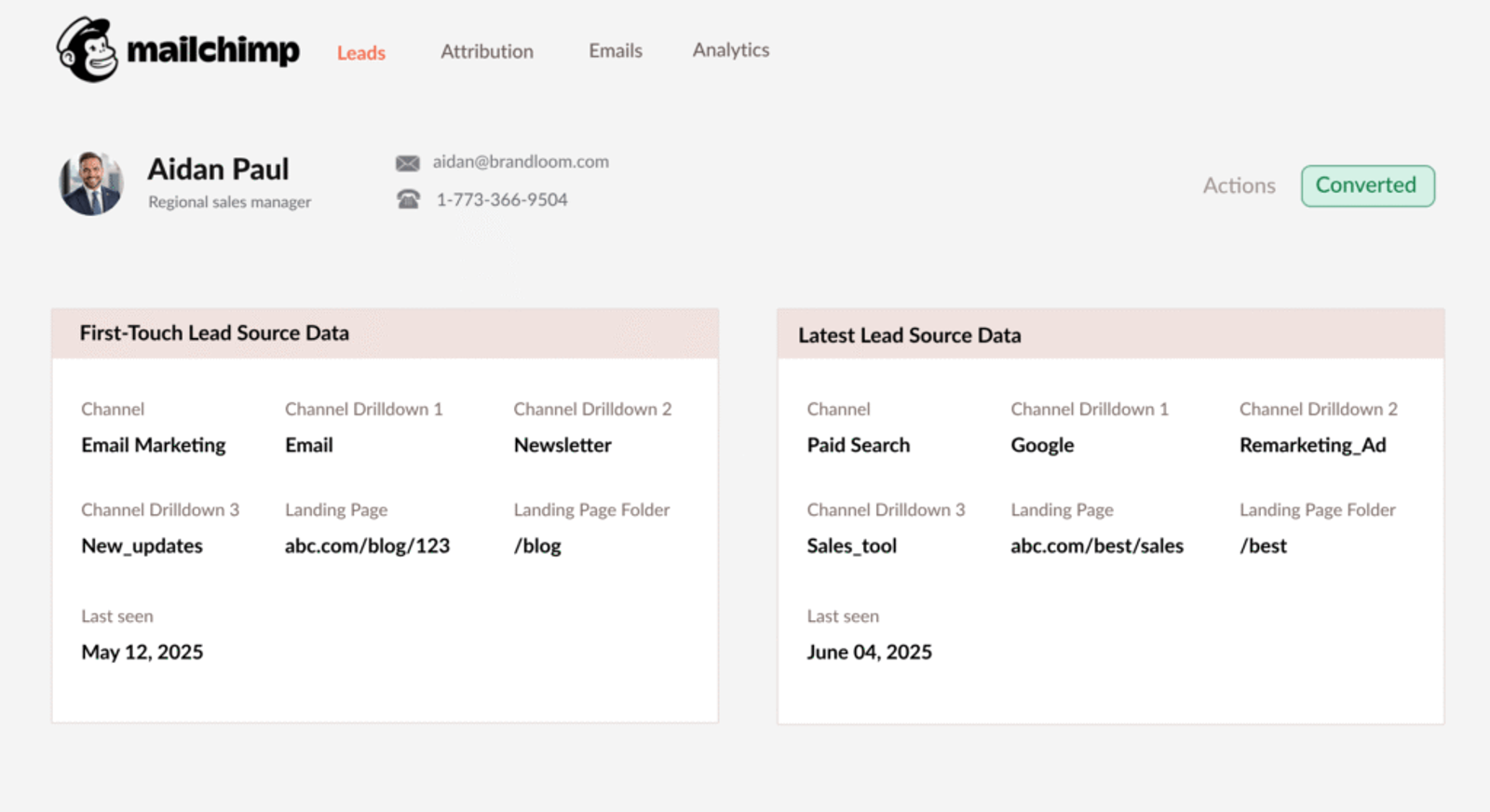
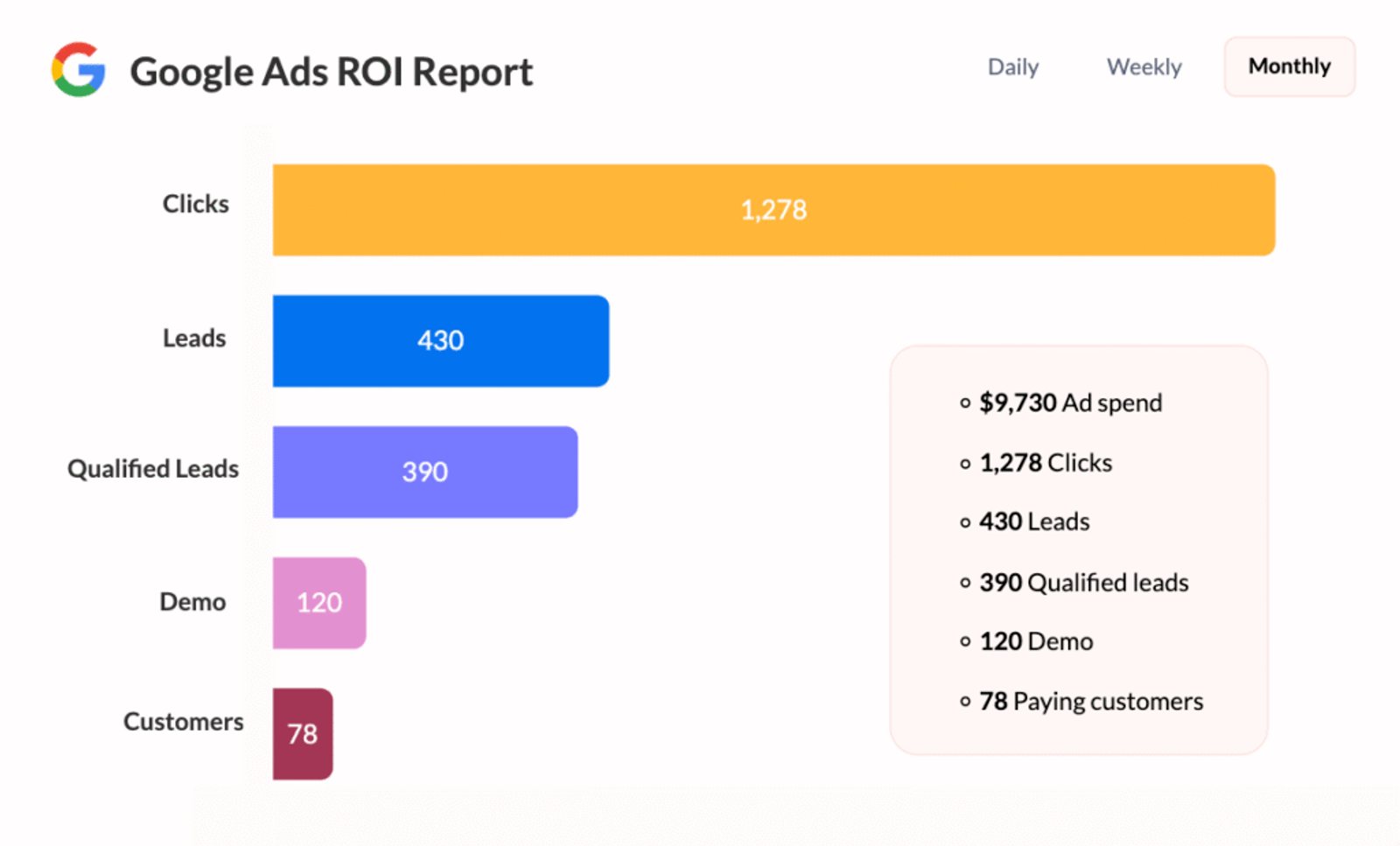
With UTM data stored inside your CRM, you can finally see what’s driving your pipeline—which marketing campaigns are generating real leads, which ones are underperforming, and the true ROI of each campaign.



 Paid Social


