
How to Track UTM Parameters in Hubspot Forms
Follow 4 simple steps to capture UTM parameters in Hubspot Forms and and uncover the true source of every lead
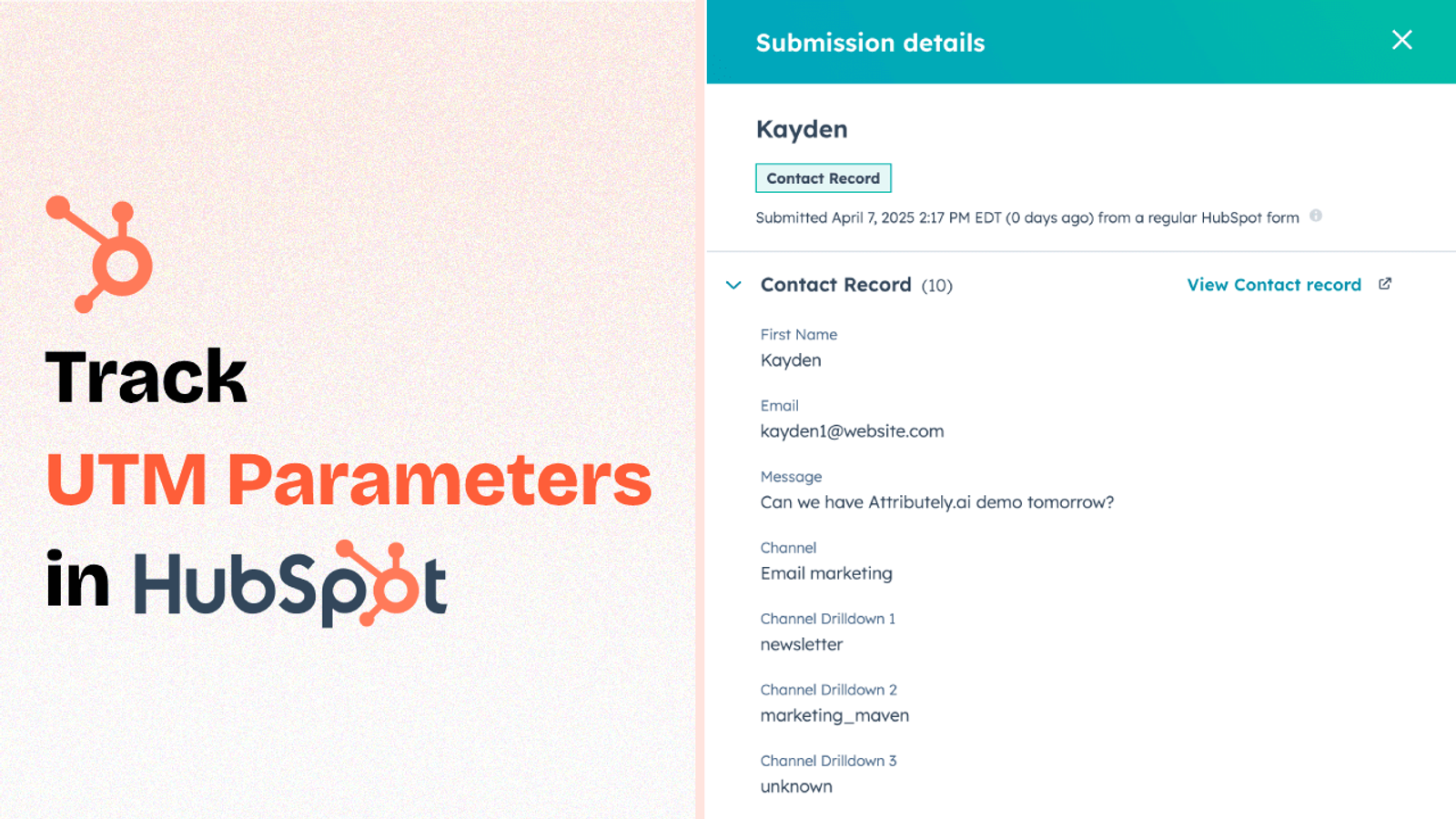
Table of contents
- The problem with HubSpot forms and UTMs
- 5 Easy Steps to Track UTM Parameters in Hubspot Forms
- 1. Install SourceLoop on Your Website
- 2. Add UTM Parameters to Your Links
- 3. SourceLoop.ai Automatically Show UTM Data
- 4. Add Hidden Fields to Your Forms (Optional)
- 5. UTM Parameters Are Passed for Each Hubspot Forms Submission
You are investing in paid ads, email, and affiliates, and sending visitors to your website with UTM links.
But when a visitor fills out your HubSpot form, HubSpot doesn’t show where they came from.
The culprit? UTM data isn’t captured accurately by default for most leads.
In this guide, we’ll walk you through a step-by-step process to track UTM parameters in HubSpot Forms using SourceLoop.ai.
Let’s dive in.
The problem with HubSpot forms and UTMs
By default, HubSpot doesn’t capture UTM parameters from your URLs into form submissions.
Even if your landing page URL looks like this:
https://example.com/ebook?utm_source=google&utm_medium=cpc&utm_campaign=brand
…HubSpot won’t store those UTM values unless you explicitly set it up to do so.
In some cases, HubSpot can store limited data in its web analytics fields — but only if the UTM parameters are still present in the URL when the user fills out the form.
And that’s rarely the case.
Most visitors don’t land on your form and convert right away. They might click on your ad, land on a demo page with UTMs, then browse your pricing page, read a blog post, or check out your About page.
By the time they come back to fill out your form, the URL no longer has the UTM parameters — and HubSpot has nothing to capture.
As a result, most leads show up in your CRM with no meaningful attribution data.
Which means it becomes nearly impossible to:
- Attribute conversions correctly
- Optimize your paid campaigns
- Prove ROI to your boss or clients
5 Easy Steps to Track UTM Parameters in Hubspot Forms
Here are 4 simple steps to capture UTM parameters in Hubspot Forms:
1. Install SourceLoop on Your Website

Create your free account on SourceLoop.ai and add a small JavaScript snippet to the <head> section of your site.
SourceLoop will then track how a visitor arrives on your site (based on UTM parameters, referring site, device, etc.) — and store that info in the user’s browser until they submit a form.
For each visitor, it uses predefined rules to parse the UTM information and categorize it into clear marketing attributes.
Example:
Let’s say Nike is using SourceLoop.ai, and a user clicks on one of their Instagram Story ads promoting a new running shoe.
SourceLoop.ai will capture and organize the user’s visit information like this:
- Channel = Paid Social
- Channel Drilldown 1 = Instagram
- Channel Drilldown 2 = Story Ad
- Channel Drilldown 3 = Pegasus 42 Launch
- Landing Page = www.nike.com/running/pegasus-42
- Landing Page Folder = running
- Last Seen = Apr 14, 2025
2. Add UTM Parameters to Your Links

Next, make sure that all the links you share online — especially in ads — have UTM tags.
This ensures that every visitor you send to your site carries information about where they came from, which SourceLoop can then capture.
Example of a link with UTM parameters:
https://website.com?utm_source=paid_search&utm_medium=Bing&utm_campaign=prime_day
Resources:
- How to add UTM parameters in Google Ads
- How to add UTM parameters in Facebook Ads
- How to add UTM parameters in LinkedIn Ads
- How to add UTM parameters in TikTok Ads
3. SourceLoop.ai Automatically Show UTM Data
SourceLoop.ai tracks every user visit to your website, recording UTM parameters and page views along the way.
When a visitor submits a form or books a meeting, we automatically attach their full history to their lead profile.
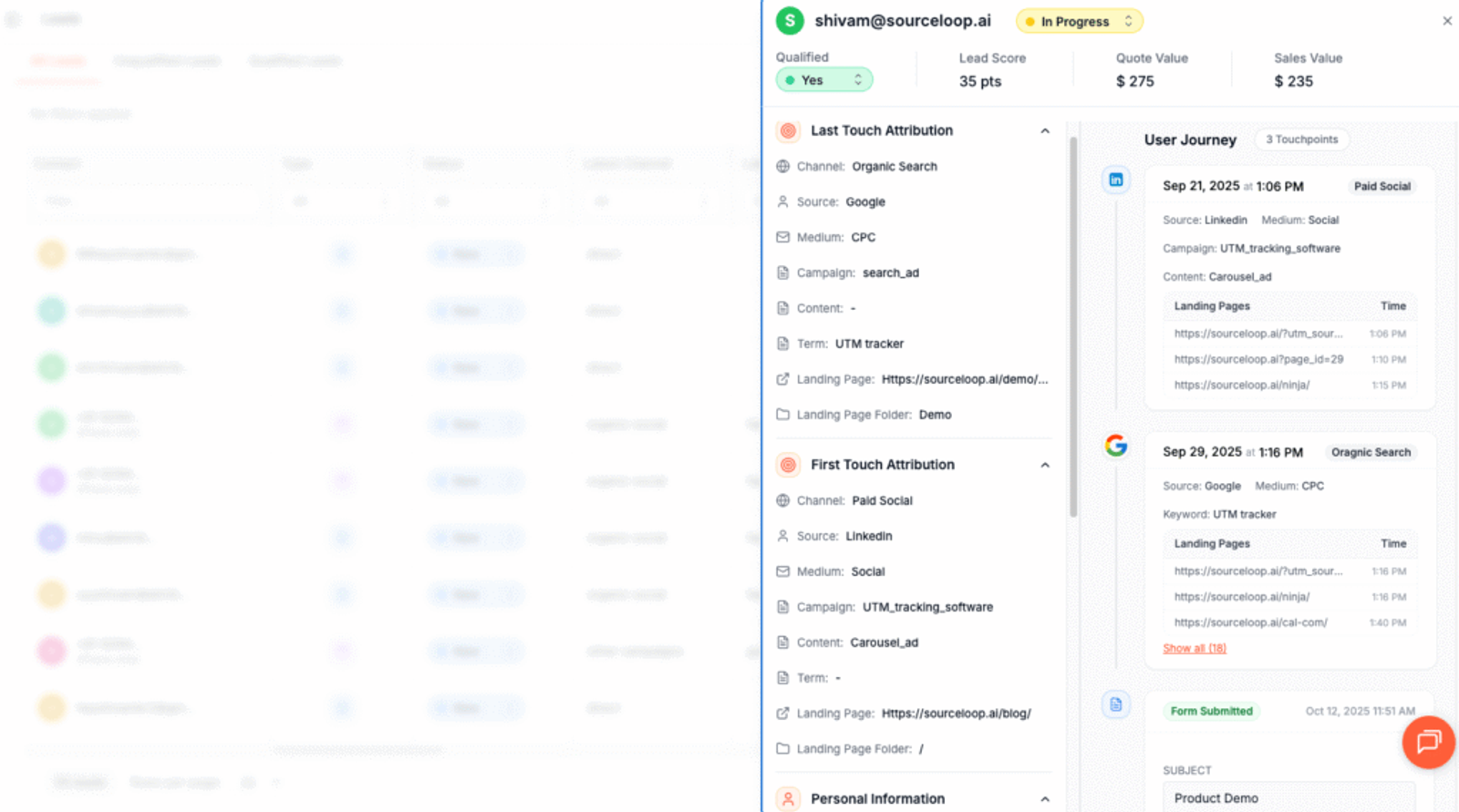
The Lead Manager dashboard then shows their entire journey.
You can see which marketing channel brought them in first, the pages they visited on return visits, and the path that ultimately led to conversion.
This gives you a clear, complete view of each lead, so you know exactly which campaigns are driving results.
More Tutorials:
- How to Capture UTM Parameters in Gravity Forms
- UTM tracking for Zoho Form
- Track UTM parameters in Elementor form
4. Add Hidden Fields to Your Forms (Optional)
You can also capture UTM data in your HubSpot form submissions by adding hidden fields to the form.
These hidden fields won’t be visible to visitors, but SourceLoop.ai will use them to pass UTM values with the form submission.
To get started:
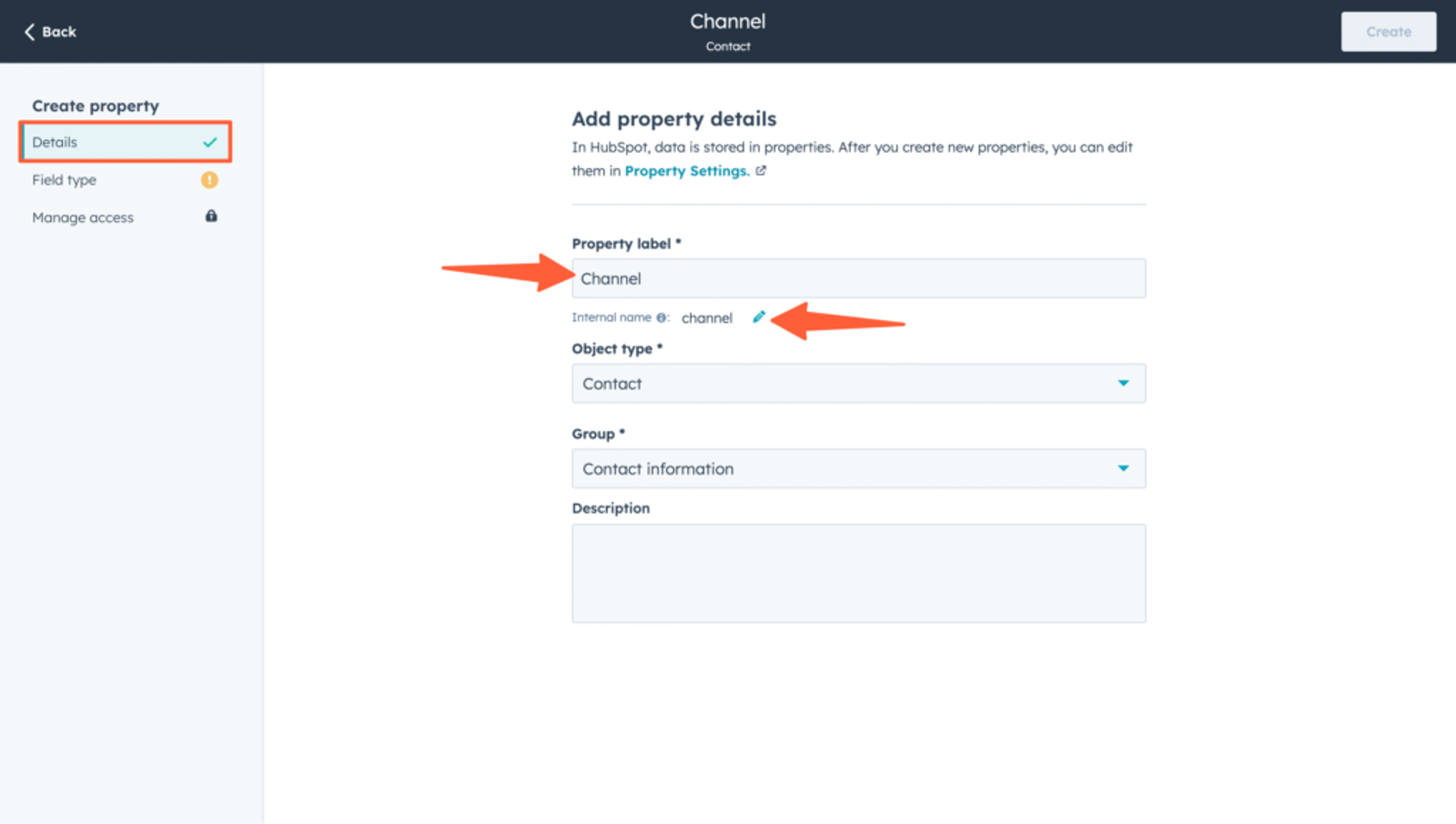
First, create new contact properties with the internal names shown below. These will be added to the form in the next step as hidden fields.
In the form editor, drag and drop each of the newly created properties from the left sidebar into the form.
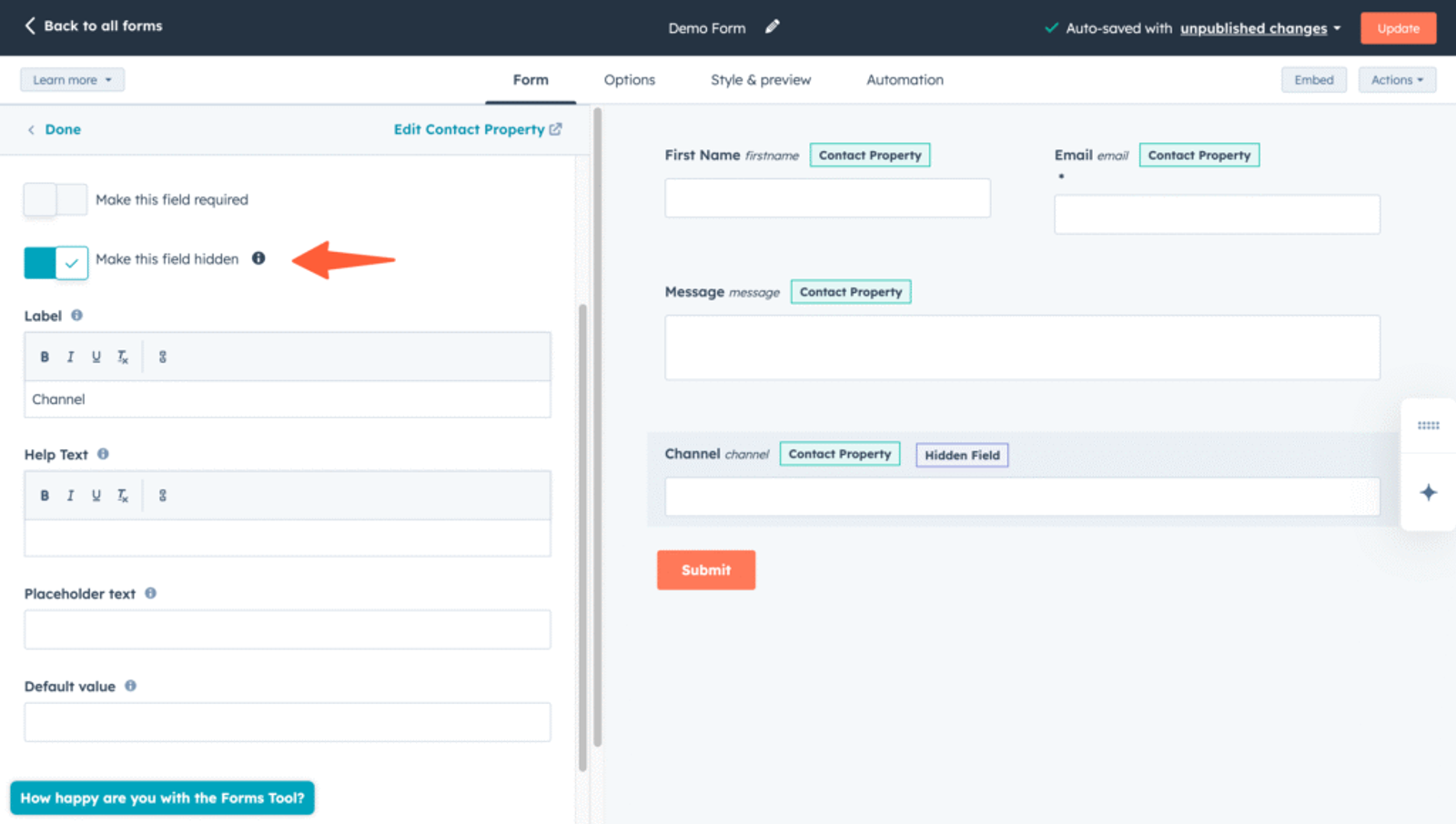
Then, click on each field and turn on the “Make this field hidden” option.
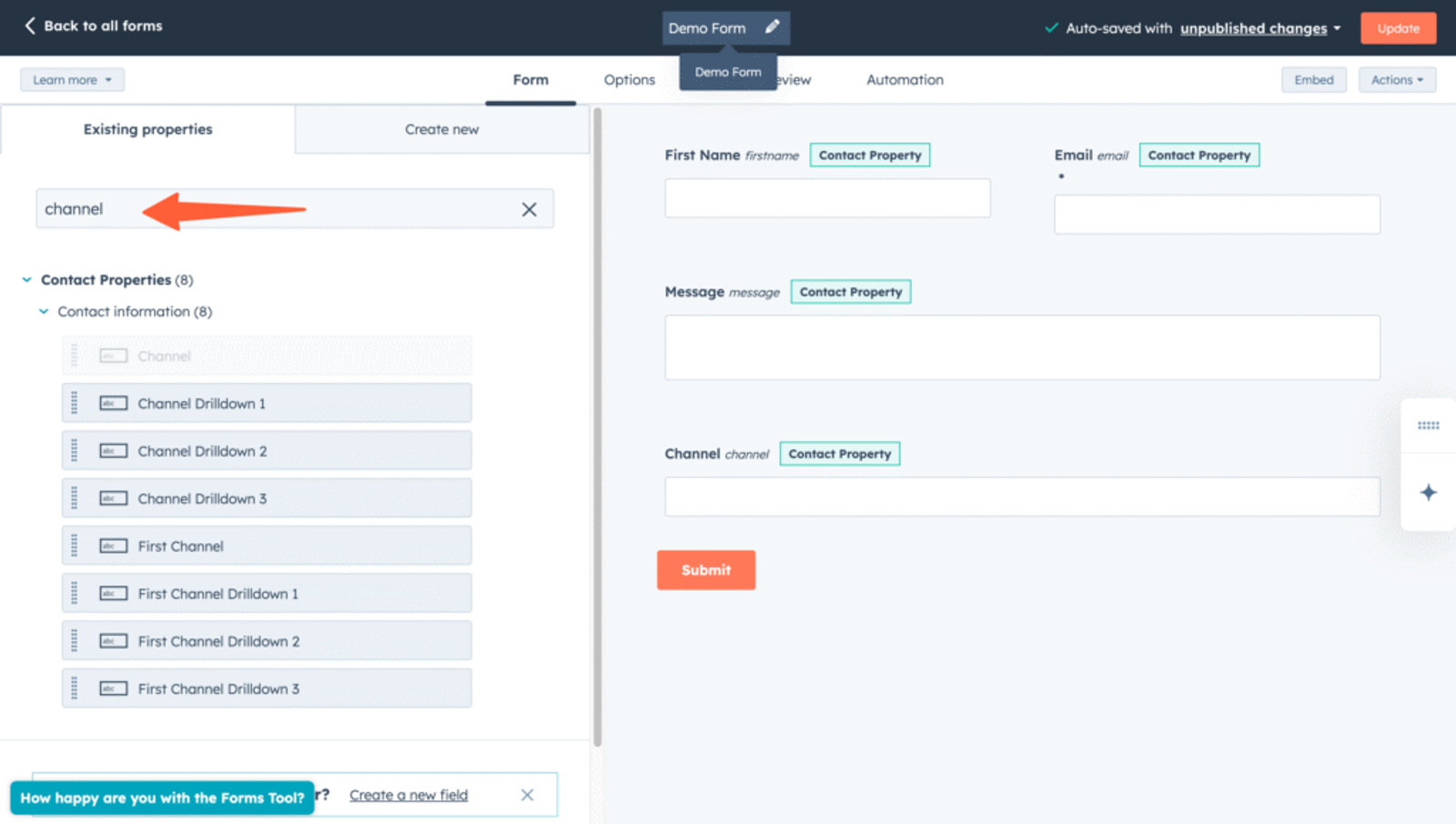
channelattribution_sourceattribution_attribution_attribution_termlandingpagelandingpagefolderlastseen
If a lead visits your site multiple times and you want to capture their first visit data as well, add these additional hidden fields:
first_channelfirst_sourcefirst_mediumfirst_campaignfirst_termfirst_landingpagefirst_landingpagefolder- firstseen
5. UTM Parameters Are Passed for Each Hubspot Forms Submission
Once you’ve configured the hidden fields, let SourceLoop do the rest.
It automatically fills those hidden fields at the time of form submission — no extra logic or dev work needed.
When the form is submitted, all attribution data is stored right inside HubSpot with the contact record.
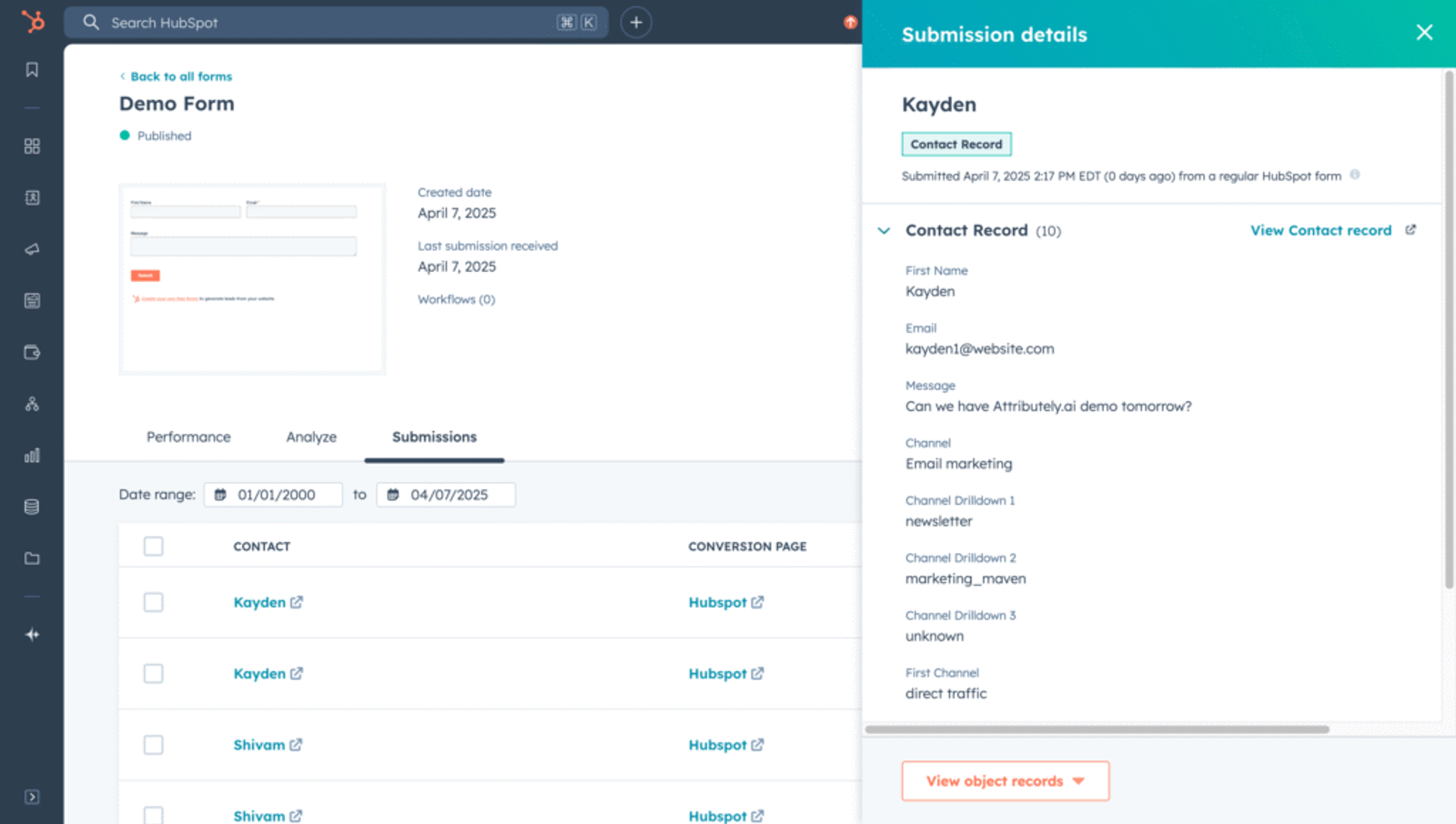
Now that you have the actual source of each lead and customer in your CRM, you can:
Cut spend where it’s being wasted
Create attribution reports
Understand which marketing channels and campaigns are working
Allocate more budget to what’s converting
More Tutorials:



 Paid Social


