
Offline Conversion Tracking Google Ads: Complete Setup Guide
Master offline conversion tracking Google Ads to connect ad clicks to real revenue. Step-by-step setup, API changes, and automation methods for accurate attribution in 2026.
Table of contents
- Tldr
- What is offline conversion tracking in Google Ads?
- How offline conversion tracking works
- GCLID-based tracking (the classic method)
- Enhanced conversions for leads (Google's recommended approach)
- The matching process and data flow
- Types of offline conversions you can track
- How to set up offline conversion tracking in Google Ads
- Step 1: Create a conversion action for offline events
- Step 3: Upload conversions when customers convert
- Three implementation methods compared
- Common pitfalls and how to avoid them
- Missing or expired GCLIDs
- Wrong conversion timestamp
- Uploading too soon after the click
- Insufficient conversion volume for optimization
- Duplicate conversions
- What to expect after implementing offline conversion tracking
- FAQ
- What are offline conversions in Google Ads?
- How long does it take to see offline conversions in Google Ads?
- What is the difference between GCLID and enhanced conversions?
- Can I track offline conversions without a CRM?
- Do offline conversions work with Smart Bidding?
- How do I fix offline conversions that won't upload?
- What is the attribution window for offline conversions?
Offline conversion tracking Google Ads connects your ad clicks to revenue that happens away from your website. Someone clicks your ad, fills out a form, then closes a $50,000 contract three weeks later over the phone.
Without offline conversion tracking, Google Ads sees a form submission. With it, Google sees a paying customer and shifts your budget toward the campaigns, keywords, and audiences that produce actual revenue.
Tldr
Offline conversion tracking Google Ads lets you send closed deals, in-store purchases, and phone orders back to Google so Smart Bidding optimizes for customers who actually buy, not just leads who fill out forms. Here's what you need to know:
- Google is migrating to the Data Manager API in June 2026, existing offline conversion imports need updating to avoid disruption
- Three implementation paths: GCLID-based tracking (classic method), enhanced conversions for leads (Google's recommended approach), or automated tools that handle the upload process
- The critical technical details: Google needs 6 hours to index each GCLID before accepting uploads, and you must use the actual conversion timestamp, not today's date
- Volume matters for optimization: Smart Bidding needs 30-50 conversions per month per campaign to effectively optimize toward real customers
- Setup takes 2-4 weeks to show results as the algorithm learns which ad clicks produce paying customers versus just form fills
What is offline conversion tracking in Google Ads?
Offline conversion tracking Google Ads is a measurement method that reports sales, deals, and customer actions that happen outside your website back to your Google Ads account. It closes the attribution loop between ad clicks and real business outcomes.
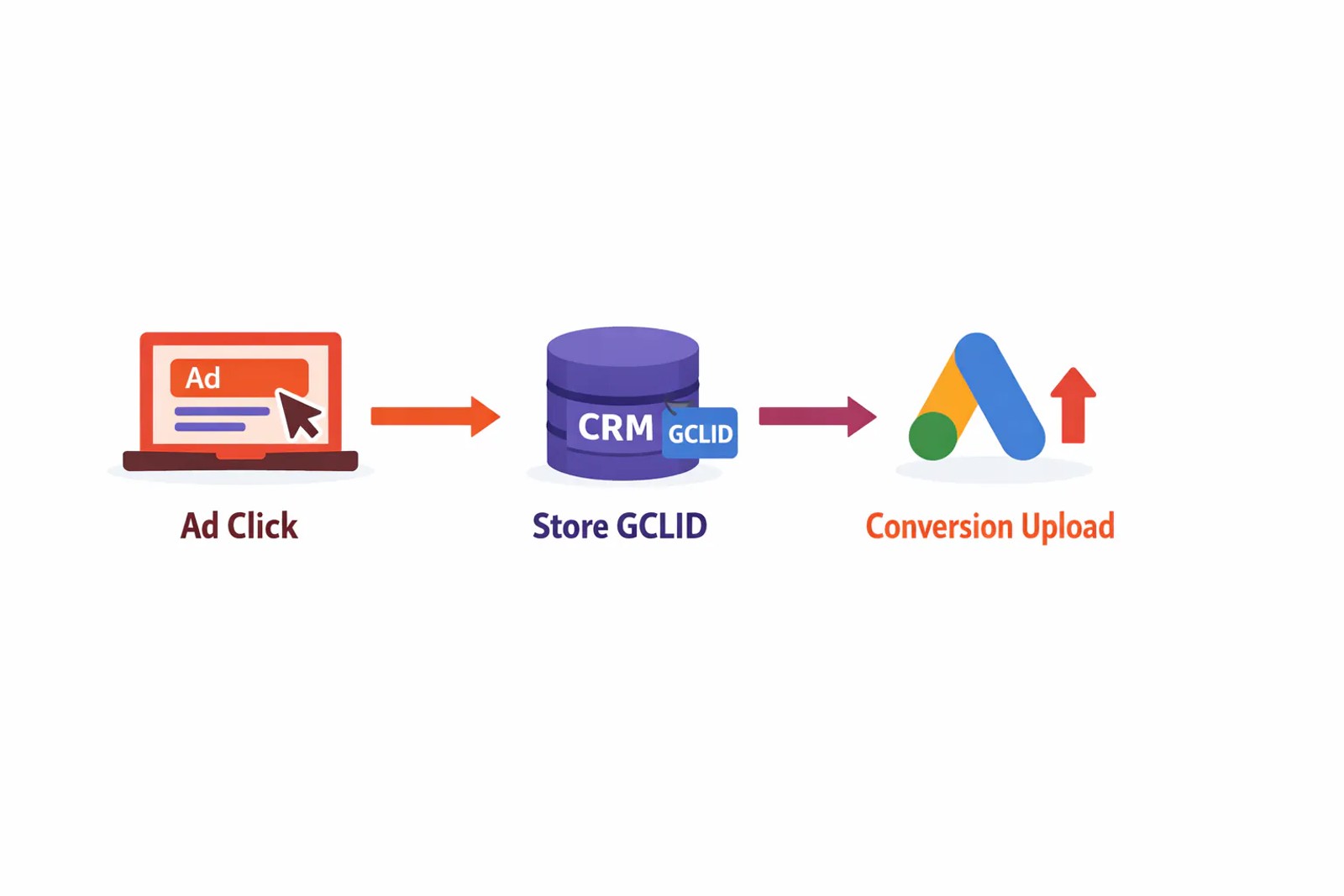
When someone clicks your ad, Google assigns a unique identifier called a Google Click ID (GCLID). You capture and store that click ID alongside the lead's information in your CRM or order system. Later, when that person converts in the offline world, by signing a contract, visiting your store, or completing a purchase over the phone, you send the GCLID back to Google along with conversion details.
Google matches the GCLID to the original ad click and records the conversion in your campaign reports. Your bidding algorithms can then optimize toward customers who actually buy, not just visitors who submit forms.
How offline conversion tracking works
Offline conversion tracking relies on matching identifiers between your ads and your sales system. Two methods exist, and starting in April 2026, Google is unifying them into a single setting.
GCLID-based tracking (the classic method)
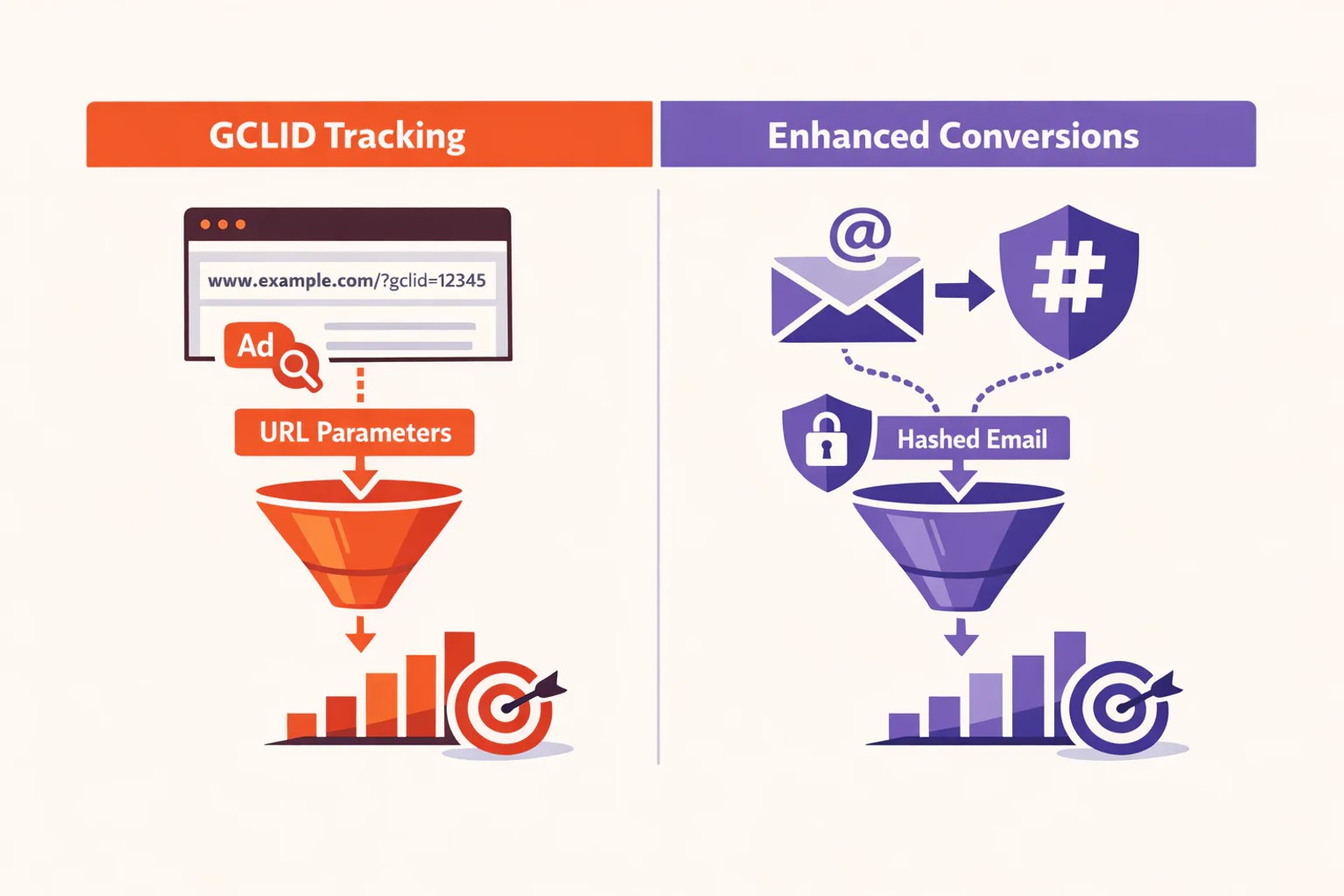
Every time someone clicks your Google ad, Google appends a GCLID parameter to your landing page URL. It looks like ?gclid=CjwKCAjw... at the end of the address. This Google click identifier is unique to each individual click.
You need to capture that GCLID and store it with the lead's contact information. Most CRMs support this through hidden form fields or URL parameter auto-capture. When the lead converts offline, signs a contract, completes a purchase, books an appointment, you send that GCLID back to Google along with the conversion details: conversion name, timestamp, and optionally the deal value.
Google matches the GCLID to the original ad click and attributes the conversion to the right campaign, ad group, keyword, and device. This method has been the standard approach since Google introduced offline conversions import in 2014.
Enhanced conversions for leads (Google's recommended approach)
Enhanced conversions for leads uses hashed first-party user-provided data like email addresses or phone numbers instead of (or in addition to) GCLIDs. When you upload a conversion, you include the customer's email. Google hashes it, compares it to signed-in Google users who engaged with your ads, and attributes the conversion.
This method is more durable in privacy-restricted environments. It also enables cross-device tracking and engaged-view conversions (when someone sees but doesn't click your ad, then converts later). Google recommends this path for all new implementations because it produces higher match rates and works across the devices where users interact with your business.
Starting April 2026, enhanced conversions for web and leads merge into one unified setting. You no longer choose between implementation methods, Google accepts user-provided data from website tags, Data Manager uploads, and API connections simultaneously. This change simplifies setup and improves attribution accuracy.
The matching process and data flow
Here's what happens after you upload a conversion:
- You send the GCLID (or hashed email) plus conversion details to Google via the Google Ads API, CSV upload, or automation tool
- Google looks up the identifier in its database and matches it to an ad interaction
- If matched, the conversion appears in your reports within 3 hours for real-time data, or up to 48 hours for historical uploads
- Smart Bidding algorithms incorporate the signal into optimization models within 24-48 hours
One critical detail most guides skip: Google needs approximately 6 hours to index a GCLID after the initial click before it can accept a conversion upload for that identifier. If someone clicks your ad and you try to upload their conversion 10 minutes later, the match will fail. Build a delay into your process, either manual (wait a day before uploading) or automated (tools like Sourceloop handle this automatically).
Types of offline conversions you can track
Offline conversion tracking works for any conversion that happens away from your website. Common use cases include:
- CRM deal stages: When a lead moves to "Qualified," "Proposal Sent," or "Closed Won" in HubSpot, Salesforce, or Pipedrive
- Store purchases: In-person transactions at retail locations or showrooms, particularly useful for Shopify merchants with physical stores
- Phone orders: Sales completed over the phone after an ad click, tracked through call center systems or phone tracking platforms
- Booked appointments: When someone schedules a demo, consultation, or service call through Calendly or similar booking tools
- Contract signatures: Signed agreements or completed onboarding processes recorded in your sales system
- Ecommerce orders from offline channels: Purchases made through phone, email, or chat after initial ad interaction
You can create multiple conversion actions for different stages of your sales cycle. For example, you might track "Demo Booked" as one conversion action and "Deal Closed" as another with higher value. This lets you optimize different campaigns for different outcomes and set up more sophisticated attribution models.

How to set up offline conversion tracking in Google Ads
Setting up offline conversion tracking involves three phases: creating the conversion action in Google Ads, capturing identifiers from ad clicks, and uploading conversion data when customers convert.
Step 1: Create a conversion action for offline events
Sign in to your Google Ads account and follow these steps:
- Click the Goals icon in the top navigation
- Under Conversions, click Summary
- Click + New conversion action
- Select Import as your data source
- Choose Other data sources or CRMs
- Select Track conversions from clicks (or Track conversions from calls if you're tracking phone call outcomes)
- Click Continue
Now set the conversion action settings:
- Category: Choose the conversion type that matches what you're measuring (Purchase, Lead, Add to cart, etc.)
- Conversion name: Give it a clear name like "CRM Deal Closed" or "In-Store Purchase"
- Value: Choose whether each conversion has the same value, a unique value you'll provide per upload, or no value
- Count: Select "One" if only the first conversion per click matters, or "Every" if multiple conversions from the same person should all count
- Click-through conversion window: How long after an ad click should conversions be attributed? Default is 30 days; adjust based on your sales cycle
- Attribution model: How credit is distributed across touchpoints (Last click, First click, Linear, Time decay, Position-based)
Make sure Include in "Conversions" is checked so Smart Bidding optimizes for these events.
Click Create and Continue. Google will generate a Conversion ID and Conversion Label, you'll need these if you're using Google Ads API uploads.
Step 3: Upload conversions when customers convert
When someone converts offline, you need to send the conversion data back to Google. Three methods exist:
Manual upload via CSV: Export a spreadsheet with columns for GCLID, conversion name, conversion time, and value. In Google Ads, go to Goals > Conversions > Uploads, click + Upload, select your conversion action, and upload the CSV. Google's CSV format guide provides the exact column headers and formatting requirements.
This works for small volumes or one-time imports, but it's time-consuming at scale.
Automated upload via tools: Platforms like Sourceloop watch your CRM for status changes (like "Deal Closed") and automatically upload conversions to Google Ads in real time.
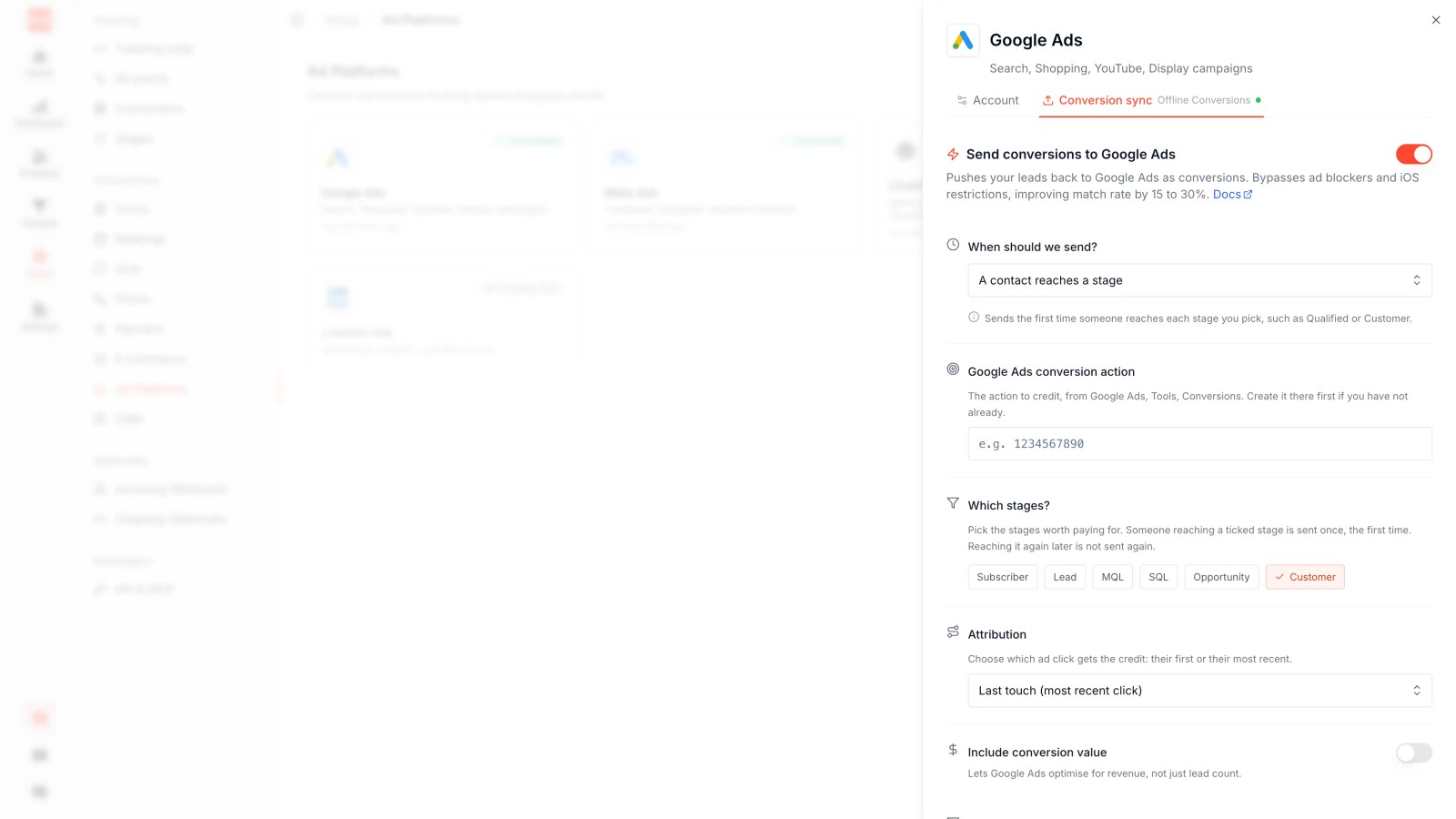
Sourceloop, for example, syncs conversion data directly from HubSpot, Pipedrive, and Salesforce to Google Ads without manual exports. It handles the 6-hour GCLID indexing delay automatically and uses the actual conversion timestamp from your CRM. Zapier offers similar automation through its Google Ads Send Offline Conversion action.
Three implementation methods compared
Which method should you use? It depends on your sales cycle, technical resources, and conversion volume.
Method | Best for | Setup complexity | Match rate | Ongoing effort
GCLID-based | B2B with long sales cycles, businesses with CRM infrastructure | Medium (requires GCLID capture + storage) | \~70-80% (misses cross-device) | Low with automation, high if manual
Enhanced conversions | Privacy-first businesses, cross-device journeys, ecommerce | Low (uses existing email/phone data) | \~85-90% (includes cross-device matches) | Low
Automated tools | Businesses wanting set-it-and-forget-it tracking | Low (tool handles technical details) | Depends on underlying method | Very low (tool manages uploads)
GCLID-based tracking gives you precise attribution to the exact ad click. It's the most common method for B2B businesses that already store GCLIDs in their CRM. The downside: it only works for same-device journeys. If someone clicks your ad on mobile then converts on desktop, the match fails unless you also use enhanced conversions.
Enhanced conversions for leads works across devices and is more resilient to cookie restrictions. Google matches conversions using hashed email addresses or phone numbers, so cross-device attribution works automatically. The match rate is typically 10-15 percentage points higher than GCLID-only tracking. Google now recommends this as the default path for new implementations.
Automated tools handle the technical complexity for you. Services like Sourceloop connect directly to your CRM and Google Ads account, manage the upload timing (including the 6-hour delay), deduplicate conversions, and push deal values automatically. If you're running multiple ad platforms (Google Ads, Meta, LinkedIn), these tools also sync conversions across all of them from a single CRM integration.
Most businesses get the best results combining methods: use enhanced conversions for leads as the primary method (for higher match rates and cross-device coverage) and include GCLIDs as a fallback identifier for same-device precision.
Common pitfalls and how to avoid them
Most failed offline conversion tracking implementations share the same handful of mistakes. Here's how to avoid them.
Missing or expired GCLIDs
The problem: Your form captures the GCLID, but it's blank for most records. Or conversions fail to match in Google Ads with no error message.
The cause: Auto-tagging isn't enabled in Google Ads, or your website strips query parameters from URLs during redirects.
The fix: Turn on auto-tagging in Google Ads Settings. Test by clicking your own ad and confirming the GCLID appears in the landing page URL. Check that redirects preserve query parameters rather than stripping them. If you use Google Tag Manager, verify that your page view tags fire before the GCLID is captured.
Wrong conversion timestamp
The problem: Conversions upload successfully but never appear in your reports.
The cause: You're using today's date as the conversion time instead of the actual date the conversion happened. Google compares the conversion time to the click time. If the conversion appears to happen before the click, or outside your attribution window, it's silently discarded.
The fix: Use the actual date and time from your CRM when the deal closed or the purchase completed. If you're uploading historical conversions, use the real close date from your records. Most automation tools pull this information directly from your CRM's timestamp fields.
Uploading too soon after the click
The problem: Conversions from the past hour or two fail to match.
The cause: Google needs approximately 6 hours to index a GCLID after the initial click. If you upload the conversion before indexing completes, the match fails.
The fix: Build a delay into your upload process. If you're manually uploading CSVs, wait at least 24 hours after the conversion. If you're using automation, most tools handle this automatically (Sourceloop waits the required 6 hours before attempting upload, and Zapier recommends adding a 24-hour delay step).
Insufficient conversion volume for optimization
The problem: You've successfully uploaded conversions, but campaign performance hasn't improved.
The cause: Smart Bidding needs a minimum of 30-50 conversions per month per campaign to optimize effectively. Google's Smart Bidding guidelines state that below that threshold, the algorithm doesn't have enough signal.
The fix: If you're below the volume threshold, consider tracking an earlier-stage conversion (like "Demo Booked" or "Quote Requested") in addition to final conversions. This gives Smart Bidding more signal to learn from while still optimizing toward your ultimate goal.
Duplicate conversions
The problem: The same conversion appears multiple times in your reports, inflating your metrics.
The cause: Your upload process runs multiple times for the same conversion, or you're uploading from multiple sources without deduplication.
The fix: Use a unique transaction ID when uploading conversions (most APIs support this). Google will automatically deduplicate uploads with the same transaction ID. If you're manually uploading, keep records of which conversions you've already sent. Track conversions import history in a spreadsheet or use Google Analytics alongside Google Ads to cross-reference conversion counts.
What to expect after implementing offline conversion tracking
Give yourself 2 to 4 weeks before evaluating results. Smart Bidding models need time and conversion volume to recalibrate.
In the first week, you'll see conversions appear in your reports 3-48 hours after upload. Double-check that the conversion counts match your CRM records for the same time period. If there's a significant gap (more than 20% of conversions missing), investigate GCLID capture or match rate issues.
During weeks 2-3, Smart Bidding algorithms start incorporating the new signal. You may notice CPC fluctuations as the model tests which keywords and audiences produce offline conversions. This is normal recalibration, not a problem. Research from Google shows that bidding algorithms take 1-2 weeks to adapt to new conversion signals.
By week 4, bidding stabilizes around the new optimization target. You should see:
- Spend shifting toward campaigns and keywords that produce closed deals, not just form fills
- CPL (cost per lead) may increase slightly, but CPO (cost per opportunity) or CPA (cost per acquisition) should decrease
- If you're passing deal values, ROAS calculations reflect actual revenue instead of estimated value
Campaign performance changes depend on how different your "leads who convert offline" profile is from your "leads who fill forms" profile. If they're similar, you'll see modest improvements. If they're very different (different demographics, search intent, or devices), you may see dramatic budget reallocation.
Mark conversions promptly. The closer the upload time is to the actual conversion time, the better Smart Bidding performs. If deals sit in "Closed Won" status for weeks before upload, the signal quality degrades.
Use actual conversion dates, not upload dates. When you mark a deal closed today that actually closed last week, send last week's date as the conversion time.
Be consistent about which stage triggers uploads. If you sometimes upload at "Qualified Lead" and sometimes at "Closed Won" for the same deals, you'll create duplicate conversions and confuse the algorithm.
FAQ
What are offline conversions in Google Ads?
Offline conversions are customer actions that happen away from your website, like in-store purchases, phone orders, signed contracts, or CRM deal stages, that you report back to Google Ads for attribution and optimization. They connect ad clicks to revenue that happens through offline channels.
How long does it take to see offline conversions in Google Ads?
Conversions uploaded via the Google Ads API typically appear in reports within 3 hours. Manual CSV uploads can take 24-48 hours to process. For Smart Bidding optimization, allow 2-4 weeks for the algorithm to incorporate the new signal and adjust bidding strategies.
What is the difference between GCLID and enhanced conversions?
GCLID (Google Click ID) tracks conversions using a unique identifier appended to the landing page URL when someone clicks an ad. Enhanced conversions use hashed first-party user-provided data like email addresses to match conversions, enabling cross-device attribution and higher match rates in privacy-restricted environments.
Can I track offline conversions without a CRM?
Yes. You can track offline conversions using Google Sheets, CSV uploads, or even manual entry through the Google Ads interface. The key requirement is capturing the GCLID (or customer email for enhanced conversions) at the time of the initial ad interaction and storing it until the offline conversion happens.
Do offline conversions work with Smart Bidding?
Yes, offline conversions integrate directly with Smart Bidding strategies like Target CPA, Target ROAS, and Maximize Conversions. Once you upload offline conversion data, Smart Bidding algorithms use that signal to optimize bids toward users more likely to convert in the offline world.
How do I fix offline conversions that won't upload?
Common fixes include: (1) enabling auto-tagging in Google Ads Settings, (2) waiting at least 6 hours after the ad click before uploading the conversion, (3) using the actual conversion timestamp rather than today's date, (4) checking that your GCLID field isn't empty, and (5) verifying your conversion action is set up correctly in Google Ads.
What is the attribution window for offline conversions?
The default click-through conversion window is 30 days, meaning conversions that happen within 30 days of the ad click are attributed to that campaign. You can adjust this window from 1 to 90 days when creating your conversion action, depending on your typical sales cycle length.


 Paid Social


