
How to Track Facebook Ads Traffic in GA4 [Steps]
Learn how to track Facebook Ads in GA4 using UTM parameters. Step-by-step setup guide with best practices, key metrics, and troubleshooting tips for accurate tracking.
Table of contents
To track Facebook Ads traffic in GA4, add URL parameters to your ad URLs using Google's Campaign URL Builder. Set utm_source=facebook, utm_medium=paid, and include your campaign name.
Without these parameters, Facebook traffic appears as "Direct" or "Unassigned" in Google Analytics 4, making it impossible to measure campaign performance or attribute conversions correctly.
Why Facebook Traffic Doesn't Show Up in GA4 by Default
When someone clicks your Facebook ad and lands on your website, you'd expect Google Analytics 4 to record that visit as coming from Facebook. Instead, most marketers see this traffic lumped into "Direct" or "(not set)" categories.
The problem lies in how Facebook's mobile app handles outbound links. When users click an ad in the Facebook or Instagram app, the link opens in Meta's in-app browser rather than the device's default browser. This transition strips away the referral information that Google Analytics relies on to identify traffic sources.
According to Google's official channel definitions documentation, GA4 uses HTTP referrer headers to classify traffic sources. When that referrer chain breaks, which happens consistently with social media in-app browsers, Google Analytics defaults to labeling the session as Direct traffic.
Industry research from 2026 shows that Meta Ads attribution accuracy has deteriorated by 40-60% over the past 18 months due to iOS privacy updates and cross-device tracking limitations. This means the attribution gap between what's actually happening and what platforms report is widening every week.
This creates a serious measurement problem. You're spending money on Facebook Ads but can't see which ad campaigns drive sessions, conversions, or revenue in Google Analytics. Your reporting shows inflated Direct traffic numbers that include paid social media visits you actually paid for.
The fix is straightforward: URL parameters. These are small text snippets you add to the end of your destination URLs that carry source information directly into Google Analytics 4, independent of referrer headers. When URL parameters are present, GA4 reads them and correctly attributes the traffic source, regardless of how the link was opened.
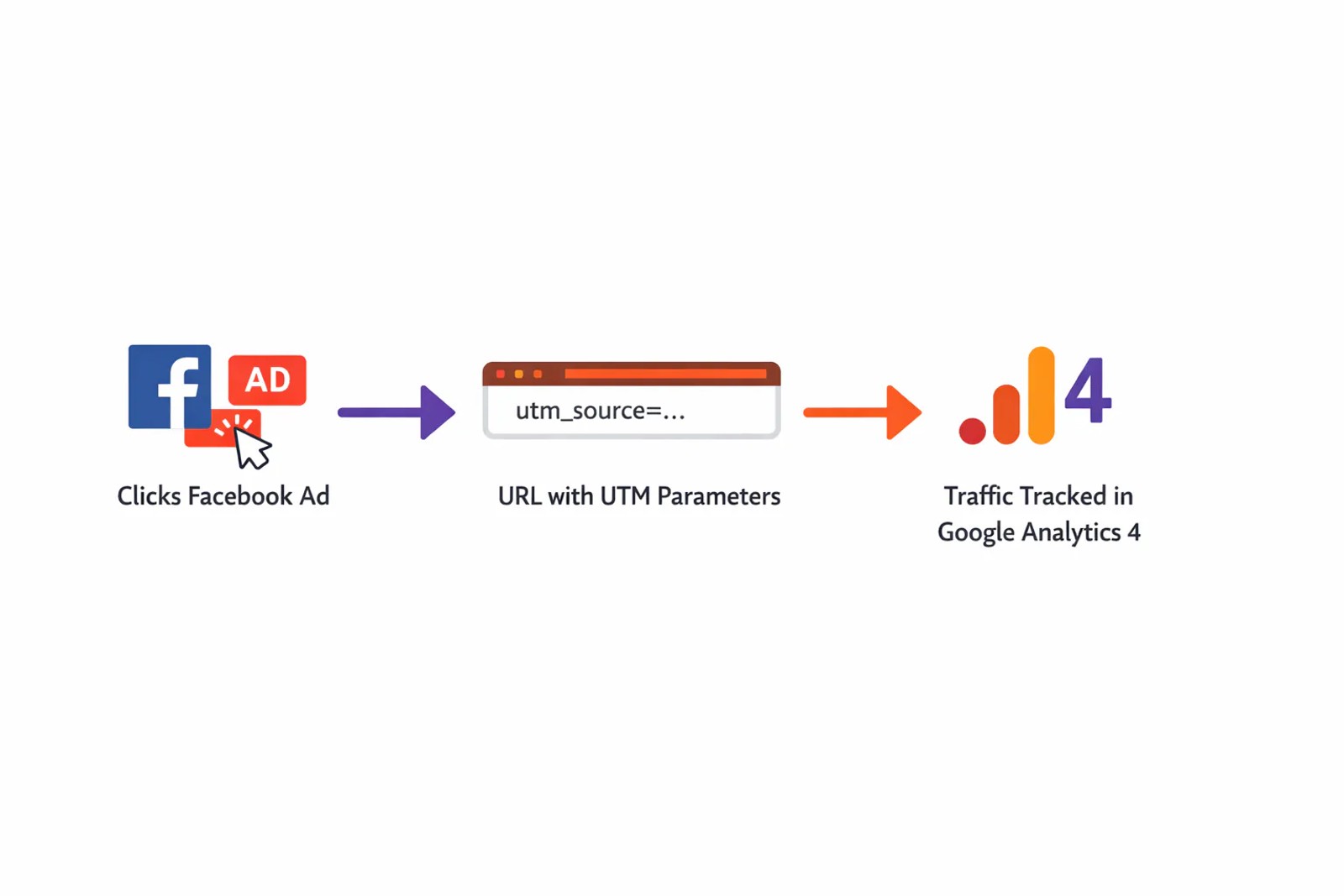
How to Track Facebook Ads Traffic in GA4: Step-by-Step Setup
Proper Facebook Ads tracking in Google Analytics 4 requires adding URL parameters to every ad URL you create. Here's the exact process.
Step 1: Build Your UTM-Tagged URL
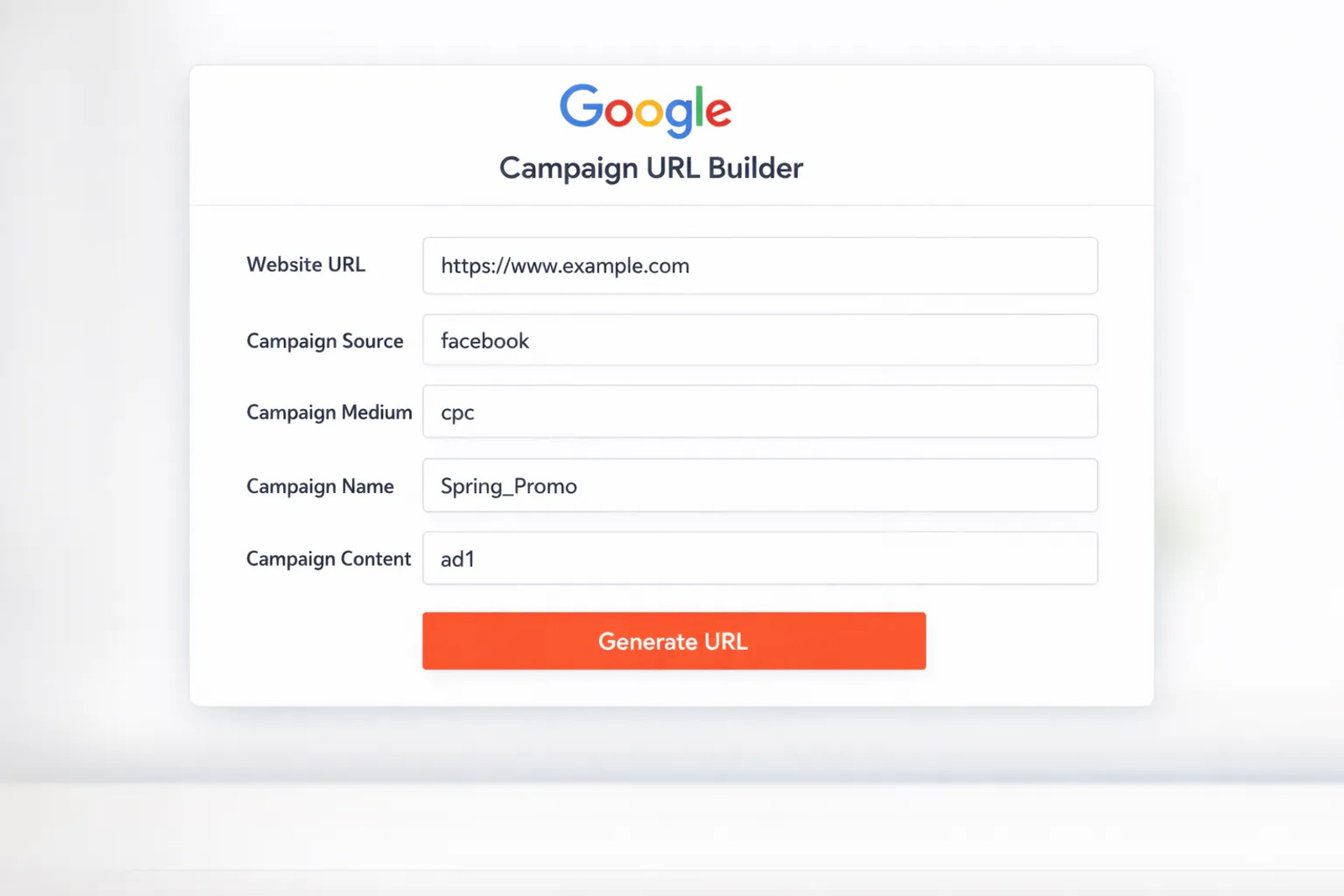
Head to Google's Campaign URL Builder, the official tool for creating tracked URLs.
You'll see five url parameter fields. Here's how to fill each one for Facebook Ads:
Website URL: Enter your destination page, the landing page, product page, or any URL where you want to send ad traffic. Use the full URL including https://.
Campaign Source (utm_source): Enter facebook in all lowercase. URL parameters are case-sensitive, and Google Analytics 4 treats "Facebook," "facebook," and "FACEBOOK" as three different sources. Stick to lowercase across all your ad campaigns to avoid fragmenting your data.
Campaign Medium (utm_medium): Enter paid. Do not use "cpc" here. That convention is reserved for paid search campaigns. Using "cpc" for Facebook will cause GA4 to group your social media traffic with Google Ads data under the Paid Search channel, making both impossible to analyze separately.
Campaign Name (utm_campaign): Use the exact name you assigned to this ads campaign in Facebook Ads Manager. If your campaign is called "Q3-Lead-Gen," enter Q3-Lead-Gen here. Consistent naming between platforms makes cross-referencing performance data far easier.
Campaign Term (utm_term): Leave this blank for Facebook Ads. This url parameter is designed for paid search keywords and isn't relevant to social advertising.
Campaign Content (utm_content): This url parameter is optional but valuable when you're running multiple ad variations within the same campaign. Use it to differentiate between creative formats or specific ads, for example, video-1 versus carousel-2. This granularity helps you understand which creative variations drive better results.
Once you've filled in these fields, the URL builder generates your tracked URL. It will look something like this:
https://yourdomain.com/landing-page?utm_source=facebook&utm_medium=paid&utm_campaign=Q3-Lead-Gen&utm_content=video-1
Copy this URL. You'll add it to your Facebook ad in the next step.
Step 2: Add URL Parameters to Your Facebook Ad
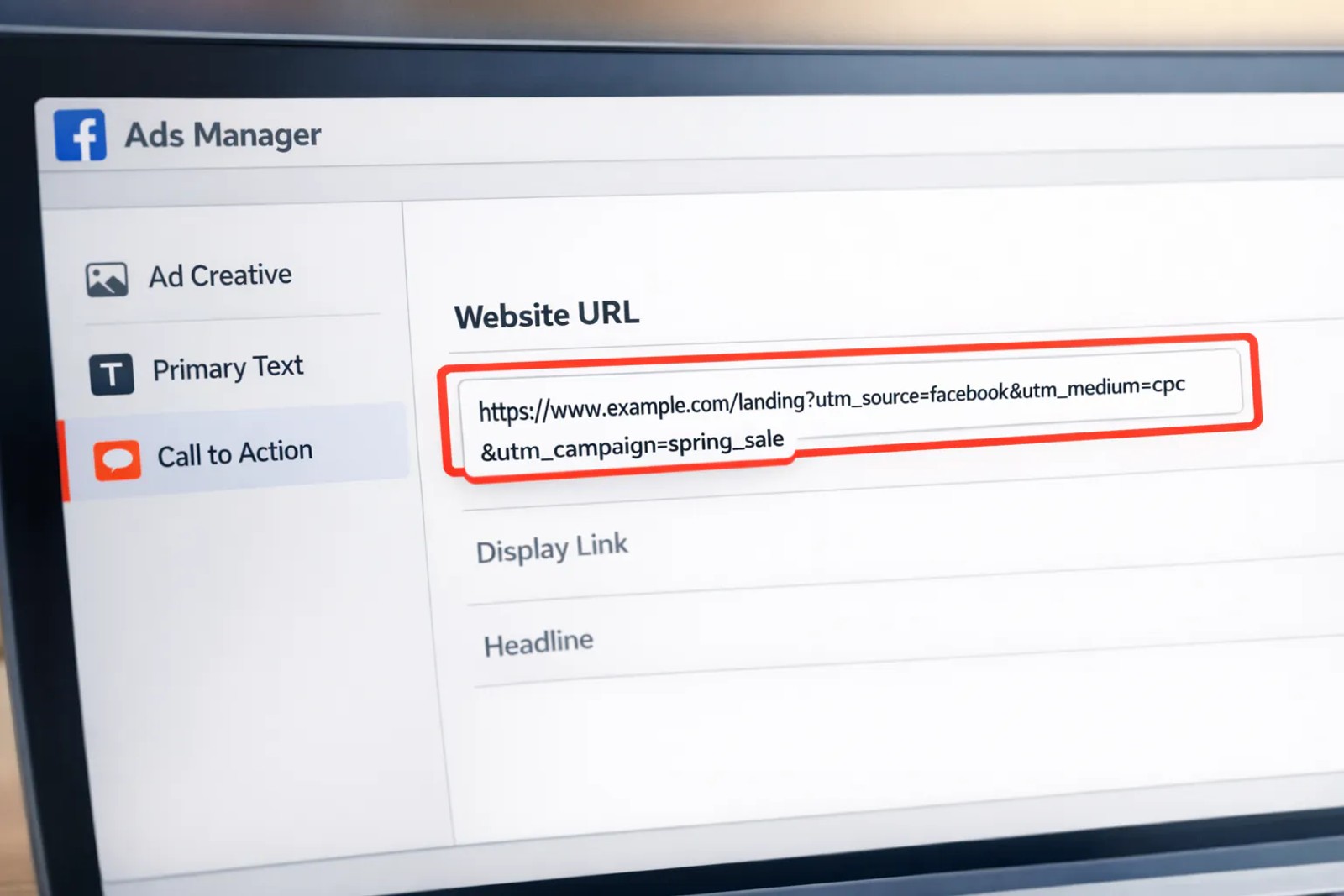
Open Facebook Ads Manager and create a new ad or edit an existing one. Navigate to the ad level (not the campaign or ad set level).
Scroll down to the Destination section. This is where you tell Facebook where people should land when they click your ad.
You have two options for adding your UTM-tagged URL:
Option 1: Use the Website URL field directly
Paste your complete UTM-tagged URL directly into the Website URL field. This is the most common approach and works for all ad formats that include a destination link.
Option 2: Use Facebook's built-in URL parameter builder
Click "Build a URL parameter" under the Website URL field. Facebook's interface lets you enter your base URL and then add parameters through a form. This can be easier if you're managing multiple ad variations and want to avoid manually editing long URLs.
For either option, the critical requirement is that your final URL contains all the URL parameters you set up in step one.
If you're placing the URL in ad copy text (like in a post with a shortened link), use a URL shortener like Bitly to create a cleaner-looking link that still redirects through your UTM-tagged URL.
Save your ad. Once the ad goes live, every click will carry the URL parameters to your website and into Google Analytics 4.
Step 3: View Facebook Performance in GA4
Give your ad 24-48 hours to collect data, then log into your Google Analytics 4 property.
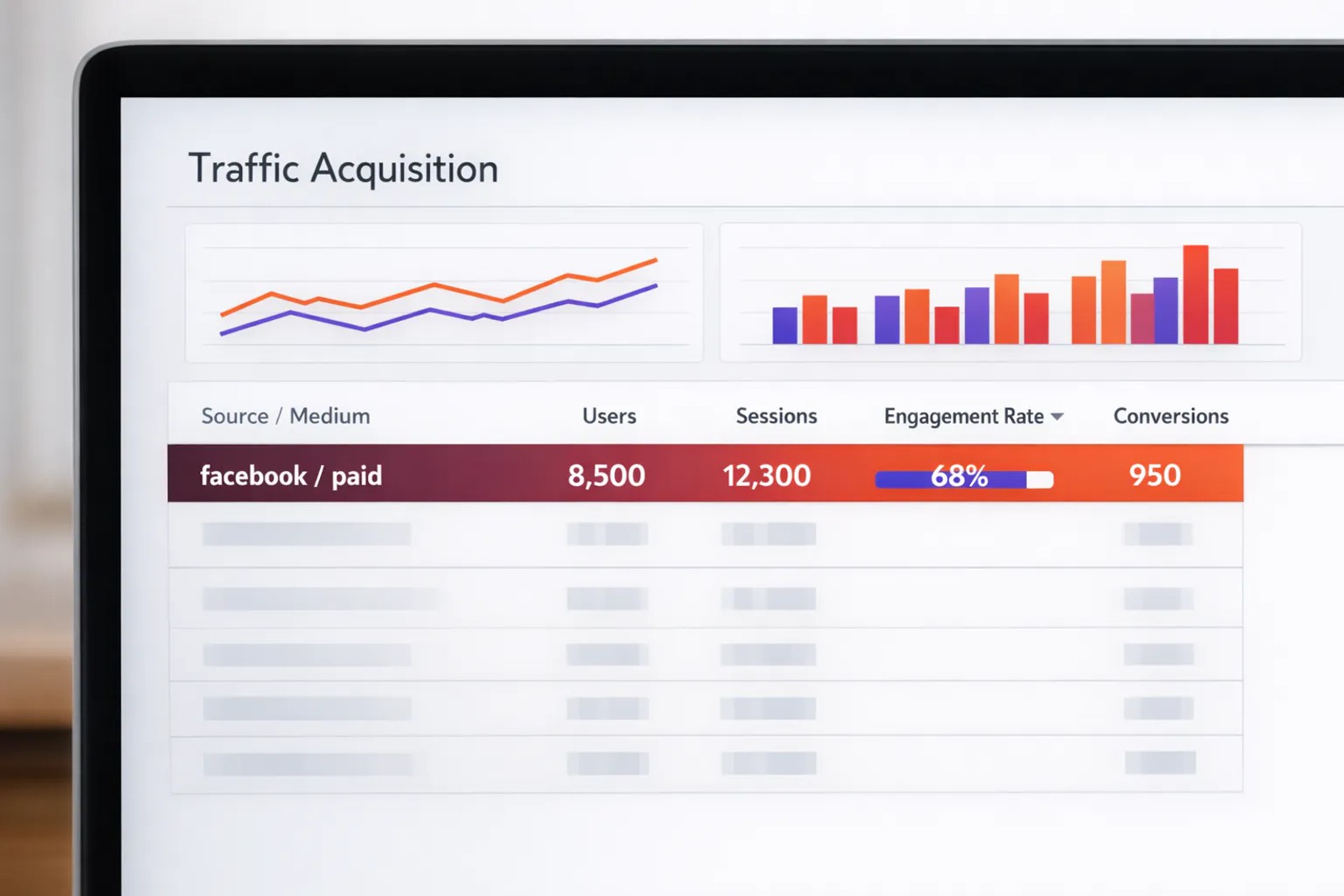
Navigate to Reports in the left sidebar, then click Acquisition > Traffic Acquisition. This report shows you where your sessions are coming from.
By default, Google Analytics displays the "Session default channel group" dimension, which groups traffic into broad categories like Organic Search, Paid Social, and Direct. You'll see your Facebook traffic under the "Paid Social" channel if your URL parameters are set correctly.
For more detailed analysis, change the dimension. Click the dropdown menu that currently shows "Session default channel group" and select Session source / medium. This breaks down traffic by the specific source and medium values from your URL parameters.
You should now see a row that reads facebook / paid. This confirms Google Analytics 4 is correctly capturing your Facebook Ads traffic. The columns to the right show key metrics for that source:
- Users: Number of unique people who clicked your Meta Ads
- Sessions: Total number of visits from Facebook ads
- Engagement rate: Percentage of sessions that lasted longer than 10 seconds, had a conversion event, or had 2+ page views
- Engaged sessions per user: Average number of engaged sessions per user
- Events per session: Average number of events triggered per session
- Conversions: Number of conversion events attributed to Facebook traffic
Click the facebook / paid row to drill deeper. You can add a secondary dimension to see performance broken down by campaign name, landing page, or any other url parameter you included.
Step 4: Set Up Custom Reports (Optional)
GA4's standard reports show aggregated traffic data, but you'll likely want more specific insights into your Facebook Ads performance.
Navigate to Explore in the left sidebar. This is Google Analytics 4's custom reporting interface. Click Blank to create a new exploration from scratch.
Common report configurations for tracking Facebook Ads:
Campaign performance report: Add "Session campaign" as a row dimension and metrics like Users, Conversions, and Revenue. This shows which Facebook ad campaigns drive the most valuable traffic.
Landing page analysis: Use "Landing page" as a row dimension with "Session source" as a filter (set to "facebook"). This reveals which landing pages perform best for Facebook traffic.
User journey report: Use the Path Exploration template to see the sequence of pages users visit after clicking a Facebook ad. This helps identify drop-off points and optimization opportunities.
Save these custom explorations for ongoing analysis. They'll update automatically as new data flows in from your ads campaign.
FAQ
How do I track Facebook Ads in Google Analytics 4?
Add URL parameters to your Facebook ad URLs using Google's Campaign URL Builder. Set utm_source=facebook, utm_medium=paid, and include your campaign name in utm_campaign. Once your ads run, the traffic will appear in GA4 under Reports > Acquisition > Traffic Acquisition, filtered to the source "facebook / paid."
What UTM parameters should I use for Facebook Ads?
Use utm_source=facebook (lowercase), utm_medium=paid, utm_campaign=\[your-campaign-name\], and optionally utm_content=\[ad-variation\]. Avoid using "cpc" as your medium since that's reserved for paid search and will cause Facebook traffic to be miscategorized as search traffic in Google Analytics 4.
Why does my Facebook traffic show as Direct in GA4?
Facebook's in-app browser strips referrer information when users click ads, causing Google Analytics to label the traffic as Direct since it can't identify the source. The fix is adding URL parameters to your ad URLs, which embed source information directly in the URL independent of referrer headers.
Can I see Facebook Ads data directly in GA4?
No, Google Analytics 4 does not connect directly to Facebook Ads Manager to pull campaign data. You can only see the traffic that Facebook ads send to your website. To see this traffic properly categorized, you must add URL parameters to all your ad URLs. Some third-party tools like Coupler.io offer GA4 and Meta integration for more up-to-date reporting, but the baseline tracking still requires proper URL parameter implementation.
How do I fix Facebook traffic appearing as (not set) in GA4?
Check that your URL parameters are present and correctly formatted in your ad URLs. Test by clicking your ad and examining the URL in your browser, it should contain utm_source=facebook&utm_medium=paid. If url parameters are missing from the final URL, your website may be stripping them through redirects or URL rewriting rules.
What's the difference between Facebook's reporting and GA4?
Facebook Ads Manager measures ad platform metrics (impressions, link clicks, cost) and its own conversion tracking through the Meta Pixel and Conversions API. Google Analytics measures what happens after users land on your website (sessions, engagement, on-site conversions). Different measurement methods mean the numbers won't match exactly, discrepancies of 20-30% are normal according to social media advertising experts.
How can I track Facebook Ads conversions in GA4?
First, set up conversion events in Google Analytics 4 for your key actions (form submissions, purchases, demo bookings). Then ensure your Facebook ad URLs include URL parameters. When users click your Meta Ads and complete a conversion on your site, GA4 will attribute that conversion to the "facebook / paid" source in your Conversions report. For more advanced tracking, you can also set up Meta Events Manager alongside Google Analytics for cross-platform verification.
What does adding URL parameters to Facebook ads do?
Adding URL parameters (also called UTM tags) to your Facebook ad URLs embeds tracking information directly into the link. When someone clicks your ad, these parameters travel with them to your website, allowing Google Analytics 4 to identify the exact source (Facebook), medium (paid), campaign name, and even specific ad variation that drove the visit. Without these parameters, GA4 can't distinguish paid Facebook traffic from organic social visits or direct traffic.
Conclusion
Tracking Facebook Ads traffic in Google Analytics 4 requires deliberate setup, but the process is straightforward. Build UTM-tagged URLs using Google's Campaign URL Builder, add those URL parameters to your Meta Ads, and your traffic will flow into Google Analytics correctly categorized as paid social media.
Without URL parameters, Facebook traffic disappears into Direct or (not set), making it impossible to measure ad campaigns performance or calculate ROI. With proper tracking, you can see which campaigns drive engaged traffic, which landing pages convert best, and where your ad spend generates results.
Remember that Google Analytics 4 tracking is the starting point, not the finish line. To connect ad clicks to qualified leads and closed revenue, especially for businesses with multi-touch sales cycles, consider implementing attribution software that tracks the complete customer journey beyond what GA4 can measure.
Ready to see which marketing efforts actually drive revenue? Learn how SourceLoop tracks leads from first click to closed deal and feeds qualified conversion data back to your ad platforms for better campaign optimization.

 Paid Social


