
How to Send Lead Source to Your CRM [Guide]
Learn how to send lead source to your CRM with hidden fields, UTMs, and two-way sync. Practical steps, real examples, and fixes for common pitfalls.
Table of contents
- What is Lead Source in a CRM
- How Sourceloop Sends Lead Source to Your CRM
- Setting Up Sourceloop: Step-by-Step For Lead Source Tracking
- Step 1: Create Your Sourceloop Account
- Step 2: Install the Tracking Script
- Step 3: Connect Your CRM
- Step 4: Connect Your Ad Platforms
- Step 5: Review Your Attribution Data
Sending lead source data to your CRM connects the dots between your marketing spend and the leads that turn into revenue. Without it, you're guessing which campaigns deserve more budget and which are wasting money.
The solution is to use an attribution tool like Sourceloop that automatically tracks every visitor's journey—from first click to closed deal—and syncs complete lead source data to your CRM. No hidden fields, no JavaScript, no manual UTM management.
What is Lead Source in a CRM
Lead source in your CRM records how each lead or customer found your business. It's a field (or set of fields) that captures the marketing channel, campaign, ad, or keyword that brought them to your website before they converted.
Most CRMs come with default lead source values like "Website," "Phone Inquiry," or "Referral." These are too broad to be useful. A lead from "Website" could have come from Google Ads, Facebook, organic search, LinkedIn, or a dozen other sources.
The solution is to create custom lead source fields in your CRM that capture specific marketing attribution data. This typically includes:
- Source: the platform (Google, Facebook, LinkedIn)
- Medium: the traffic type (cpc, organic, email, referral)
- Campaign: the specific campaign name
- Term: the search keyword (for paid search)
- Content: the ad or content variation
- Landing page: where they first arrived on your site
When these fields are populated for every lead, you can see exactly which campaigns produced qualified leads and closed deals.
How Sourceloop Sends Lead Source to Your CRM
Sourceloop automatically tracks every visitor across all marketing channels and syncs complete attribution data to your CRM. Here's what makes it different from manual tracking methods:
1. Full-journey tracking across sessions:
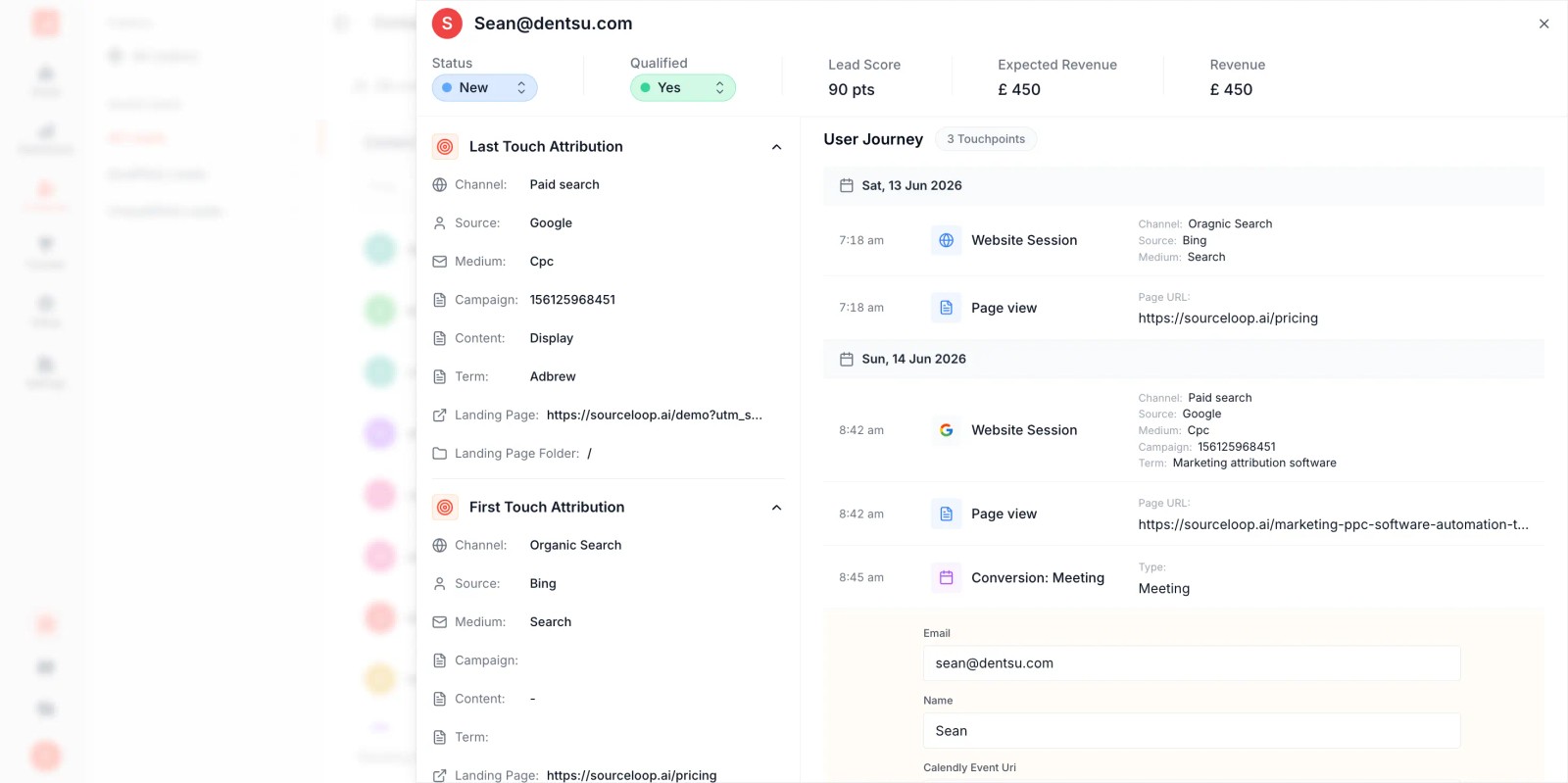
A visitor can click your Google Ad on Monday, return via organic search on Wednesday, and convert on Friday. Sourceloop remembers the entire journey and passes first-touch, last-touch, and every touchpoint in between to your CRM.
2. Works for all traffic sources:
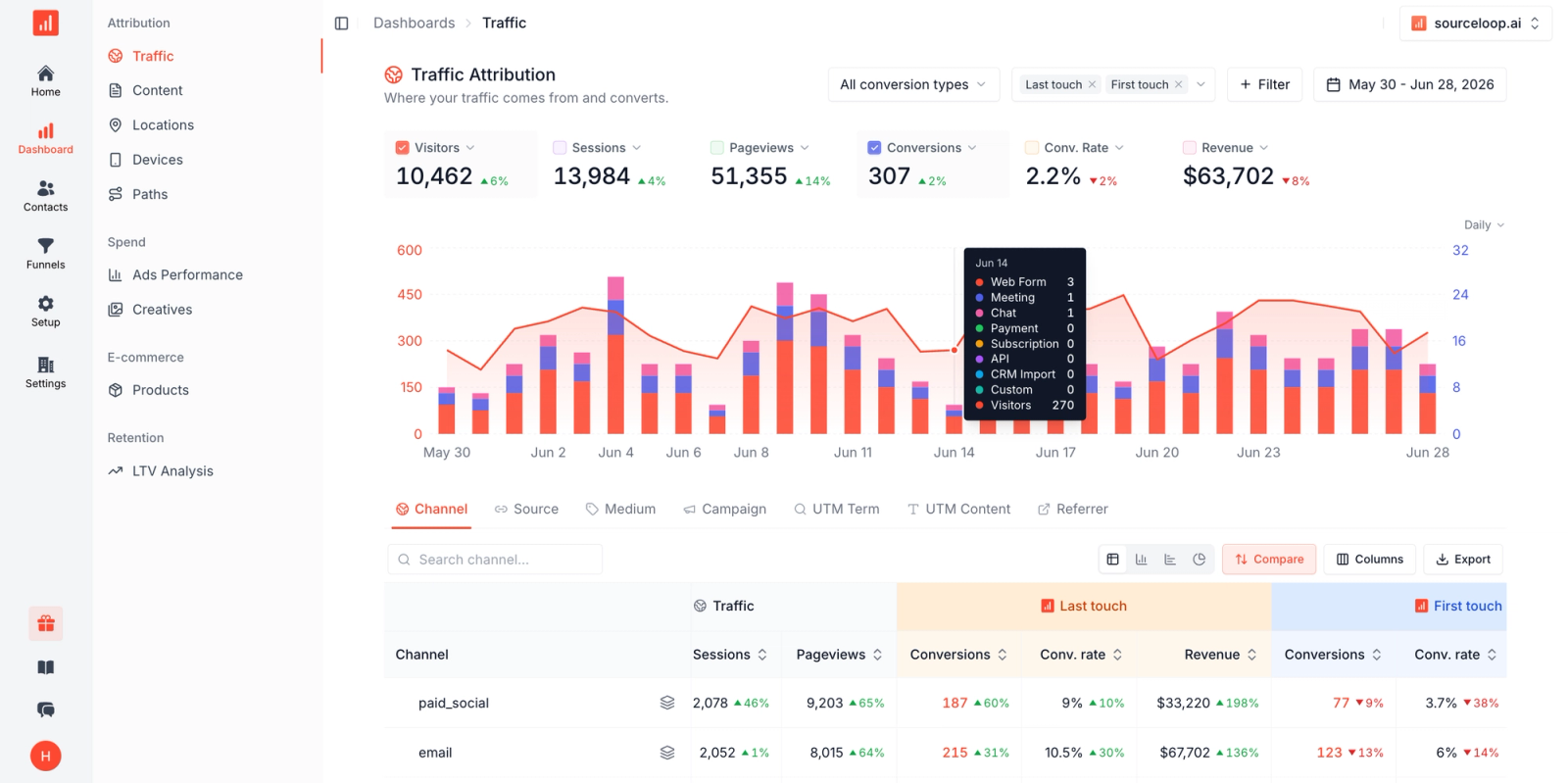
Paid ads, organic search, social media, referrals, email campaigns, and direct traffic are all tracked and categorized automatically. You don't need UTM parameters on every link—Sourceloop detects the source from referrer data and campaign tracking.
3. Native CRM integrations:
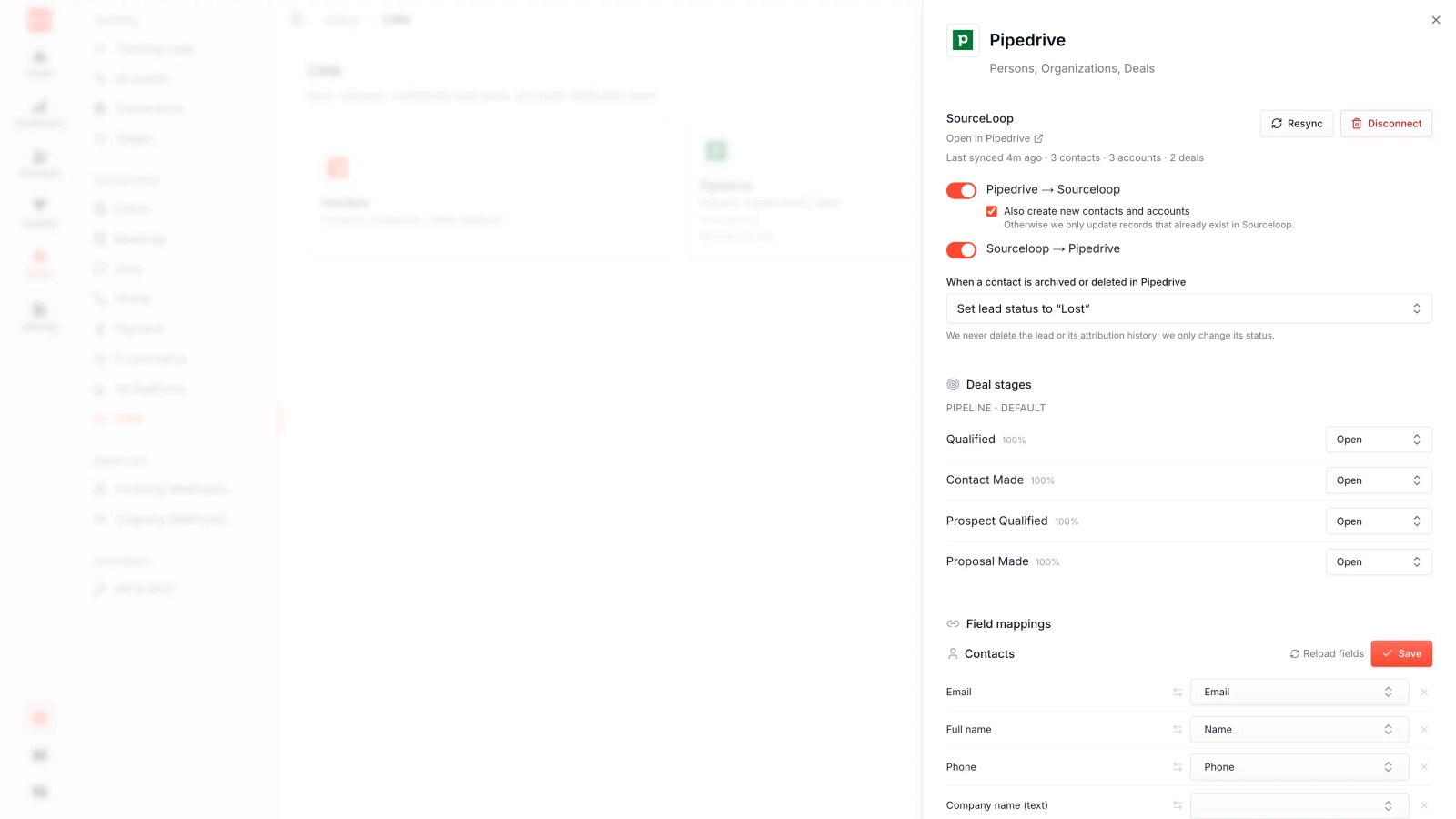
Connect HubSpot, Salesforce, or Pipedrive in minutes. Sourceloop creates custom fields in your CRM and populates them automatically for every lead, contact, and opportunity.
4. Ad platform sync:
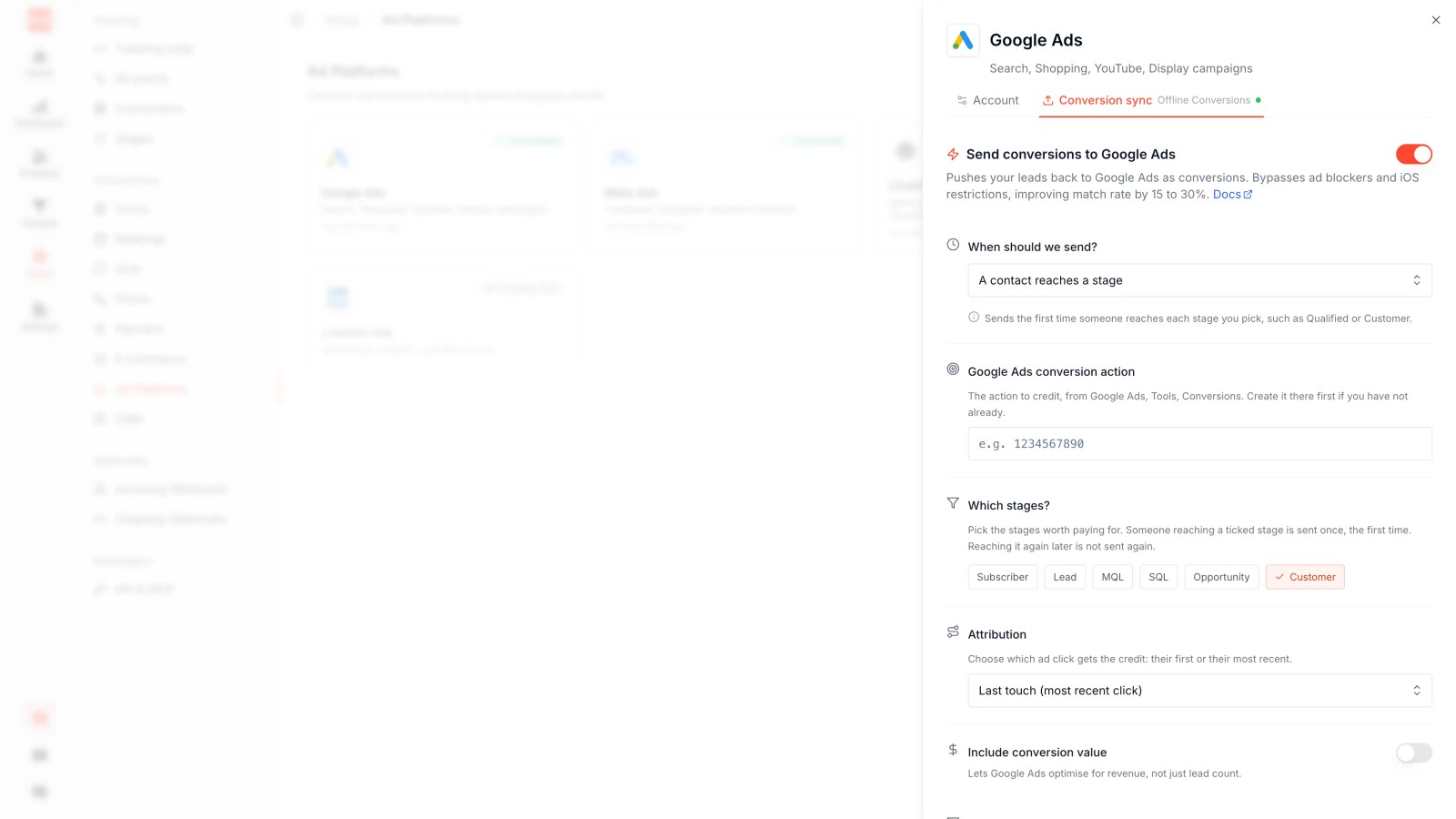
Sourceloop sends offline conversions back to Google Ads and Facebook Ads, so their algorithms know which clicks turned into qualified leads and customers. This closes the attribution loop and improves campaign performance.
Setting Up Sourceloop: Step-by-Step For Lead Source Tracking
Step 1: Create Your Sourceloop Account
Sign up at **sourceloop.ai** and choose your plan. The Professional plan ($99/month) includes CRM sync, ad platform integrations, and unlimited tracked visitors.
Step 2: Install the Tracking Script
Add the Sourceloop tracking script to your website. It's a single line of JavaScript that goes in your site's <head> tag:
<script src="https://cdn.sourceloop.ai/track.js" data-site-id="your-site-id"></script>
If you're using WordPress, Webflow, or Shopify, Sourceloop provides plugins and integrations that handle this automatically. The script is lightweight (under 10KB) and loads asynchronously, so it won't slow down your site.
Once installed, Sourceloop starts tracking every visitor's journey: which campaigns they came from, which pages they visited, and how they converted.
Step 3: Connect Your CRM
Sourceloop integrates natively with HubSpot, Salesforce, and Pipedrive. Here's how to connect each:
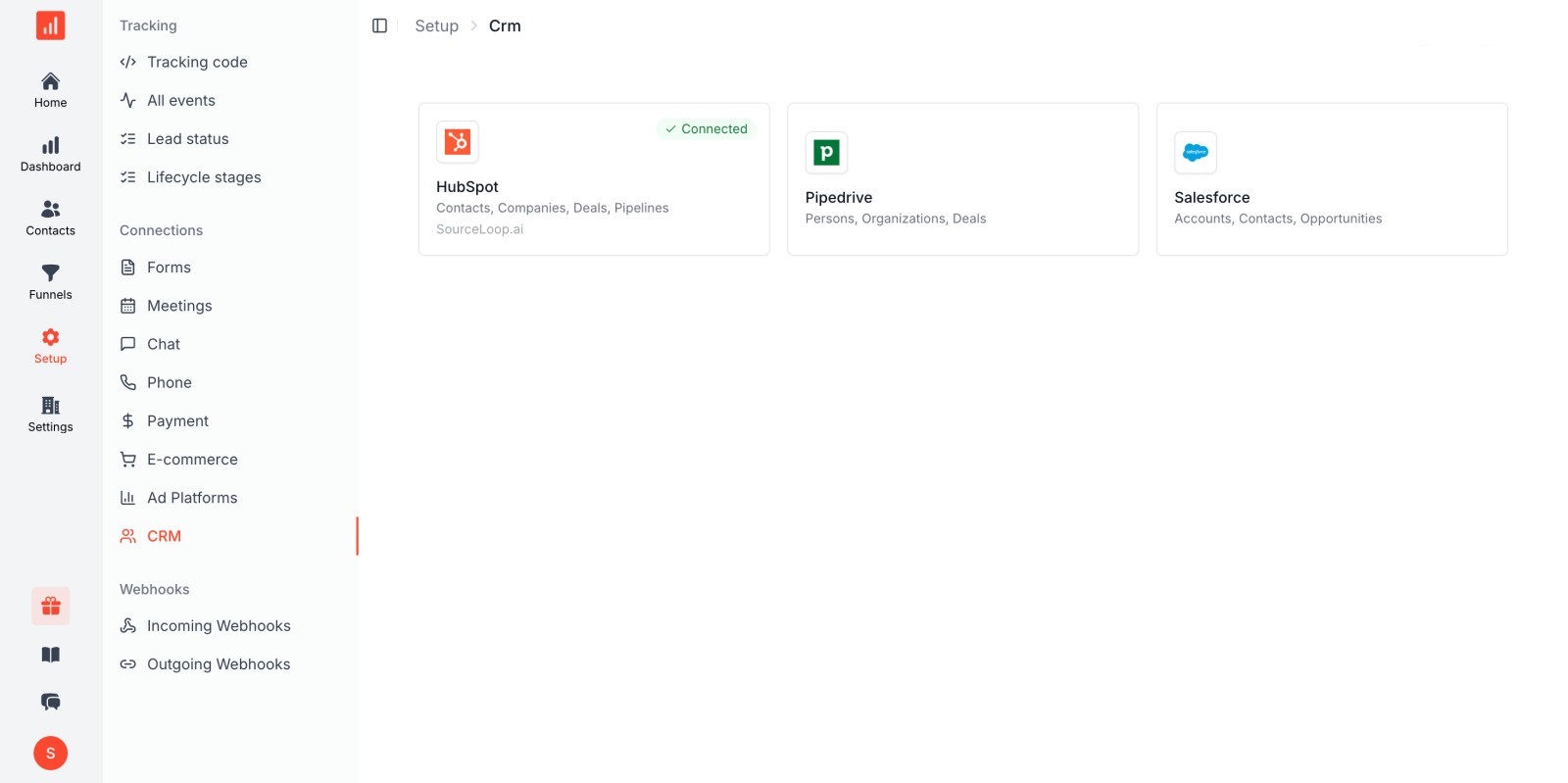
For HubSpot: Go to Integrations → HubSpot in your Sourceloop dashboard and click Connect. Authorize Sourceloop to access your HubSpot account. Sourceloop will create custom properties for lead source data and start syncing attribution to contacts, companies, and deals. **Full HubSpot setup guide.**
For Salesforce: Go to Integrations → Salesforce and authenticate with OAuth. Sourceloop creates custom fields on Lead, Contact, Account, and Opportunity objects, then syncs attribution data for every conversion. Works with both Salesforce production and sandbox environments. **Full Salesforce setup guide.**
For Pipedrive: Connect via the Pipedrive integration in your Sourceloop dashboard. Sourceloop syncs lead source data to Person, Organization, and Deal records.
Once connected, Sourceloop automatically pushes attribution data to your CRM every time someone converts.
Step 4: Connect Your Ad Platforms
Sourceloop can send offline conversions back to Google Ads and Facebook Ads, so their algorithms optimize for real business outcomes instead of just clicks.
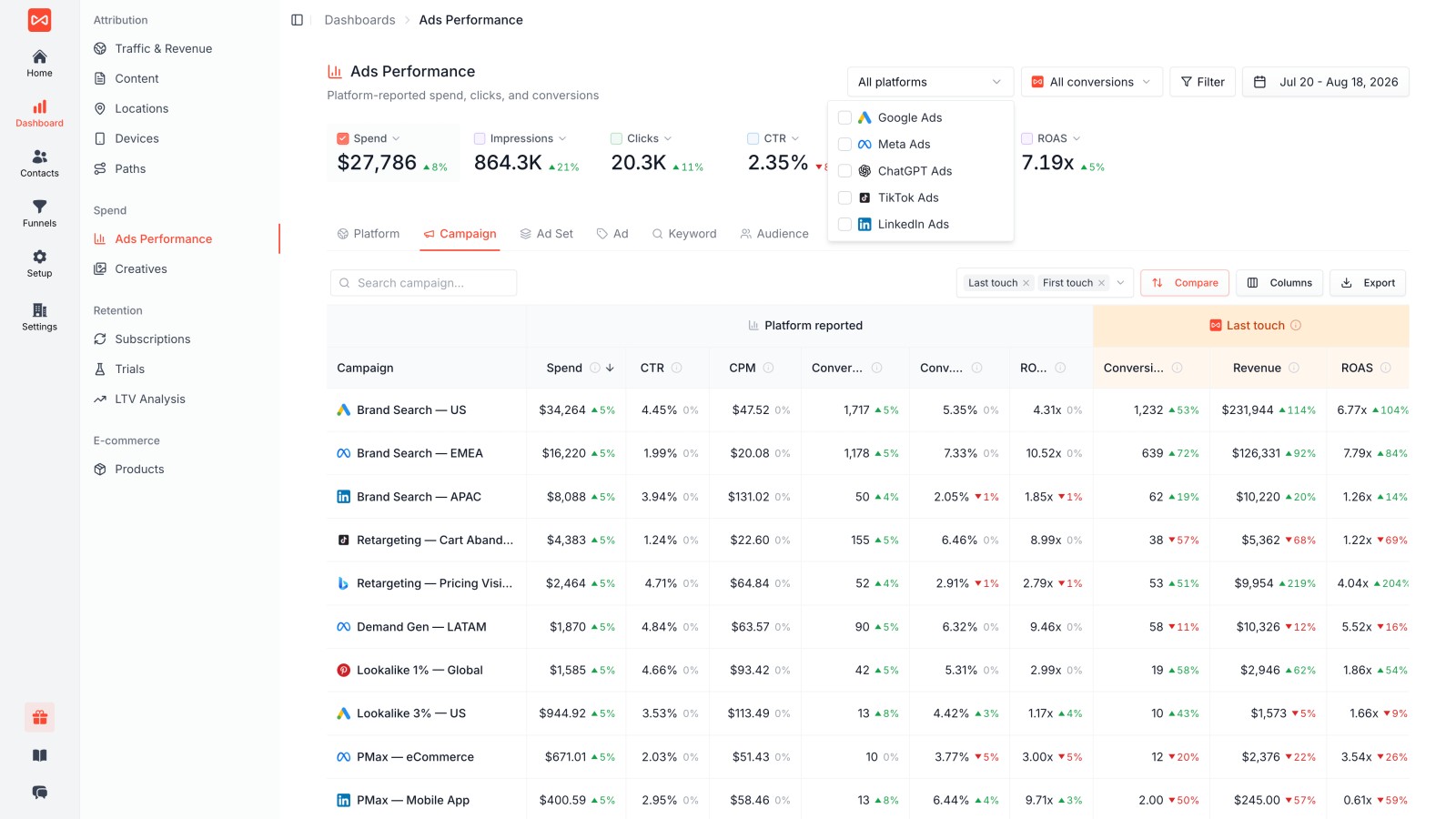
For Google Ads: Go to Integrations → Google Ads and authorize Sourceloop to access your account. Define what counts as a conversion (e.g., a lead marked "Qualified" in your CRM, or a deal marked "Closed Won"). Sourceloop will send those conversions back to Google Ads with the original GCLID, so Google knows which clicks produced revenue. Learn more about offline conversion tracking.
For Facebook Ads: Connect your Facebook Ads account in Sourceloop and define your conversion events. Sourceloop sends conversions via the Facebook Conversions API, which improves attribution accuracy and helps Facebook's algorithm find more high-intent buyers.
This closes the attribution loop: your ad platforms know which campaigns produce customers, not just form fills.
Step 5: Review Your Attribution Data
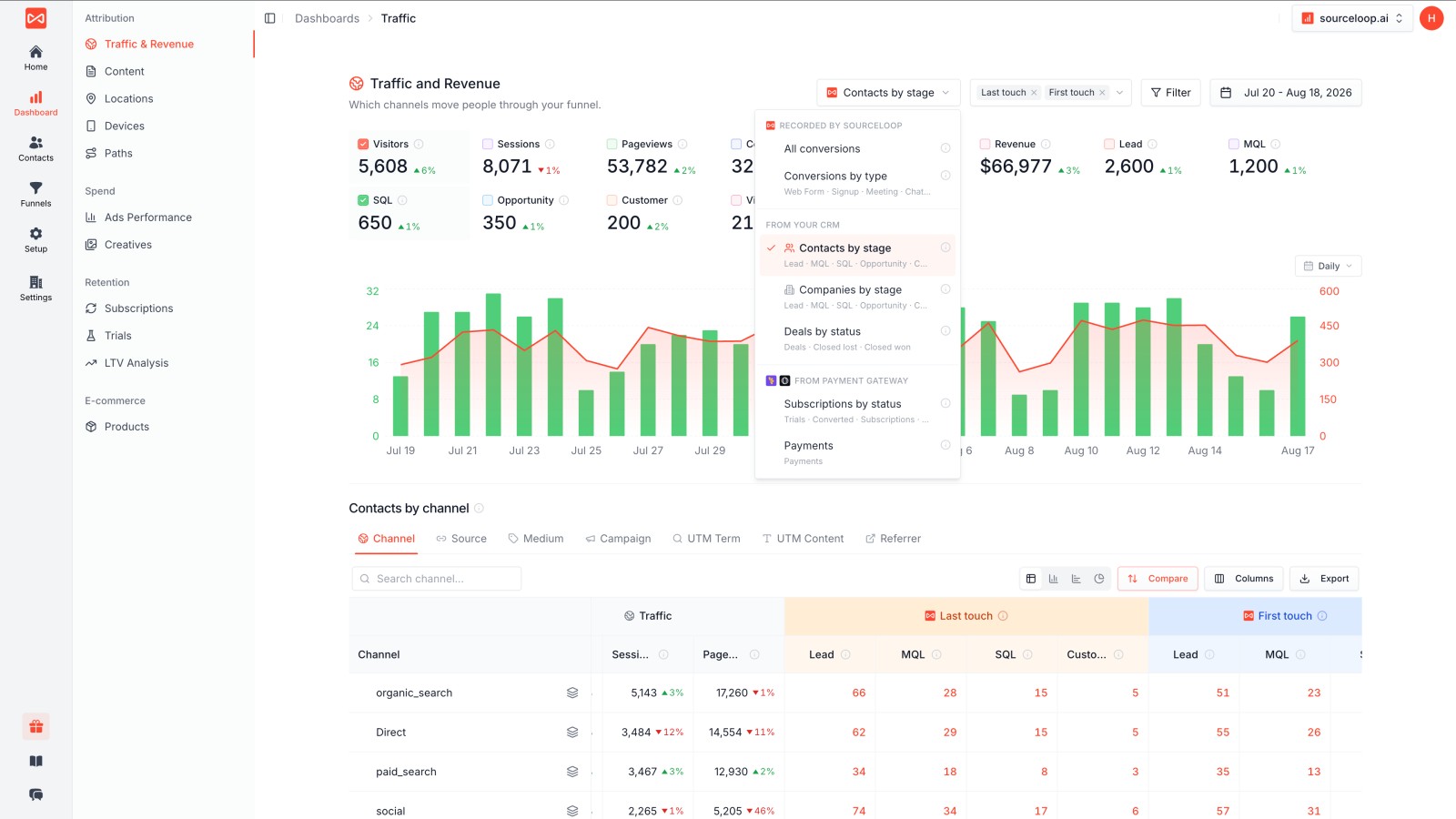
Once Sourceloop is tracking visitors and syncing to your CRM, check your CRM records to confirm the data is flowing correctly. You should see fields like:
- First Touch Source (e.g., "Google Ads")
- First Touch Campaign
- First Touch Landing Page
- Last Touch Source
- Last Touch Campaign
- Total Touchpoints
You can also view attribution reports in the Sourceloop dashboard, which show leads, pipeline, and revenue by source, campaign, keyword, and landing page.
Frequently asked questions
-
FAQ
-
What is lead source in a CRM?
Lead source is a field in your CRM that records where a lead came from before they converted. It typically includes the marketing channel (Google, Facebook), the campaign name, and sometimes the keyword or landing page. Lead source data connects marketing efforts to pipeline and revenue. Tools like Sourceloop automatically track and sync this data to your CRM.
-
How do I track lead source without UTM parameters?
Use Sourceloop to automatically detect and categorize all traffic sources. Sourceloop recognizes the referrer URL and labels organic traffic (search, social, referral) even when UTM parameters aren't present. It also tracks full customer journeys across multiple sessions and syncs everything to your CRM.
-
What's the difference between first-touch and last-touch attribution?
First-touch attribution assigns credit to the first campaign a lead interacted with. Last-touch attribution assigns credit to the final campaign before conversion. Most businesses track both to see what brings leads in and what pushes them to convert. For multi-touch journeys, use a tool that tracks all touchpoints.
-
Can I send lead source to my CRM automatically?
Yes. Sourceloop connects directly to HubSpot, Salesforce, and Pipedrive and syncs lead source data automatically for every conversion. No hidden fields, no Zapier, no manual mapping required. Connect HubSpot or connect Salesforce in under 5 minutes.
-
Why does my CRM show "Web" or "Direct" for most leads?
This happens when your CRM's default lead source field lumps all website conversions into one category. Create custom fields for source, medium, and campaign, then use UTM parameters or an attribution tool to populate them with specific data. Without this, you won't know which campaigns produced each lead.
-
How do I handle leads that convert offline (phone, in-person)?
For phone calls, use call tracking software like CallRail or CallTrackingMetrics that captures the marketing source and sends it to your CRM. Sourceloop integrates with call tracking tools to match phone conversions to the visitor's original marketing source. For in-person conversions, train staff to ask "How did you hear about us?" and log the answer in your CRM.
-
Should I track landing page or just the campaign?
Track both. The campaign tells you which marketing effort produced the lead. The landing page tells you which content or offer converted them. This helps you identify high-performing pages and optimize underperforming ones. Most attribution tools capture landing page automatically.




 Paid Social


