
How to Track UTM Parameters in Elementor Forms
Follow 4 easy steps to capture UTM parameters in Elementor Form and track where each leads & customers come from
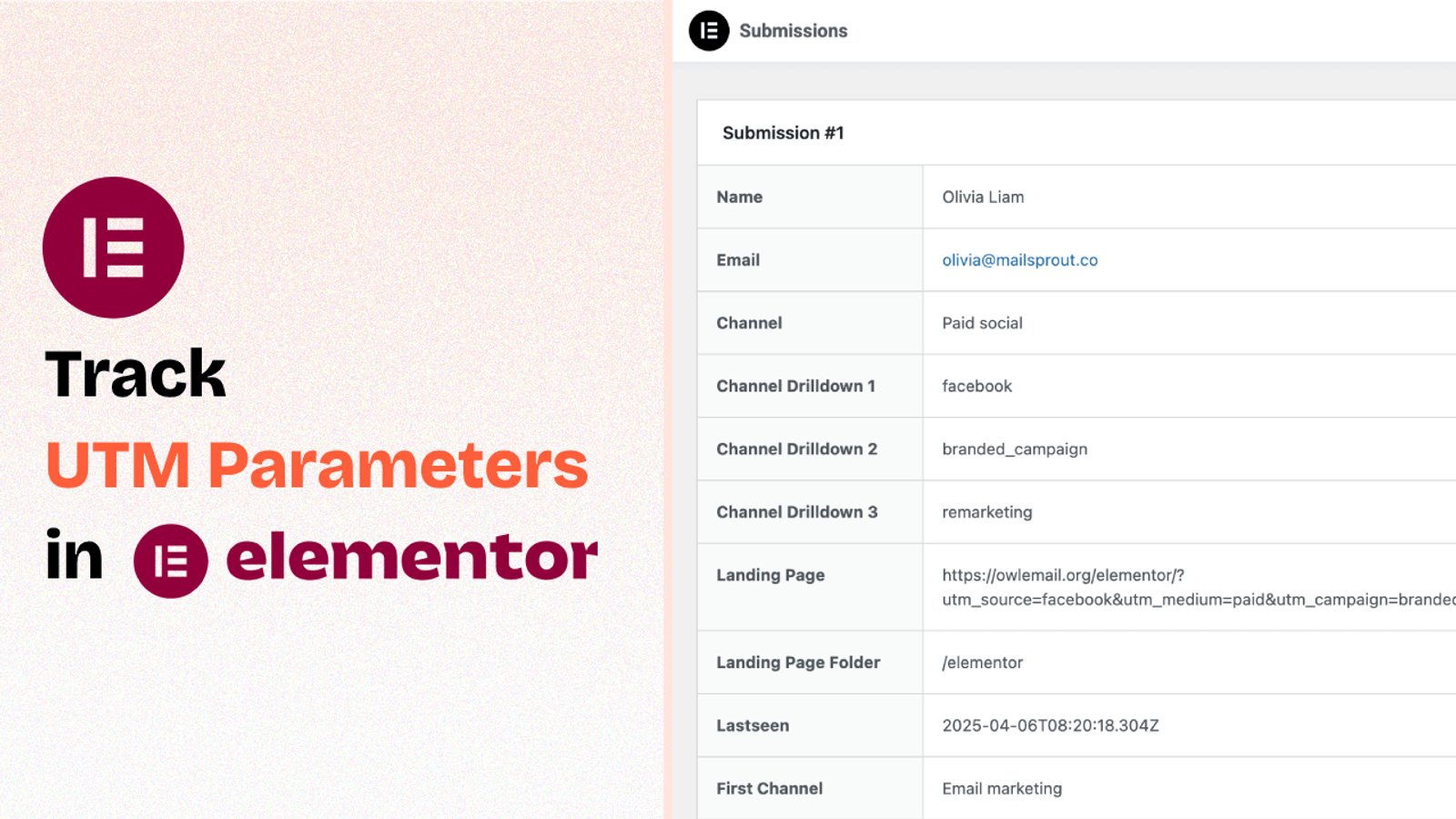
Table of contents
Do you know where the latest leads you got from your Elementor Form on your website came from?
Was it from Meta Ads, SEO, or a LinkedIn post?
If not, then you are not using UTM parameters tracking in your Elementor Forms.
In this guide, we’ll walk you through a step-by-step process to track UTM parameters in Elementor Forms using SourceLoop.ai.
Let’s dive in.
5 Easy Steps to Track UTM Parameters in Elementor Forms
Here are four simple steps to capture UTM parameters in Elementor Forms:
1. Install SourceLoop.ai on Your Website

Create your free account on SourceLoop.ai and get your unique tracking code to add in the <head> section of your website so that SourceLoop.ai starts understanding your website visitor.
SourceLoop.ai is a simple tool that captures information about how a visitor arrives on your website (including any UTM parameters present in the URL, the referring site, etc.), stores it in the user’s browser cookies, and passes it to your form submissions.
For each website visitor, it uses its intelligence to categorize UTM tags into easy-to-understand marketing attributes.
Example:
Let’s say Airbnb is using SourceLoop.ai, and a user clicks on one of their Facebook ads.
SourceLoop.ai will capture and organize the user’s visit information like this:
- Channel = Paid Social
- Channel Drilldown 1 = Facebook
- Channel Drilldown 2 = Infleuncer Campaign
- Channel Drilldown 3 = Hotels in London
- Landing Page = www.airbnb.com/hotels/london-united-kingdom
- Landing Page Folder = hotels
- Last Seen = Aug 29, 2025
2. Add UTM Parameters to Your Links

Next, you need to configure UTM parameters in all of your advertising links so that when a user clicks on one of your ads, they land with the details of that ad campaign for SourceLoop.ai to capture.
Not just links on performance marketing channels, but any link that you share online—such as in social media posts, cold emails, newsletters, etc.—should use UTM parameters with the purpose of that link, so that SourceLoop.ai can capture more and more details of how a user visited your website.
Here’s what a link with UTM parameters looks like:
https://website.com?utm_source=paid_search&utm_medium=Bing&utm_campaign=prime_offer
Resources:
3. Track Every Lead’s Journey Automatically
SourceLoop.ai records every visitor’s journey on your website, including UTM data and pages they view.
When a user submits a form or schedules a meeting, all their activity is captured and linked to their profile in the Lead Manager dashboard.
You can review the full path a lead took to convert, including the first marketing channel that brought them in, repeat visits, and the pages they explored.
This makes it easy to understand which campaigns are working and how leads engage with your site.
More Tutorials:
- How to Capture UTM Data with JetFormBuilder
- How to Capture UTM Parameters in Gravity Forms
- UTM tracking for Zoho Form
4. Add Hidden Fields to Your Forms (Optional)
You can also capture UTM data in your Elementor form submissions by adding hidden fields to the form.
These fields won’t be visible to your visitors, but SourceLoop.ai will use them to pass UTM values and other marketing attribute data for each form submission.
Adding hidden fields in Elementor Forms is super easy.
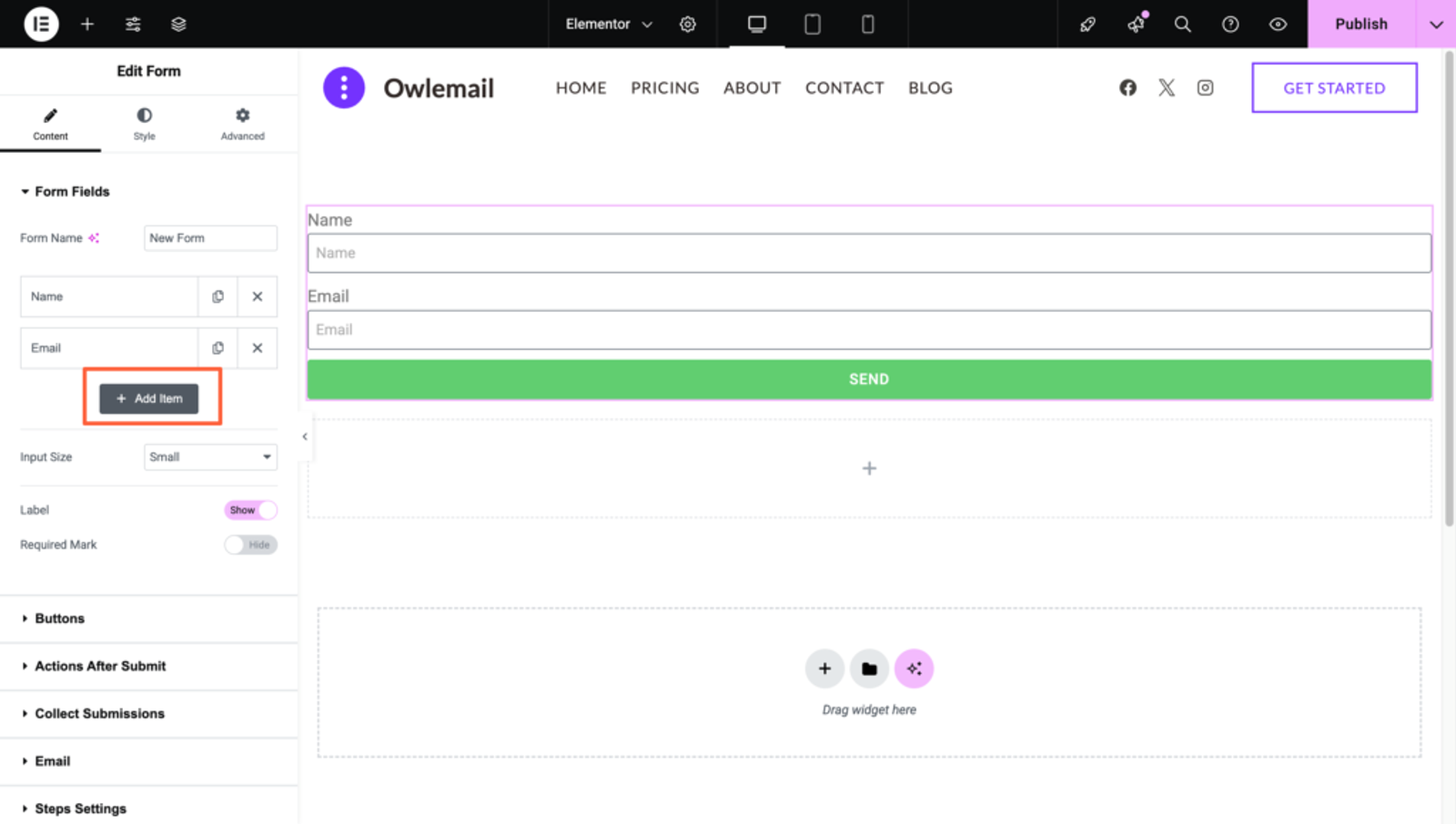
- Open your form which you want SourceLoop to work with.
- Click on “Add Field” option to add a new field.
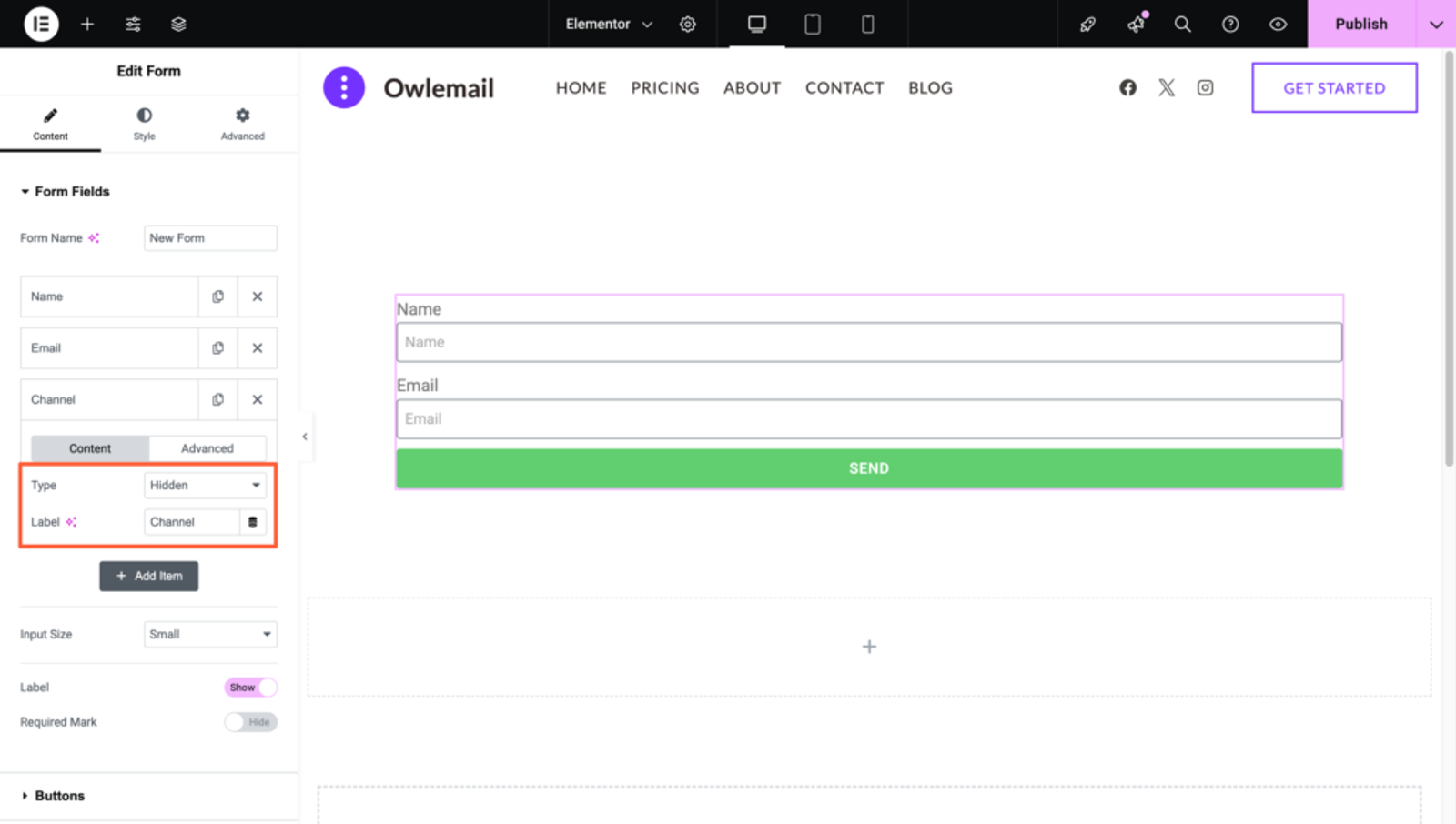
- Change the type of field to “hidden” and set the label name of the field to the value that SourceLoop.ai suggests below.
- Switch to the Advanced tab and set the default value of the field to the value that SourceLoop.ai suggests below.
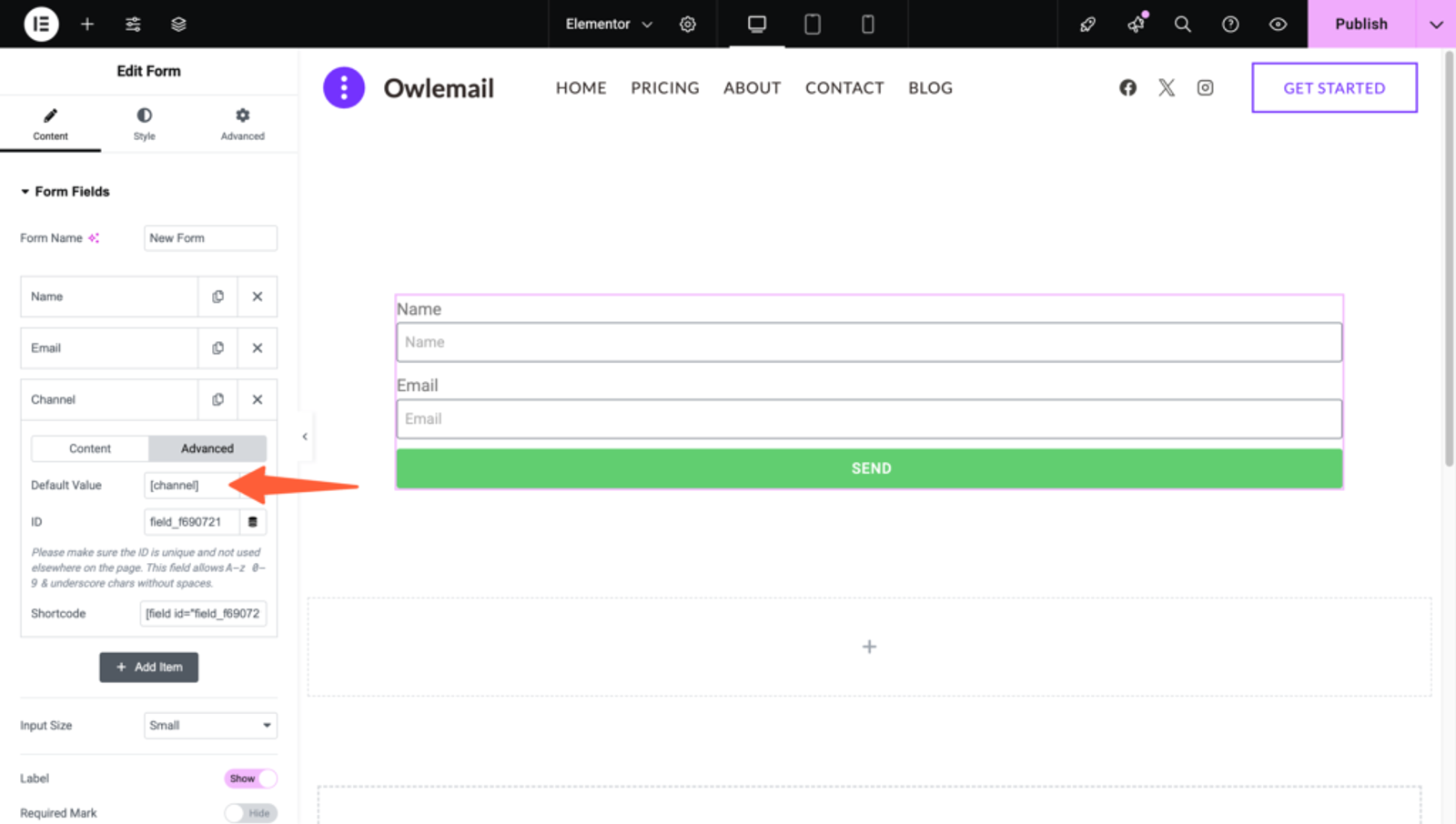
Here are the default values you need to configure for each hidden field:
channelattribution_sourceattribution_attribution_attribution_termlandingpagelandingpagefolderlastseen
If a lead visits your website multiple times before filling out the form, you can also add additional hidden fields to capture their first visit details.
SourceLoop.ai stores both the first and latest visit data for each lead.
first_channelfirst_sourcefirst_mediumfirst_campaignfirst_termfirst_landingpagefirst_landingpagefolder- firstseen
5. UTM Parameters Are Passed for Each Elementor Form Submission
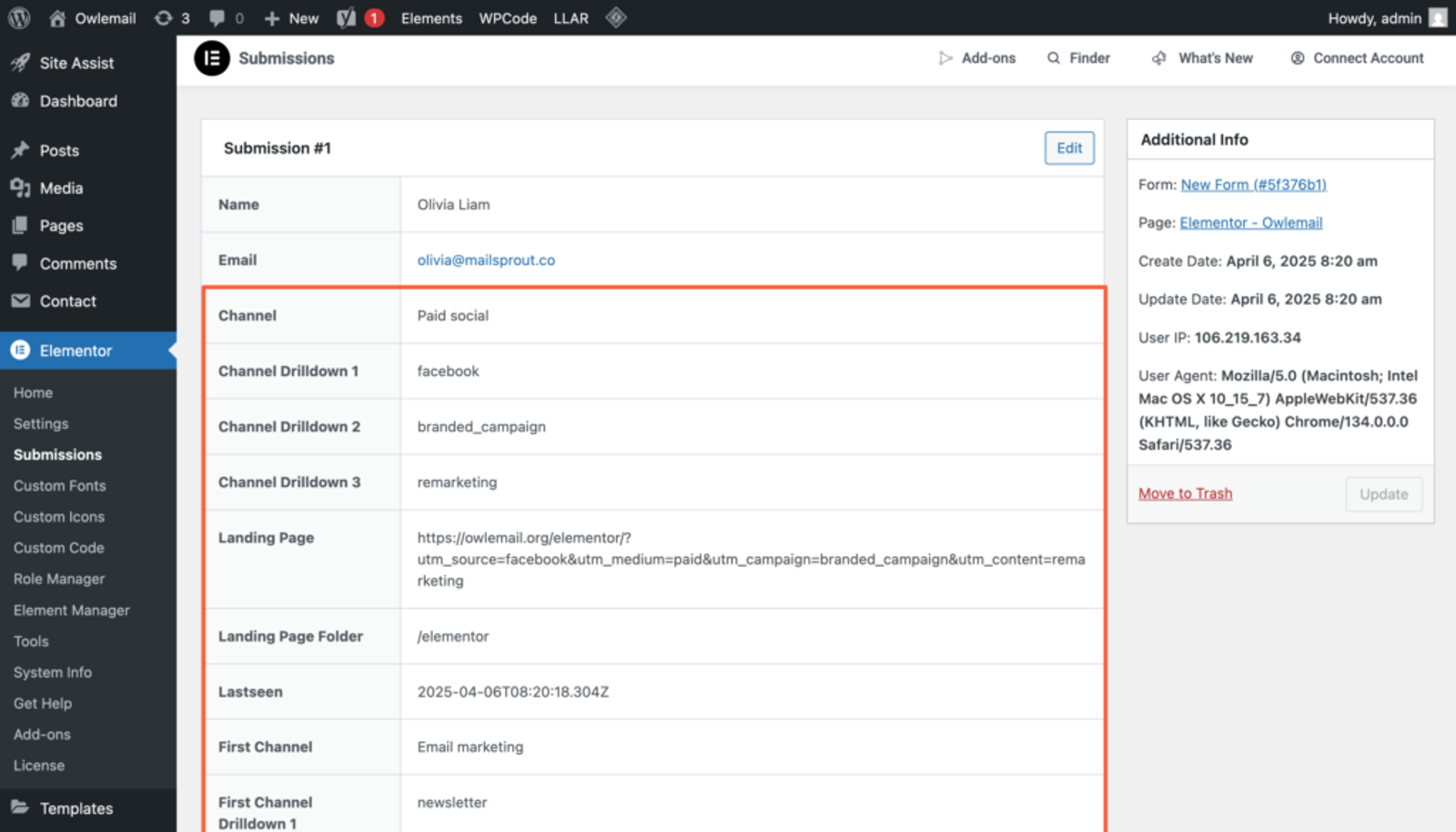
Finally, when a user visits your website and submits an Elementor Form on your website, SourceLoop.ai will automatically pass the lead attribution (UTM) data in the form submission.
Once you receive a new form submission, you can:
View it inside Elementor – Navigate to the “Submissions” section of Elementor inside your WordPress dashboard to see all the latest form submissions. For each submission, you will see the lead attribution value for each hidden field configured earlier.
Send it to CRM – Use integration tools like Zapier or Make to connect Elementor Forms with CRMs like HubSpot, Zoho, Pipedrive, or Salesforce. Just map the hidden fields you created earlier to the right fields in your CRM.
Create Reports – Integrate tools like Google Sheets, Clay, Airtable, etc. to store each lead with detailed attribution data and create dedicated reports of how each marketing channel is helping drive leads and customers.
More Tutorials:




 Paid Social


