
How to Track UTM Parameters in Close CRM
Follow these 4 easy steps to capture UTM parameters in Close CRM.
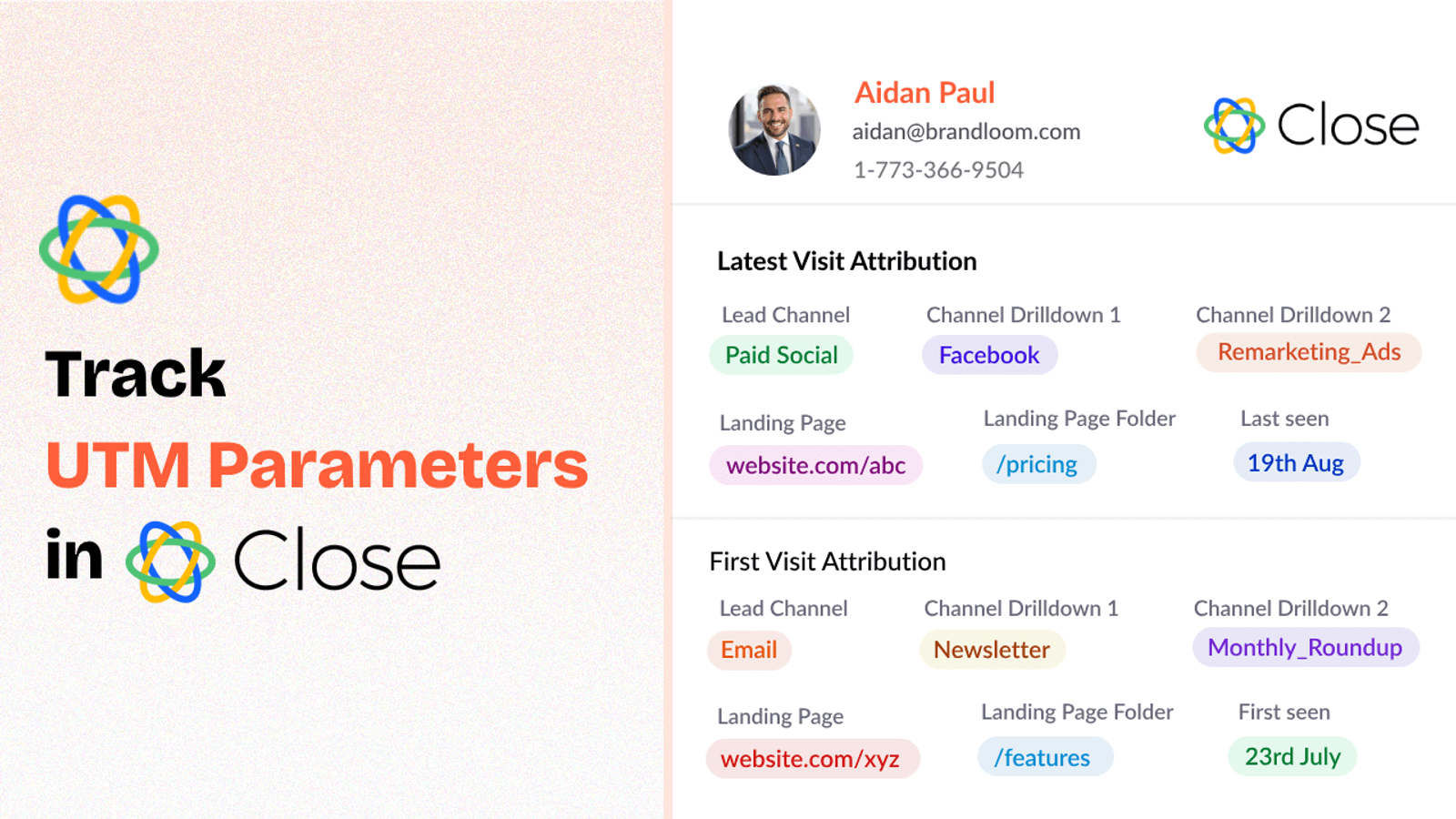
Table of contents
If you are running marketing campaigns—whether on social, email, Google Ads, or beyond—you are probably already using UTM parameters.
But are you actually able to connect those UTM tags to your leads and customers inside Close CRM?
If not, you are missing out on valuable attribution data that could tell you where your best leads are coming from.
In this blog post, we will discuss how you can use SourceLoop.ai to seamlessly track UTM parameters in Close CRM.
Let’s dive in.
4 Easy Steps to Track UTM Parameters in Close CRM
Here are 4 simple steps to capture UTM parameters in Close CRM:
1. Add SourceLoop on Your Website

First of all, create your free SourceLoop.ai account.
Once you’re signed in, copy your unique tracking script and paste it into the <head> section of your website.
This tracking script lets SourceLoop track how a user is visiting your website based on their UTM parameters and other information, and store the information securely in the user’s browser cookies.
But instead of just dumping raw UTM strings, SourceLoop organizes everything into neat, easy-to-read marketing attributes.
Example:
Let’s say Airbnb is using SourceLoop.ai, and a user clicks on one of their Google Search ads while looking for vacation rentals in Italy.
SourceLoop.ai will capture and organize the user’s visit information like this:
- Channel = Paid Search
- Channel Drilldown 1 = Google
- Channel Drilldown 2 = Search Ad
- Channel Drilldown 3 = Italy Summer Rentals
- Landing Page = www.airbnb.com/s/italy
- Landing Page Folder = search
- Last Seen = Apr 14, 2025
2. Add UTM Parameters to Your Links

Now that SourceLoop is installed, it’s time to ensure that every URL shared online to drive traffic is properly tagged with UTM parameters.
Whether it is Google Ads, Meta Ads, TikTok Ads, or social media posts & email newsletters, you should add UTM tags to all of your marketing links.
Example of a link with UTM parameters:
https://yoursite.com/quiz?utm_source=facebook&utm_medium=paid&utm_campaign=summer_sale
Resources:
- How to add UTM parameters in Google Ads
- How to add URL parameters to Meta ads
- How to setup UTM Codes for LinkedIn Ads
- How to add UTMs to your TikTok ads
3. Add Hidden Fields to Your Lead Form
Next, add a set of 7 hidden fields to any form where you collect lead information (think contact forms, sign-up pages, or booking forms).
These fields won’t be visible to your visitors, but SourceLoop will use them to insert the UTM data when someone submits the form.
The fields you’ll need:
- channel
- channeldrilldown1
- channeldrilldown2
- channeldrilldown3
- landingpage
- landingpagefolder
- lastseen
Most popular form builders like Contact Form 7, Gravity Forms, Typeform, Calendly, and even HubSpot forms let you add hidden fields in just a few clicks.
Optional: Capture First-Touch Attribution Too (Highly Recommended for B2B)
If you’re selling B2B products or services where a customer might visit your site multiple times before converting, it’s smart to capture first-touch attribution too.
Here are 7 additional hidden fields you can configure to get the attribution data of the user’s first visit to your website:
- first_channel
- first_channeldrilldown1
- first_channeldrilldown2
- first_channeldrilldown3
- first_landingpage
- first_landingpagefolder
- firstseen
4. Watch UTM Data Flow Seamlessly Into Close CRM
Once everything is set up, the magic happens automatically.
Whenever someone fills out a form or books a meeting, SourceLoop will auto-populate the hidden fields with all the attribution data.
Then, when a new lead is created in Close CRM, all that lead source info—channel, campaign, landing page—will appear right alongside your contact data.
With lead source data inside Close CRM, you can:
1. Help Your Sales Team Prioritize and Personalize Their Outreach
When your sales team clearly understands where a lead came from—such as through a specific Google ad campaign, webinar, or podcast—they can send personalized follow-up emails and messages that improve engagement and shorten sales cycles.
2. Segment Leads by Acquisition Source for Better Nurturing
Knowing where a lead came from allows you to group them into smart segments.
For instance, you may want to assign high-intent leads coming through paid search to your sales team, while leads coming from blog posts can be enrolled in a content drip sequence for nurturing.
3. Optimize Your Marketing Spend Based on What’s Actually Converting
Once attribution data is tied to leads inside Close, you’re not just tracking clicks or traffic—you can track what actually converts.
You’ll gain visibility into which marketing campaigns bring more Sales Qualified Leads.
Are certain keywords or landing pages outperforming others?
This will allow you to double down on what’s working and cut marketing spend with poor ROI.
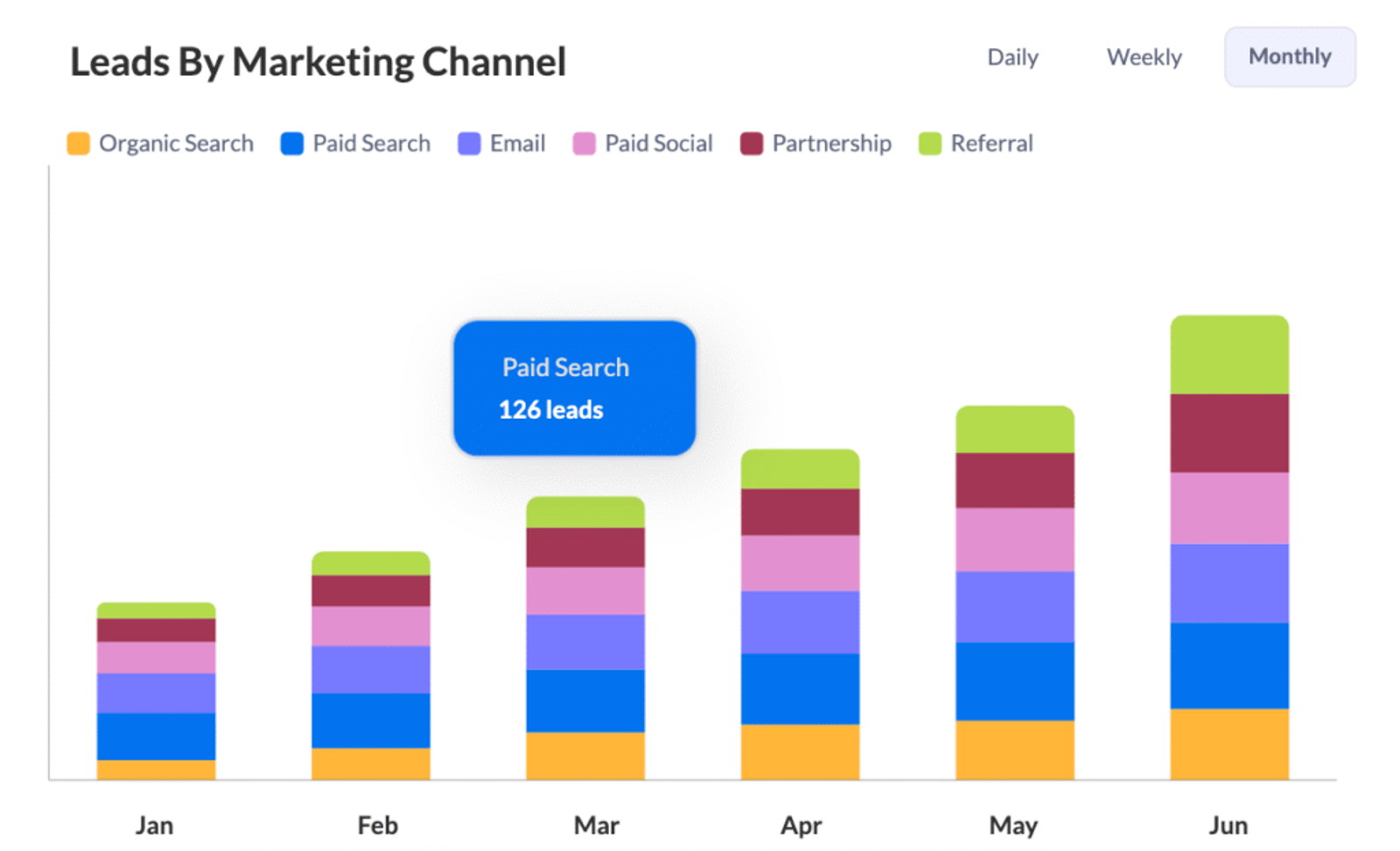
4. Report on ROI With Confidence
Imagine telling your boss, investor or client:
“This campaign generated 1,432 clicks, 124 leads, and 11 closed deals — worth $43,000 in revenue.”
With full attribution inside Close CRM, you are no longer guessing which marketing campaigns are driving real bottom-line impact.


 Paid Social


