
How to Track UTM Parameters in BIGContacts CRM
BIGContacts CRM UTM tracking made easy: 4 easy steps to capture UTM parameters in Sage CRM
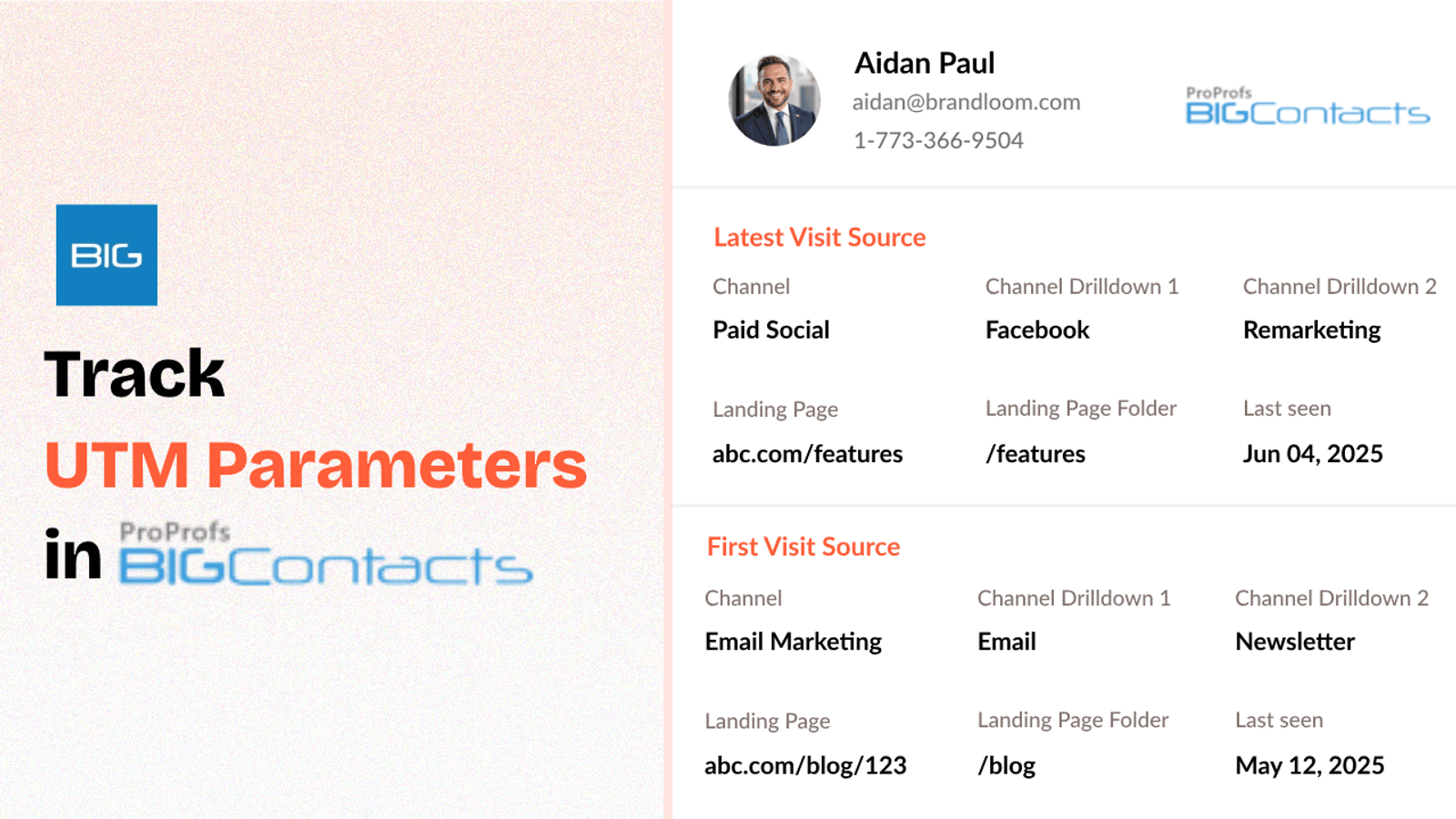
Table of contents
Want to know exactly where your leads are coming from?
UTM parameters help you track which ads, emails, or social posts brought someone to your site.
But when they become a lead, your BIGContacts CRM can’t automatically capture it.
In this guide, we’ll show you how to track UTM parameters in BIGContacts CRM using SourceLoop.
Let’s dive in.
4 Easy Steps to Track UTM Parameters in
BIGContacts CRM
Here are 4 simple steps to capture UTM parameters in BIGContacts CRM:
1. Install SourceLoop.ai on Your Website

SourceLoop is a simple lead attribution tool that watches where your visitors come from based on their UTM parameters, landing pages, and referral sources.
To get started:
- Sign up for a free account at SourceLoop.ai.
- Copy your website tracking script.
- Paste it into your website’s
<head>tag or through Google Tag Manager
Once it’s live, SourceLoop starts capturing the UTM parameters query from the URL of your website and store it in a user’s browser cookie so that it is not lost while user navigate through different pages.
Example:
Let’s say you’re a SaaS company offering a free trial of your product.
You run a Google Ads campaign to drive signups:
A user clicks on this ad link:
https://yourapp.com/trial?utm_source=google&utm_medium=paid&utm_campaign=free_trial_may
SourceLoop will automatically capture:
- Channel: Paid Search
- Channel Drilldown 1: Google
- Channel Drilldown 2: free_trial_may
- Channel Drilldown 3: non_branded_keywords
- Landing Page: https://yourapp.com/trial
- Lastseen: May 04, 2025
2. Tag All Your Marketing Links with UTM Parameters

Next, step is to ensure that you add UTM parameters to all the link you’re sharing online.
UTM parameters are tiny bits of text added to the end of a URL.
A basic link:
https://yourwebsite.com/demo
A UTM-tagged link:
https://yourwebsite.com/demo?utm_source=google&utm_medium=cpc&utm_campaign=q2_launch
You should add UTM parameters to every single link you share as part of your marketing such as Google Ads, Meta ads, organic social media post, press release, etc.
Resources: How to Create UTM Codes to Track Your URLs
3. Add Hidden Fields to Your Lead Form
Now that SourceLoop is tracking your visitors and your links are tagged, you need a way to capture that data into form when someone becomes a lead.
That’s what hidden fields are for.
Hidden fields can be added to any lead form and are not visible to site visitors, but SourceLoop can silently pass the visitor’s UTM tags into those fields.
Recommended hidden fields value :
Hidden FieldWhat It Tells YouchannelTraffic category (Paid Search, Organic Social, Email)channeldrilldown1UTM Source (Google, LinkedIn, Newsletter)channeldrilldown2UTM Campaign (e.g., “black_friday_offer”)channeldrilldown3UTM Term or Ad Group (optional keyword/segment)landingpagePage they landed on during this visitlandingpagefolderFolder/category of the landing pagelastseenDate and time of the latest visit
Optional: Capture First-Touch Attribution Data
Sometimes, the visitor didn’t just discover you today.
They may have first landed on your site two weeks ago, but only decided to contact you now.
To capture this, SourceLoop lets you also collect first-touch attribution data.
Add these extra hidden fields to your form to capture first-touch info:
Hidden FieldWhat It Capturesfirst_channelOriginal traffic typefirst_channeldrilldown1Original source (e.g., LinkedIn, Email)first_channeldrilldown2First campaign they sawfirst_channeldrilldown3First keyword or targeting infofirst_landingpageThe first page they visitedfirst_landingpagefolderThe section of the site they started fromfirstseenThe first date they visited your site
4. Automatically Sync UTM Data with BIGContacts CRM
That’s it.
Once someone submits a form, the next step is getting the UTM data into CRM.
How this data gets into BIGContacts CRM depends on how your form is connected:
- Using BIGContacts built-in Webform: If you’re using BIGContacts native forms, the hidden fields will be directly mapped to the custom fields of your contact.
- Using third-party forms (Tally, Gravity Forms, or Webflow, etc): Use Zapier or Make.com to connect them with BIGContacts CRM and sync UTM automatically with contact.
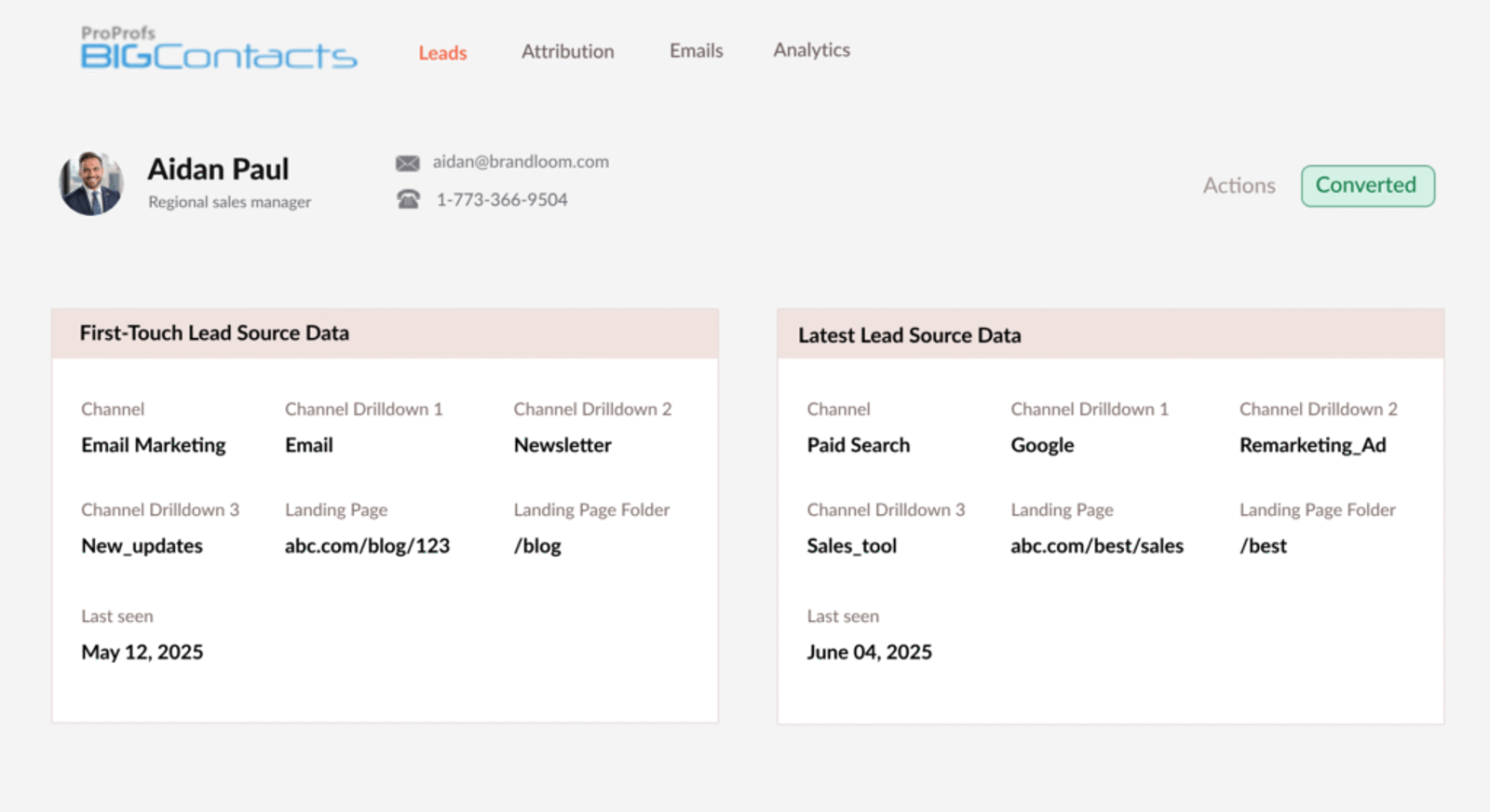
What You Can Do with UTM Data Inside BIGContacts CRM
Once your UTM data is flowing into BIGContacts CRM, it unlocks powerful new ways to track, filter, and take action on your leads.
1. Group Leads by Campaign or Source for Targeted Follow-Up
Suppose you are launching a new product.
Since you have UTM data within your CRM, you can segment and follow up on only those leads who:
- Clicked on your product launch ad
- Attended a specific webinar
- Came through a referral program
Thus, rather than sending generic follow-up emails, your team can write messages that directly talk to what the lead has already viewed or expressed interest in.
Example: “Thanks for attending our April webinar — here’s an exclusive early access link to the product you previewed.”
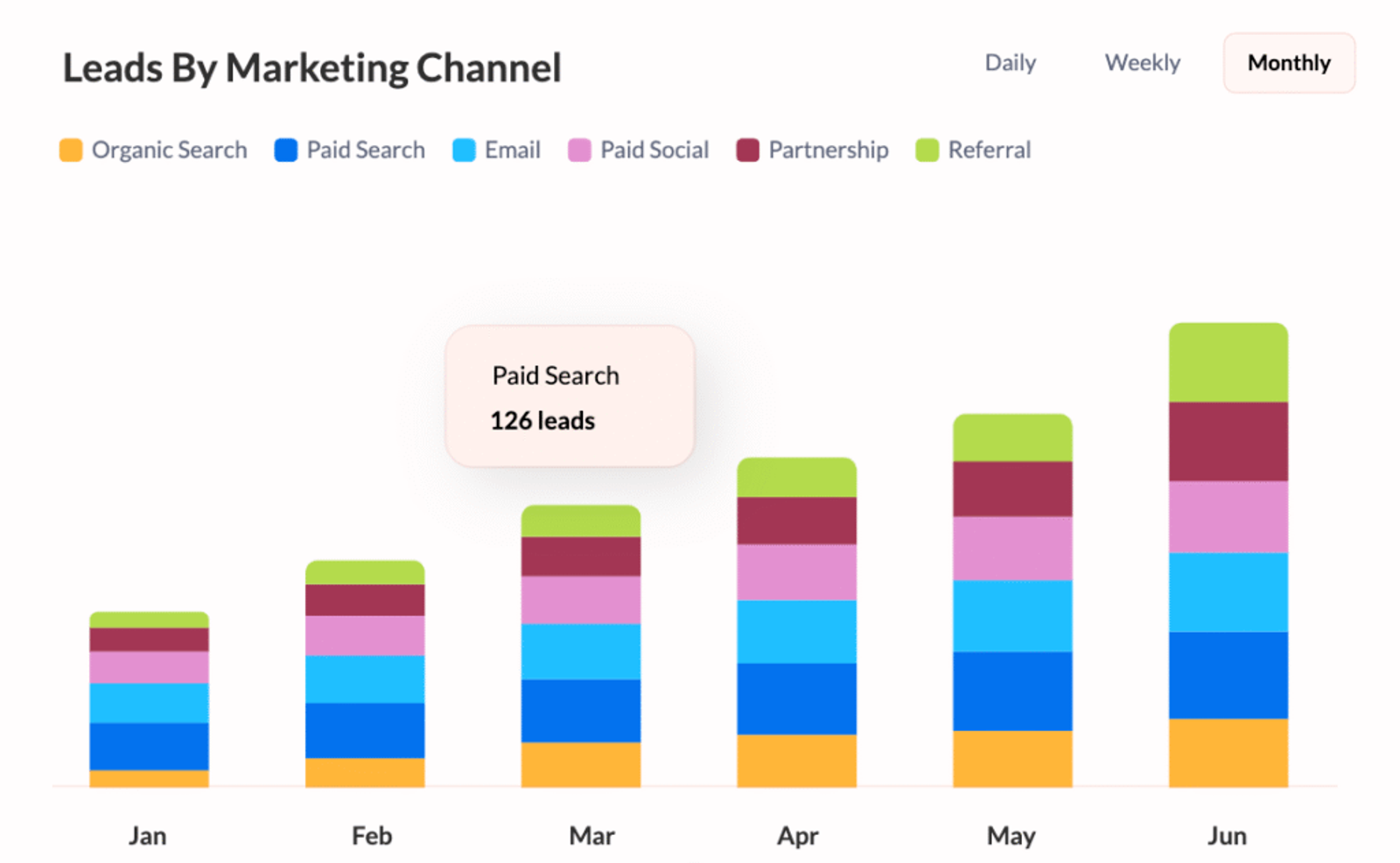
2. Create Reports That Show What’s Really Working
Marketing reports in BIGContacts CRM don’t have to be done the hard way.
With the UTM data, you can create basic dashboards to monitor:
- Leads by source (e.g., Google, Email, LinkedIn)
- Conversions by campaign
- Form submissions by traffic type (paid, organic, referral)
- Revenue by UTM campaign
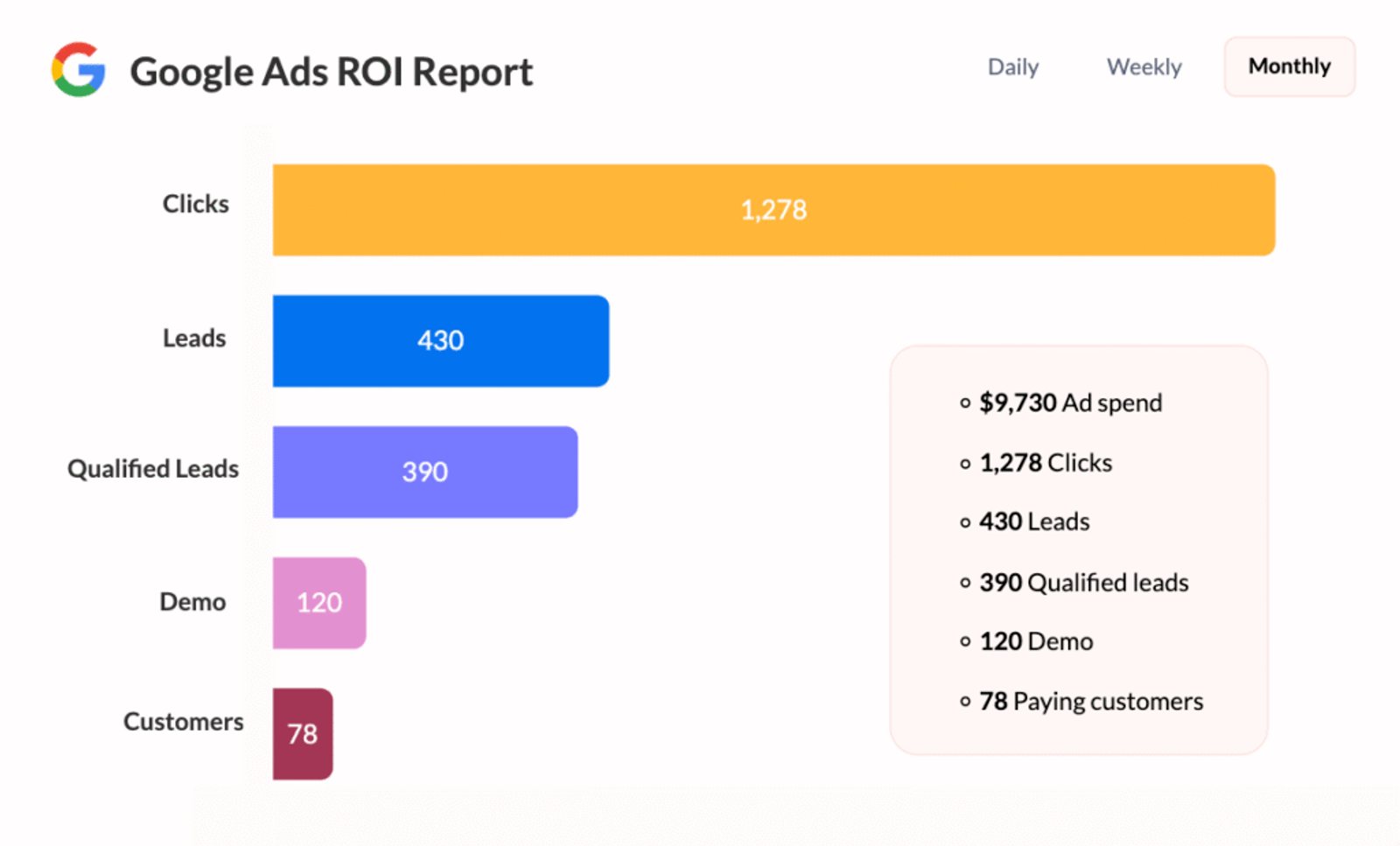
Example:
You notice Campaign A generated 100 leads but only 2 converted to paying customers.
On the other hand, Campaign B generated 40 leads but 10 of them converted.
Now you have an idea of where to allocate your budget this coming month.
3. Automate Routing Leads to the Correct Sales Rep
If your company has several sales reps or regional offices, UTM data can automate lead routing.
Example:
- LinkedIn Ads for your enterprise plan leads are routed to your Enterprise Sales team.
- Leads from local Google Ads campaigns get routed to regional reps.
This enables a faster and more relevant followup that can equate to increased conversion rate and improved lead experience.
4. Understand Long-Term Customer Value by Lead Source
By using UTM data, you can start spotting patterns: which marketing channels bring in customers who actually stick around, spend more, and grow with you.
Example Insights:
- Customers from webinars may turn into high-value accounts with repeat purchases
- Leads from organic blog posts might convert slowly but stay loyal
- Paid social traffic could bring in volume—but lower spending customers
In BIGContacts, you can tag leads by UTM source, then use custom fields or deal tracking to calculate how much those customers are worth over time.
This gives you clear answers to questions like:
- Which campaigns bring us our best clients?
- Where should we invest next quarter?
- Who should we prioritize for upsell or referral outreach?



 Paid Social


