
How to Track UTM Parameters in Attio CRM
Attio CRM UTM tracking made easy: 4 easy steps to capture UTM parameters in Attio CRM
Table of contents
Tracking UTM parameters in Attio CRM can be tricky as it doesn’t automatically capture UTM for all inbound leads.
That’s where SourceLoop.ai comes in.
In this guide, we’ll show you how to track UTM parameters in Attio CRM using a plug & play tool called SourceLoop so you always know the exact source of each lead.
Let’s dive in.
4 Easy Steps to Track UTM Parameters in
Attio CRM
Here are 4 simple steps to capture UTM parameters in Attio CRM:
1. Set Up SourceLoop.ai on Your Website

First of all, you’ll need to install SourceLoop.ai on your website to capture the UTM parameters.
Here’s how to get it running:
- Sign up for a free account at SourceLoop.ai.
- Add the tracking script to your website (directly in your site header or through Google Tag Manager)
Once the script is live, SourceLoop.ai start capturing the UTM parameters for every website visitor visit your site.
Example:
Let’s say you have a project management software.
You launch a Google Ads campaign targeting startups with your free trial offer.
One person clicks this ad:
https://yourtool.com/start-free-trial?utm_source=google&utm_medium=cpc&utm_campaign=startup_trial
SourceLoop logs all the key data from UTM parameters & visit:
- Channel: Paid Search
- Channel Drilldown 1: Google
- Channel Drilldown 2: startup_trial
- Channel Drilldown 3: launch_offer
- Landing Page: : https://yourtool.com/start-free-trial
- Lastseen: May 06, 2025
2. Tag Your Links with UTM Parameters

Once SourceLoop is tracking visitor data on your site, the next step is making sure your marketing links actually send the right information.
This is where UTM parameters come in.
A basic link:
https://yourwebsite.com/signup
Link with UTM parameters:
https://yourapp.com/signup?utm_source=linkedin&utm_medium=organic&utm_campaign=may_launch
You can add UTM parameters to any link shared online such ads, social post, email, partner mention, and even email signature or Youtube description.
Resources: How to Create UTM Codes to Track Your URLs
3. Add Hidden Fields to Your Lead Form
Now that SourceLoop is tracking visitors and your links are properly tagged with UTM, it’s time to make sure that data actually gets saved when someone fills out a lead form.
That’s where hidden fields come in.
These fields are not visible to website visitors but SourceLoop.ai can identify it in the background and fill it with UTM values.
All form and meeting tool like Calendly, Gravity Forms, Typeform, Contact Form 7, and others let you add hidden fields with just a few clicks.
Recommended hidden fields value that SourceLoop.ai supports:
Hidden FieldWhat It Tells YouchannelTraffic type (e.g., Paid Search, Organic Social)channeldrilldown1UTM source (e.g., Google, LinkedIn, Newsletter)channeldrilldown2UTM campaign name (e.g., “black_friday_offer”)channeldrilldown3UTM term or ad group (optional)landingpageExact page the visitor landed onlandingpagefolderThe section/folder of that landing pagelastseenDate and time of their most recent visit
Optional: Capture First-Touch Attribution Data
Not every user who visit your website today will submit the lead form on the same day.
Some users may visit your website multiple time before becoming a lead.
Example; Let’s say a user discovered your site through a blog post last month, clicked a retargeting ad today, and now they’re ready to get in touch.
If you only capture the latest (or “last-touch”) source, you’ll miss the original channel (SEO) that actually introduced them to your brand.
To track first-touch attribution, just add a few extra hidden fields to your lead forms:
Hidden FieldWhat It Capturesfirst_channelOriginal traffic type (Organic, Paid, etc.)first_channeldrilldown1Original source (e.g., LinkedIn, Email)first_channeldrilldown2First campaign they interacted withfirst_channeldrilldown3Initial keyword or ad group (if available)first_landingpageThe first page they ever visitedfirst_landingpagefolderThe folder or section they entered fromfirstseenThe original date of their first visit
4. Send UTM Data into Attio CRM
That’s it.
Now, whenever a user submits a lead form or books a meeting, their UTM data is saved along with their contact details.
You can then sync this data with Attio CRM when creating a contact record.
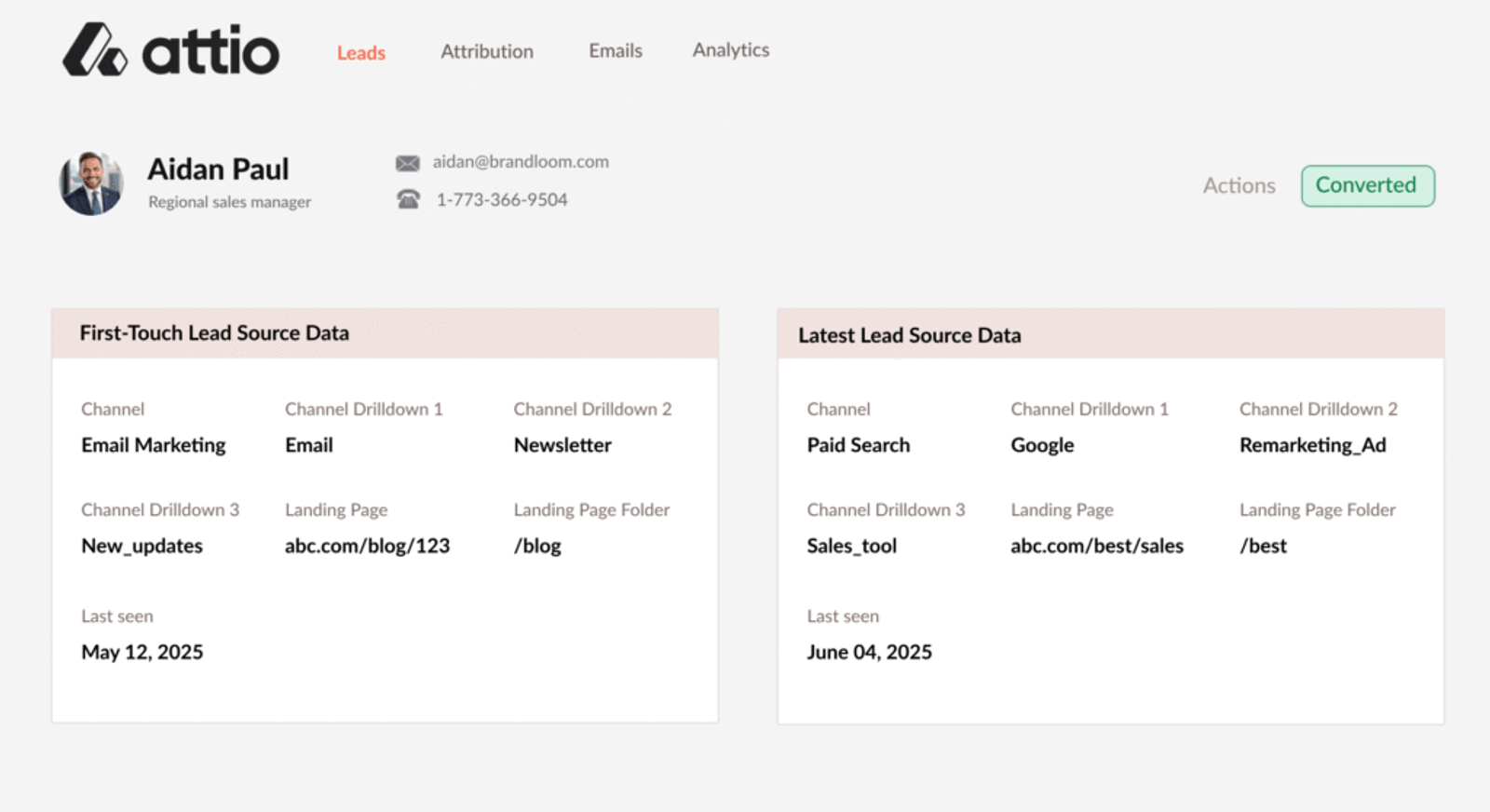
This gives you complete visibility into which marketing campaigns are actually driving leads, what’s converting, and where to allocate your marketing budget.




 Paid Social


