
How to Track UTM Parameters in Tally Forms
Follow 4 easy steps to capture UTM parameters in Tally Form and track where each leads & customers come from
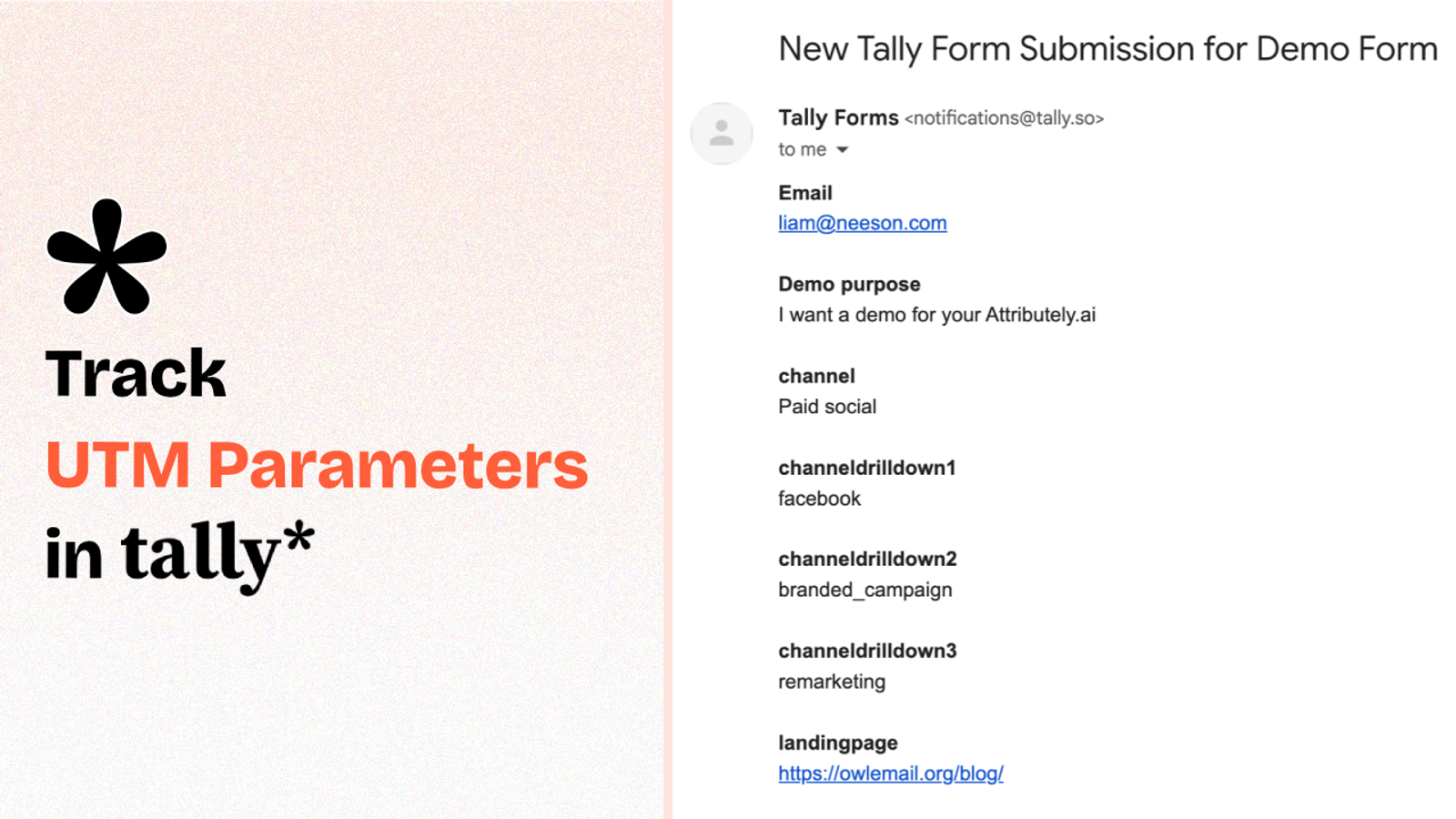
Table of contents
Do you want to know if the latest lead that filled out a Tally form on your website came from Google Ads, Meta Ads, SEO, or somewhere else?
While it’s not possible to get correct lead attribution data for each lead using just Tally…
In this guide, we’ll walk you through a step-by-step process to track UTM parameters in Tally Forms using SourceLoop.ai.
Let’s dive in.
5 Easy Steps to Track UTM Parameters in Tally Forms
Here are 4 simple steps to capture UTM parameters in Tally Forms:
1. Install SourceLoop on Your Website

Sign up for SourceLoop.ai (they offer a free 14-day trial) and get your unique tracking code. Add this code to the <head> section of your website.
This allows SourceLoop.ai to capture information about how a visitor arrives on your site (based on UTM parameters in the URL, the referring site, device, etc.). It stores this information in the user’s browser cookies and passes it along when they submit a Tally form.
For each visitor, it uses predefined rules to parse the UTM information and categorize them into clear marketing attributes.
Example:
Let’s say Nike is using SourceLoop.ai, and a user clicks on one of their Instagram Story ads promoting a new running shoe.
SourceLoop.ai will capture and organize the user’s visit information like this:
- Channel = Paid Social
- Channel Drilldown 1 = Instagram
- Channel Drilldown 2 = Story Ad
- Channel Drilldown 3 = Pegasus 42 Launch
- Landing Page = www.nike.com/running/pegasus-42
- Landing Page Folder = running
- Last Seen = Apr 14, 2025
This makes it easy to understand exact lead attribution data when you sync it with your CRM, Google Sheets, etc.
2. Add UTM Parameters to Your Links

Once the SourceLoop.ai tracking code is added to your website, the next step is to make sure that all links pointing to your site have UTM tags.
This ensures that every visitor you send to your site carries information about where they came from, which SourceLoop can then capture.
It could be a link used in Google Ads, Meta Ads, LinkedIn Ads, TikTok Ads, a social media post, newsletter, etc.
Example of a link with UTM parameters:
https://website.com?utm_source=paid_search&utm_medium=Bing&utm_campaign=prime_day
Resources:
- How to add UTM parameters in Google Ads
- How to add UTM parameters in Facebook Ads
- How to add UTM parameters in LinkedIn Ads
- How to add UTM parameters in TikTok Ads
3. Automatically See How Every Lead Found You
SourceLoop.ai captures every visitor’s UTM data and tracks the pages they visit, even across multiple sessions.
Once a visitor submits a form or books a meeting, all of this information is tied to their profile and shown in the Lead Manager.
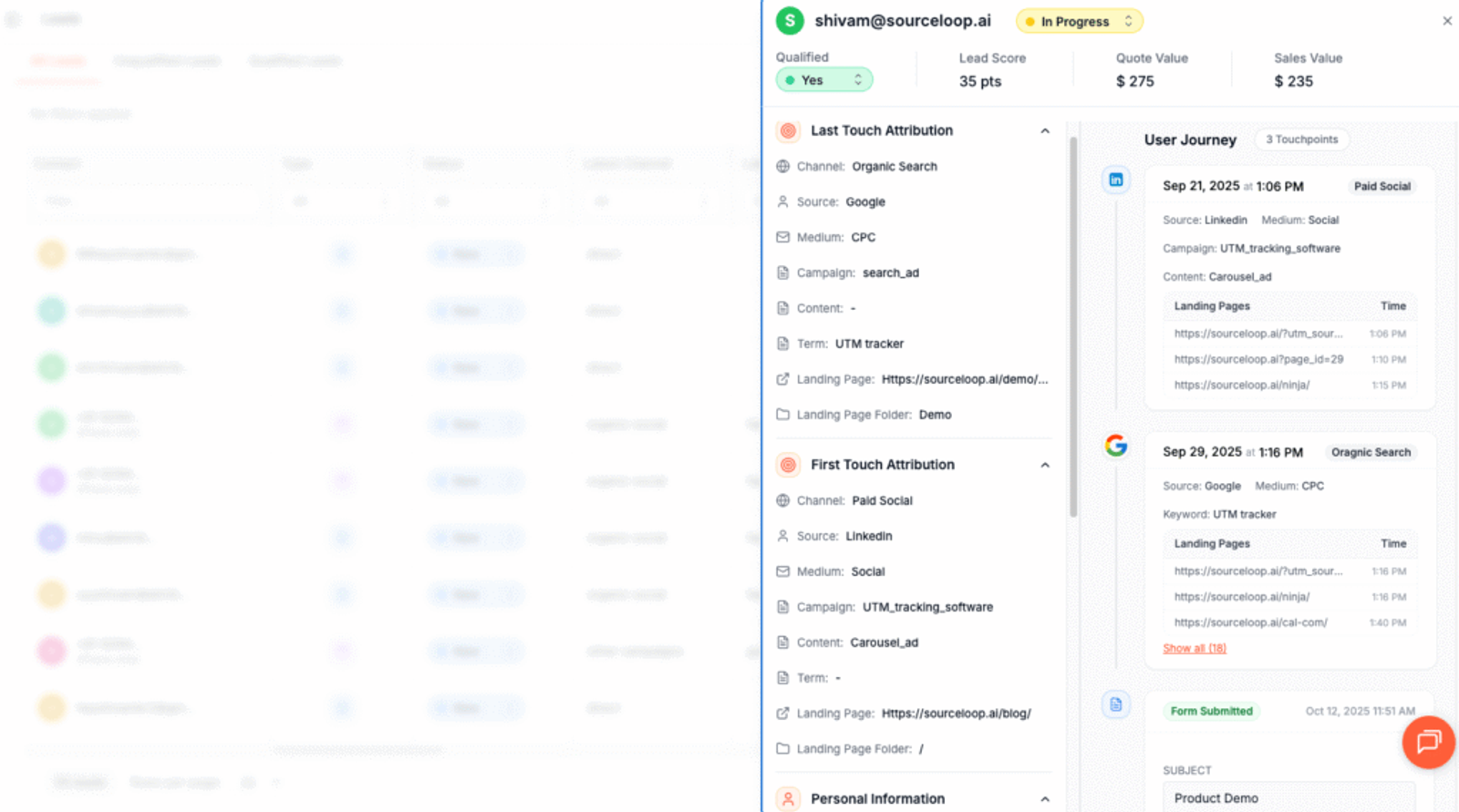
You can easily follow their journey from the first marketing channel that brought them in, to the pages they explored, and all the steps leading up to conversion.
This makes it simple to understand your leads and see which campaigns are really working.
More Tutorials:
- UTM tracking for Zoho Form
- Track UTM parameters in Elementor form
- Capture UTM parameters in Hubpsot Form
4. Add Hidden Fields to Your Forms (Optional)
You can also capture UTM data in your Tally form submissions by adding hidden fields to the form.
These hidden fields won’t be visible to visitors, but SourceLoop.ai will use them to pass UTM values and other marketing data with the form submission.
To add hidden fields:
- Click on the “Add Field” option and choose the “Hidden” block.
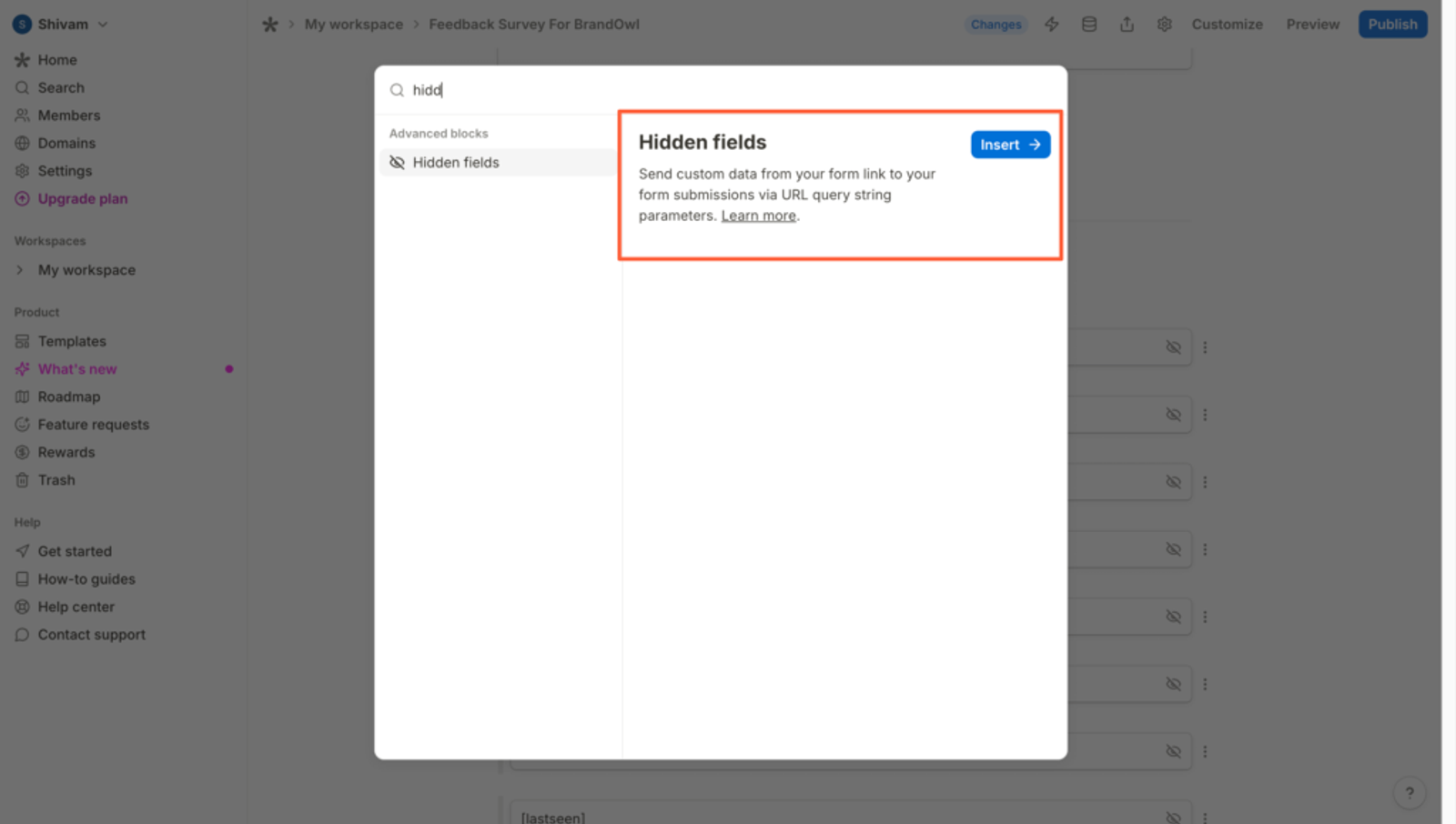
- Then name the field according to SourceLoop’s expected format.
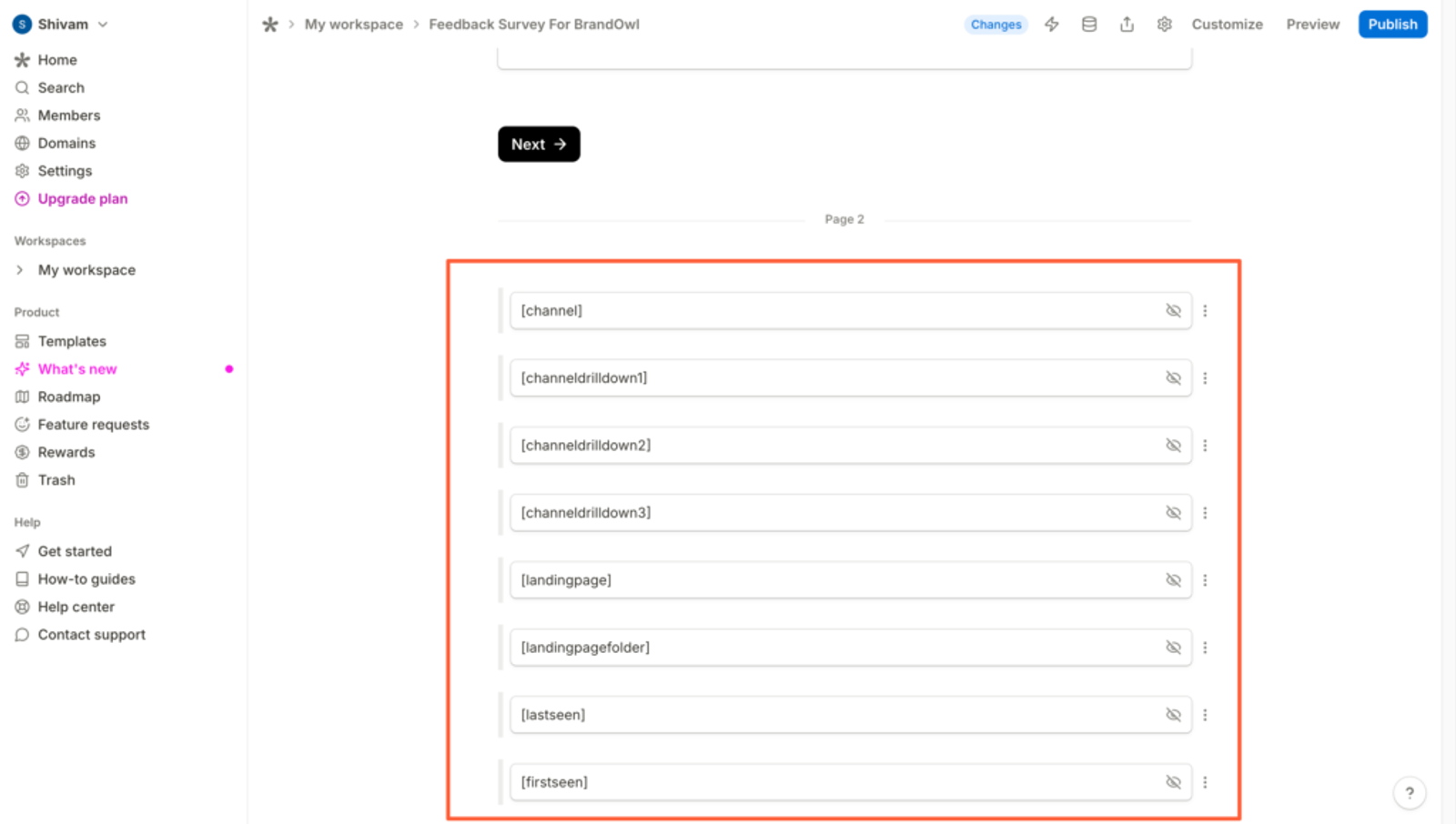
Here are the recommended names for each hidden field:
channelattribution_sourceattribution_attribution_attribution_termlandingpagelandingpagefolderlastseen
If a lead visits your site multiple times and you want to capture their first visit data as well, add these additional hidden fields:
first_channelfirst_sourcefirst_mediumfirst_campaignfirst_termfirst_landingpagefirst_landingpagefolder- firstseen
5. UTM Parameters Are Passed for Each Tally Forms Submission
Once you’ve configured the hidden fields, sit back and relax.
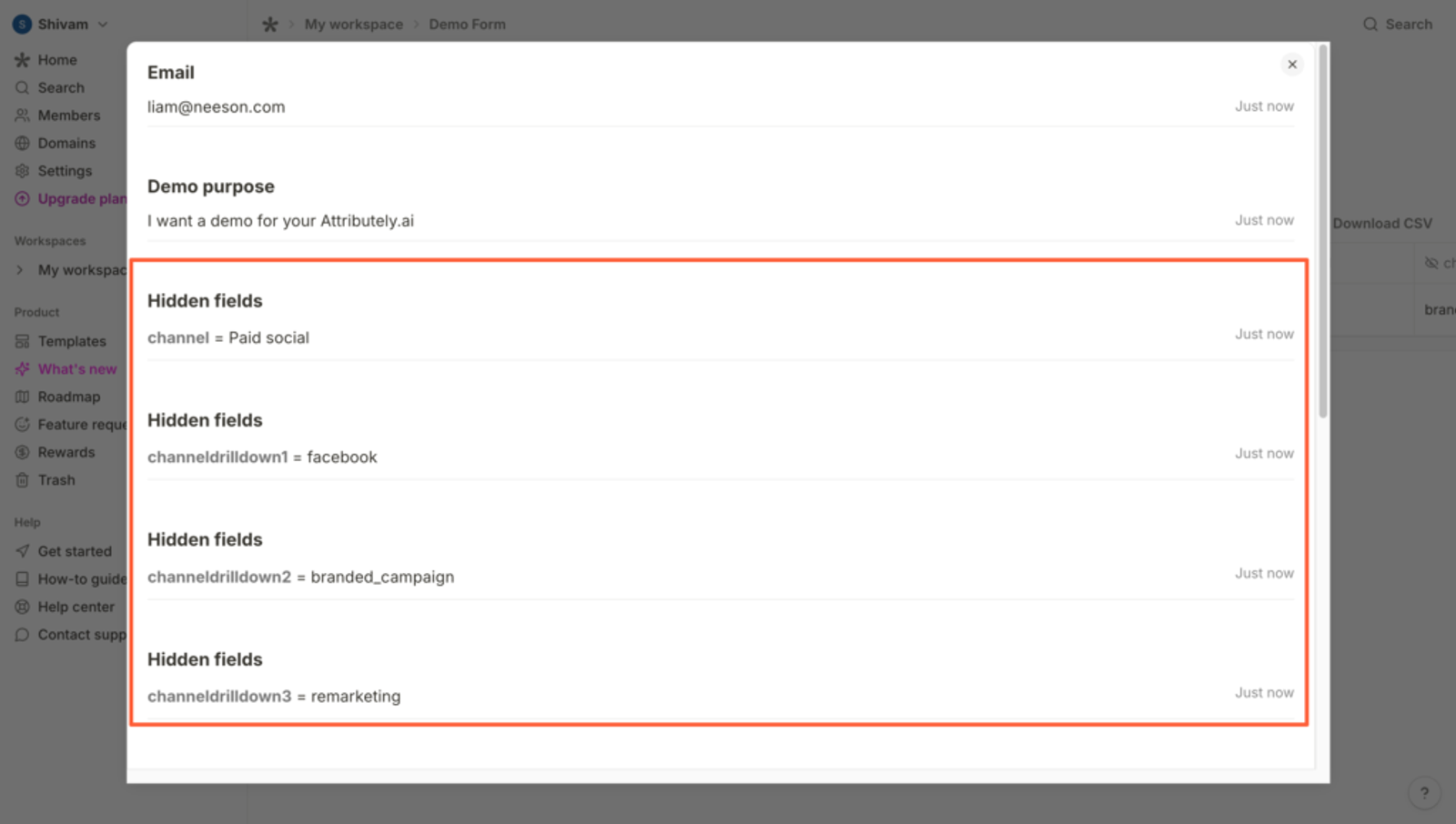
Whenever a visitor submits a Tally Form, SourceLoop.ai will automatically identify the hidden fields and pass the stored UTM data along with the form submission.
Here’s what you can do with the data:
View it inside Tally – Go to the “Submissions” section to see all form submissions. Open any form submission and you’ll see their attribution values in the hidden fields you set up.
Send it to Slack – Tally Forms has built-in Slack integration (even in the free plan). You can connect it to your Slack channel and automatically receive each lead with attribution data so your sales team can act fast.
Create Reports – Tally integrates with tools like Google Sheets & Airtable. Collect all submissions and create automated reports to understand which channels and campaigns are driving leads.
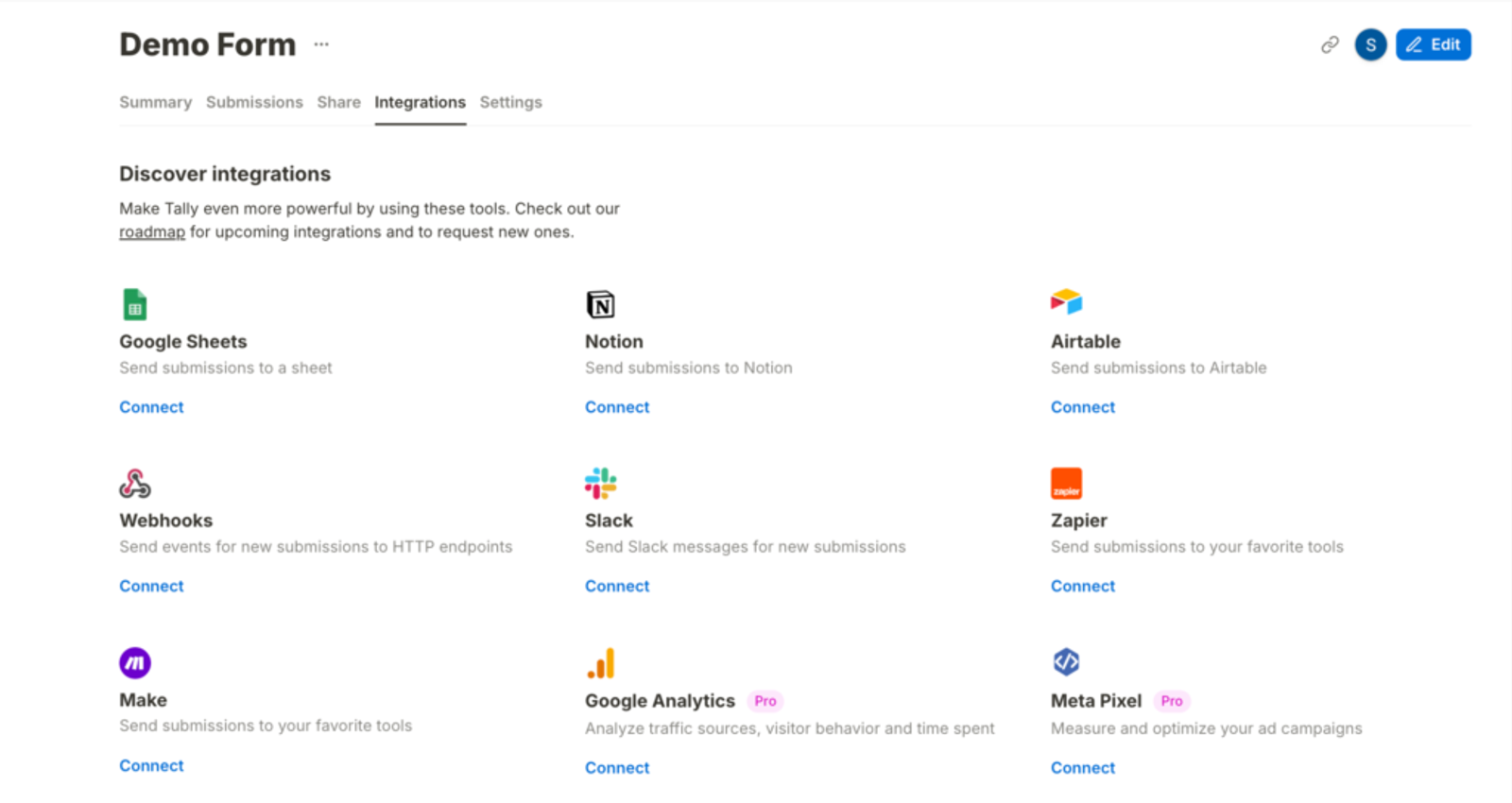
Sync with your CRM – Tally connects with Zapier and Make.com, so you can push lead attribution data to virtually any CRM automatically.
More Tutorials:




 Paid Social


