
How to Track UTM Parameters in Fluent Forms
Fluent Forms UTM Tracking: Follow 4 easy steps to capture UTM parameters in Fluent Forms
Table of contents
Struggling to track where your Fluent Forms leads are coming from?
Unfortunately, Fluent Forms doesn’t automatically capture UTM data for leads, but with the right setup, you can track every lead’s source, medium, and campaign details effortlessly.
In this guide, we’ll walk you through a simple way to track UTM parameters in Fluent Forms so you always know exactly where your leads are coming from.
Let’s dive in.
4 Easy Steps to Track UTM Parameters in Fluent Forms
Here are the 4 simple steps to capture UTM parameters in Fluent Forms in just five minutes.
1. Add UTM Parameters to Your Links

First, make sure you’re using UTM parameters in all your marketing links.
This includes ads, emails, social media posts, and anywhere else you share a link to your website.
Here’s what a link with UTM parameters looks like:
https://website.com?utm_source=paid_social&utm_medium=LinkedIn&utm_campaign=prime_offer
If you’re running paid ads, most platforms allow you to add UTM parameters automatically:
- Google Ads: Use tracking templates
- Facebook Ads: Set up UTM parameters in the URL parameters section
- Email Marketing: Append UTM tags to your call-to-action links
- Social Media Post: Append UTM tags to your link in comment or caption
Resources:
2. Install SourceLoop on Your Website

Next, sign up for SourceLoop.ai and add your unique UTM tracking code to your website.
SourceLoop.ai is a simple tool that captures UTM data and other technical source data of each website visitor, organizes it into easy-to-understand marketing attributes, and passes it along with form submissions.
3. SourceLoop.ai Automatically Captures UTM Data
Now, each time a user visits your website, SourceLoop.ai records their visit data and stores it in first-party browser cookies. (Unlike Google or Meta’s third-party cookies, this keeps you GDPR-compliant.)
Example:
Let’s say Airbnb is using SourceLoop.ai, and a user searches for “Hotels in London” and clicks on an Airbnb Google Ad.
SourceLoop.ai will capture and organize the user’s visit information like this:
- Channel = Paid Search
- Channel Drilldown 1 = Google
- Channel Drilldown 2 = Hotel Campaign
- Channel Drilldown 3 = Hotels in London
- Landing Page = www.airbnb.com/hotels/london-united-kingdom
- Landing Page Folder = hotels
- Last Seen = Aug 29, 2025
If a user visits Airbnb multiple times within a year, SourceLoop.ai will store each visit’s UTM and page visit data.
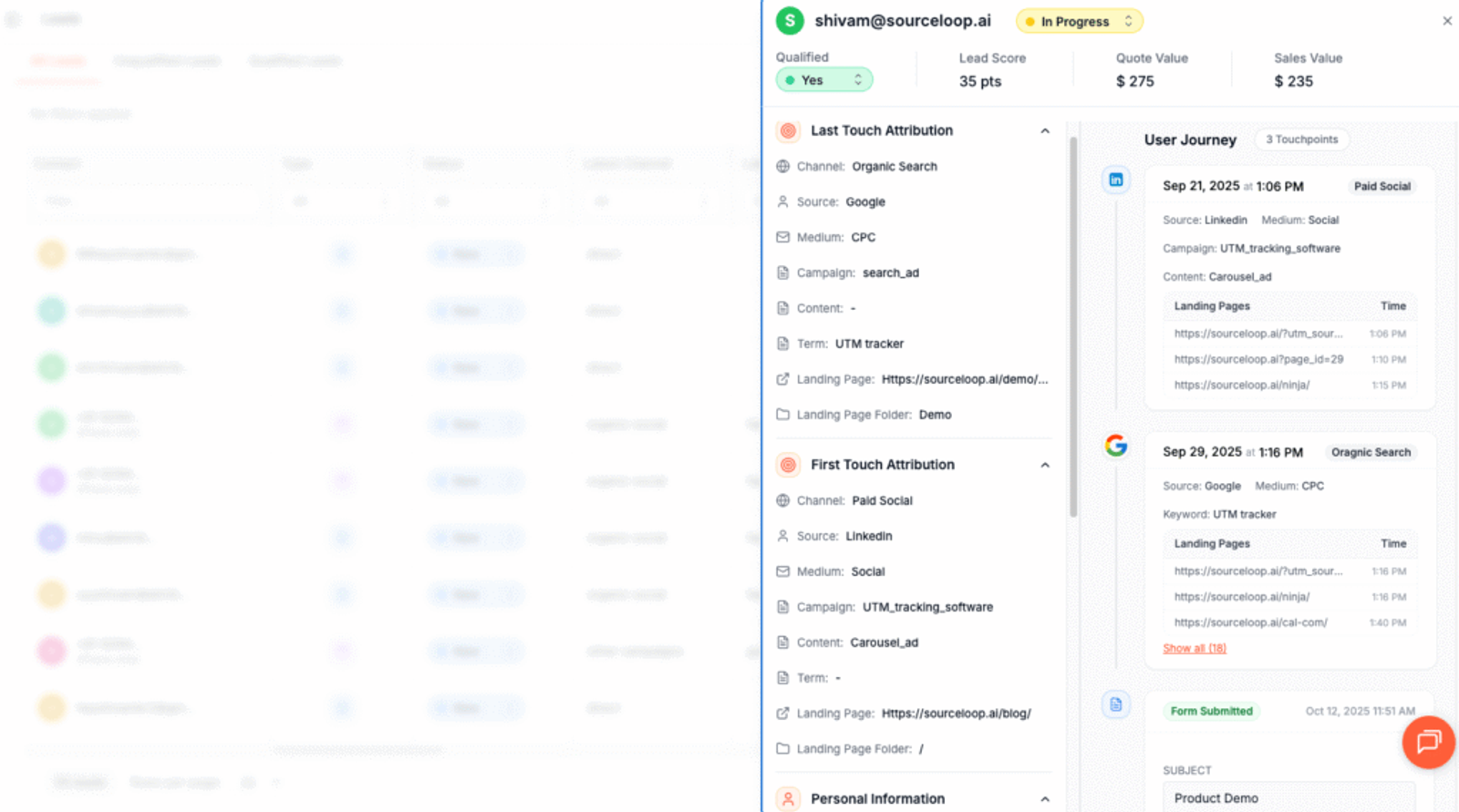
As soon as they submit the form, it will cpature and display the user’s attribution data on the Lead Manager page.
More Resources:
- How to Track UTM Parameters in Zoho Forms
- How to Track UTM Parameters in Elementor Forms
- How to Track UTM Parameters in Hubspot Forms
4. Add Hidden Fields to Your Forms (Optional)
Next, you need to add a few hidden fields to your Fluent Form.
These fields won’t be visible to visitors, but SourceLoop.ai will use them to pass UTM and other marketing attribute data for each form submission.
To add a hidden field in Fluent Forms, simply open your form and drag and drop the “Hidden” block at the end of your form from the advanced fields panel on the right.
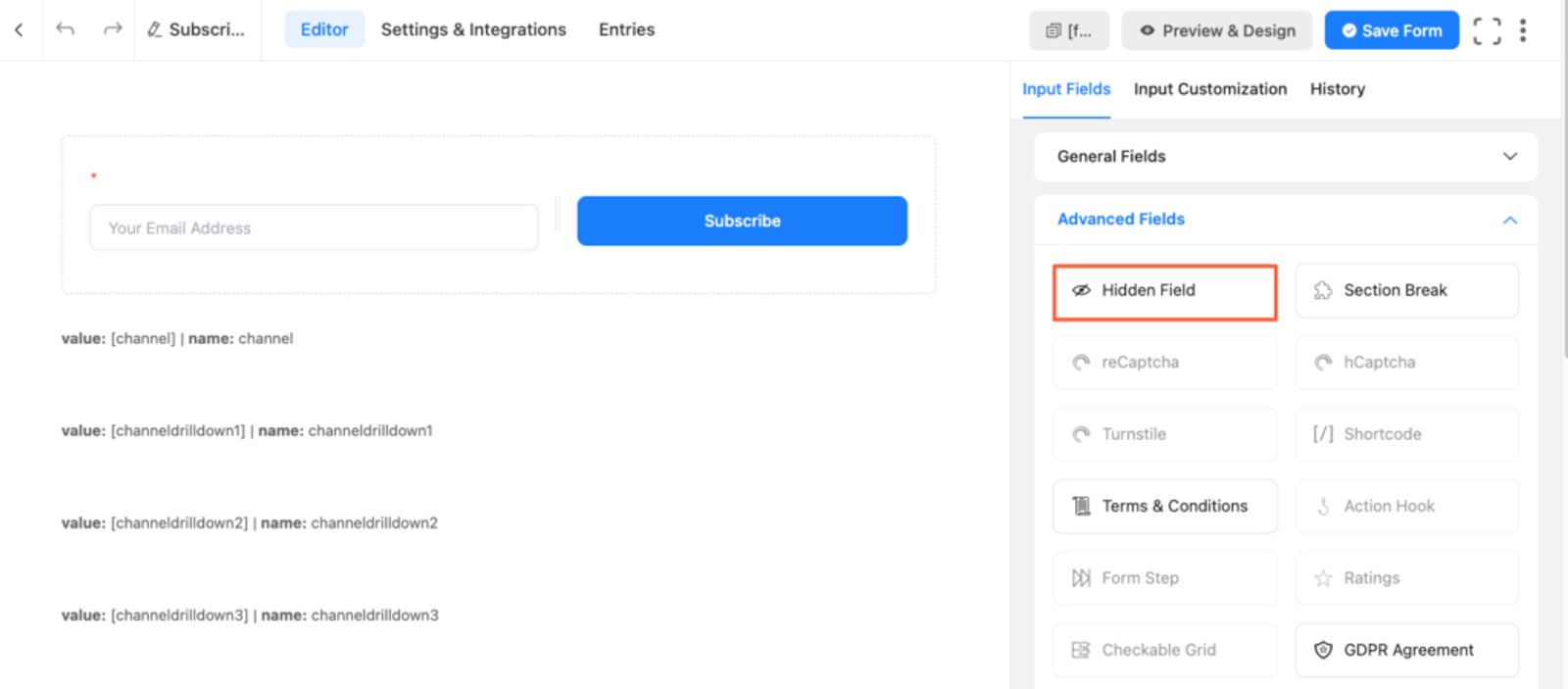
You should add seven hidden fields with the following default values that SourceLoop.ai will use to pass different UTM and other relevant data:
channelattribution_sourceattribution_attribution_attribution_termlandingpagelandingpagefolderlastseen
If your lead visits your website multiple times before submitting the lead form, you can also use the following additional hidden fields to capture information about their first visit. SourceLoop.ai stores both the first visit and the latest visit of each lead.
first_channelfirst_sourcefirst_mediumfirst_campaignfirst_termfirst_landingpagefirst_landingpagefolder- firstseen
5. UTM Parameters Are Passed for Each Fluent Forms Submission
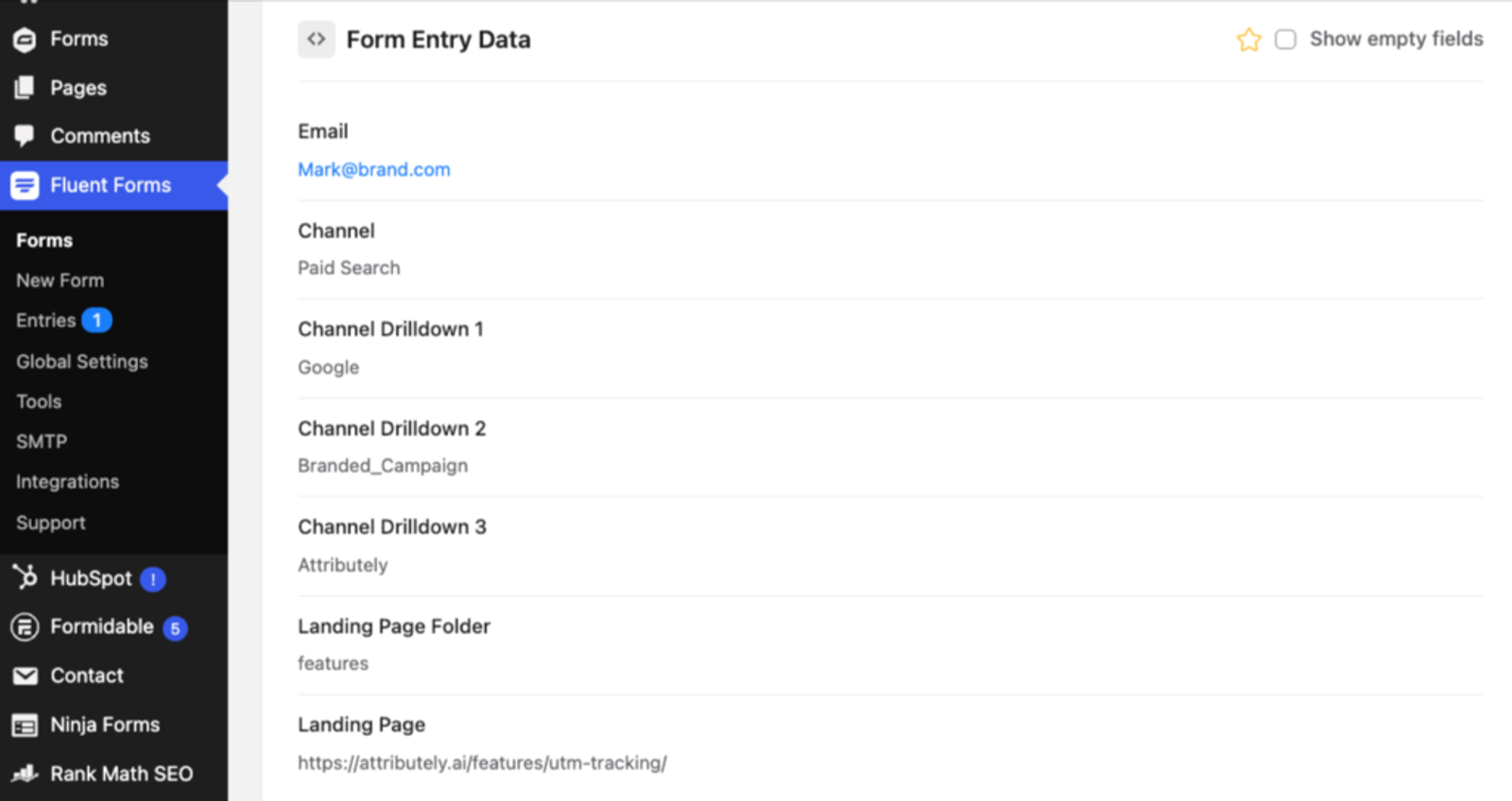
Once a visitor fills out a form, Fluent Forms will capture the UTM data stored in the hidden fields, along with the details they entered (like name, email, and phone number).
Here’s what you can do with this data:
- View it inside Fluent Forms – Check the Entries section to see where each lead came from.
- Send it to a spreadsheet – Automatically log UTM data in Google Sheets or Airtable to analyze performance.
- Sync it with your CRM – Use Fluent Forms’ built-in integration with Salesforce, HubSpot, Pipedrive, Zoho CRM, etc., to sync the data for each contact inside your CRM.
- Set up automation with Zapier – Use tools like Zapier and Make.com to instantly send lead submission data to any of your preferred tools to create reports.
- Include it in your email notifications – Receive the lead source data inside your email inbox via Fluent Forms’ automated email notifications for each form submission.
More Resources:




 Paid Social


