
How to Track UTM Parameters in WPForms
Follow 5 easy steps for setting up WPForms UTM tracking…
Table of contents
Do you get leads through your WPForms but don’t know which marketing campaign drove them?
That means you’re not using UTM parameters the right way.
In this blog, we’ll learn how to use UTM parameters and a simple tool called SourceLoop.ai to track UTM parameters in WPForms.
Best of all, even if a user visits your website without a UTM parameter in their link—such as an organic search or organic social visitor—the process covered in this blog will still be able to track it.
Let’s get started…
5 Easy Steps to Track UTM Parameters in WPForms
Here are five simple steps to capture UTM parameters in WPForms on WordPress and beyond.
1. Add UTM Parameters to Your Links

First, you need to ensure that every marketing campaign you’re running—whether through Google Ads, Facebook Ads, Twitter Ads, etc.—has UTM parameters attached when a user clicks on your ads.
Not just performance marketing platforms, but you should add UTM parameters to essentially every link pointing to your site, such as links in emails or social media posts.
Here’s what a link with UTM parameters looks like:
https://website.com?utm_source=paid_social&utm_medium=Facebook&utm_campaign=spring_sales
Resources:
2. Install SourceLoop on Your Website

Next, sign up for SourceLoop.ai and add your unique tracking code to your website.
Once installed, SourceLoop.ai tracks the source of every visitor landing on your website, organizes it into easy-to-understand marketing attributes, and passes it along when a user submits WPForms.
The best part is that it keeps track of both a visitor’s first visit to your site and their latest visit, so you can accurately know how they discovered your website for the first time and how they visited your site last before submitting the lead form.
3. SourceLoop.ai Automatically Captures UTM Data
Now, whenever a user visits your website and navigates to a page with WPForms that contain those hidden fields, SourceLoop.ai automatically passes the UTM data into those fields before the user submits the form.
Here’s an example of how it organizes the UTM data:
Let’s say Airbnb is using SourceLoop.ai, and a user searches for “Hotels in Las Vegas” and clicks on an Airbnb Google Ad.
SourceLoop.ai will capture and organize the user’s visit information like this:
- Channel = Paid Search
- Channel Drilldown 1 = Google
- Channel Drilldown 2 = Hotel Campaign
- Channel Drilldown 3 = Hotels in Las Vegas
- Landing Page = www.airbnb.com/hotels/las-vegas
- Landing Page Folder = hotels
- Last Seen = Aug 29, 2025
If a user visits Airbnb multiple times within a year, SourceLoop.ai will store each visit’s UTM and page visit data.
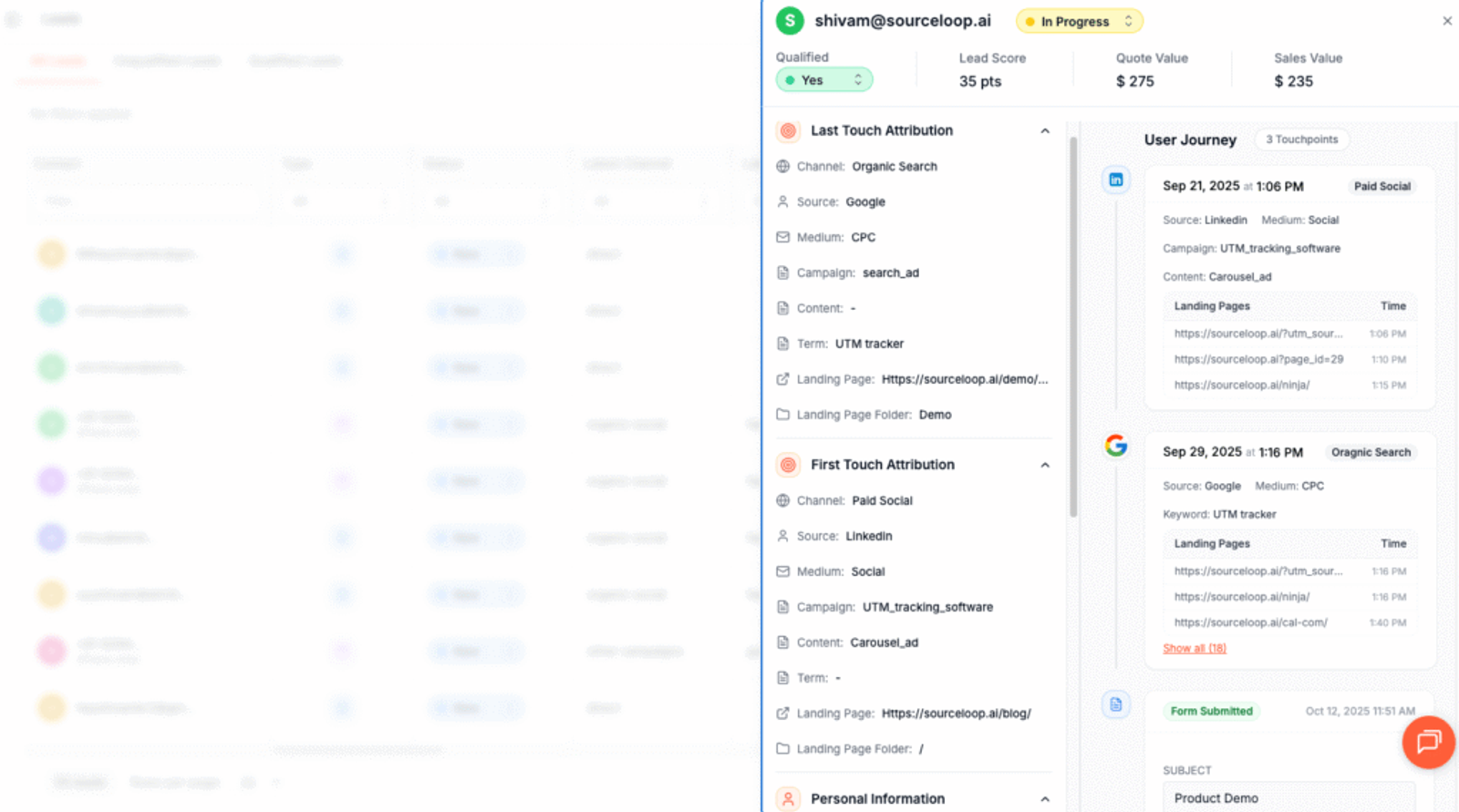
As soon as they submit the form, it will cpature and display the user’s attribution data on the Lead Manager page.
More Resources:
- How to Track UTM Parameters in Contact Form 7
- How to Track UTM Parameters in Forminator Forms
- How to Track UTM Parameters in Formidable Forms (2025)
4. Add Hidden Fields to Your Forms (Optional)
If you also want to capture UTM data directly within your form submissions, you can do that by adding hidden fields to your form.
These hidden fields are not visible to website visitors, but tools like SourceLoop.ai can identify them and pass UTM information for each form submission.
Adding hidden fields in WPForms is super easy. Simply drag and drop the “Hidden Fields” block from the “Add Fields” section and place it before the submit button.
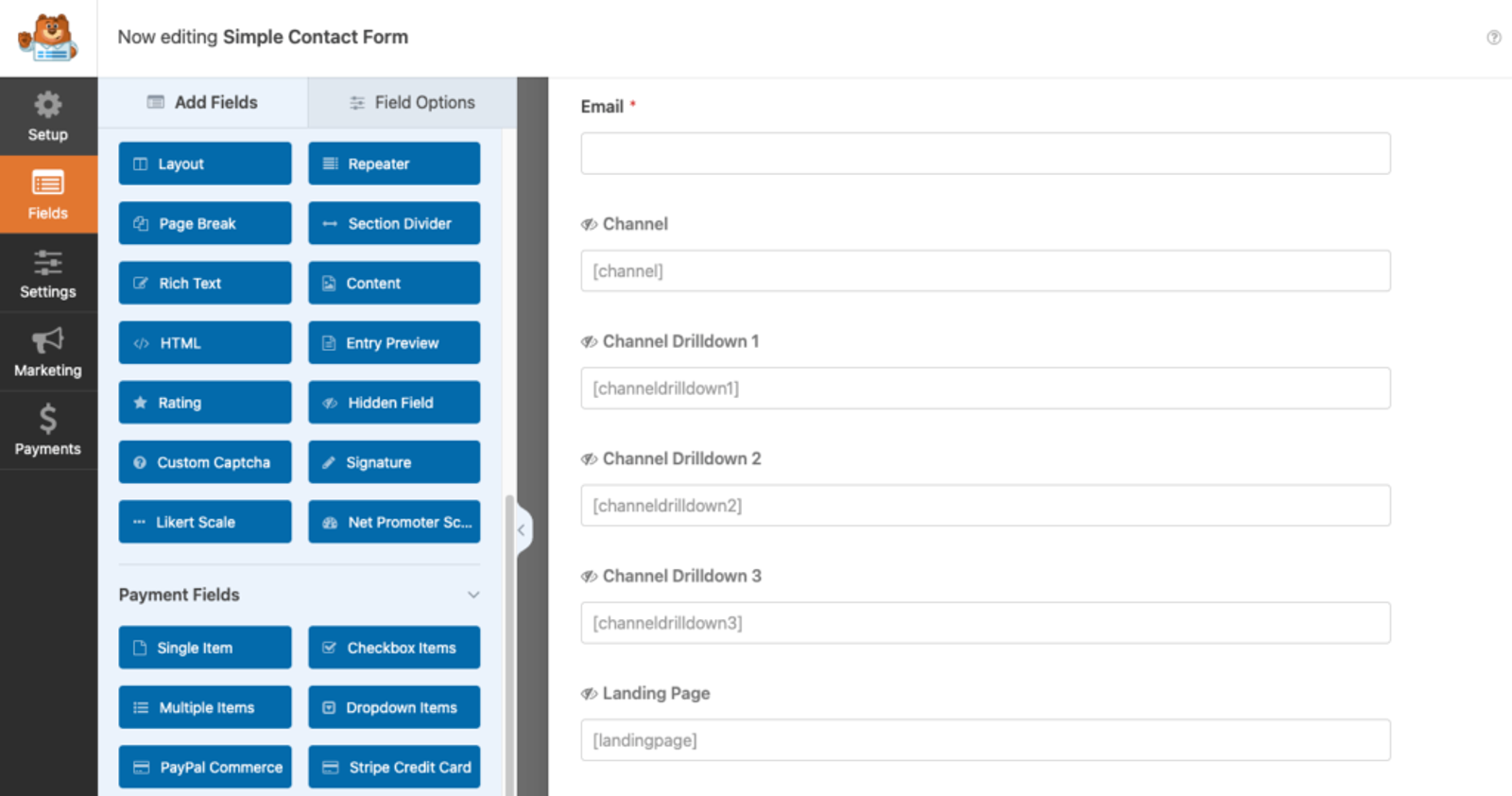
SourceLoop.ai organizes users’ last visit data in the following hidden fields:
channelattribution_sourceattribution_attribution_attribution_termlandingpagelandingpagefolderlastseen
If you want to track first-visit data (in case users have visited your site multiple times in the last 365 days), you can also use the following extra hidden fields:
first_channelfirst_sourcefirst_mediumfirst_campaignfirst_termfirst_landingpagefirst_landingpagefolder- firstseen
5. UTM Parameters Are Passed for Each WPForms Submission
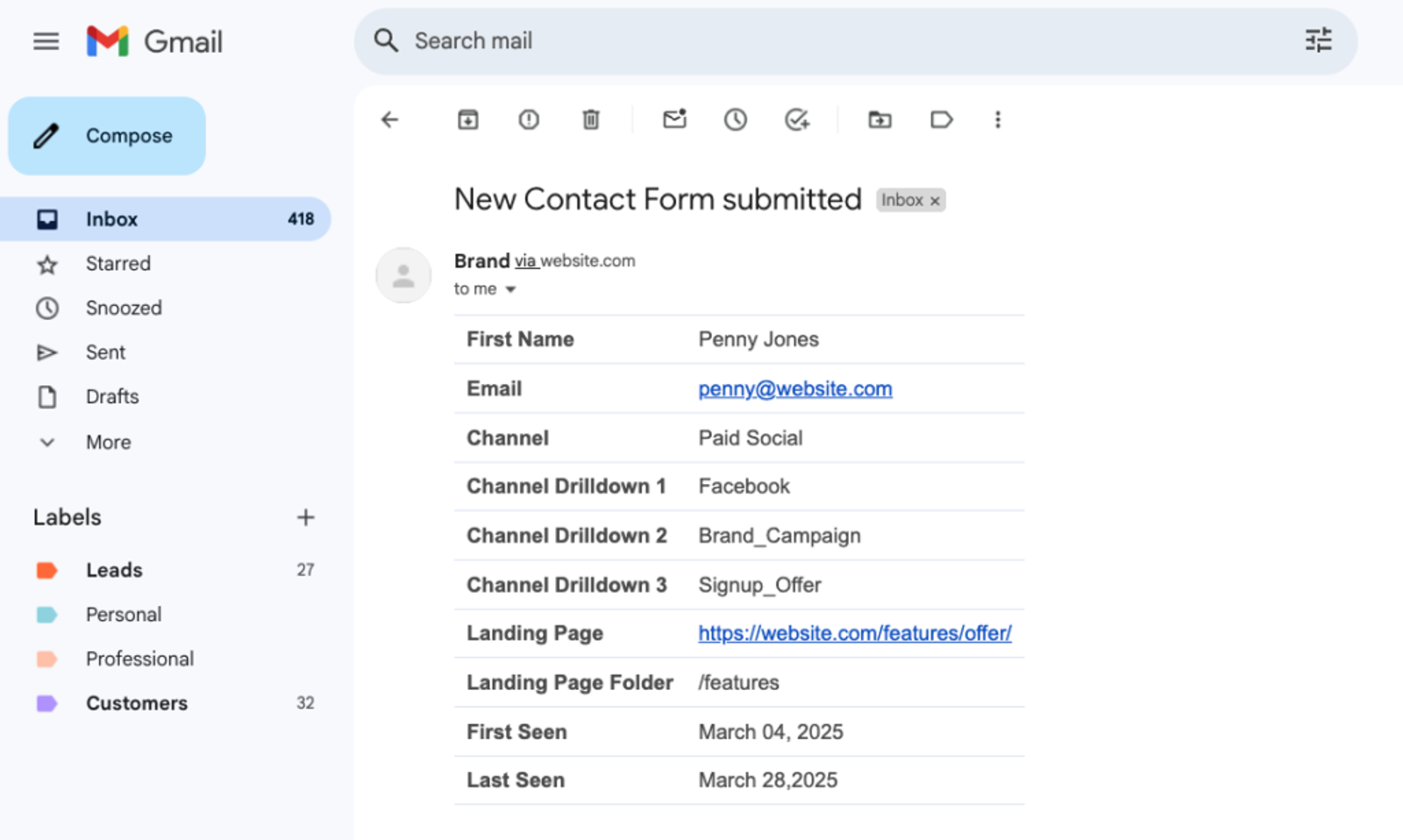
Now, whenever a user fills out your WPForms, SourceLoop.ai finds the hidden fields and passes the UTM information into those fields before they click the submit button.
WPForms offers default integrations with tools like AWeber, MailerLite, Slack, HubSpot, and more. So, if you set up these integrations, you’ll directly receive this data inside those tools.
On top of that, you can use tools like Zapier or Make.com to send your WPForms data to any CRM, analytics platform, Google Sheets, etc.
More Resources:




 Paid Social


